You need a quick, animated visual for a social post, an email, or even a Slack message. You search for an "AI GIF generator," and what you find is a sea of tools designed to create one thing: low-resolution, jittery, reaction-style memes. Your brand deserves better.
The ability to animate static images is becoming mainstream—Adobe just added preset 'Motion Effects' to Firefly in late June 2026. This is a great start, but presets often lack the fine control and brand integration needed for professional work. A GIF isn't just a meme; it's a micro-video and a brand asset. It should have the same quality and consistency as any other visual you produce.
The solution is to stop thinking like a GIF maker and start thinking like a video director. By treating the task as a short, image-to-video workflow, you can create high-quality, subtly animated 'living photos' or cinemagraphs that elevate your content. This workflow lets you turn a static product shot into a polished, looping animation, complete with your brand's watermark, in minutes.
Workflow code: #myup-qtty-nngw
Jewerly Product Ad
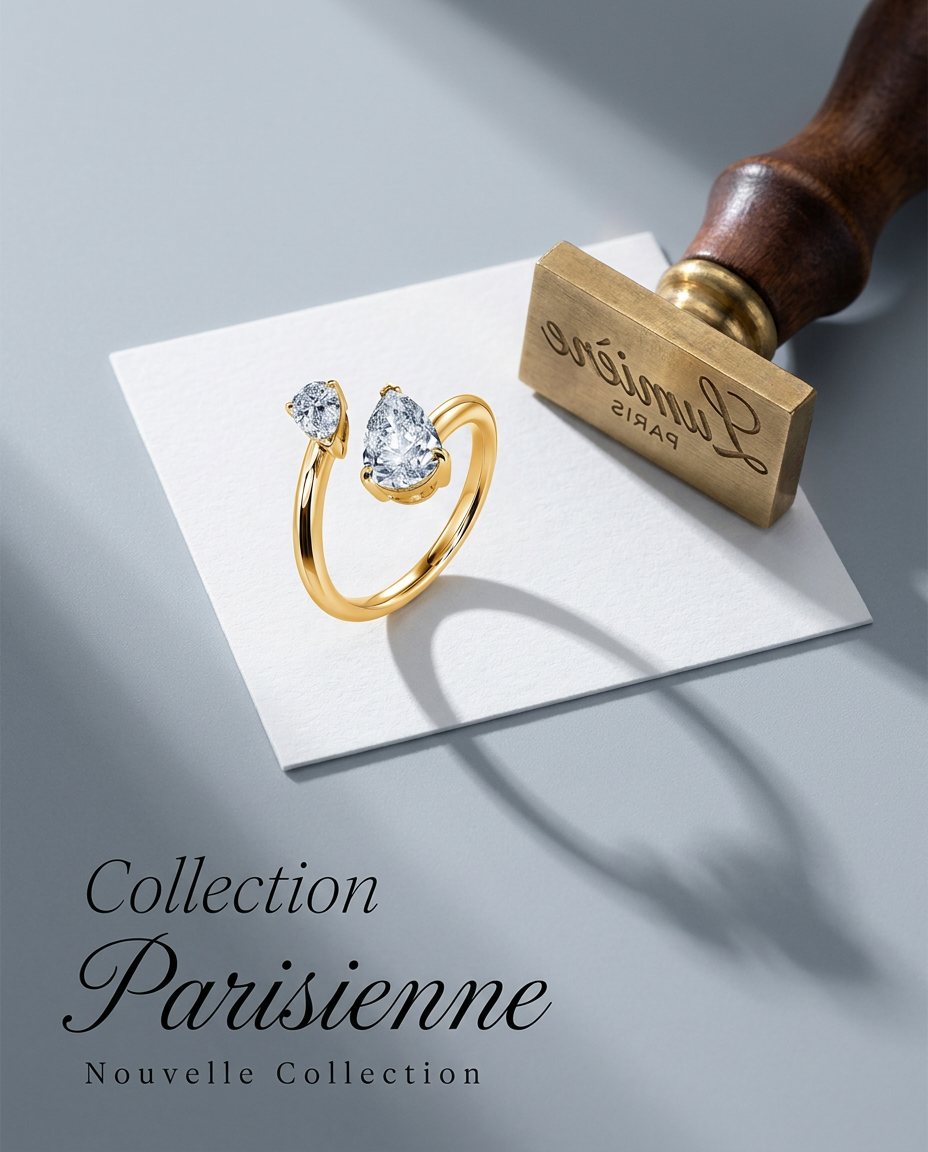
Turn any product into a high-end editorial shot. It drops your item into a clean, flat-lay setup with soft directional light and elegant long shadows against a cool matte gray background.
Regenerate using your own assets.
Why most AI GIFs look cheap (and how to fix it)
The core problem with most GIF generators is that they prioritize speed and file size over quality, leading to tell-tale signs of amateur content. Understanding these technical limitations is the first step to avoiding them.
- Color Compression: The standard GIF format is limited to a palette of 256 colors. For a photorealistic image, this is a massive constraint, resulting in color banding, splotches, and a general loss of detail.
- Low Frame Rate: To keep file sizes small, many tools export at a very low frame rate (around 10-15 frames per second). This is what causes the classic, choppy 'meme' motion, rather than the smooth animation you see in professional video.
- Lack of Motion Control: Preset-based tools offer you a simple choice—'zoom in', 'pan left'—but give you no control over the speed, intensity, or nuance of that motion. The result feels generic and automated, because it is.
Fixing this requires a shift in approach. Instead of prompting a 'GIF', you need a workflow that generates a high-quality video clip from an image, which you then export as a high-resolution GIF. This gives you control over the most important variable: the motion itself. You become the director, deciding on the exact movement that best serves the image, rather than just picking from a list of canned effects.
The workflow: from static product shot to subtle cinemagraph
We'll walk through the process using a common e-commerce task: animating a product photo to make it more engaging for an ad or social media post. The goal isn't dramatic, explosive movement, but a subtle, elegant animation that draws the eye without distracting from the product.
Step 1: Start with a high-quality source image
The quality of your final animation is entirely dependent on the quality of your starting image. An AI video generator can add motion, but it can't fix a blurry, poorly lit, or low-resolution source file. For a professional result, start with a sharp, high-resolution image (at least 1024x1024 pixels). The subject should be clearly in focus with good lighting that defines its shape and texture. If you're creating the source image from scratch with AI, our guide to AI product photography provides a complete workflow for generating stunning, high-quality shots.
Step 2: Direct the motion (you're the director, not the AI)
This is where you gain creative control. Instead of a text prompt like "make this image a GIF," a proper image-to-video workflow gives you specific motion parameters to adjust. MyUP's generator, powered by a Stable Diffusion video model, provides several options:
- Zoom (In/Out): A slow zoom in can add a sense of drama or focus. A slow zoom out can reveal the environment. For a professional look, keep the intensity low.
- Pan (Left/Right/Up/Down): A gentle pan is perfect for landscape shots or for revealing details across a wider product arrangement.
- Orbit (Clockwise/Counter-clockwise): This adds a slight rotational movement, which works well for making a central object feel more three-dimensional.
The key is subtlety. For a high-end jewelry shot, a very slow, almost imperceptible zoom in is far more effective than a fast, jarring pan. You are in control of this choice; the AI executes your direction, and you validate the result. Your Brandkit in MyUP also works automatically, applying your logo as a clean watermark to every frame, ensuring consistency without any manual editing.
Step 3: Exporting for quality and performance
Once you've approved the short video clip, the final step is exporting it as a GIF. Here, you have to balance quality against file size. A high-resolution, high-frame-rate GIF with a full color palette can easily become several megabytes, which is too large for email marketing or fast-loading websites.
Here are some general guidelines:
- For Email Newsletters: Aim for under 1MB. This usually means a width of 600px and a slightly reduced frame rate or color palette. The animation should be simple enough to work well with these constraints.
- For Social Media (Instagram, X): Platforms like Instagram and X will often convert your GIF to a looping video format (like MP4) anyway. You can afford to export a higher quality file, such as 1080px wide with a higher frame rate (24-30 fps), to ensure the platform's conversion looks sharp.
- For Website Heroes: This is where quality matters most. You can use a larger file, but it's still crucial to compress it. Consider exporting as a high-quality GIF and then using a tool like ezgif.com to optimize the file size without sacrificing too much visual fidelity.
Beyond products: other ways to use professional branded GIFs
This image-to-video workflow isn't just for product shots. Once you master the technique of creating subtle, high-quality animations, you can apply it to many other brand assets.
- Data Visualizations: Animate a static chart or graph to make a key data point stand out in a report or presentation.
- Blog Illustrations: Give your blog's hero images a 'living photo' effect to capture reader attention.
- Logo Animations: Create a simple, subtle animation of your logo for use in email signatures or as a loading icon.
- Animated Storyboards: Stitch together a sequence of animated images to pre-visualize a full video ad concept. You can learn more about this process in our guide to the AI storyboard generator workflow.
By treating GIFs as a serious component of your visual strategy and building them with a proper workflow, you ensure every asset, no matter how small, reflects the quality of your brand. It all starts with having your visual identity defined in one place, like a MyUP Brandkit, so consistency becomes automatic.
