An idea for a video ad is exciting. The reality of producing it—the cost, the time, the risk of the final cut missing the mark—is not. Traditional storyboarding is slow and expensive. Randomly prompting an AI image generator is fast but chaotic, yielding a mess of inconsistent styles and characters.
The solution isn’t just a better prompt; it’s a professional workflow. This guide will walk you through a structured, three-step process to generate a complete storyboard for your next ad, turning your initial concept into a coherent visual plan before you spend a dollar on production.
Step 1: Generate the script and shot list from your idea
A great storyboard starts with a solid script, not a vague visual idea. Before you generate a single image, you need a plan that outlines every scene, action, and camera angle. This is where you move from being a prompter to being a director. Instead of guessing at scenes, you can instruct an AI text generator to build the foundation for you.
Start with a simple brief describing your product, target audience, and the core message. Feed this into a text generator within MyUP and ask for a structured output, specifically a shot list formatted as a table. This structured data is the key to an organized workflow.
For example, let's imagine an ad for a fictional energy drink called 'Nova'. Your input could be:
“Generate a script and a detailed shot list for a 15-second social media video ad for 'Nova', a futuristic energy drink that boosts focus for young professionals and gamers. The tone should be sleek and energetic. Format the shot list as a table with columns for Scene, Shot Type, and Action/Description.”
The AI should return a clean, organized table that becomes your production blueprint. It might look something like this:
- Scene 1 / Shot 1: Extreme Close-Up / A can of 'Nova', glistening with condensation. A hand reaches in and grabs it.
- Scene 2 / Shot 2: Medium Shot / A young woman at a futuristic desk, looking focused. She takes a sip from the can.
- Scene 3 / Shot 3: Wide Shot / The woman's holographic computer interface glows brightly, showing complex data visualizations. She smiles, in control.
This shot list isn't just a creative outline; it's a series of precise instructions for the next step of the workflow. You’ve automated the tedious part of pre-production and created a clear, actionable plan.
Step 2: Create your visual 'master prompt' for consistency
The biggest failure of most AI storyboards is inconsistency. The character in frame one looks nothing like the character in frame two. The lighting and color palette shift randomly. A 'master prompt' solves this by defining the visual DNA for your entire project in a single, reusable block of text.
Think of it as your creative brief for the AI. It establishes the non-negotiable rules for every image you generate. A strong master prompt is built from several key components:
- Art Style & Mood: Define the overall aesthetic. Is it `hyperrealistic commercial photography`, `vibrant 2D animation`, `cinematic neon-noir`, or `soft, naturalistic lighting`? Be specific.
- Character & Wardrobe: Describe your main character in detail. Lock in their features, hair, and clothing. For example: `A young woman named Aya, with short pink hair, sharp features, wearing a sleek black jacket with glowing blue trim.`
- Setting & Environment: Detail the location. `A minimalist home office at night, with a large window showing a rain-streaked cyberpunk city skyline.`
- Cinematic Properties: This is where you exert real directorial control. Specify technical details like lens choice and lighting. `Shot on a 35mm lens, shallow depth of field, dramatic key light from the side, cool blue and magenta color palette.`
Combining these elements gives you a powerful master prompt. Every image you generate will start with this block of text, ensuring a consistent world, character, and tone. This moves you beyond basic image generation and into the realm of visual scripting—a key trend among professional creators who demand more granular, cinematic control over their output.
Workflow code: #myup-hyyy-zafs
Commercial Photography
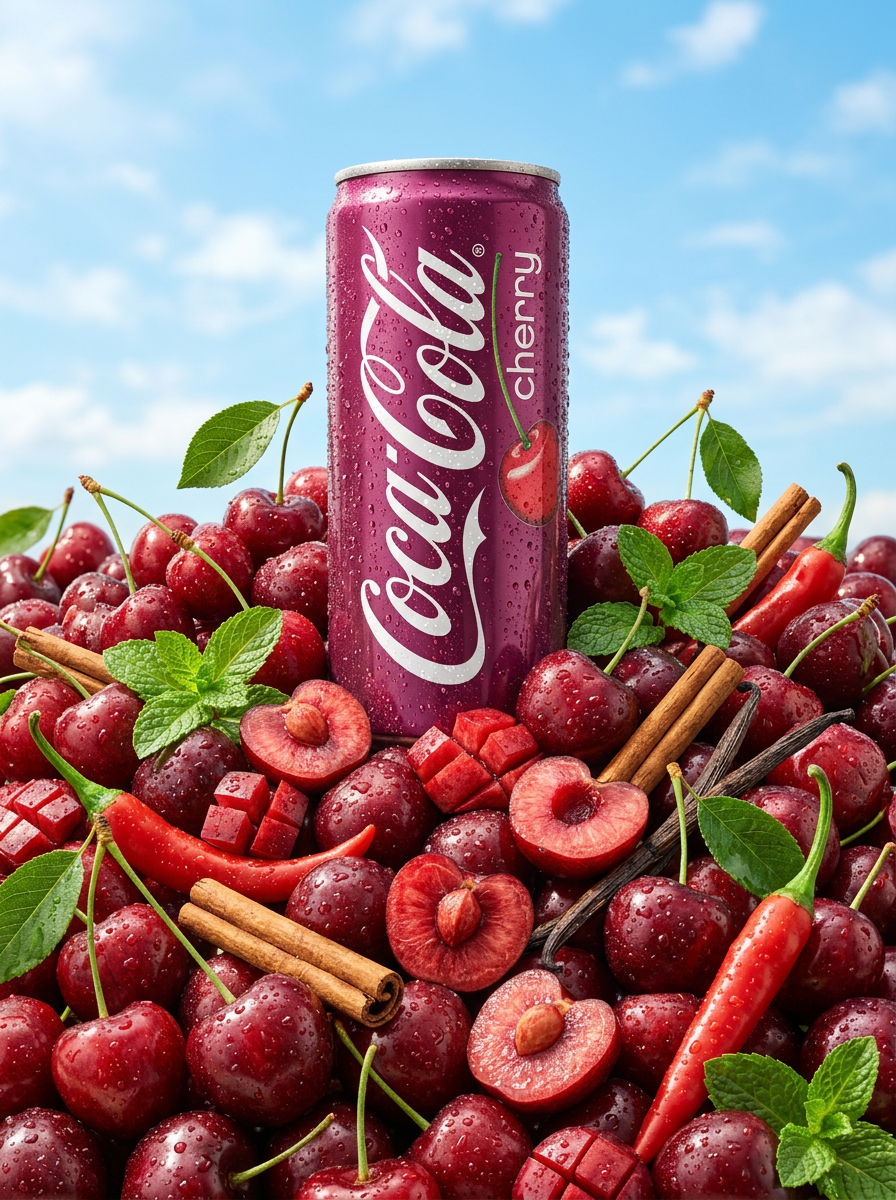
Drop your product into a pile of fresh fruit for an ultra-refreshing summer vibe. It builds dramatic low-angle hero shots against a bright sky, complete with realistic glistening condensation and crisp macro detail.
Regenerate using your own assets.
Step 3: Generate each storyboard frame, one shot at a time
With your shot list prepared and your master prompt defined, the final step is methodical execution. You will now generate each frame of your storyboard by combining your master prompt with the specific 'Action/Description' from your shot list table.
The formula for each generation is simple:
[Your Master Prompt] + [Shot Type from list] + [Action/Description from list]
Let's generate the second shot from our 'Nova' ad. We'll take our master prompt and append the details from our shot list:
“Cinematic neon-noir, shot on a 35mm lens, shallow depth of field, cool blue and magenta color palette. A young woman named Aya, with short pink hair and sharp features, wearing a sleek black jacket with glowing blue trim, sits in a minimalist home office at night with a large window showing a rain-streaked cyberpunk city. Medium shot of Aya at her desk, looking focused as she takes a sip from the can of 'Nova'.”
You repeat this process for every line item in your shot list, systematically building your full storyboard. This methodical approach ensures every frame aligns with your directorial vision. For creators looking to establish a specific visual identity quickly, MyUP workflows like the 'Video Game Style' template can provide a fantastic stylistic foundation for your master prompt. Workflow code: #myup-wkhq-lf45.
How to maintain character and brand consistency
Even with a master prompt, maintaining a perfect character likeness across multiple images can be challenging—it's one of the most common frustrations for creators. The key is absolute consistency in your description. Use the exact same phrasing for your character in every single prompt. Don't say 'a woman with pink hair' in one and 'a girl with a pink bob' in another. The AI will interpret these as different characters.
For critical projects, consider generating a character sheet first. Create a few key poses (front, side, close-up) using your locked-in character description. This helps you refine the description until the AI reliably produces the look you want. Once you have a description that works, use it verbatim every time.
This is a deep topic with evolving techniques. For a more detailed guide on locking down your character's appearance, our complete tutorial on how to create consistent characters in AI video provides a step-by-step process with advanced prompting strategies.
When is an AI storyboard the right tool for the job?
An AI-generated storyboard is a powerful tool for pre-production, but it's important to understand its ideal role. This workflow excels at speed and iteration, making it perfect for specific commercial and creative jobs.
An AI storyboard is the perfect fit for:
- Winning Pitches: Agencies and freelancers can turn a client brief into a stunning visual concept in under an hour, showing a clear vision that a mood board or script cannot match.
- Concept Validation: Marketers can test multiple creative directions for an ad campaign internally before committing to a large production budget. See the ad before you make the ad.
- Creative Alignment: Use the storyboard as a definitive guide for your entire team—from the director to the editor—to ensure everyone shares the same vision before filming begins.
It's not the right tool for:
- Generating Final Video: These are still images designed for planning. They are the blueprint, not the final animated product.
- Perfect Photorealism of Specific People: While AI can create realistic characters, achieving a perfect, consistent likeness of a specific celebrity or CEO without advanced techniques like model training is still a significant challenge.
By using AI for what it does best—rapid visualization and iteration—you can de-risk your video projects, save thousands in production costs, and ensure your creative vision is fully realized from the very first frame.