You generated a static image, fed it into an AI video tool, and the resulting GIF was a flickering, chaotic mess. The entire scene warps, the quality is riddled with compression artifacts, and it looks more like a glitch than a professional marketing asset. This is the common, frustrating outcome of most one-click AI GIF generators.
The problem isn't a lack of powerful AI; it's a lack of control. As of August 2026, the standard for professional motion has shifted. With tools like Runway's Motion Brush Pro setting new expectations, the ability to apply precise, intentional motion to specific parts of an image is no longer a luxury—it's a baseline requirement for quality. Simply making the whole picture move is a sign of an amateurish, outdated workflow.
A GIF used in your marketing is a brand asset, not a meme. It requires the same attention to detail as any other visual. This guide provides the professional workflow to get that control, moving you from chaotic results to clean, high-resolution, and perfectly on-brand animated GIFs using MyUP.ai.
Why most AI GIFs look unprofessional
The core issue with most AI-generated GIFs comes down to three failures: chaotic motion, poor image quality, and a complete lack of branding.
- Chaotic Motion: Basic image-to-video models don't understand creative intent. They apply motion vectors across the entire frame, causing backgrounds to warp, subjects to distort, and static elements to jitter. A professional GIF has intentional movement—the steam rising from a coffee cup, not the cup itself wobbling.
- Poor Image Quality: Free online converters aggressively compress files, resulting in distracting color banding (ugly stripes of color instead of smooth gradients) and pixelated artifacts. The output looks cheap because the process is designed for speed and file size, not visual fidelity.
- Zero Branding: A GIF without your logo, brand colors, or consistent style is just a random animation. It doesn't build brand equity. The best animated assets are instantly recognizable, reinforcing your visual identity, not diluting it with generic output.
A professional workflow solves these problems by treating GIF creation as a multi-stage process, not a single conversion step. It starts with a strong visual foundation and gives you, the creator, final say over what moves and how.
Step 1: Generate a high-quality, on-brand source image
You cannot create a great animated GIF from a poor-quality source image. The final animation will only amplify the flaws of the original. Before you even think about motion, you need a crisp, high-resolution static image that is already aligned with your brand's aesthetic.
This is where a MyUP Brandkit is essential. By building your Brandkit once from a URL or logo, MyUP automatically applies your brand's colors, fonts, and overall style to every image generation. You're not just creating a random picture; you're creating an on-brand asset from the very first step. This ensures the foundation of your GIF is already consistent with your marketing materials, saving you corrective work later. If you haven't set one up, the workflow to turn your logo into a complete brand kit is the right place to start.
To create a visually rich base image with a specific style, you can use a structured workflow. For example, the Y2K Scrapbook Collage Creator template on MyUP can produce a layered, interesting visual that provides multiple elements for selective animation.
Workflow code: #myup-sacz-tjdn
Y2K Scrapbook Collage Creator
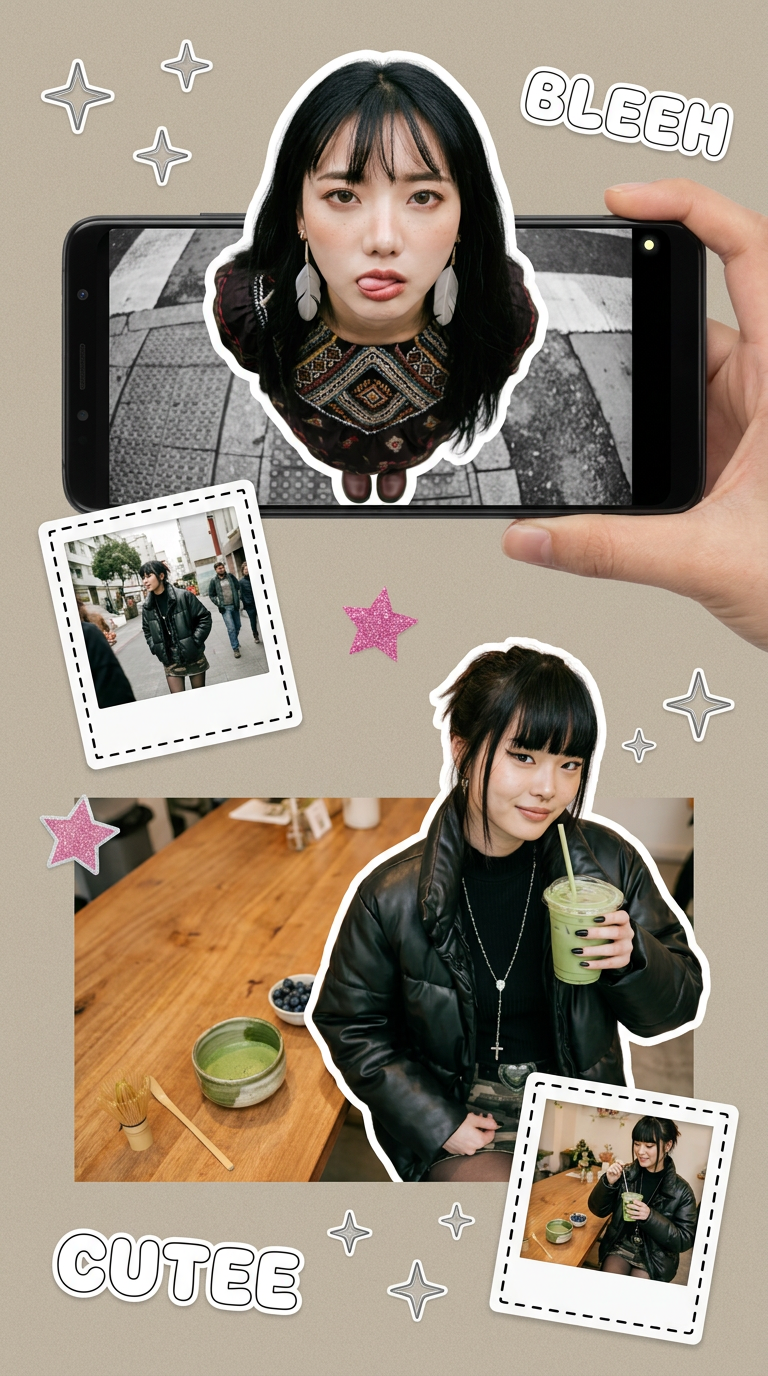
Put two different people into the same scene without losing their real-world features. Just upload two portraits and drop them together into any setting or style you need. It keeps both faces incredibly accurate.
Regenerate using your own assets.
Step 2: Animate with controlled, intentional motion
This is the step where you take back control from the chaotic 'animate everything' approach. In MyUP, you can guide the AI to apply subtle, specific motion instead of letting it run wild. The goal is to create a believable, engaging animation, not a dizzying video.
Instead of a generic 'animate' button, the MyUP workflow allows you to define the motion's intensity and character. Think about what should logically be moving in your scene:
- Is it a product shot of a drink? Animate the condensation on the glass, not the glass itself.
- Is it a landscape? Animate the clouds drifting slowly or the leaves on a single tree rustling.
- Is it a flat lay? Create a gentle pull-focus effect or a slow drift across the scene.
This is the core of the modern animation workflow: the user directs, and MyUP executes. You make the creative decision about where the viewer's eye should be drawn, and the platform handles the complex task of generating smooth motion vectors for just that area. The result is an animation that feels deliberate and professional, enhancing the image rather than overwhelming it.
Step 3: Add branding and export a high-resolution GIF
An unbranded animation on your social feed is a missed opportunity. The final step is to layer your brand identity onto the animated asset and export it without losing quality. Because you started with your Brandkit in MyUP, your logo, brand fonts, and color palette are already available. You can add a crisp, high-resolution logo overlay that remains sharp and stable, even as the image animates behind it.
This solves a common problem where logos or text added with external tools become pixelated or jittery after being compressed into a GIF. By integrating branding within the same workflow, MyUP ensures all elements are rendered together cleanly. Templates like Product Stickers are designed specifically for creating these kinds of vibrant, on-brand graphic elements to overlay on your content.
Workflow code: #myup-swqt-4zo3
Product Stickers
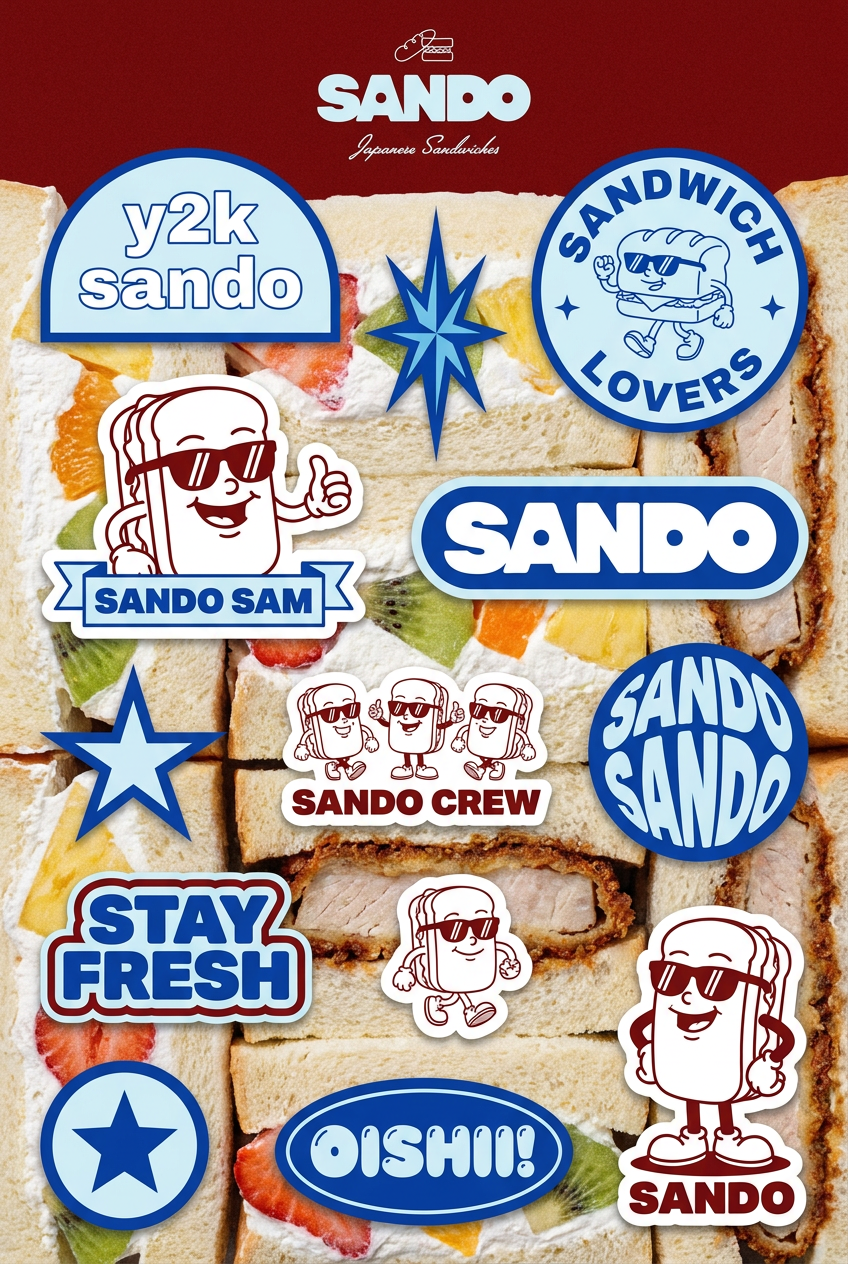
Turn your logo into a nostalgic, vibrant Y2K-style vertical ad. It automatically pulls your brand colors to create matching sweet treats like custom donuts or cupcakes in the background, giving you a super playful retro-pop aesthetic.
Regenerate using your own assets.
When you export, choose a high-resolution GIF format. MyUP processes the animation to maintain color depth and minimize artifacts, giving you a file that looks just as good in an email campaign or on a high-density screen as it did in the editor.
Advanced technique: Creating seamless loops and unique styles
A truly professional GIF doesn't just look good—it loops perfectly. A seamless loop, where the last frame transitions invisibly back to the first, keeps the viewer engaged without a jarring 'jump'. This is a key differentiator between a marketing asset and a low-effort reaction GIF. You can achieve this in MyUP by carefully considering the motion you apply; a continuous, steady drift or a repeating pattern like gentle waves will loop far more effectively than erratic movement. For a deeper dive, our guide to creating seamless loops provides a dedicated workflow.
Furthermore, to escape the generic 'AI look', you can use prompts to bake a unique aesthetic into your source image. As creators increasingly look for analog textures, you can add prompts like 'risograph print texture', 'subtle film grain', or 'dust and scratches' to give your animation a distinct, less digital feel. This makes your content stand out in a feed full of overly smooth AI visuals. The Vintage Risograph Event Poster template is a perfect example of a workflow built around this kind of tactile, analog aesthetic.
Workflow code: #myup-3xus-3l9x
Vintage Risograph Event Poster
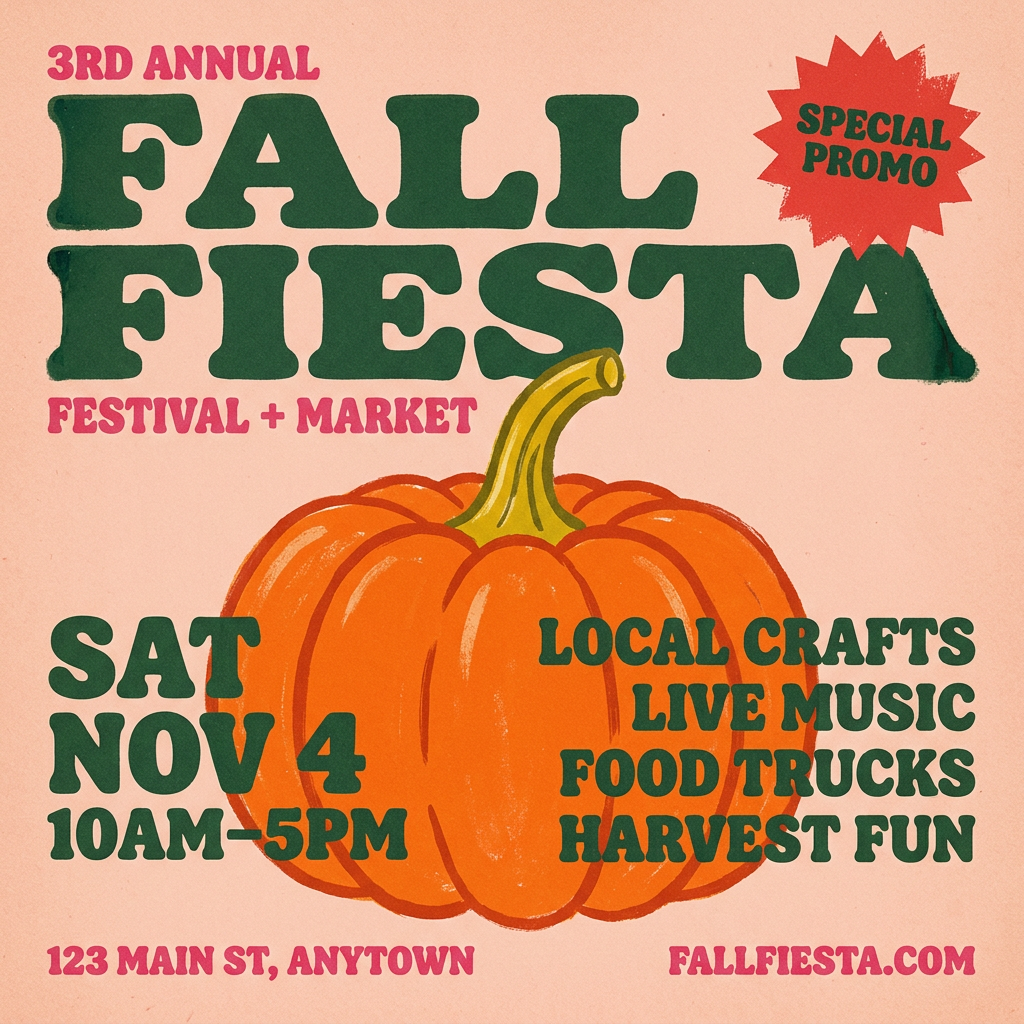
Turn any announcement into a gritty, tactile gig poster. It layers your text with an uneven letterpress ink texture over a dusty, warm pink risograph paper background. It’s perfect for giving social posts a real analog, screenprinted vibe.
Regenerate using your own assets.
A GIF is a brand asset, not just a reaction
The difference between an amateur GIF and a professional one is a workflow built on control, quality, and consistency. Stop feeding your brand's images into free online converters that degrade them. By adopting a process that prioritizes a high-quality source image, intentional motion, and integrated branding, you can create animated assets that actively build your brand's reputation.
MyUP provides this entire workflow on a single platform. From generating visuals with your Brandkit to applying controlled animation and exporting a high-resolution final product, you have the tools to produce marketing-grade GIFs that work, every time. The user provides the creative direction; MyUP handles the production.
