You’ve spent countless hours building a unique community and a recognizable brand for your stream. You have custom emotes, a specific color scheme, and a personality that’s all your own. So why, when someone follows or subscribes, does an alert pop up that looks like it came from a free template pack used by a thousand other streamers? That visual disconnect breaks the immersion and cheapens the brand you've worked so hard to create.
Generic alert makers and template libraries are a temporary fix, not a brand asset. They limit your creativity and make your stream look interchangeable. The new standard for AI video, established in late 2026 with capabilities like style locking, has moved beyond simple generation. The real power is in consistency. This guide walks you through a generative workflow inside MyUP.ai to create a full set of truly custom, on-brand animated alerts from your own assets, giving you infinite creative control.
Step 1: Lock in your identity with a Brandkit
Before you generate a single animation, you need a source of truth for your visual identity. Without it, every AI generation is a roll of the dice, leading to inconsistent colors and styles. Your brand is your biggest asset; don't leave it to chance.
This is where the MyUP Brandkit becomes the control center for your entire stream package. Instead of manually inputting hex codes or uploading fonts for every project, you create your Brandkit once. Just give MyUP your Twitch channel URL, and it automatically pulls your logo, color palette, and fonts, locking them in. From this point forward, every asset you create—from static images to video animations—will automatically reference this Brandkit. The AI executes the production, but you maintain full control over the brand identity. This foundational step ensures that your 'New Follower' alert has the exact same shade of purple as your 'Raid' alert.
Step 2: Generate your core visual asset
Your animation needs a subject. This isn't about animating text; it's about bringing a core piece of your brand to life. This could be your logo, a channel mascot, or a specific icon that represents your community. The goal is to create a clean, high-quality static image that will serve as the foundation for the motion.
Using your MyUP Brandkit, you can prompt the AI to generate variations of your core asset in different styles until you land on the perfect one. For example, you might want to create a sticker version of your mascot with a distinct aesthetic. The user's job is to validate this visual—once you approve the static image, MyUP is ready to handle the animation.
For a stylized, retro look that pops on screen, a Y2K-inspired sticker is a great starting point. This workflow helps generate that core graphic with your brand colors automatically applied.
Workflow code: #myup-swqt-4zo3
Product Stickers
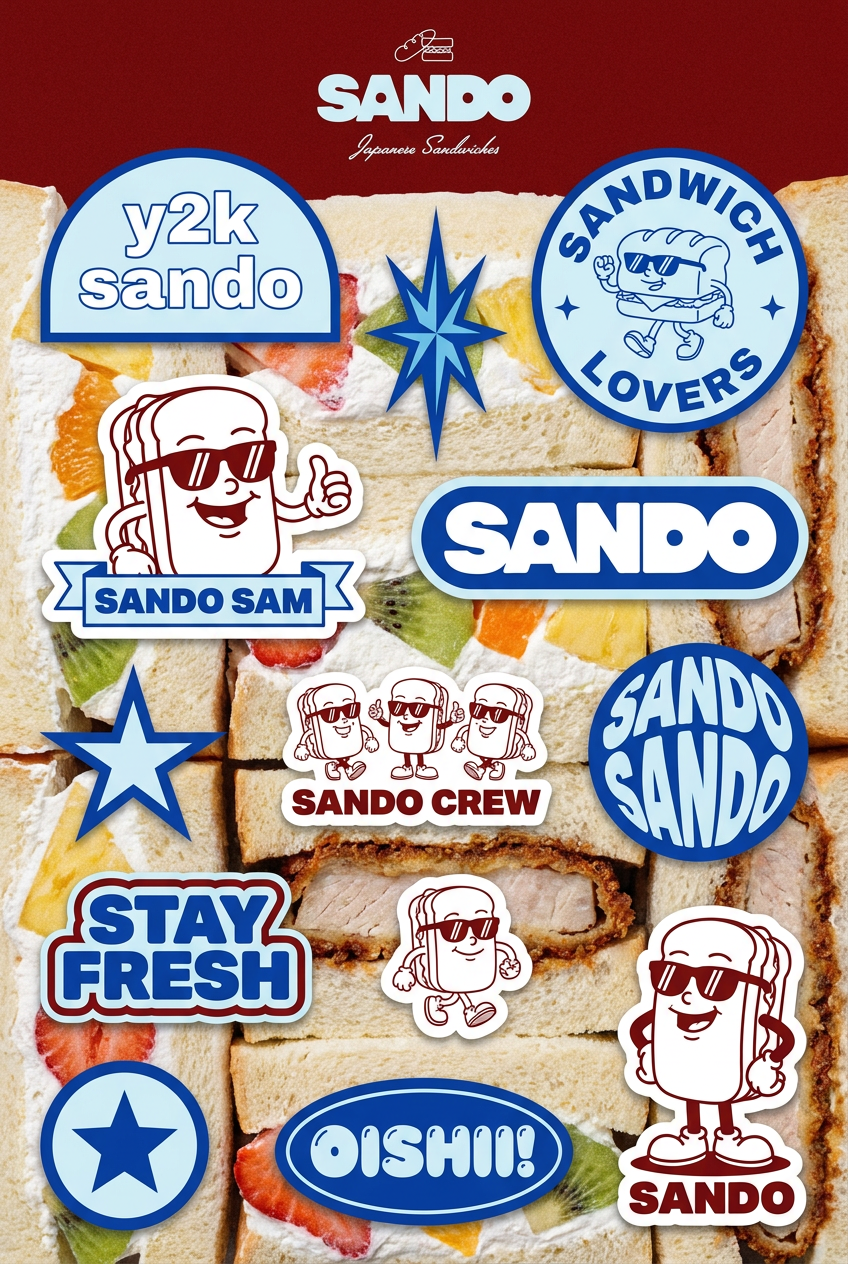
Turn your logo into a nostalgic, vibrant Y2K-style vertical ad. It automatically pulls your brand colors to create matching sweet treats like custom donuts or cupcakes in the background, giving you a super playful retro-pop aesthetic.
Regenerate using your own assets.
Step 3: Prompting the animation
With your static asset approved, it's time to add motion. In MyUP’s AI video generator, you can upload your image and use simple text prompts to direct the animation. The key is to be descriptive and think about the feeling you want to convey for each alert.
Here are a few prompt structures that work well for alerts:
- For a 'New Follower' alert: “Animate this logo with a soft, welcoming pulse effect, glowing gently.”
- For a 'New Subscriber' alert: “Animate this character waving excitedly to the camera, with celebratory sparkles appearing around it.”
- For a 'Raid' alert: “Animate this icon spinning rapidly and then bursting outwards, with energetic motion trails.”
Focus on short, looping animations (2-4 seconds) that grab attention without overstaying their welcome. Because you’ve set up your Brandkit, the AI will ensure any generated effects, like sparkles or motion trails, use your brand's color palette. MyUP handles the rendering; you just provide the creative direction.
Step 4: Create a full set of alert variations
The real power of a generative workflow is its repeatability. Once you have your core animated asset, creating a cohesive set for every stream event is simple. You don't have to start from scratch. Use the same static image and slightly modify your animation prompt for each specific alert type (Donation, Bits, Host, etc.).
This is where you can storyboard your ideas. A collage creator can help you visualize how different alerts will look side-by-side, ensuring the entire family of alerts feels consistent in style and character, even if the animations differ. This workflow lets you drop in different characters or icons to see how they look together in a single, unified composition.
Workflow code: #myup-sacz-tjdn
Y2K Scrapbook Collage Creator
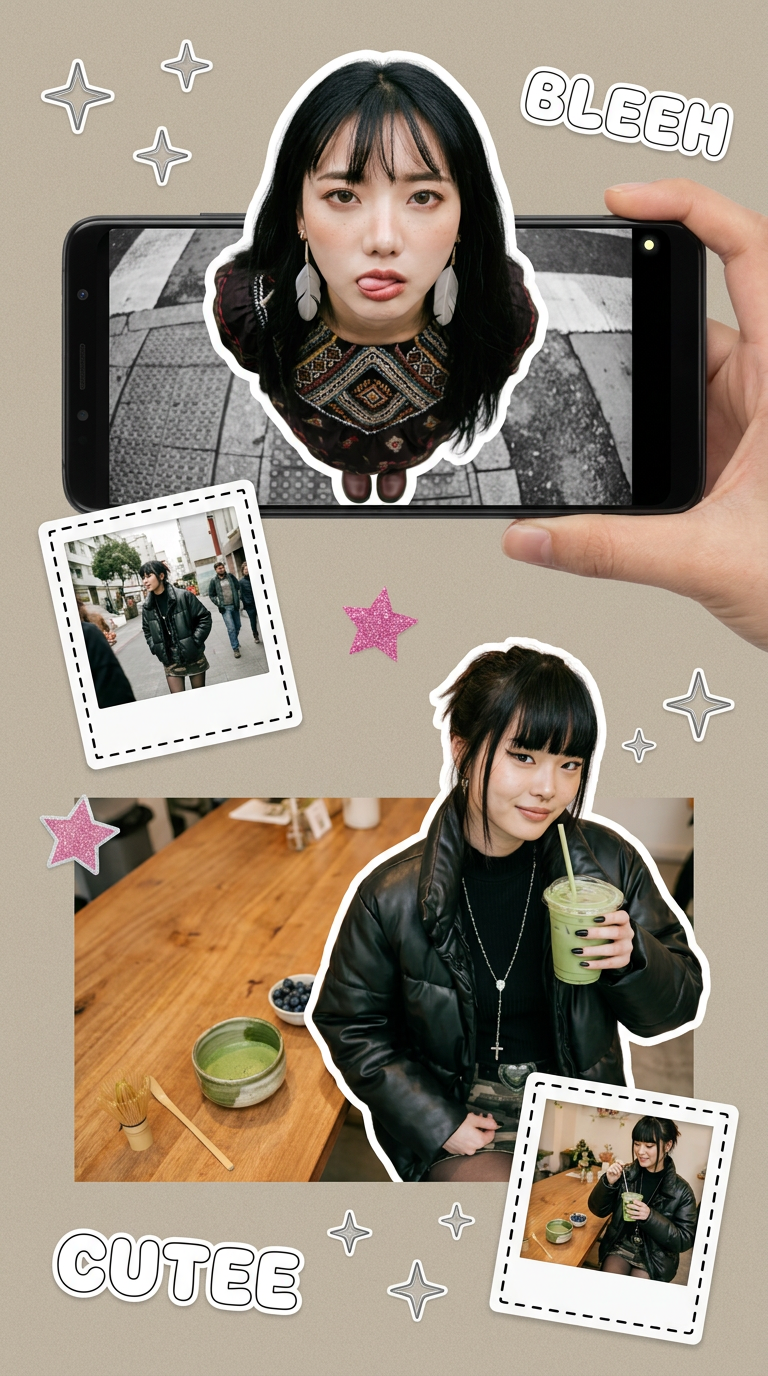
Put two different people into the same scene without losing their real-world features. Just upload two portraits and drop them together into any setting or style you need. It keeps both faces incredibly accurate.
Regenerate using your own assets.
Step 5: The hybrid workflow for adding text
Let's be practical: as of late 2026, generative AI video models are fantastic at motion and style, but they still struggle to render clean, dynamic text that changes with every alert (like a username). Forcing the AI to do this often results in warped or illegible letters. Pros don't fight the tools; they use them for what they're good at.
The solution is a simple hybrid workflow:
- Generate your looping animation in MyUP without any text. Export it as a video file with a transparent background (or on a green screen background you can key out).
- In your streaming software (like OBS, Streamlabs, or StreamElements), add this video file as a media source for your alert.
- Overlay the dynamic text (e.g., “{name} just subscribed!”) using your streaming software’s built-in text tools.
This approach gives you the best of both worlds: a unique, AI-generated animation and crisp, perfectly rendered text. It shows you're using AI as a professional production tool that fits into a real-world creator setup.
Beyond alerts: Applying the workflow to your entire stream package
This workflow isn't just for alerts. The same principles apply to your entire visual package. You can use your Brandkit and core assets to generate a whole suite of on-brand motion graphics:
- 'Starting Soon' screens: Animate your logo or mascot in a slower, more hypnotic loop.
- 'Be Right Back' loops: Create a simple scene featuring your brand elements with subtle, continuous motion.
- Stinger transitions: Generate a fast, full-screen animation that serves as a wipe between scenes.
By reusing your Brandkit and core animation concepts, you ensure every visual element of your stream feels connected. This elevates your channel from a hobbyist stream to a professional broadcast with a clear, memorable brand identity. You can even generate matching static assets, like event posters for special streams, using the same brand identity.
Workflow code: #myup-xbur-hzoi
Bold Retro Yellow Event Poster
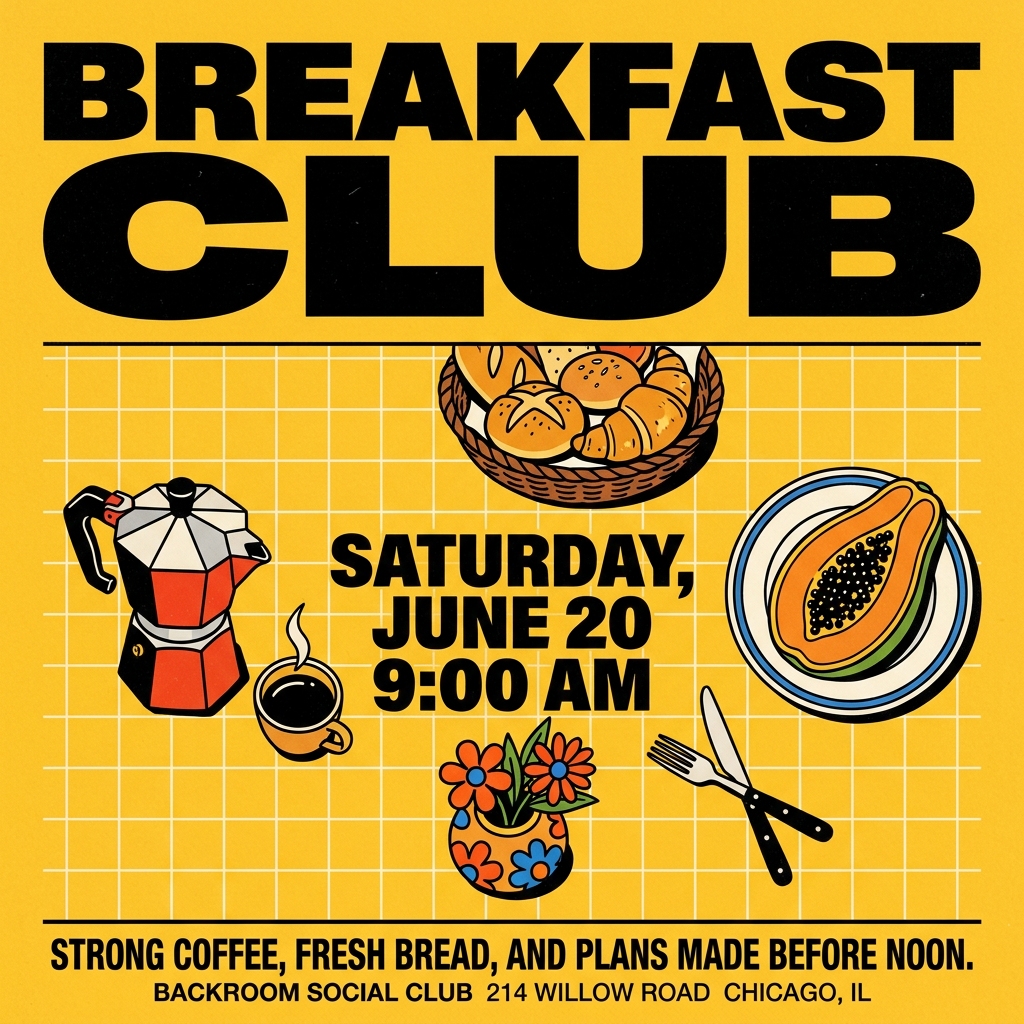
Turn your branding or event details into bold, nostalgic posters. It blends vibrant warm backdrops with a clean, retro square grid pattern to make any announcement look like a classic piece of mid-century graphic design.
Regenerate using your own assets.
