In August 2026, Meta AI released Emu Video, and social feeds were suddenly filled with mesmerizing, perfectly looping animations. The seamless loop went from a niche motion design skill to the new public standard for quality. If you've tried using an AI animated GIF generator recently, you know the reality: most outputs are a jerky, pixelated mess. That jarring jump-cut at the end of the loop doesn't just look bad; it makes your brand feel dated and unprofessional.
The problem isn't the idea; it's the workflow. Most creators are feeding a static image into a simple 'image-to-video' tool and hoping for the best. That's a recipe for failure. To create a high-resolution, on-brand animated GIF that meets the new standard, you need a workflow built on control, not chance. Here’s how to do it on MyUP.ai.
Why most AI GIFs fail: the three common mistakes
Before fixing the process, you have to diagnose the problem. Most AI-generated GIFs fail for three specific reasons that free online converters and basic tools can't solve.
- The jarring jump-cut. The most obvious failure is a loop that doesn't loop. The last frame bears no resemblance to the first, creating a visual stutter that breaks the illusion. This happens when the AI is given too much creative freedom and not enough directional control, resulting in chaotic, unpredictable motion.
- Compression artifacts and low resolution. To keep file sizes small, free tools aggressively compress your GIFs. This introduces ugly visual noise, banding in gradients, and a general pixelated look that screams low-quality. A brand asset for a marketing campaign cannot afford to look like a low-res meme from a decade ago.
- Generic, off-brand motion. A luxury brand needs subtle, elegant motion. A gaming brand needs high-energy, dynamic movement. Most AI tools apply a one-size-fits-all animation style that ignores brand identity entirely, producing content that feels disconnected and generic.
A professional workflow solves all three issues by giving you—the creator—control over the entire process, from the source image to the final, branded export.
Step 1: Design a source image that's built to loop
A great animation starts with the right foundation. You can't just grab any photograph and expect it to loop seamlessly. The best source images for looping animations often feature textures, patterns, or abstract scenes where the edges are less defined. Think of flowing water, drifting clouds, or a field of grass. These images don't have a clear narrative beginning or end, which makes them perfect for creating a continuous motion effect.
A busy, visually dense image gives the animation model more to work with for subtle movements. Creating a rich digital collage is an excellent way to build a source image that feels alive and is primed for animation. Instead of spending hours in Photoshop, you can use a dedicated workflow to generate these complex compositions quickly.
Workflow code: #myup-sacz-tjdn
Y2K Scrapbook Collage Creator
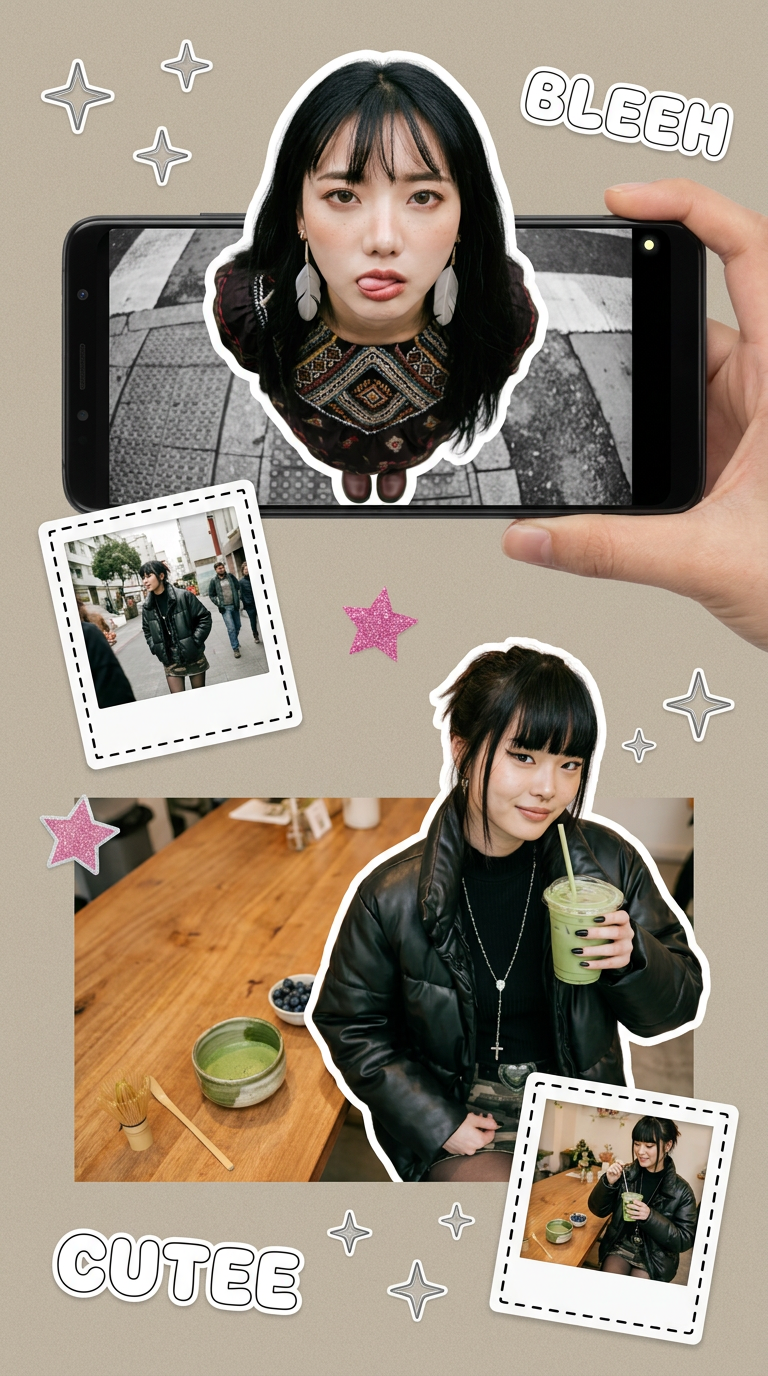
Put two different people into the same scene without losing their real-world features. Just upload two portraits and drop them together into any setting or style you need. It keeps both faces incredibly accurate.
Regenerate using your own assets.
This MyUP workflow lets you build a layered, textured scrapbook-style collage. The resulting image is visually interesting and lacks a single focal point, making it an ideal canvas for a 'gentle pan' or 'subtle zoom' animation that loops perfectly.
Step 2: The animation workflow for controlled, subtle motion
This is where you take back control from the AI. Instead of a vague 'animate this image' prompt, the key to a seamless loop is precise motion control. In the MyUP AI Video generator, you can direct the camera and the subject's movement with specific commands. This ensures the motion is predictable and the final frame can easily connect back to the first.
Your goal is to create subtle, repeatable motion. Avoid prompts that describe complex actions. Instead, use camera-centric language:
- 'Subtle slow zoom in'
- 'Gentle pan right'
- 'Drifting parallax effect, background moving slower than foreground'
- 'Slowly rotating clockwise'
These prompts produce a controlled, linear movement. When the video is looped, the motion feels continuous rather than resetting with a jarring cut. MyUP executes the technical production; you validate the result and adjust the motion prompt until it matches your creative vision. This is the core of a professional workflow, moving beyond simple generation to deliberate creation, a topic we also explore in our guide to creating AI animated text that actually works.
Step 3: Add your brand and export a high-resolution GIF
An unbranded animation is just a piece of stock content. The final step transforms your looping visual into a valuable brand asset. Using the MyUP editor, you can overlay your logo, a call-to-action, or other brand elements directly onto your video before exporting it as a GIF. Because this happens within a single platform, you maintain full quality control.
MyUP's Brandkit ensures this process is consistent every time. It saves your logos, colors, and fonts, so you can apply them to any asset with one click. For more dynamic branding, you can even generate on-brand graphical elements like stickers to integrate into your animation.
Workflow code: #myup-swqt-4zo3
Product Stickers
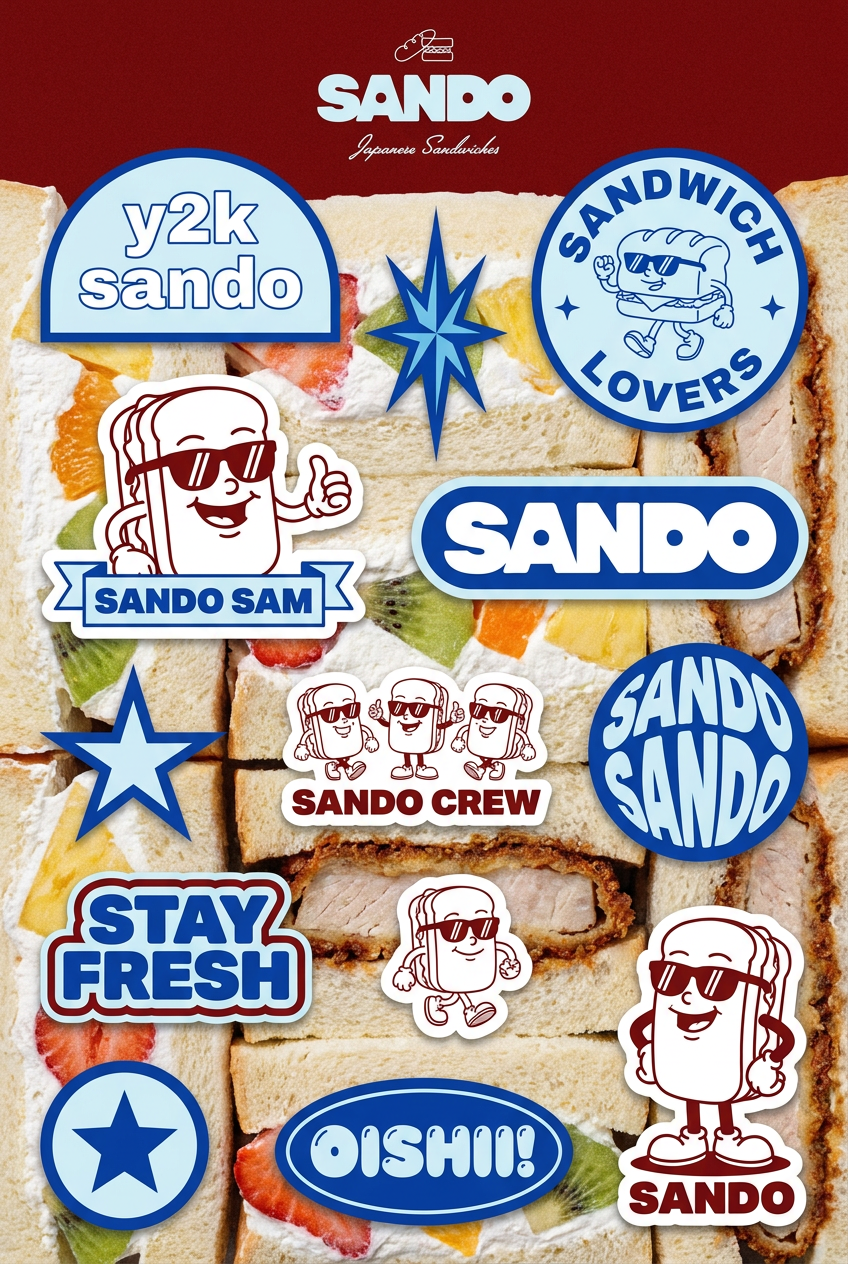
Turn your logo into a nostalgic, vibrant Y2K-style vertical ad. It automatically pulls your brand colors to create matching sweet treats like custom donuts or cupcakes in the background, giving you a super playful retro-pop aesthetic.
Regenerate using your own assets.
Once your branding is in place, the final step is exporting. Unlike online converters that force heavy compression, MyUP gives you control over the export settings, allowing you to produce a high-resolution GIF that looks crisp and professional in any marketing email or social media feed. This is the crucial last mile that separates a polished brand asset from a disposable meme.
A GIF is a brand asset, not a meme
The seamless loop trend sparked by Meta's Emu Video isn't just about a cool effect; it's about a rising standard of quality in digital content. A jerky, pixelated GIF doesn't just fail to engage; it actively detracts from your brand's perceived value. By adopting a professional workflow—starting with a loop-ready source image, using controlled motion prompts, and applying consistent branding—you can create sophisticated micro-content that captures attention and enhances your brand identity. Stop wrestling with free tools and start directing your creative production on MyUP.ai.
