If you’ve been on X (formerly Twitter) in the last 48 hours, you’ve seen them: the wave of melting, warping, and frankly, unrecognizable logo animations. A new feature in Midjourney, released around July 2, 2026, sparked a viral trend of creators feeding their logos into AI video models. The results are a perfect demonstration of a critical problem: most generative AI tools are built to reimagine, not preserve.
For creative exploration, that’s exciting. For your brand, it’s a disaster. Your logo is not a suggestion. It’s a carefully crafted asset, the core of your visual identity. When an AI “reinterprets” it, it erodes brand recognition and looks unprofessional. This tutorial shows you the professional workflow for creating clean, controlled logo animations that enhance your brand, not erase it.
You’ve seen the melting logos. Here’s why it’s happening.
The fundamental issue is that most image-to-video AI models don't see your logo as a fixed asset. They see it as a collection of pixels and concepts—a prompt to inspire a new creation. They deconstruct the source image and then try to render a video that matches the *idea* of your logo in motion. This process, by its nature, introduces warping, color shifts, and structural changes. It’s why text becomes garbled and clean lines turn into liquid swirls.
This is a feature, not a bug, of creative generative models. But for brand content, you need the opposite. You need a system that treats your logo as a non-negotiable element and applies controlled transformations *to* it, without altering its core structure. This is the difference between a creative experiment and professional content production.
The professional workflow for brand-safe logo animation
At MyUP, we believe your brand integrity is paramount. Our platform is designed for control and consistency, ensuring the AI executes your vision, while you validate the results. The workflow for creating a brand-safe logo animation is simple and repeatable:
- Lock your logo as a source of truth. Instead of uploading your logo for every project, you establish it once in a central Brandkit.
- Choose controlled motion. You define the animation style with simple, clear instructions for subtle motion, not chaotic generation.
- Execute with a workflow. You use a template or workflow to apply this animation consistently across different video formats, from social posts to product ads.
Let's walk through each step inside MyUP.ai.
Step 1: Make your logo the single source of truth with a Brandkit
Consistency starts with having one correct version of your assets. A MyUP Brandkit is a centralized home for your visual identity. You upload your high-resolution logo (in SVG or PNG format), define your brand colors and fonts, and save it. From that point on, any workflow you run on MyUP will automatically pull the correct logo and apply the right colors.
This simple step eliminates the risk of a team member using an old, low-res, or incorrect version of the logo. It becomes the locked, official asset for all AI content creation, from static images to video. It's the foundation for turning a simple logo into a complete brand identity that your entire team can use.
Step 2: Choose your animation style: subtle motion that respects your brand
The key to a professional logo animation is subtlety. You want to add just enough motion to catch the eye without distracting from the brand mark itself. Instead of prompting for “an epic, explosive animation of my logo,” which invites the AI to distort it, you should use prompts that describe simple camera movements or effects. In MyUP's video generator, these controlled transformations work beautifully:
- Fades: "Logo fades in slowly against a black background."
- Drifts/Pans: "Logo drifts slowly from left to right."
- Reveals: "A clean white line reveals the logo from top to bottom."
- Subtle Zooms: "A very slow zoom in on the logo."
This approach maintains absolute control over the logo's form. The AI isn't re-drawing your logo; it's simply moving the source file from your Brandkit within the video frame. This is how you get the clean, controlled results you see in professional video intros and outros.
Step 3: Put your animated logo to work in social posts and ads
Once you have a clean, simple animation, you can use it as a building block for all your video content. A logo reveal makes a perfect intro for a social media post, an ad, or a YouTube video. In MyUP, you don't have to build these assets from scratch every time. You can use a workflow that automatically incorporates your Brandkit and animated logo into a finished piece of content.
The 'Product Brand Post' workflow, for example, is designed to create a polished social video. It starts with your animated logo, transitions to your product, and applies your brand colors and fonts throughout. It's the perfect way to put your new, distortion-free animation to work immediately.
Workflow code: #myup-kbgo-tlle
Product Brand Post
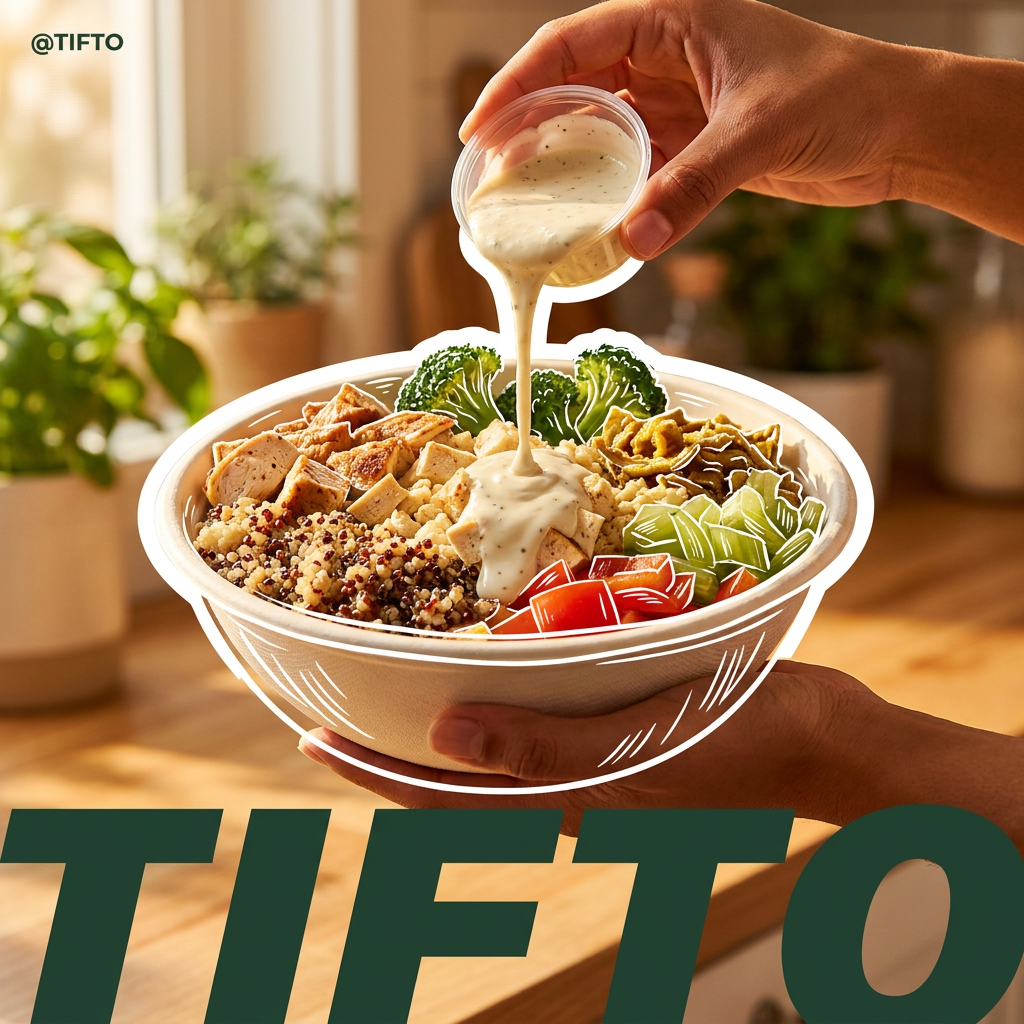
Drop in your product to generate a cohesive nine-post Instagram grid. It blends warm lifestyle photography and flat-lay packaging with bold hand-drawn doodles, collages, and urban billboard mockups. Everything automatically styles itself to your brand's colors.
Regenerate using your own assets.
Create a high-impact product video with your animated logo
The same principle applies to more ambitious video projects. A clean logo animation serves as a professional bookend for product advertisements, providing a consistent opening and closing that reinforces brand recognition. You can use it to create a classic logo sting that appears at the end of your video, leaving a lasting impression.
To build this, the 'Studio Product Ad' workflow in MyUP is ideal. It helps you generate a high-quality video showcasing your product, and you can easily configure it to begin or end with your animated logo. The workflow handles the production; you simply provide the product details and approve the final result. This ensures every ad you produce is not only visually compelling but also perfectly on-brand.
Workflow code: #myup-u4lt-o0ho
Studio Product Ad
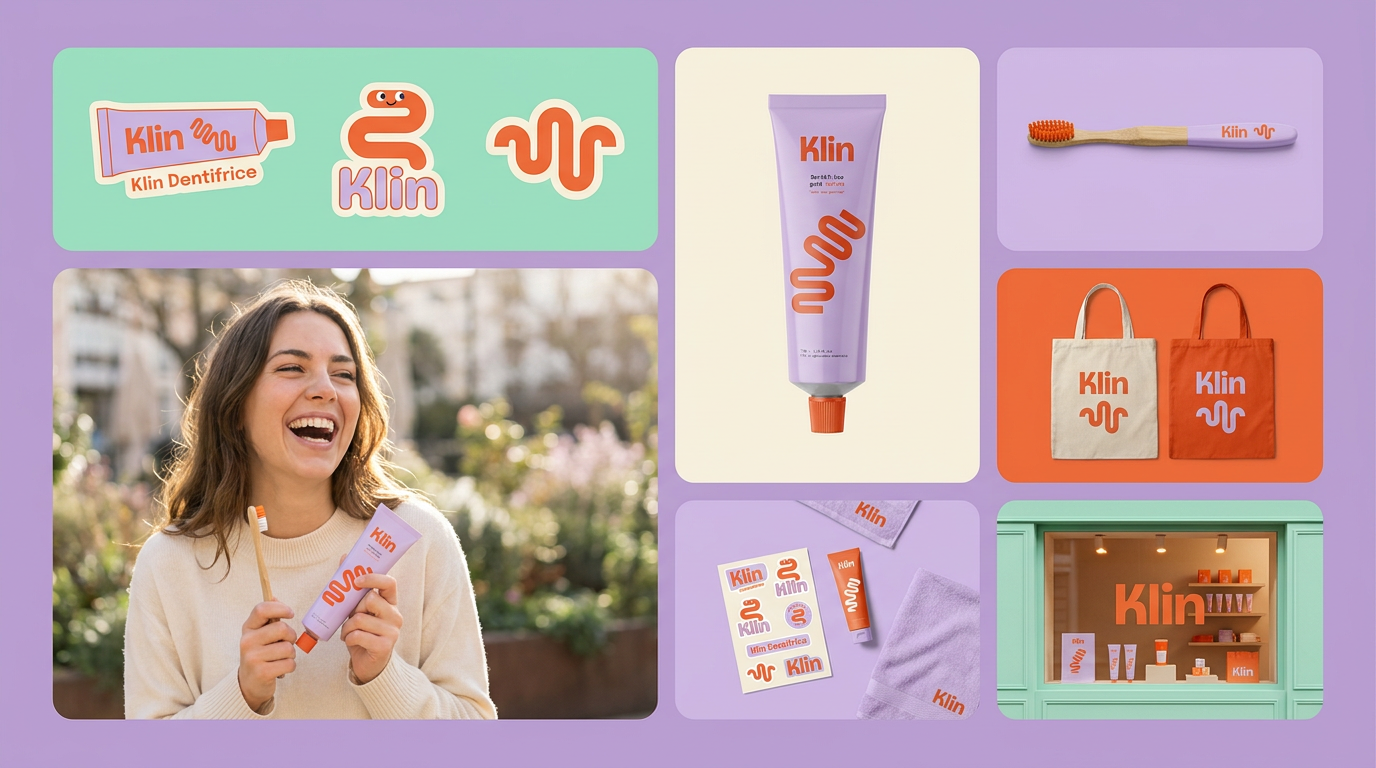
Drop in a single product photo to instantly build a cohesive visual identity. It automatically samples your item's dominant colors to generate a beautifully matched mosaic moodboard, giving your brand an instant, polished aesthetic.
Regenerate using your own assets.
Workflow code: #myup-aon6-zvop
Studio Product Ad
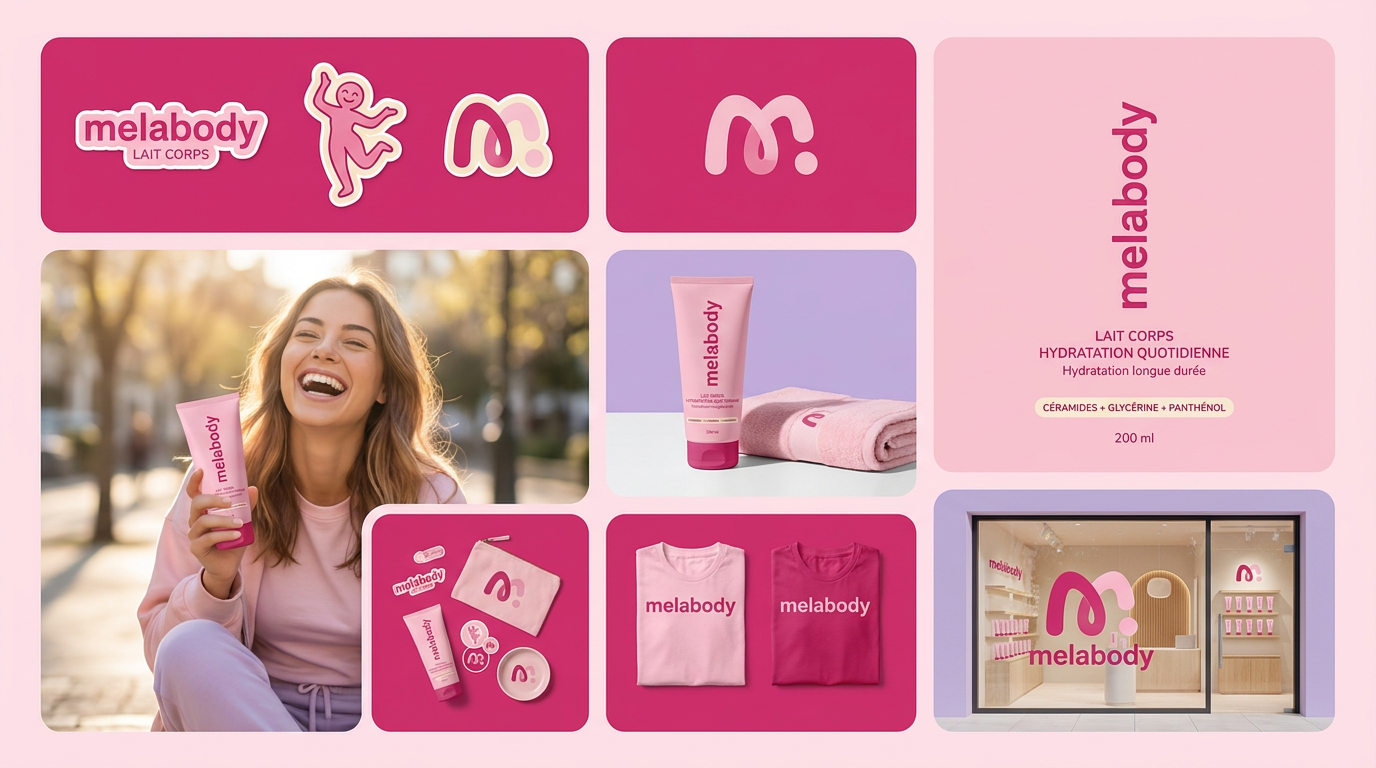
Turn any product photo into a cohesive brand moodboard. It automatically extracts the dominant color from your image to style the background, framing everything in a clean mosaic layout that perfectly matches your aesthetic.
Regenerate using your own assets.
Your logo is an asset, not an AI experiment
The temptation to use the latest generative AI feature is strong, but not at the expense of your brand. For creative brainstorming and artistic exploration, tools like Midjourney are powerful. But when it comes to producing content that represents your business, control is not a limitation—it's a requirement.
MyUP is built for creators and marketers who need to produce on-brand content at scale. By treating your logo as an immutable asset within a Brandkit and applying controlled motion, you can create professional animations quickly and confidently. You can move fast without breaking your brand.
