You’ve seen the incredible videos. With the recent public releases of tools like Luma’s Dream Machine and Adobe’s Motion Brush, the ability to turn a static image into a dynamic video clip is more accessible than ever. You upload your best product shot or a sharp AI-generated illustration, click 'animate,' and wait for the magic.
But the result isn't magic. It's a melty, swirling, chaotic mess. The background warps, the subject distorts, and the motion has no purpose. It’s visually interesting for a moment, but it’s completely unusable for your brand. You just wanted a simple, elegant zoom-in to highlight a product detail, but you got a psychedelic fever dream instead.
This is the core problem with most one-click AI animation tools: they trade control for novelty. For social media managers and marketers, novelty wears off fast. You need results that are professional, on-brand, and effective. You need purposeful motion, not random movement. This guide provides the workflow for exactly that.
Your AI animations look chaotic. Here’s why control matters.
In brand content, every creative choice must have a purpose. The goal of animating an image isn't just to make it move; it's to direct the viewer's attention. A gentle pan across a landscape, a slow zoom into a product feature, or a subtle rotation to add dynamism—these are the movements that stop the scroll and communicate value. Chaotic, unpredictable motion is just visual noise. It distracts from the message and can make a brand look amateurish.
The most effective social media videos often rely on simple, clean camera movements. Before AI, achieving this required video editing software and at least a basic understanding of keyframes. Now, you don't need to be a video editor to get professional results. You just need a tool that gives you creative direction.
On MyUP.ai, the AI handles the technical production of animating the image, but you—the user—validate the final output. You decide the direction, the speed, and the style of the motion. This puts you back in control, ensuring the final video clip aligns with your campaign goals instead of the whims of an algorithm.
The 3-step workflow for professional AI video clips
We can break down the process of creating a controlled, brand-safe animation into three simple steps. This entire workflow happens within the MyUP platform, moving seamlessly from your source image to a finished social media asset without needing to switch between different tools.
Step 1: Start with an on-brand image
Great animation starts with a great source image. You have two options in MyUP:
- Upload your existing assets: If you have a product photo, a team headshot, or an illustration, you can upload it directly into your MyUP workspace.
- Generate a new image with AI: If you need a new visual, you can use MyUP's image generator.
The key to consistency is starting with your brand identity already in place. Before you generate or upload, set up your MyUP Brandkit by simply entering your website URL. MyUP automatically extracts your logo, color palette, and fonts. This means any new image you generate will be visually aligned with your brand from the start, and your logo will be ready to apply to the final video.
Step 2: Animate with precision, not chance
This is where you take control. Instead of a single 'animate' button, MyUP's AI Video generator gives you a simple but powerful set of controls to direct the camera. Once your image is loaded, you can define the exact motion you want.
- Camera Pan: Move the frame up, down, left, or right. Perfect for revealing a wider scene or panning across a product line.
- Zoom: Zoom in to emphasize a specific detail or zoom out to reveal the full context.
- Rotate: Add a subtle clockwise or counter-clockwise rotation to create a sense of energy and dynamism.
Crucially, you can also control the motion intensity. This slider lets you decide if you want a slow, gentle drift or a faster, more energetic movement. By combining these simple controls, you can create a huge variety of professional effects without any of the chaotic warping. You direct the shot; the AI produces it.
For example, to create a scroll-stopping video ad for a new piece of athletic wear, you can start with a powerful, static shot and add a slow, intense zoom to build anticipation. This workflow is perfect for highlighting product quality and creating a premium feel.
Workflow code: #myup-ywpr-rqz6
Professional Sportswear Ad
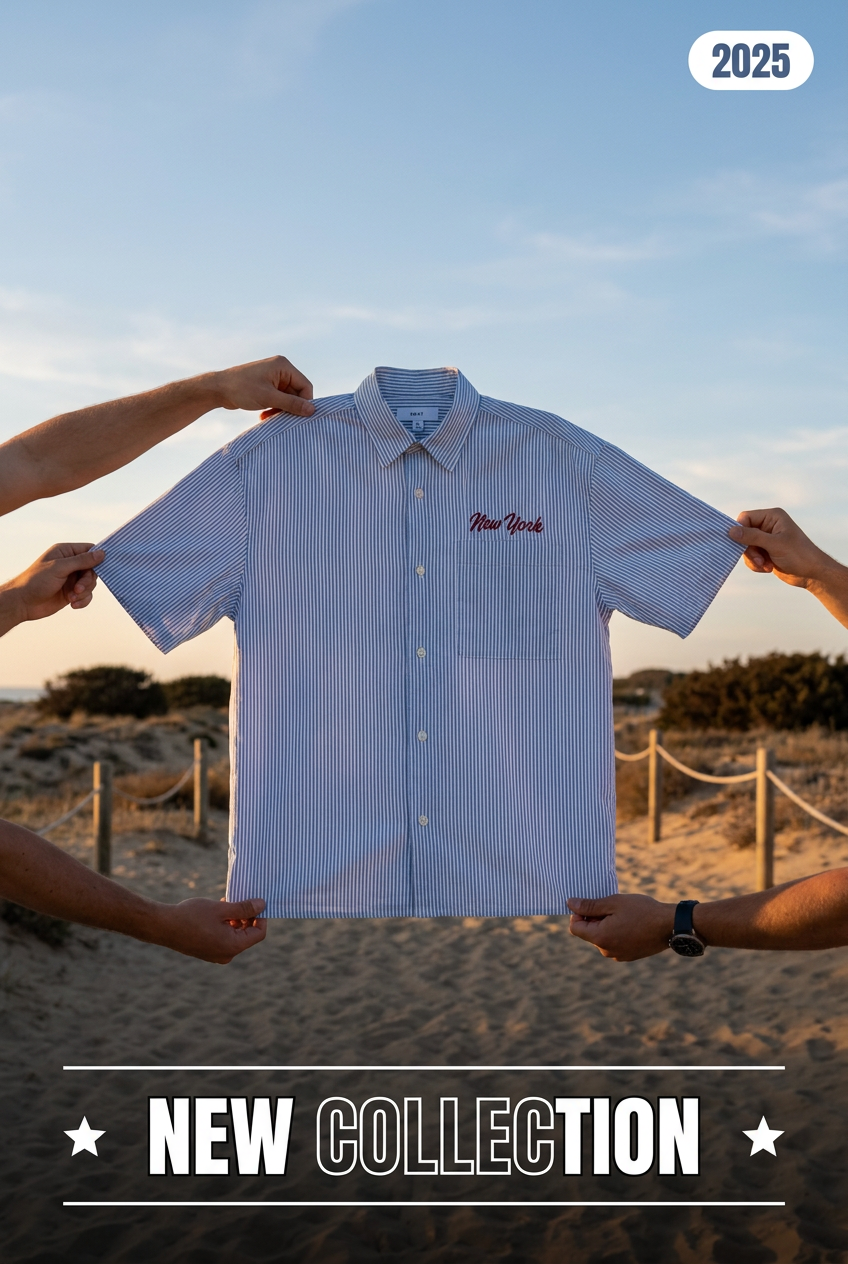
Suspends your apparel right in the center of a high-energy promo shot, held up by hands around the frame. It gives your shirts or jerseys a gritty, collaborative streetwear editorial look that feels alive and physical.
Regenerate using your own assets.
Step 3: Turn your animation into a complete social post
A silent, 5-second video clip is rarely a finished asset. It needs context to be effective on social media. The final step in the MyUP workflow is to add the finishing touches that turn your animation into a complete post.
Because you started with your Brandkit, your brand assets are ready to go. You can instantly add your logo as a watermark or overlay. You can also add a text overlay for a headline or a call-to-action, using the fonts and colors defined by your brand identity. This ensures that even a simple animated image becomes a fully branded, campaign-ready piece of content.
Whether you're creating an elegant ad for a high-end product or a bold, minimalist poster, the workflow remains the same: start with a brand-aligned image, apply controlled motion, and finish with your brand elements. The result is a professional asset, produced in minutes.
Here are a couple of examples of workflows designed to produce finished, campaign-ready visuals that you can then animate:
Workflow code: #myup-40pt-v0sm
Luxury Jewelry Editorial Campaign
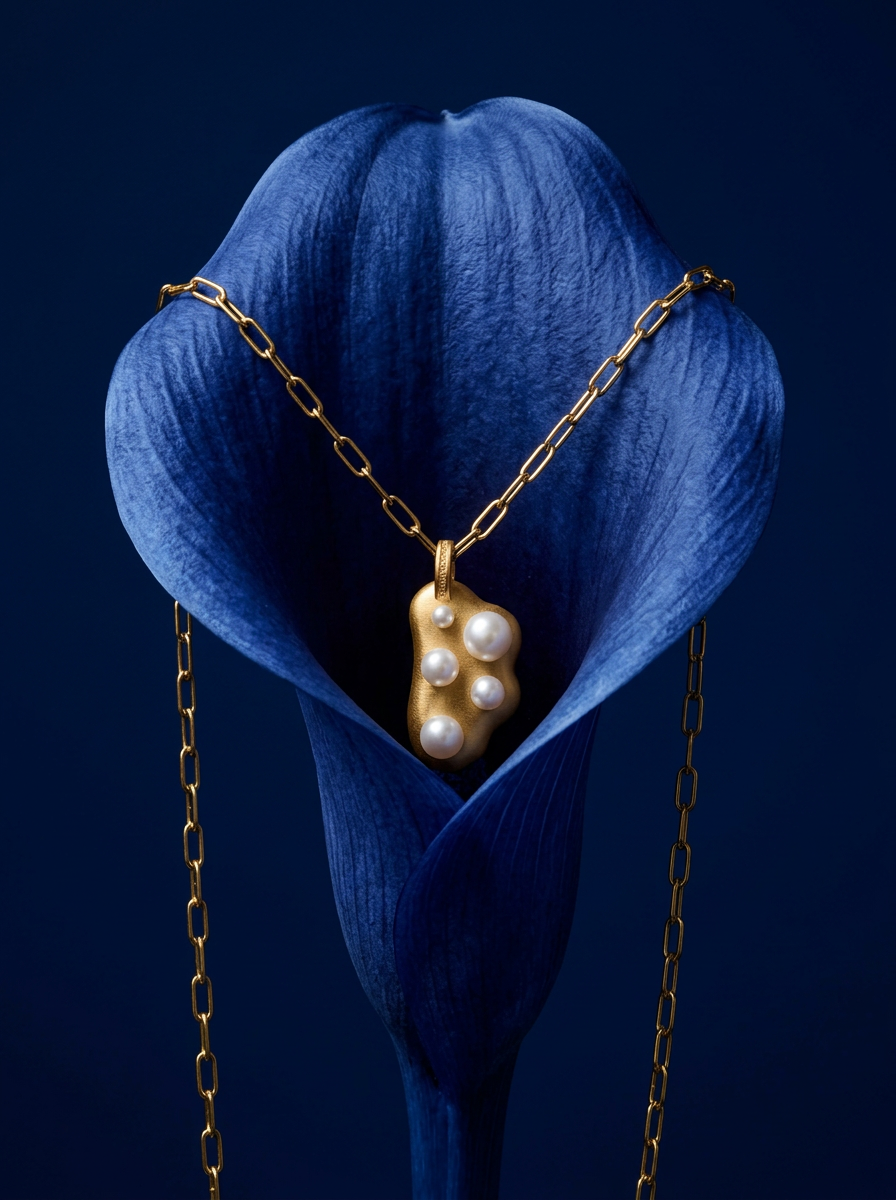
Drop your product into a moody, deep navy studio environment. It wraps your item in a seamless royal blue backdrop with high-contrast lighting and clean organic props, giving everything a premium, high-end editorial look.
Regenerate using your own assets.
Workflow code: #myup-fy77-jljs
Minimalist Elegant Product Advertising Poster
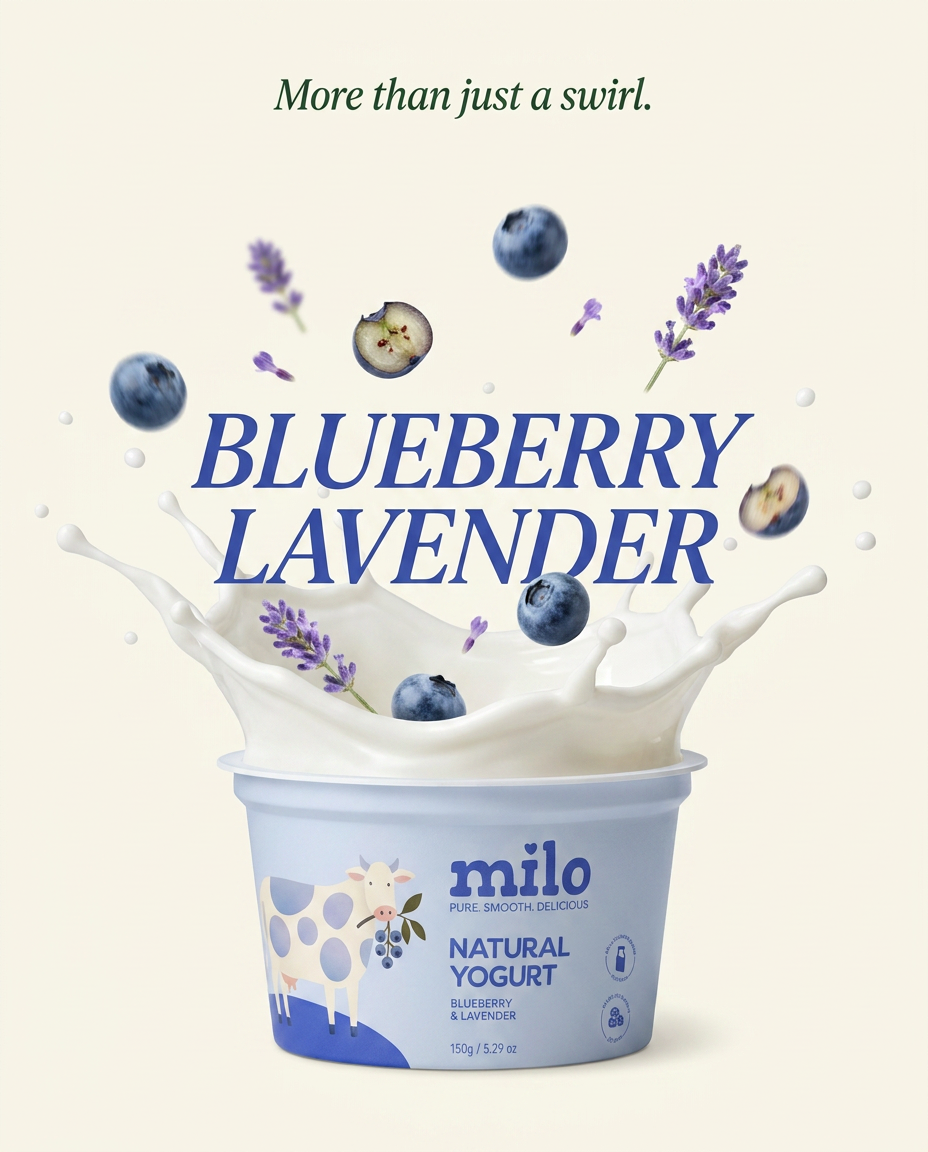
Turn any product shot into a high-end editorial ad. It places your item against a soft cream background with airy spacing and adds elegant, small serif typography at the top. Great for wellness or luxury brands wanting a calm, minimal aesthetic.
Regenerate using your own assets.
You’ve mastered motion. What’s next?
Turning a static image into a short, dynamic video clip is one of the fastest ways to elevate your social media content. It's the perfect entry point into AI video creation because it solves a real, everyday need for marketers and creators. Once you’re comfortable adding purposeful motion to your images, you can apply the same principles of control and brand consistency to more ambitious projects.
This simple image-to-video technique is just the first step. You can use this same foundation to build entire narratives with the script-to-screen AI workflow for short video stories or transform audio content into engaging visuals for dynamic social videos. The core idea is the same: AI handles the production, but you provide the creative direction.
