You spent 20 hours scripting, shooting, and editing a video. You upload it, feeling confident. To save time, you use a one-click AI tool to generate the thumbnail. It looks decent enough. You publish. And then... crickets. A handful of views, abysmal click-through rate (CTR), and all that work goes down the drain.
You're not imagining it. That 'fast' AI thumbnail is actively sabotaging your video's performance. The problem isn't the AI itself; it's that you're using a simple image generator when what you really need is a content production system. A clickable thumbnail isn't just a pretty picture. It's a calculated piece of marketing, and most AI tools are terrible at it.
The anatomy of a thumbnail that actually gets clicks
Before we fix the process, we have to understand the science. High-performing YouTube thumbnails aren't random; they are compositions built on a few core principles. They are designed to grab attention and communicate value in a fraction of a second on a crowded homepage.
A successful thumbnail has three essential components:
- A visually arresting background: This isn't just a backdrop; it's the emotional foundation. It should have high contrast, use colors that pop, and establish the video's mood without being distracting. It needs to work on a 5-inch phone screen and a 50-inch TV.
- Large, legible, on-brand text: The text has one job: create intrigue. It should be three to five words maximum, using a bold, clear font that is part of your channel's established brand. The color must contrast sharply with the background. If a viewer has to squint, you've already lost.
- A clear, emotional subject: For most creators, this is their face. A human face showing a clear emotion (surprise, excitement, confusion) creates an instant connection. The subject needs to be well-lit, in focus, and clearly separated from the background.
A generic AI image generator might get one of these right by accident. It will never get all three right, on-brand, every single time. That requires a system.
Why one-click generators fail the click test
The promise of one-click AI thumbnail generators is speed, but the price you pay is performance. They fail because they are fundamentally just image generators, not brand-aware design tools. They lack the context and capabilities to build the high-CTR composition we just outlined.
Here’s where they break down:
- Brand Blindness: A generic tool has no idea what your channel's font is. It doesn't know your specific brand colors. It will produce text in a random style that breaks your channel's visual consistency, confusing your subscribers and looking unprofessional to new viewers.
- Poor Composition: These tools are built to create a single, unified image. They struggle immensely with complex layouts that require layering a background, a human cutout, and specific text overlays. The text they generate often looks 'baked in' and is impossible to edit, with poor placement and no concept of safe zones or legibility. If you need to fix this, you might find our guide on fixing bad AI text in images useful.
- Inconsistent Style: Ask a generic tool for a thumbnail today and another one tomorrow, and you'll get two completely different aesthetic styles. This kills your channel's recognizability. Your audience should be able to spot your video in a sea of content just by the thumbnail style, and that's impossible with inconsistent, one-off generations.
You don't need another image generator. You need a workflow that understands your brand's entire visual system and can execute it on command.
The workflow: building a high-performance thumbnail system in MyUP
The solution is to stop thinking about creating a single thumbnail and start thinking about building a repeatable thumbnail system. In MyUP, this is done by combining a Brandkit with a multi-step workflow. Your Brandkit acts as the brain, storing your fonts, colors, and logos. The workflow is the factory, executing the steps to build your perfect thumbnail every time.
The user—you—validates the output. MyUP handles the production. This gives you both speed and creative control, the two things one-click tools promise but can't deliver together.
First, you need to set up your visual identity in MyUP. If you haven't already, creating a complete brand identity is the foundation for all high-quality content production. Once your Brandkit is loaded with your fonts and colors, MyUP can automatically apply them in any workflow.
Step 1: Generate a background that pops, not bores
Your thumbnail's background needs to be visually loud. It should use bold colors, dynamic lighting, and have a clear area of low detail where you can place text. Instead of just prompting for a 'video game background,' try something more specific like 'vibrant, high-contrast abstract background with neon pink and electric blue energy swirls, cinematic lighting, empty space on the right side.' This gives the AI clear direction.
In MyUP, you can build a workflow that starts with this background generation step. For a vibrant, attention-grabbing base that already incorporates strong typography, you can use a template as your starting point. This poster workflow is a perfect example of creating a base image with high contrast and integrated text styling.
Workflow code: #myup-xbur-hzoi
Bold Retro Yellow Event Poster
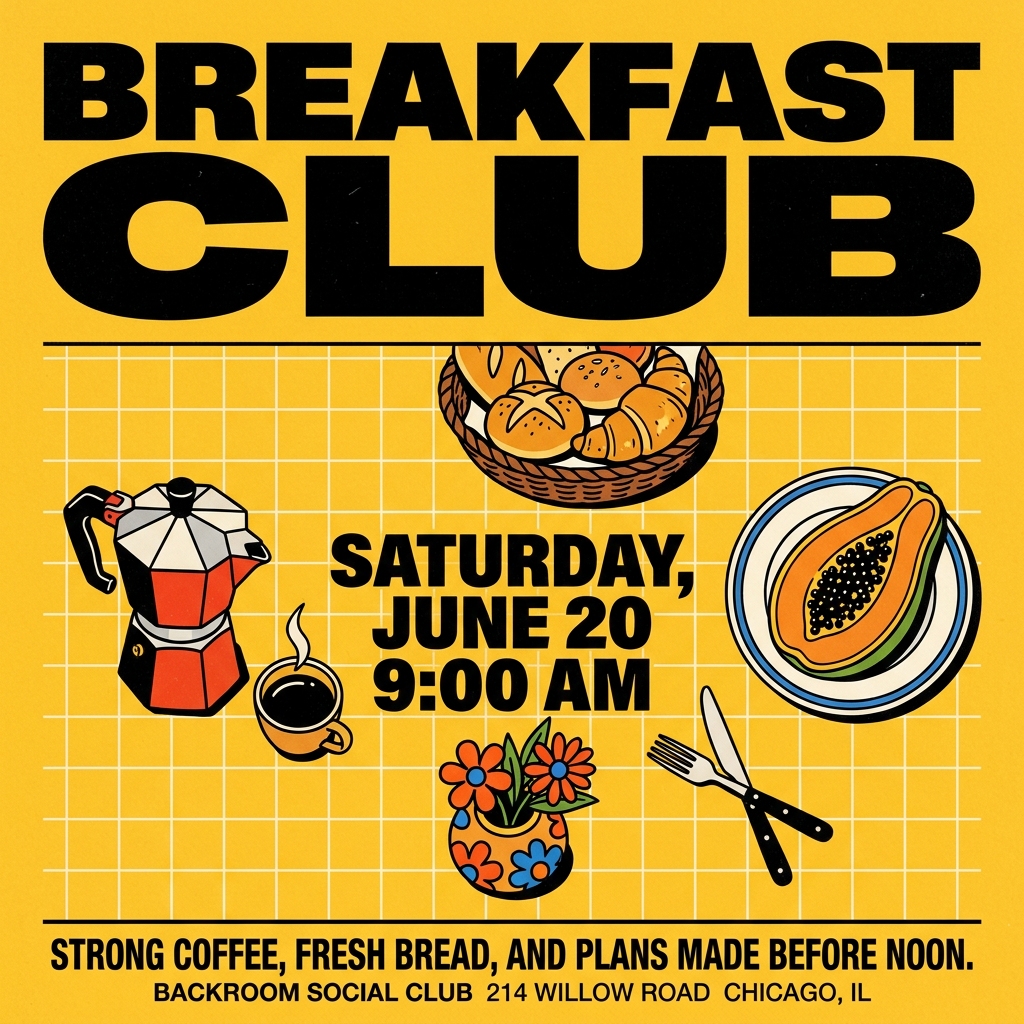
Turn your branding or event details into bold, nostalgic posters. It blends vibrant warm backdrops with a clean, retro square grid pattern to make any announcement look like a classic piece of mid-century graphic design.
Regenerate using your own assets.
Step 2: Add text that your audience can actually read
This is where generic tools fall apart and a MyUP workflow excels. Because your Brandkit is already set up, the next step in your workflow can be to overlay text using your exact brand font and color palette. There's no guesswork and no need for post-editing in another tool. MyUP pulls the font and color automatically, ensuring every thumbnail is instantly recognizable as yours.
The key is legibility. Use a heavy or bold version of your font, and make sure its color has a strong contrast against the background—or add a solid-colored shape behind it. This workflow for a hiring poster demonstrates how to achieve a clean, professional text layout that is instantly readable, a principle that's critical for thumbnails.
Workflow code: #myup-eiob-7tbc
Modern Hiring Poster
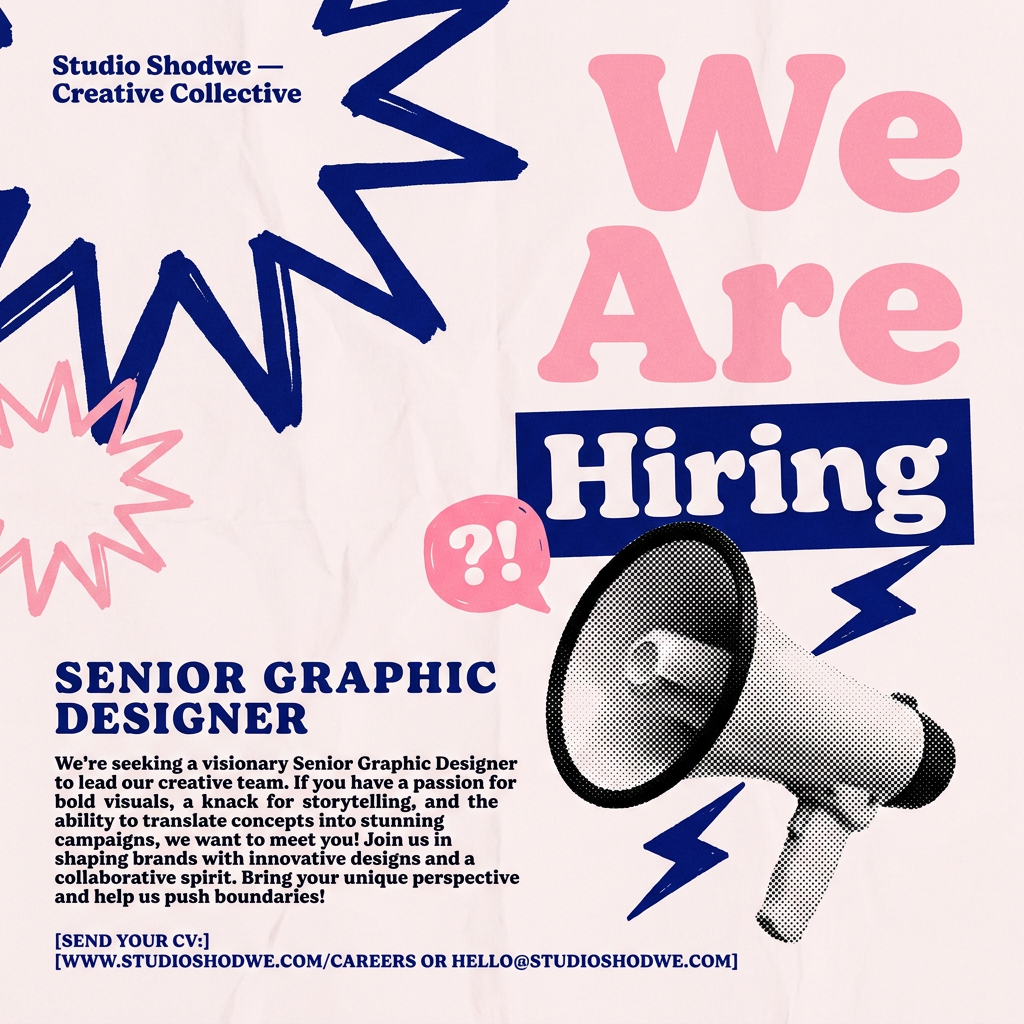
Turn your open roles into stylish social announcements. It sets your hiring details against a soft, textured paper background with clean, editorial typography. Perfect for giving your brand a polished, modern look when you're looking to hire.
Regenerate using your own assets.
Step 3: Composite your subject for an emotional connection
The final layer is the human element. Take a high-quality photo of yourself expressing an emotion relevant to the video. Use a free online tool to remove the background, leaving you with a clean cutout. In your MyUP workflow, you can add a step to upload this cutout and place it over your generated background.
Position yourself so you're looking towards the title or reacting to something in the scene. Add a subtle drop shadow or a bright outer glow to make your cutout 'pop' from the background. While designed for product ads, the following workflow is a powerful example of how MyUP can composite a human subject into a generated scene, a technique directly applicable to creating dynamic thumbnails.
Workflow code: #myup-ywpr-rqz6
Professional Sportswear Ad
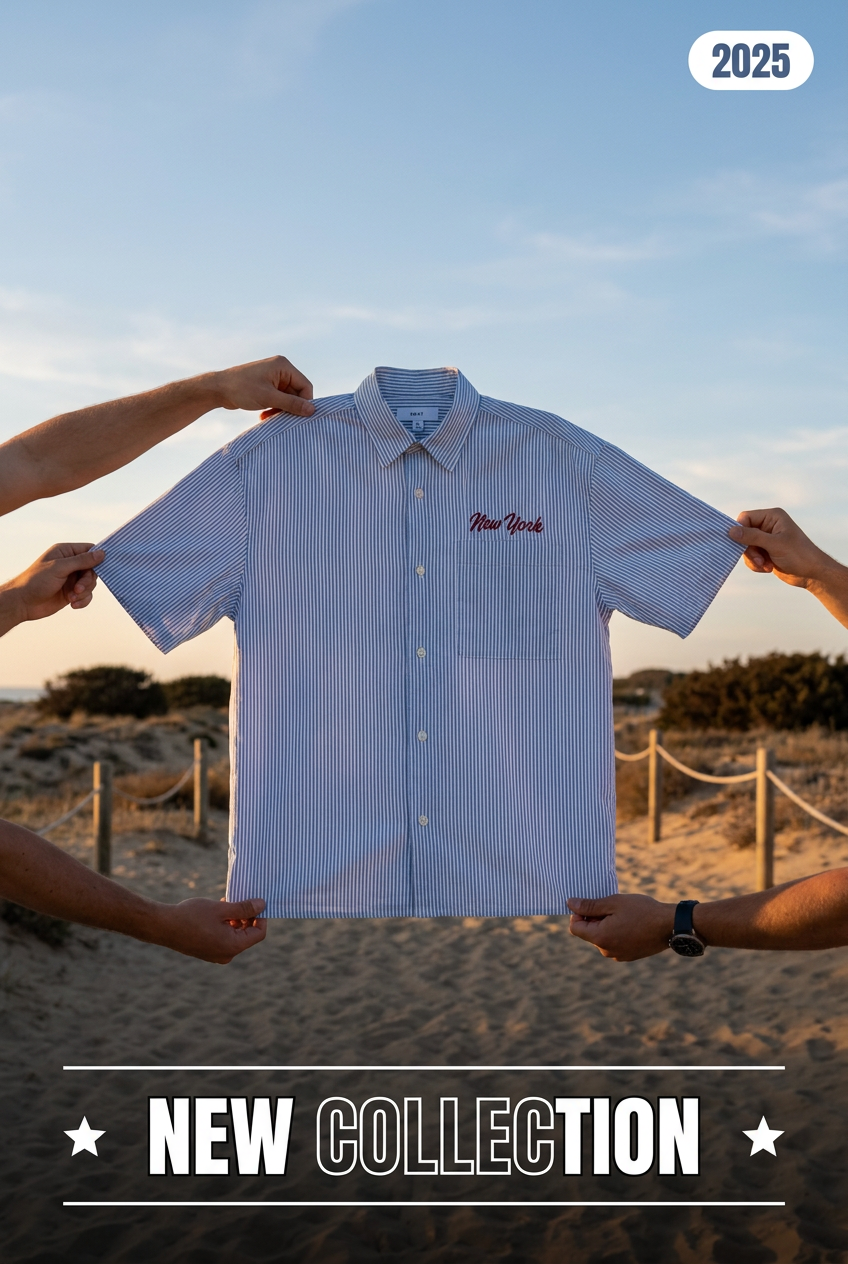
Suspends your apparel right in the center of a high-energy promo shot, held up by hands around the frame. It gives your shirts or jerseys a gritty, collaborative streetwear editorial look that feels alive and physical.
Regenerate using your own assets.
Stop generating images, start building a system
A successful YouTube channel is built on consistency. Your video intros, your editing style, and especially your thumbnails all need to feel like part of a cohesive brand. One-click AI generators offer speed but destroy the consistency that builds an audience.
By using a workflow-based platform like MyUP, you're not just making one thumbnail faster. You're building a repeatable, on-brand system that produces high-performing thumbnails in minutes, every single time. You define the formula for success once—with your Brandkit and your multi-step workflow—and then you execute it flawlessly for every video you publish. That's how you save time without sacrificing the clicks that grow your channel.
