If you spent any time on creative social media circles around July 20, 2026, you saw it: the viral post from a designer showing how a leading AI image model butchered a simple mockup. A perfume bottle and its box, generated together, but with the brand name garbled into different, nonsensical text on each. The frustration was palpable because every brand creator has been there. You have a perfect product image, and you just want to see it in a new, exciting scene. Instead, you get a version where your brand name is misspelled and your logo looks like a melted crayon.
You're not failing at prompting. The tool is failing at branding. Single-prompt AI image generators are not built for the pixel-perfect precision that brands require. The good news is that the fix isn't a more complicated prompt; it's a smarter workflow.
You're not crazy: AI is terrible at logos and text on mockups
The core issue is that diffusion models, the technology behind most AI image generators, don't 'understand' letters and logos the way a graphic designer does. They see them as complex arrangements of pixels and shapes. When you ask one to generate a product 'with the logo on it,' it tries to paint a picture of something that looks *like* your logo, often with disastrous results. It's an act of artistic interpretation, not precise application.
This is a fundamental limitation. These models are designed to be creative and generative, to dream up new visual concepts. They are not designed for the rigid, rule-based task of accurately placing pre-existing brand assets. For any serious e-commerce brand or marketer, 'close enough' is a non-starter. You need your logo, your brand font, and your packaging text to be perfect, every single time. Trying to force a generative tool to perform this task is like asking a painter to typeset a legal document.
The professional fix: separate the scene from the brand
The professional solution is to stop asking one tool to do two very different jobs. Instead, you split the task into a logical, two-part workflow:
- Scene Generation: Use AI for what it excels at—art direction. Let it generate an infinite variety of stunning, creative, and atmospheric backgrounds for your product. A minimalist studio, a sun-drenched beach, an abstract geometric landscape—this is where AI's creative power shines.
- Brand Application: Use a brand-aware system to composite your actual product photo and apply your real, pixel-perfect brand assets (logos, text, icons) on top. This is a task for a system that understands rules, not a model that understands art.
This is precisely how MyUP is designed to work. Your MyUP Brandkit holds your non-negotiable brand assets: your exact logo files, your specific brand fonts, and your approved color palette. When you run a mockup workflow, MyUP lets the AI handle the scene generation, guided by your Brandkit's aesthetic, and then it programmatically handles the compositing and branding. The AI acts as your art director; MyUP acts as your production artist, ensuring the final result is both creative and perfectly on-brand.
The workflow: from product photo to perfect mockup in 4 steps
Executing this on MyUP.ai turns a frustrating, unpredictable process into a reliable production line. Here’s the practical, step-by-step workflow for creating a custom, on-brand product mockup.
Step 1: Set up your Brandkit
This is the one-time setup that powers everything else. Upload your logo, define your brand colors, and add your fonts. MyUP will automatically reference these assets in every subsequent creation, ensuring consistency without you having to think about it.
Step 2: Isolate your product
Start with a clean, high-resolution photo of your product on a transparent background (a .PNG file). This is your master asset. If you only have a photo with a background, you can use MyUP's background removal tool to isolate it.
Step 3: Generate the scene
This is the creative part. Instead of trying to describe the product and scene in one prompt, you focus only on the environment. Prompt for 'a minimalist marble countertop with soft morning light' or 'a vibrant, colorful background with geometric shapes.' You can generate dozens of options until you find the perfect one. The user validates the creative direction; MyUP handles the production.
Step 4: Composite and finalize
The workflow automatically takes your isolated product image from Step 2 and places it into the AI-generated scene from Step 3. It then adds your logo and any specified text using the exact assets from your Brandkit. The result is a flawless composite: a unique scene with your real product and perfect branding.
You can execute this entire process from scratch or use a pre-built workflow to get started instantly. This template, for example, is designed to create a bold, eye-catching poster with your product at the center.
Workflow code: #myup-zpby-tzie
Minimal Vibrant Product Advertising Poster
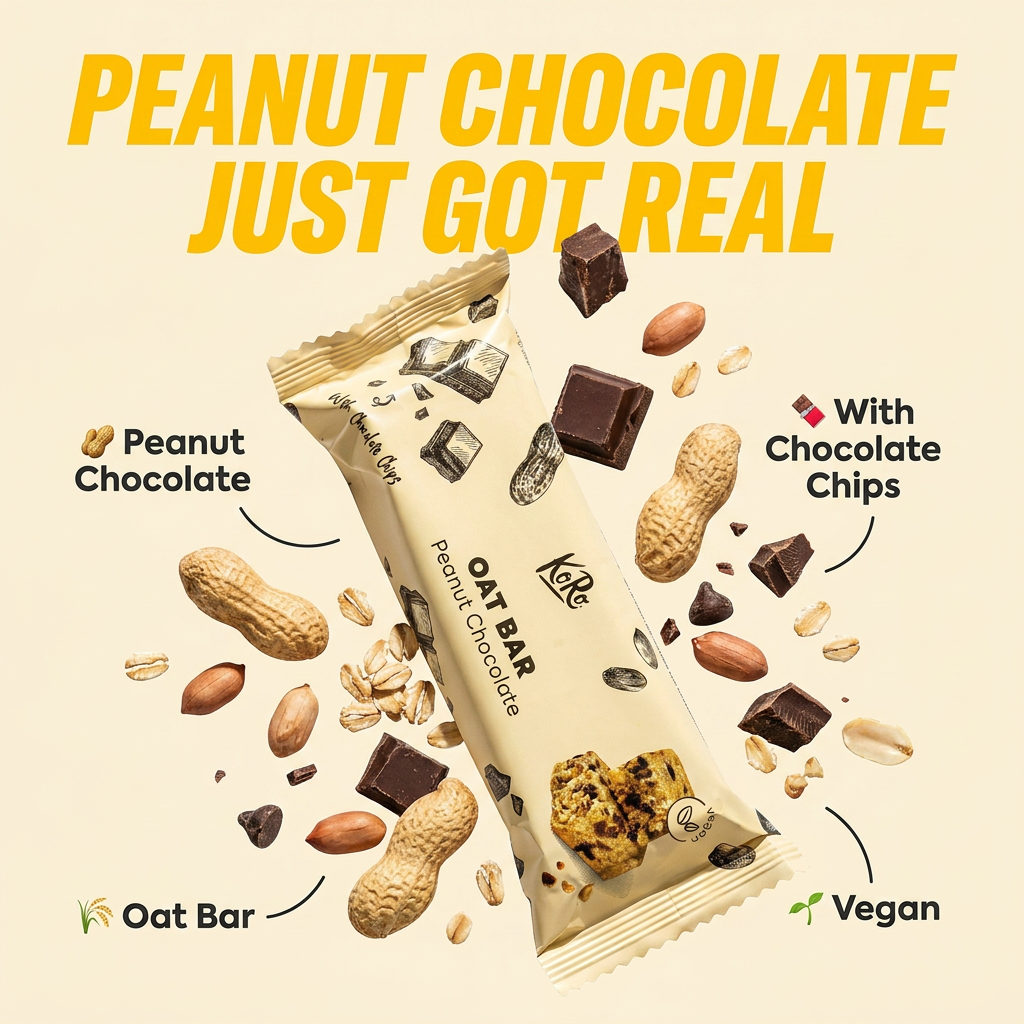
Drop in any product shot and watch it turn into a bold, high-energy square ad. It automatically reads your packaging to pull out the dominant colors and text, then builds a vibrant poster styled perfectly around your brand.
Regenerate using your own assets.
Go beyond one-offs: scaling your mockups for a full campaign
The real power of a workflow isn't just making one perfect mockup; it's making hundreds. Once you have this process defined in MyUP, you can scale your production for an entire campaign or product line. Imagine needing visuals for a new clothing collection. Instead of one-off generations, you can run a workflow like the one below to create consistent, on-brand social posts for every single item. For a deeper dive into this specific use case, see our guide to the workflow for clothing mockups that actually sell.
Workflow code: #myup-3sro-edbt
Brand Clothes Post

Turn any outfit photo into a high-end fashion promo poster. It centers your subject in a full-body shot against a dark, dramatic studio backdrop, perfectly cropped for social feeds. It gives your apparel a moody, editorial look instantly.
Regenerate using your own assets.
This same principle applies to any product category. For a cosmetics brand launching a new lip gloss, a specialized workflow can generate visuals that capture a specific 'gourmand' aesthetic, ready for Instagram or TikTok ads, all while keeping the product and branding perfectly consistent.
Workflow code: #myup-iffs-sdef
Gourmand Candy Lip Gloss Ad
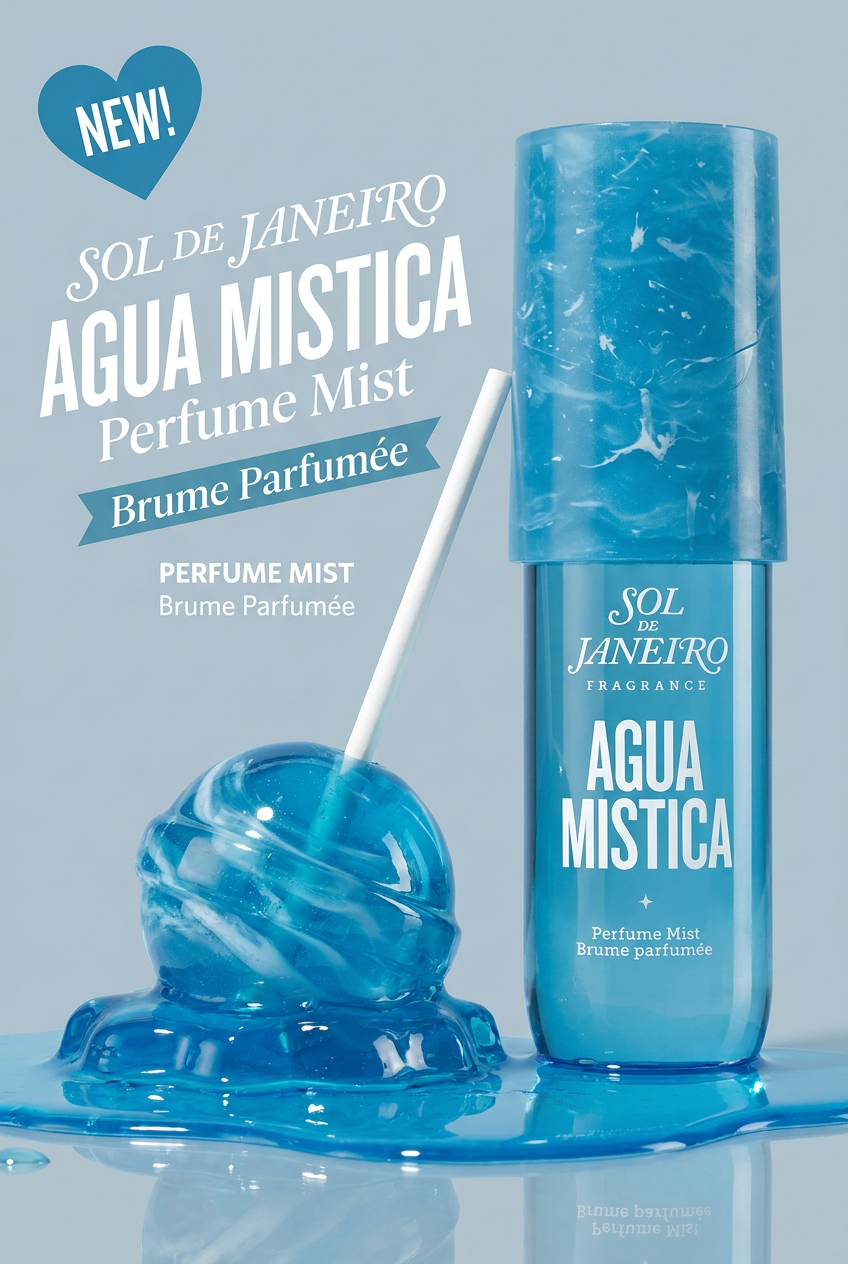
Drop your product photo in and watch it transform into a sleek, modern cosmetic ad. It automatically extracts your item's signature colors to build a vibrant, gourmand-style backdrop that matches perfectly.
Regenerate using your own assets.
With a workflow, you can generate A/B test variations in seconds—the same product on a light background versus a dark one, or a studio shot versus a lifestyle scene. This transforms mockup creation from a time-consuming design task into a scalable marketing operation.
When to use a simple generator vs. a brand workflow
This doesn't mean single-prompt AI image generators are useless. They are simply different tools for different jobs. Understanding when to use each is key to an efficient creative process.
Use a simple AI generator for:
- Ideation and Mood Boarding: Quickly exploring concepts, styles, and color palettes at the very beginning of a project.
- Conceptual Art: Creating inspirational images where brand accuracy is not a concern.
- Quick Visualization: Getting a rough idea of how a product *might* look in a certain environment before committing to a full design.
Use a MyUP brand workflow for:
- Final Marketing Assets: Creating commercially-ready images for your website, social media, and ad campaigns.
- E-commerce Product Listings: Generating a consistent set of visuals for your entire product catalog.
- Scalable Content Production: Producing dozens or hundreds of on-brand visuals for A/B testing or multi-channel campaigns. This is especially crucial for creating assets like AI-generated UGC that needs to look real and consistent.
In short, use generators to brainstorm. Use MyUP to build.
Stop fighting your tools and start building your world
The frustration with AI mockups comes from trying to fit a square peg in a round hole. By shifting from a single-prompt mindset to a brand-aware workflow, you regain control. You let AI do the creative heavy lifting—imagining endless worlds for your product—while ensuring your brand identity remains sharp, consistent, and pixel-perfect.
Mockup templates show your product on someone else's background. A MyUP workflow shows your product in *your brand's world*. Ready to start building? Use this professional poster workflow as your starting point.
Workflow code: #myup-ysc9-ekcs
Professional Product Poster
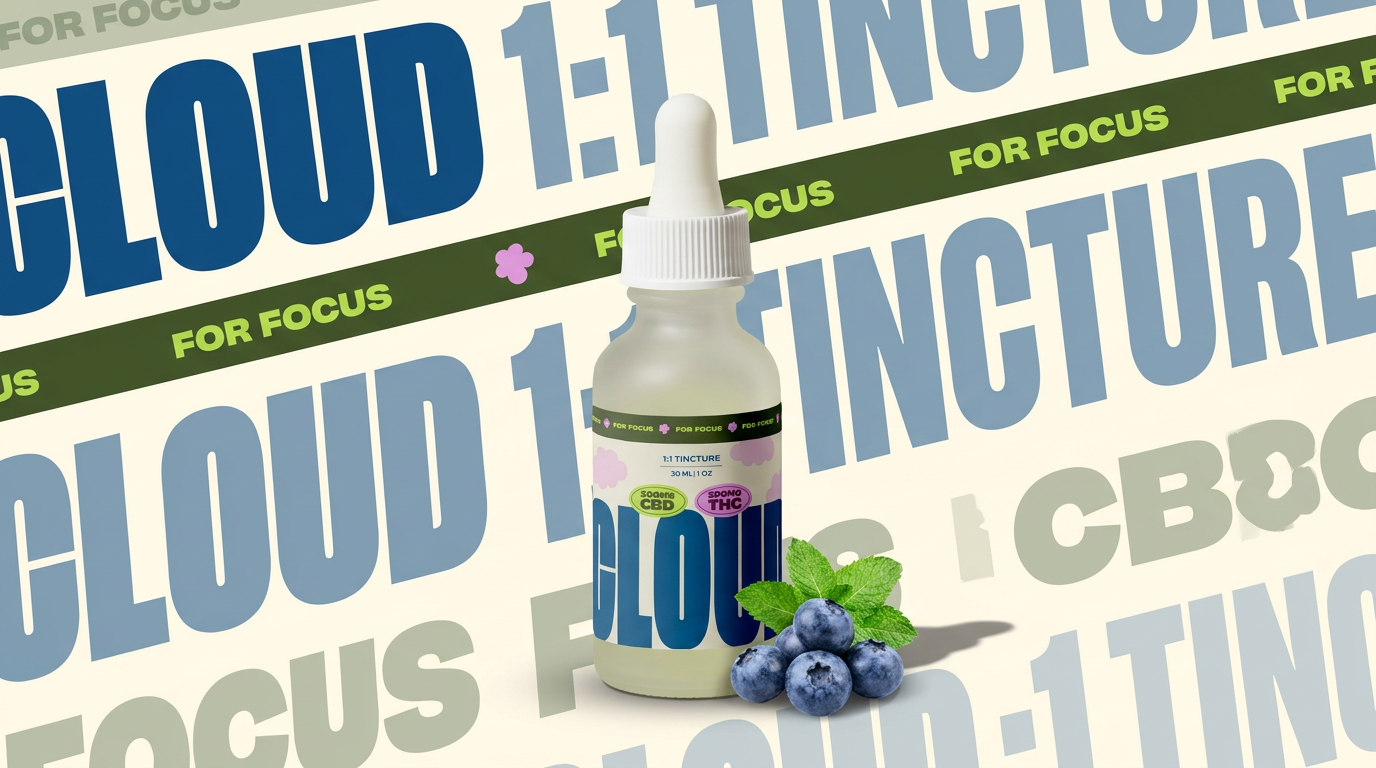
Turn any product shot into a clean, graphic landscape poster. It automatically pulls the text from your packaging to create a massive, semi-transparent repeated background pattern behind your item. Great for modern, typography-heavy brand showcases.
Regenerate using your own assets.
