If you saw the new Project Astra demo from Google on July 21, you saw the future. An AI that doesn't just understand text, but sees the world through a camera, listens to your voice, and remembers what it saw. That, in a nutshell, is multimodal AI. And while a real-time AI assistant is still on the horizon, the core technology—AI that understands images as well as words—is here now, and it’s about to change how you create.
For creators, multimodal AI isn't an academic concept. It's the end of guessing with text prompts.
Why it matters: the end of endless rerolls
We’ve all been there. You spend an hour trying to describe a specific visual style. You type “a vibrant, optimistic photograph in the style of 1970s editorial advertising, warm tones, grainy film texture, slightly desaturated…” and the AI gives you a plastic-looking cartoon. The frustration of trying to translate a purely visual idea into words is the biggest bottleneck in AI creation.
Multimodal AI fixes this by letting you show the AI what you want, not just tell it. Instead of describing a style, you provide a reference image. Instead of mapping out a scene with words, you upload a sketch.
This isn't just a niche feature; it's the direction the entire industry is sprinting towards. In the last 24 hours alone, Midjourney launched 'Style Rooms' (July 20) to let users define aesthetics with reference images, and Adobe Firefly added 'Structure Reference' (July 20) to control composition from an existing layout. The message is clear: the era of text-only prompting is over. For brands and creators, this means one thing: control.
How to use images as prompts: three practical workflows in MyUP
While other platforms are just starting to bolt on these features, MyUP has integrated this multimodal approach into its core from day one. You can use your existing visual assets—mood boards, product photos, sketches, past campaigns—as direct inputs to guide the AI. Here are three practical workflows you can use today to take control of your visual output.
1. Replicate an entire aesthetic with a style reference
This is the most common use case. You have an image that perfectly captures the mood, color palette, lighting, and texture you need for a new campaign. Instead of trying to deconstruct it with words, you can use it as a direct style reference.
In a MyUP workflow, you simply upload your reference image alongside your text prompt. The AI analyzes the visual DNA of the reference and applies it to the new subject. This is the key to creating visually cohesive assets, ensuring every image in a series feels like it belongs to the same world. It’s perfect for generating a set of social media posts, ad variations, or blog headers that all share a consistent, high-end feel.
To see this in action, try creating a magazine cover. Provide an image with a distinct editorial style, describe your subject, and watch the AI adopt the aesthetic.
Workflow code: #myup-yk1h-uqy8
High-End Editorial Fashion Magazine Cover
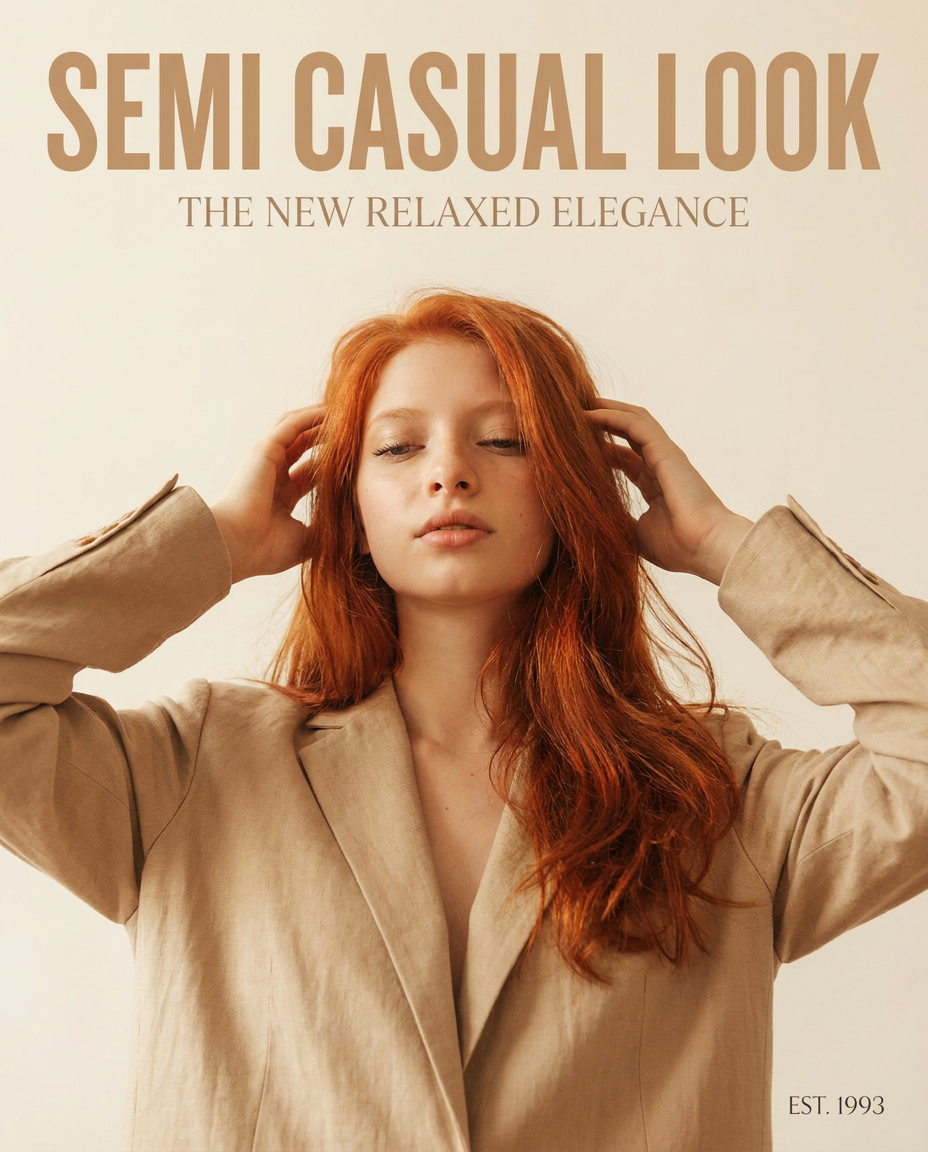
Drop in any portrait and turn it into a high-end editorial magazine cover. It frames your subject beautifully with relaxed, high-fashion posing and soft styling for a polished print aesthetic.
Regenerate using your own assets.
2. Control the layout with a composition reference
Sometimes, the overall vibe is less important than the specific layout. You need an image where the subject is on the left, leaving clear negative space on the right for a headline. Or perhaps you have a specific grid structure in mind for a collage.
This is where a composition reference comes in. You can upload a simple sketch, a wireframe, or a previous design to dictate the structure of the generated image. The AI will understand the placement and scale of the elements in your reference and arrange the new content accordingly, without copying the original style or subject matter. This gives you architectural control over your visuals, ensuring they fit perfectly into your website, ad template, or presentation slide.
For example, you can use a reference image of a food magazine cover to guide the AI in creating a new mosaic-style layout for a completely different topic.
Workflow code: #myup-aktp-7jq0
Food Magazine Mosaic Cover
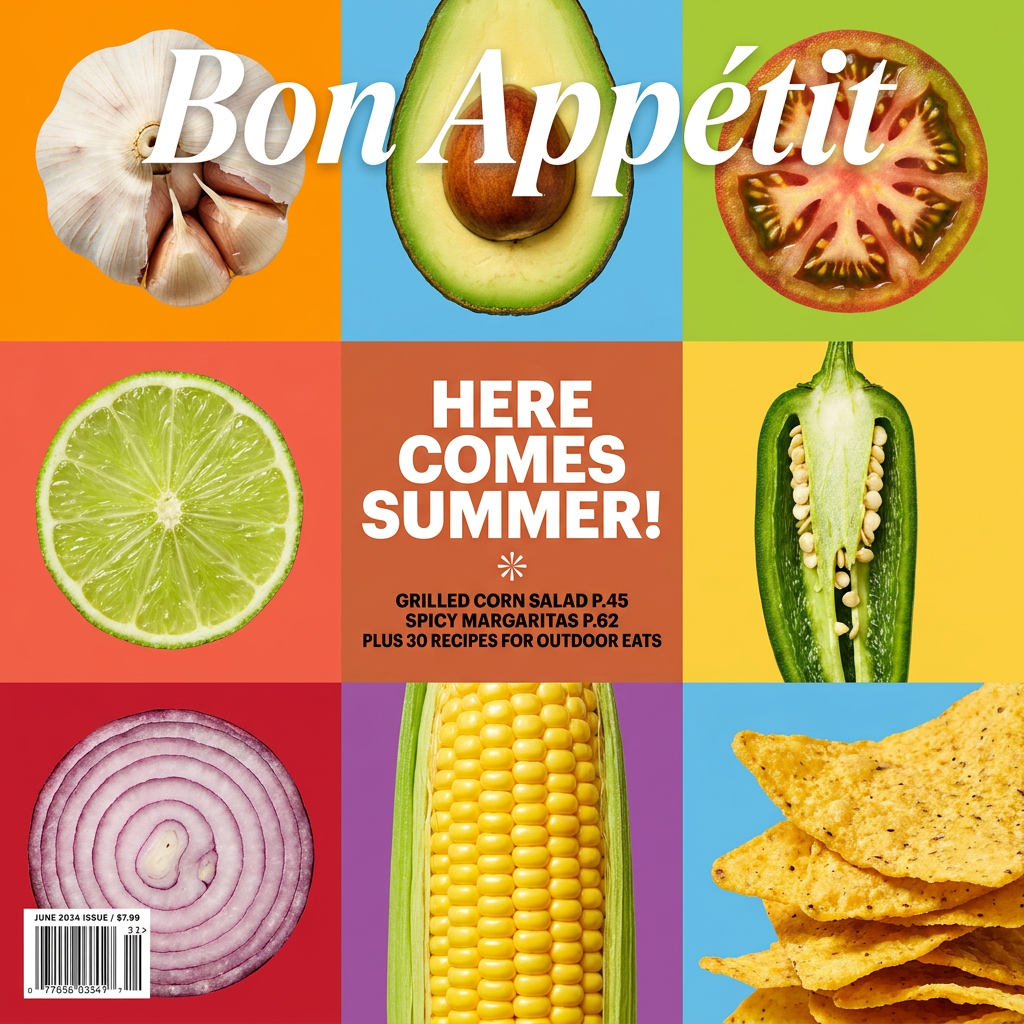
Turn your food shots into a bold, high-end editorial cover. It takes extreme close-ups of your dishes or ingredients and arranges them into a vibrant 3x3 grid that looks straight out of a premium food magazine.
Regenerate using your own assets.
3. Generate new scenes with a subject reference
This workflow is a massive time-saver for e-commerce brands and product marketers. You have a clean product shot on a white background, but you need to show it in a dozen different lifestyle settings or ad concepts.
By uploading your product photo as a subject reference, you instruct the AI to keep the product perfectly consistent while generating entirely new backgrounds and environments around it. You can take one studio photo and, with a few text prompts, place it on a marble countertop, in a lush forest, or on a colorful, abstract background. This eliminates the need for expensive photoshoots and complex Photoshop work, allowing you to generate an entire catalog of on-brand product imagery in minutes.
Use this workflow to place your product into a vibrant, minimalist poster that’s ready for an ad campaign.
Workflow code: #myup-zpby-tzie
Minimal Vibrant Product Advertising Poster
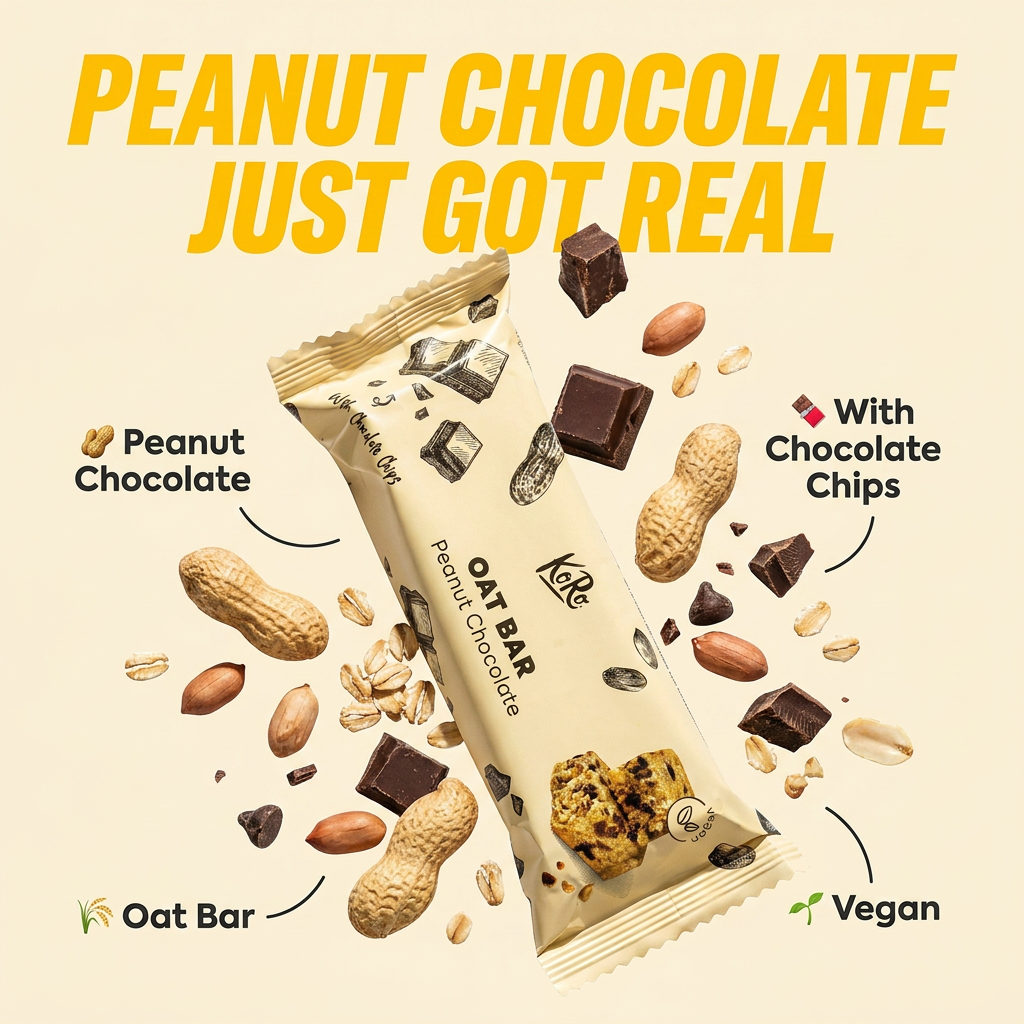
Drop in any product shot and watch it turn into a bold, high-energy square ad. It automatically reads your packaging to pull out the dominant colors and text, then builds a vibrant poster styled perfectly around your brand.
Regenerate using your own assets.
Workflow code: #myup-k4td-9k6z
Minimalist Poster
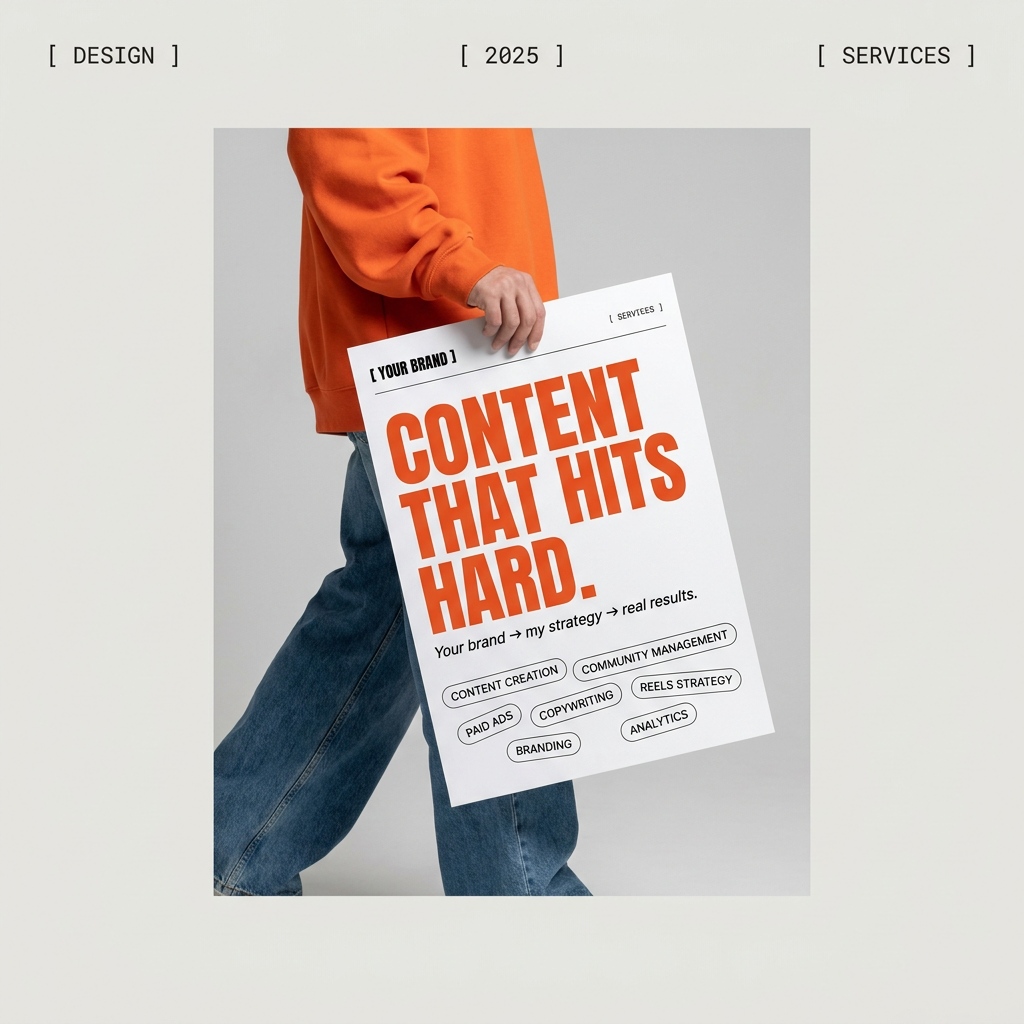
Give your social feed a clean, gallery-like aesthetic. This layout frames your images with structured mono typography and soft, neutral backgrounds for a high-end editorial look. It's perfect for minimal product launches or brand announcements.
Regenerate using your own assets.
The real advantage: combining visual prompts with your Brandkit
Using an image as a prompt is a huge leap forward for creative control. But a style reference in an isolated generator only gets you halfway there. The output might have the right *vibe*, but it probably won't use your brand's exact shade of blue or your specific headline font.
This is where MyUP’s integrated workflow provides the critical last mile. On our platform, you don’t just provide a reference image and a text prompt. You do it with your Brandkit activated. A Brandkit is your visual identity—logo, colors, fonts—built once and automatically applied to your creations. The AI uses your style reference for creative inspiration, but it’s bound by the hard rules of your Brandkit. The result isn't just visually inspired; it's 100% brand-compliant. Any text generated will use your fonts. Any color palettes will adhere to your guidelines. Your logo can be placed automatically. For more on how this differs from other style consistency methods, see our guide on fine-tuning vs. using a Brandkit.
This is the difference between being an AI operator and a creative director. You provide the visual direction. MyUP executes the production and ensures it’s perfectly on-brand, every single time.
Show, don't just tell
Multimodal AI is more than a technical buzzword. It’s a new, more intuitive way of working with creative AI. It’s about restoring control to the creator, letting you use your existing visual language to guide the AI toward the precise result you need. Stop trying to describe your vision. Start showing it. Pick a workflow, upload your first reference image, and see for yourself.
