So you’ve spent the last hour with the new AI video models. The public releases of Runway Gen-3 and Luma’s Dream Machine in June 2026 are genuinely impressive at creating motion. But the moment you tried to add your brand’s name or a simple call to action, you saw the problem: the text is a garbled, wobbly mess. You’re not alone. This is the single biggest failure point for brands trying to use these new tools.
Here's the mistake most people are making: they're asking a video model to do a designer's job. AI video models think in pixels, not letterforms. Forcing them to create typography is the wrong approach.
The solution is a simple, two-step workflow that separates the design from the animation. First, you generate a sequence of perfectly on-brand typographic images. Then, you animate them. This gives you total control and takes less than two minutes. You can start right here.
Workflow code: #myup-n0bi-2wzk
Bold Editorial Grid Poster
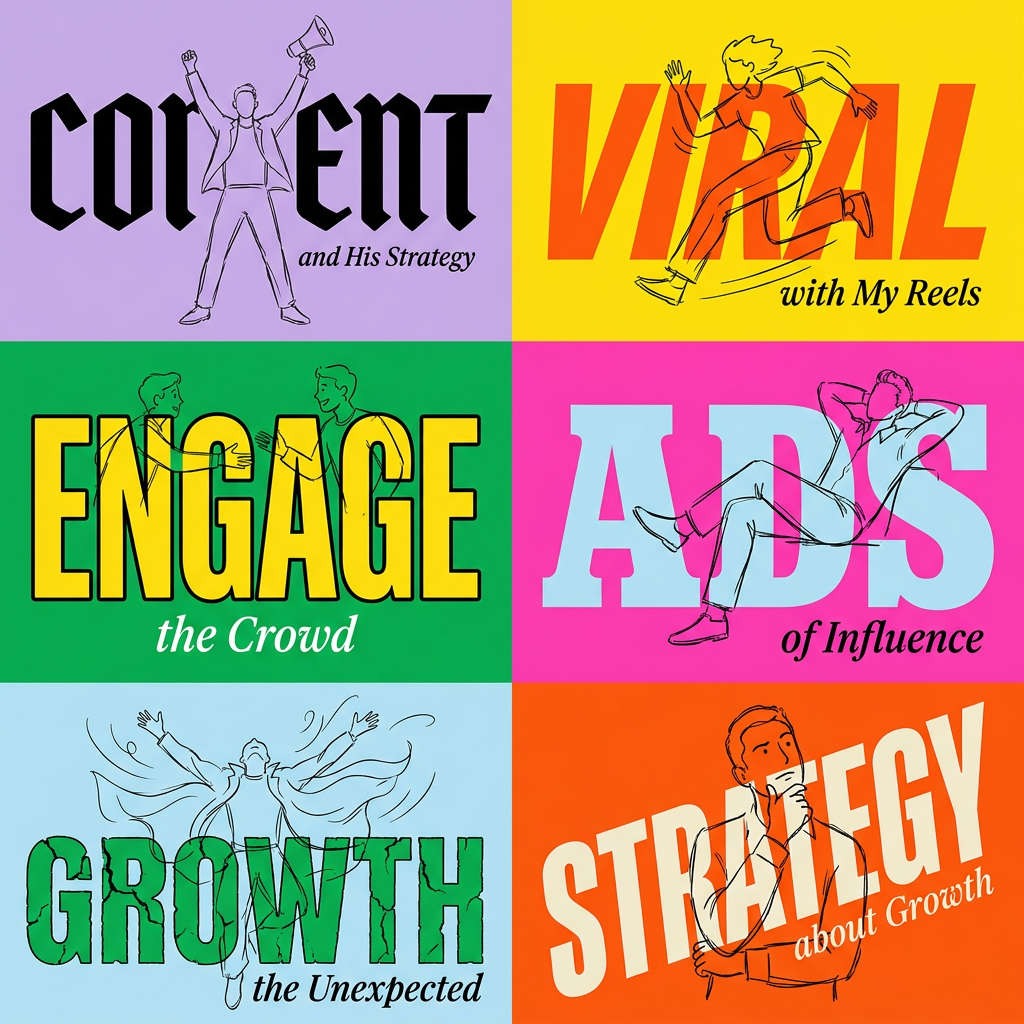
Create striking 2x3 editorial posters with six seamless, flat-color square cards in a perfect 4:5 grid. There are absolutely no gaps between the blocks, giving your content a bold, high-contrast magazine layout. It looks incredibly clean on any social feed.
Regenerate using your own assets.
Why text-to-video models fail at text (and what to do instead)
When you ask a text-to-video model to render a word, it isn't typing. It's trying to 'paint' the shape of letters it has seen in its training data. This is why you get inconsistent letter spacing, distorted shapes, and a complete inability to use a specific brand font. The model is guessing at pixels, not rendering precise vector-based characters.
A brand-first workflow flips the process. It treats typography as a non-negotiable design element to be controlled, not a random visual to be generated. Instead of one prompt that does everything poorly, you use a sequence of specialized steps:
- Design First: Use an AI workflow built for visual design to create your text frames. This is where you apply your Brandkit—your specific fonts, colors, and logo—to ensure every frame is 100% correct. The AI handles the layout and composition, but you retain full control over the brand identity.
- Animate Second: With a sequence of perfect still images, you use a simple image-to-video function to add motion. The AI's job is now much simpler: create smooth transitions between frames you've already approved.
This method bypasses the core weakness of text-to-video models and guarantees a crisp, professional, and on-brand result every time.
The 2-step workflow for perfect AI kinetic typography
This entire process happens inside MyUP, moving from one generator to the next without downloading or uploading files. It’s designed for speed and consistency.
Step 1: Generate your typographic frames with your Brandkit
The first step is to turn your script into a series of still images. For a 10-second video with five phrases, you’ll generate five corresponding images. Your MyUP Brandkit is the key here; it automatically provides the AI with your brand's fonts, color palette, and logo, ensuring visual consistency across every frame without manual setup.
You can use a versatile workflow like the Bold Editorial Grid Poster to get started. It's designed for strong, clean typography that works perfectly for this technique. Just provide your text, and the workflow applies your Brandkit to generate the frames.
For example, you could input the lines of a quote, one by one:
- Frame 1 Text: "The key is not to prioritize what's on your schedule,"
- Frame 2 Text: "but to schedule your priorities."
- Frame 3 Text: "- Stephen Covey"
MyUP generates three distinct but visually related images, each using your brand's typography and colors. You quickly validate the output and move to the next step.
Workflow code: #myup-n0bi-2wzk
Step 2: Animate the frames into a seamless video
Once you have your sequence of approved typographic frames, you'll use MyUP’s image-to-video generator. This tool is designed to take a set of still images and animate them into a short video clip.
You simply select the images you just created in the correct order. Then, you can adjust a few settings to get the 'kinetic' feel you want:
- Motion Intensity: A lower setting creates a subtle drift or slow zoom, while a higher setting produces more dramatic movement. For kinetic typography, a medium setting often works best.
- Frames Per Second (FPS): For smooth motion on social media, 24 or 30 FPS is standard.
The AI handles the interpolation, creating the motion that connects your static designs. Because you started with perfectly rendered text, the final video is sharp and legible—no artifacts or garbled letters. It's a much more reliable method than trying to fix AI-generated text after the fact. This same principle of animating pre-made assets is also great for turning static images into high-quality branded GIFs.
From workflow to finished asset: a 15-second example for Reels
Let's see the workflow in action. Here's a finished 15-second video for Instagram Reels, created using the exact two steps above.
[Editor's Note: Embed a 15-second video example here showing a kinetic typography quote.]
The process was simple:
- Brandkit Setup: A MyUP Brandkit was created with a specific sans-serif font (Inter) and a primary color palette (black, white, and electric blue).
- Frame Generation (Step 1): Using the 'Bold Editorial Grid Poster' workflow (Workflow code: #myup-n0bi-2wzk), four text frames were generated from a script about creative focus.
- Animation (Step 2): The four images were loaded into the image-to-video generator. Motion intensity was set to 4 (out of 10) to create a subtle push-in effect on each frame.
The total creation time, from text input to final MP4 render, was under three minutes. The result is a video that's ready to post and perfectly matches the brand's visual identity.
Kinetic typography is more than animated quotes
While animated quotes are a popular use case for social media, this workflow is a powerful tool for any short, text-driven video content. The core benefit is speed and brand control, which applies to many different formats.
Consider using this workflow to:
- Create AI Lyric Videos: Animate the lyrics of a song for a promotional clip on TikTok or YouTube Shorts.
- Highlight Product Features: Quickly produce short video ads that call out key features with bold, on-screen text.
- Animate Data Points: Turn statistics from a report into a dynamic visual for a presentation or LinkedIn post.
- Build Animated Instagram Stories: Instead of static text on a photo, create a multi-frame story that reveals a message one phrase at a time, similar to how you might animate a product photo.
The fundamental challenge with AI-generated content isn't just creating pixels; it's ensuring those pixels align with your brand strategy. By separating typographic design from video animation, you give yourself the human control needed to produce work that is not only fast but also correct.
