You’ve seen the incredible clips. A single prompt into an AI video generator produces a stunning, cinematic shot. But when you try to create a second clip to continue the story, everything falls apart. The character looks different, the lighting is wrong, the style is gone. You’re left with a folder of beautiful, disconnected moments, not a narrative.
This is the core frustration of AI video creation today. The tools are great at generating novelties, but they fail at storytelling. The reason is simple: a story isn’t one prompt. It’s a sequence. And until recently, maintaining consistency across that sequence was nearly impossible. With the arrival of new AI models in June 2026, like 'Choreo' which excels at complex human motion, creating cohesive narratives is finally practical. But it requires a different approach: a professional production workflow. This guide lays out that exact process, from script to screen, and shows you how to execute it on MyUP.
Step 1: Write a simple, visual script
Every great story starts with a script, not a complex AI prompt. Before you even think about generating a visual, you need a plan. For AI video, the best scripts are simple, short, and focused on clear, visual actions. Don't worry about complex dialogue; focus on what the viewer will see.
Think in terms of cause and effect. What happens, and what happens next? Your goal is to write a sequence of events that can be translated into distinct visual scenes. Keep it to 3-5 key moments for a short social video or ad.
Here’s an example for a 15-second product story about a new coffee brand:
- Scene 1: A hand reaches for a sleek, white coffee bag on a kitchen counter. Morning light streams in. Narration: Mornings can be chaos.
- Scene 2: Close-up on aromatic coffee beans being poured into a grinder. Narration: Find your focus.
- Scene 3: A person smiles, holding a warm mug of coffee, looking out a window. Narration: Start with clarity.
This simple structure gives you a narrative backbone. Each bullet point is a clear, promptable action that will form the foundation of your video.
Step 2: Deconstruct your script into key scenes
With your script written, the next step is to think like a director and plan your shots. This is the storyboarding phase. Each line in your script becomes a target for a single, high-quality still image. These images will serve as the keyframes for your video, establishing the look, feel, and composition of each moment in your story.
For our coffee example, you'd plan three distinct image generations:
- Image 1 Prompt:Photorealistic, a hand reaching for a minimalist white coffee bag on a marble kitchen counter, soft morning light from a window, peaceful and clean aesthetic.
- Image 2 Prompt:Macro shot, dark roasted coffee beans being poured into a coffee grinder, capturing the texture and rich brown color, shallow depth of field.
- Image 3 Prompt:A relaxed person with a gentle smile, holding a ceramic coffee mug, seen from the side, looking out a bright window, warm and content mood.
Planning these stills first gives you creative control. You validate each key moment of the story before committing to video generation. On MyUP, you can generate these foundational shots quickly. For a product-focused scene, a workflow like the one below can produce a stunning editorial image with a single input.
Workflow code: #myup-5q78-bln0
Luxury Floral Product Editorial

Place any product in an ultra-minimalist, warm studio space. It wraps your item in a seamless cream and beige backdrop with a super soft bokeh that melts away, making the details pop. It’s perfect for giving goods a clean, high-end look.
Regenerate using your own assets.
Step 3: Generate consistent visuals for every scene
This is where most AI video story attempts fail. Generating one beautiful image is easy. Generating three that look like they came from the same camera, in the same world, with the same character, is the real challenge. You can try to force consistency with long, descriptive prompts and seed numbers, but it's unreliable and time-consuming.
The solution is to use a system that bakes your brand's identity into the AI. In MyUP, this is the Brandkit. By setting up your brand's colors, fonts, logo, and visual style once, you can automatically apply it to every asset you generate. This ensures that the kitchen counter in scene 1 matches the mood of the person in scene 3. Your brand's specific shade of blue appears subtly, the typography on the coffee bag is correct, and the overall lighting feels cohesive.
The Brandkit acts as your automated creative director, ensuring every scene is on-brand. The user—you—validates the output, but MyUP handles the painstaking production detail of maintaining consistency. This is especially critical when your story involves a recurring character. You can use a workflow to define your character's look and then generate multiple scenes with them, all while staying perfectly on-brand.
Workflow code: #myup-3sro-edbt
Brand Clothes Post

Turn any outfit photo into a high-end fashion promo poster. It centers your subject in a full-body shot against a dark, dramatic studio backdrop, perfectly cropped for social feeds. It gives your apparel a moody, editorial look instantly.
Regenerate using your own assets.
Step 4: Create the narration with an AI voice
A story needs more than just visuals; it needs an audio track to guide the narrative and set the tone. Instead of recording a voiceover yourself or hiring talent, you can use the narration lines directly from your script to generate a clean, professional AI voiceover.
This step becomes seamless inside a unified platform. On MyUP, text-to-speech is just another node in your workflow. You don't need to find a separate AI voice tool, paste your text, download an MP3, and then import it into a video editor. You simply pipe the narration text from your script into the text-to-speech module. You can select from various voices and styles to find the perfect match for your brand's personality, whether it's energetic and upbeat or calm and reassuring. The audio is generated and ready to be synced with your visuals in the final step.
Step 5: Animate and assemble your story
Now it's time to bring your story to life. The final production step involves two parts: animation and assembly.
First, each of your consistent, on-brand still images is animated using an image-to-video model. This adds subtle motion—steam rising from the cup, light shifting in the window, a hand moving slowly—turning your static keyframes into living scenes. Because you start with high-quality, consistent images, the resulting video clips are far more controlled and coherent than what you'd get from a direct text-to-video prompt.
Second, these short animated clips are sequenced together according to your script. The AI-generated voiceover is laid over the visuals, with each line timed to match the corresponding scene. This is where the MyUP Workflow Builder shines. It acts as an assembly line, taking your approved visual assets and your audio track and automatically stitching them into a finished video. The entire script-to-screen process, from generating scenes to the final edit, is contained within a single, repeatable workflow.
The result is a complete, narrative-driven video, ready for your social feed or ad campaign.
Workflow code: #myup-fts6-4ihp
Vertical Gourmet French Fry Ad
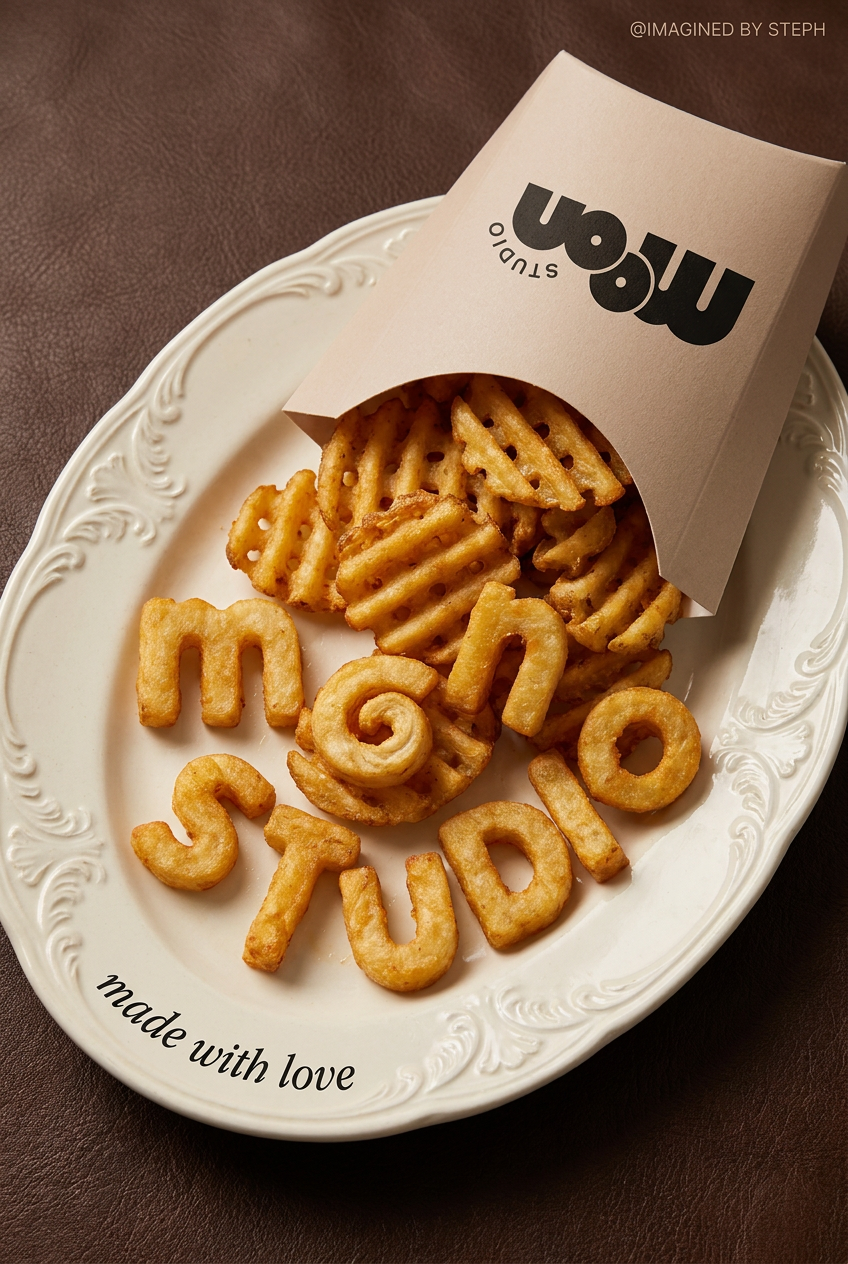
Transform your products into high-fashion editorial ads. This setup uses a dynamic diagonal layout and a slightly tilted overhead angle to give food and packaging incredible depth and texture. It's perfect for giving any brand a chic, premium look.
Regenerate using your own assets.
Your first AI video story is a workflow away
Creating a compelling AI video story isn't about finding one perfect, magical prompt. It's about adopting a structured production process: script, storyboard, consistent generation, audio, and assembly. This workflow-based approach moves you from a creator frustrated by random outputs to a director in control of the narrative.
MyUP is designed to manage this exact process. With a Brandkit for visual consistency and a flexible Workflow Builder to connect each step, you can finally produce the AI-powered stories you've been imagining. Stop chasing one-off clips and start building your first narrative today.
