
If you've been on X or LinkedIn this week, you've seen the backlash. The viral thread from July 22nd showing slide after slide of generic, plasticky, and frankly bizarre AI-generated presentation images hit a nerve. It confirmed what many of us already knew: AI presentation makers like Tome and Gamma are fantastic for outlining text and structuring a deck in minutes, but they fail completely at visual brand compliance.
You get the speed, but you sacrifice the brand. The result is a deck that feels disconnected, unprofessional, and unusable for any serious client-facing or external communication. The solution isn't to abandon these tools, but to augment them. This is the workflow for getting the best of both worlds.
The two-tool workflow: separate structure from visuals
The core mistake is trying to find a single AI tool that does everything perfectly. A great presentation has two distinct components: the narrative structure (text, flow, slide order) and the visual identity (colors, fonts, illustration style, data visualization). The most effective workflow uses specialized tools for each.
1. Your AI Presentation Maker: Use it for what it's good at—turning a prompt or document into a structured slide deck with placeholder content. Let it handle the heavy lifting of outlining and writing.
2. MyUP.ai for Visual Assets: This is your brand-aware creation layer. In MyUP, you'll generate every single visual element your presentation needs—from title slides and spot illustrations to charts and graphs—all automatically conforming to your brand's specific identity. Then, you simply drop these finished assets into your structured deck.
This separation of concerns gives you total creative control where it matters most, without sacrificing the speed of AI for the initial draft.
Step 1: Lock in your visual identity with a MyUP Brandkit
Before you generate any assets, you need to teach the AI what your brand looks like. This is the foundational step that makes everything else work. In MyUP, this is done with a Brandkit.
Instead of writing complex prompts to describe your brand for every image, you build your visual identity once. Simply provide a URL, and MyUP automatically pulls your brand's colors, fonts, and logos. You can then refine it by defining your specific illustration or graphic style—for example, 'flat vector illustrations with bold lines' or 'minimalist iconography with a single accent color'.
This saved Brandkit becomes the unbreakable rulebook for every visual asset MyUP creates for you. It's the source of truth that ensures consistency across your entire presentation, from the first slide to the last.
Step 2: Generate your on-brand presentation assets
With your Brandkit active, you can now move on to production. Instead of using the generic image generator inside your presentation tool, you'll create a suite of custom, brand-compliant assets in MyUP. Here’s how to approach the most common slide types.
Create a bold title slide that makes an impact
Your title slide and section dividers set the tone. They need to be impactful and perfectly on-brand. Using a MyUP workflow, you can generate a series of high-impact graphics that use your Brandkit's fonts and colors automatically. You can prompt for a specific concept, and the AI will handle the layout and style, giving you options to review and select.
For a strong, type-driven design, a template like the Bold Retro Yellow Event Poster provides a great starting point. Just run the workflow and adapt the text for your presentation title.
Workflow code: #myup-xbur-hzoi
Bold Retro Yellow Event Poster
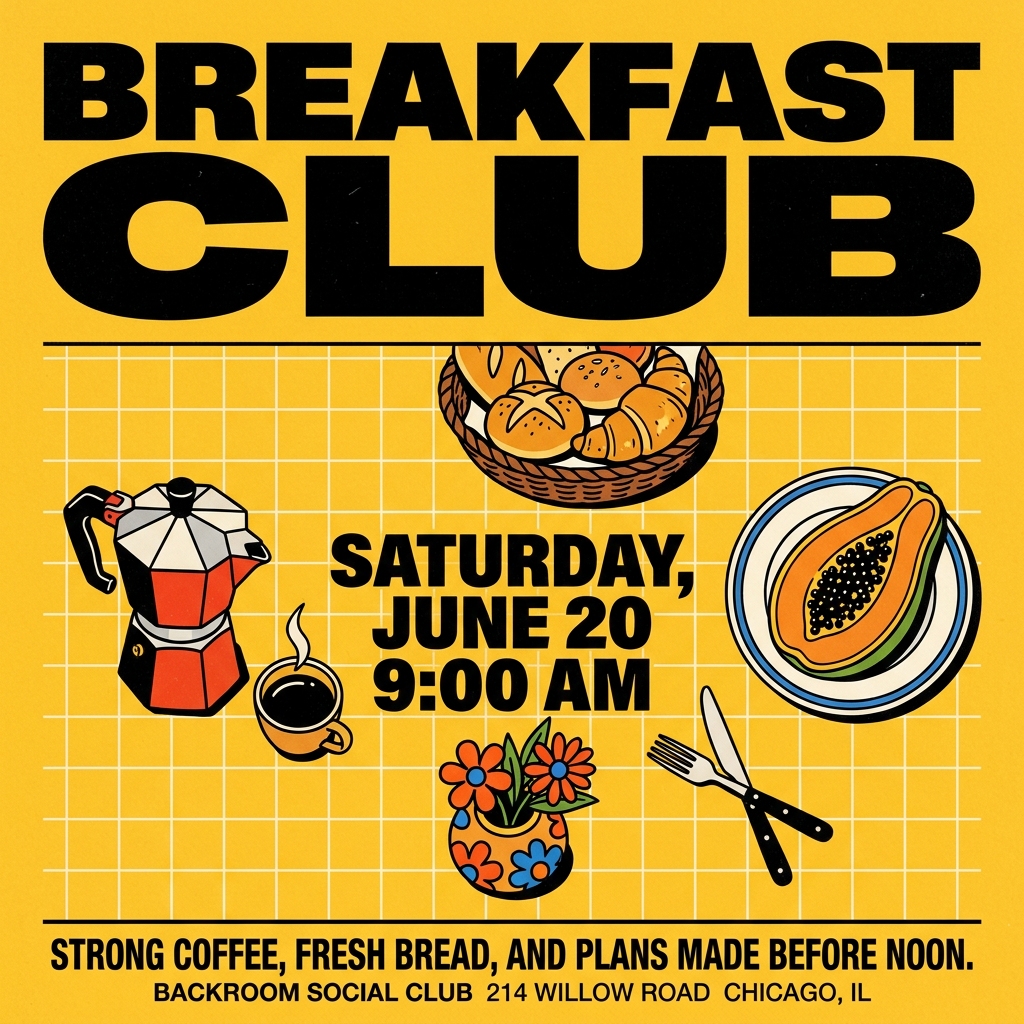
Turn your branding or event details into bold, nostalgic posters. It blends vibrant warm backdrops with a clean, retro square grid pattern to make any announcement look like a classic piece of mid-century graphic design.
Regenerate using your own assets.
Design custom spot illustrations and icons
Slides often need simple graphics to illustrate a point or break up text. Relying on generic icon libraries or the AI presentation tool's image generator results in a messy, inconsistent look. In MyUP, you can prompt for exactly what you need: 'a simple line icon of a rising chart,' or 'a spot illustration of two people collaborating.' Because your Brandkit's style is already defined, every icon and illustration will share the same visual language, looking as if a single designer created them. This is the kind of detail that separates a professional deck from an amateur one. This same process can be used to create visuals for any format, like when you need to create native Instagram Story ads.
Build on-brand layouts for charts and data
Nothing screams 'generic AI' louder than an off-brand chart with clashing colors and unreadable fonts. This is one of the biggest pain points. The solution is to generate a branded container or background for your data in MyUP. You can create a slide layout that includes your brand's colors, logo, and typography for titles and labels. Then, export this image and layer your chart data on top of it within your presentation software. For more complex data, you can even use a workflow to create a structured grid layout that organizes information cleanly. If you're looking to move beyond static charts entirely, you can even turn your data directly into an animated video.
To create a clean, organized layout for data points or key takeaways, use a workflow like the Bold Editorial Grid Poster to generate a visually structured background.
Workflow code: #myup-n0bi-2wzk
Bold Editorial Grid Poster
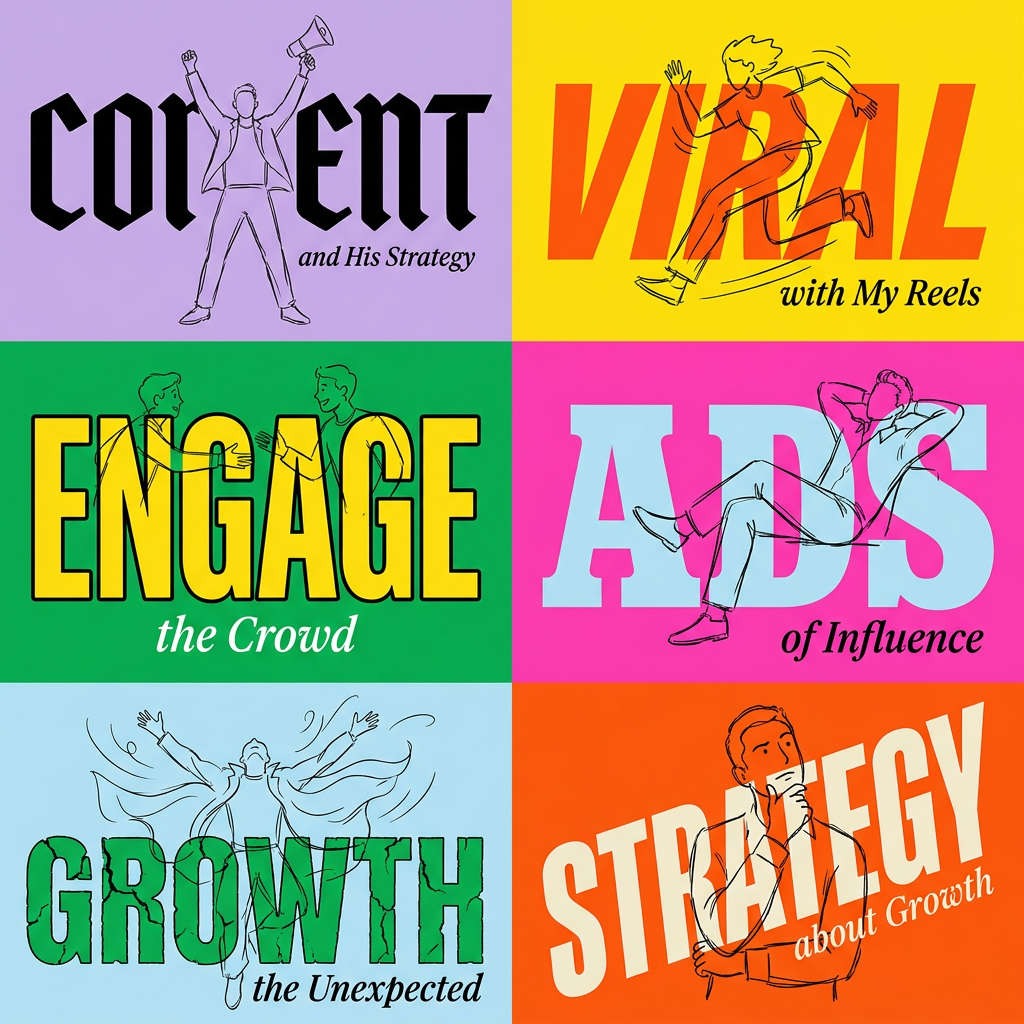
Create striking 2x3 editorial posters with six seamless, flat-color square cards in a perfect 4:5 grid. There are absolutely no gaps between the blocks, giving your content a bold, high-contrast magazine layout. It looks incredibly clean on any social feed.
Regenerate using your own assets.
Step 3: Assemble your finished, brand-compliant deck
This is the final, simple step. Once you've generated your suite of visual assets in MyUP, export them as high-resolution PNGs or JPGs. Open your AI-generated presentation in PowerPoint, Google Slides, or whatever platform you use.
Go slide by slide, replacing the generic, off-brand placeholder images with the custom assets you created. This is where human control comes in: MyUP handles the tedious production of creating consistent visuals, while you make the final editorial decision on placement and composition. In minutes, you'll transform a generic draft into a polished, professional, and perfectly brand-compliant presentation.
One more thing: a template for that 'we're hiring' slide
Nearly every company presentation ends with a slide about hiring. Instead of just a line of text, you can create a clean, professional hiring graphic that fits seamlessly with the rest of your deck. This workflow provides a ready-to-use template for just that purpose.
Workflow code: #myup-eiob-7tbc
Modern Hiring Poster
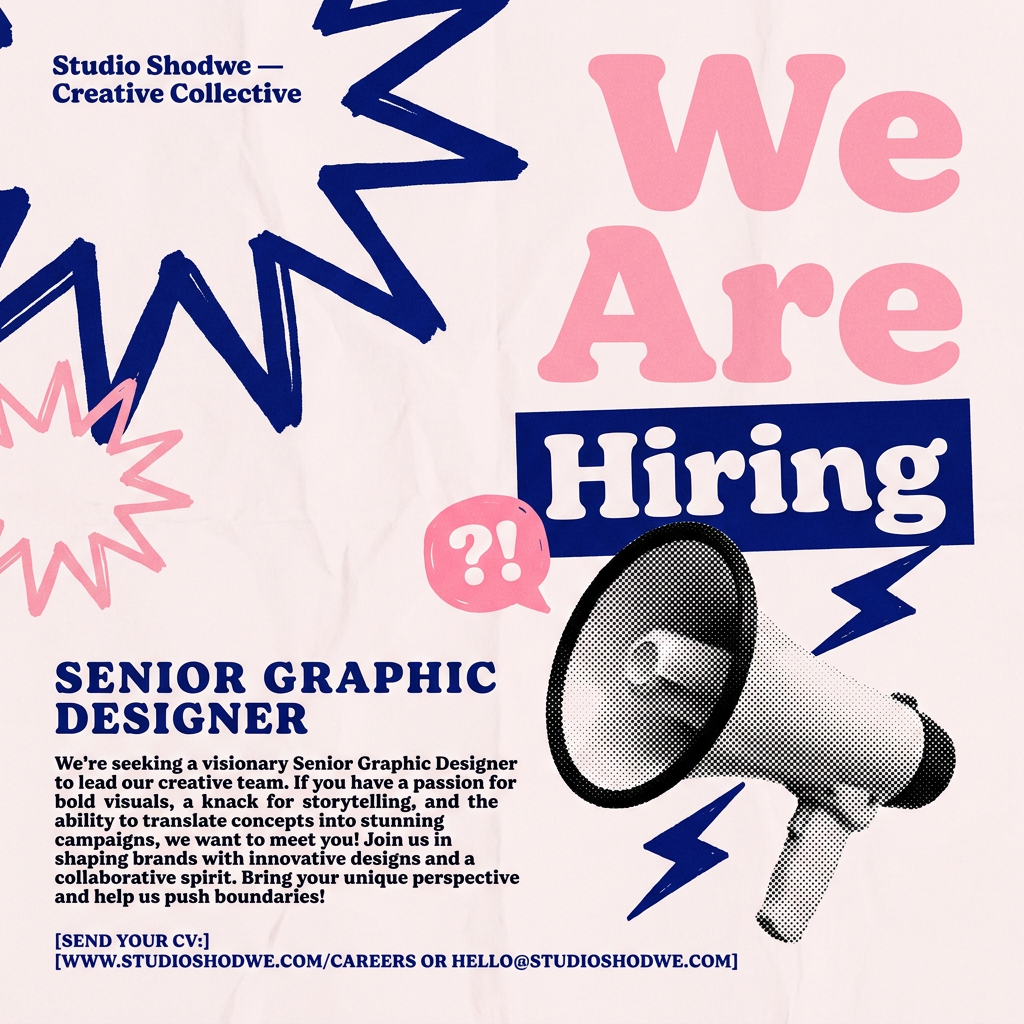
Turn your open roles into stylish social announcements. It sets your hiring details against a soft, textured paper background with clean, editorial typography. Perfect for giving your brand a polished, modern look when you're looking to hire.
Regenerate using your own assets.
