You spent an hour prompting for the perfect thumbnail. The image from Midjourney or DALL-E was almost right, but the text looked like a melted keyboard. So you took a screenshot, pulled it into Canva, and spent another 30 minutes trying to fix the typography and match your channel’s colors. The promise of AI speed just evaporated into manual rework. Sound familiar?
This is the universal frustration for creators using generic AI image generators for a specific, high-stakes job like a YouTube thumbnail. You're not doing anything wrong; you're using the wrong tool for the job. The solution isn't a better prompt. It's a better workflow.
Why your AI thumbnails look generic (and the text is always wrong)
Standard AI image generators are built to create novel, one-of-a-kind pictures from text. They think in pixels, not in design systems. This is why they fail at two things critical for any serious YouTube channel: brand consistency and legible text.
- Brand Inconsistency: You can prompt for “using a bright yellow and dark grey color palette,” but the AI will interpret that artistically. It won’t use your exact brand hex codes. It can’t apply your specific brand font or place your logo in the same spot every time. The result is a channel grid that looks chaotic and unprofessional, which hurts subscriber trust and click-through rates (CTR).
- Unreliable Text: Image models don’t “write” text; they “draw” shapes that look like text. This is why you get garbled letters, inconsistent spacing, and nonsensical words. Even with recent improvements, it's a game of chance. For a thumbnail where a clear title is everything, this is a non-starter. You end up having to manually fix the AI-generated text, defeating the purpose of automation.
Trying to solve a design system problem with a pixel-painting tool will always lead to frustration and wasted time.
The fix: Stop generating thumbnails, start building a thumbnail system
The professional approach is to stop treating each thumbnail as a new design project. Instead, you build a thumbnail system. Once built, this system can produce endless on-brand variations for every new video in seconds, not hours.
In MyUP.ai, this system has three core components:
- A Brandkit: You set up your channel's visual identity—colors, fonts, logo—one time. MyUP then applies it automatically to every asset, guaranteeing consistency.
- A Core Visual: This is the unique, eye-catching image for your specific video, generated with AI but designed for impact.
- A Reusable Layout: A saved workflow that defines where your text, logo, and other graphic elements go. It’s a template, but supercharged with AI.
With this workflow, MyUP handles the production, and you simply validate the output. You change the inputs (the video title and the core visual), and the system does the rest, perfectly, every time.
Step 1: Set up your channel's Brandkit once
This is the foundation. Before you create a single thumbnail, you need to teach the AI your brand rules. In MyUP, this is incredibly fast. You simply create a Brandkit and provide your YouTube channel's URL. MyUP automatically extracts your logos, primary and secondary colors, and even identifies your fonts.
You can fine-tune any element, locking in the exact hex codes and uploading your specific font files. This 10-minute, one-time setup ensures that every single thumbnail, social post, or ad you generate from now on will use the correct visual language. This step alone solves the brand consistency problem for good.
Step 2: Create a powerful core visual for your video
With your brand rules locked in, you can focus on the creative part: the main image. A great thumbnail needs a powerful, attention-grabbing visual that communicates the video's topic. This is where AI image generation shines, but it needs direction.
Instead of a complex prompt trying to describe the whole thumbnail, focus only on the subject. Are you in the video? Generate a high-impact portrait. Is it about a product? Create a dramatic shot of the item. MyUP workflows can help you establish a consistent photographic style for these core visuals.
For instance, a bold, high-contrast portrait style works exceptionally well for thumbnails. You can use a workflow to get this specific look every time without complex prompting. Just describe the subject, and the workflow handles the lighting, mood, and quality.
Workflow code: #myup-xjsb-hirr
Bold Portrait Food Advertising Photo
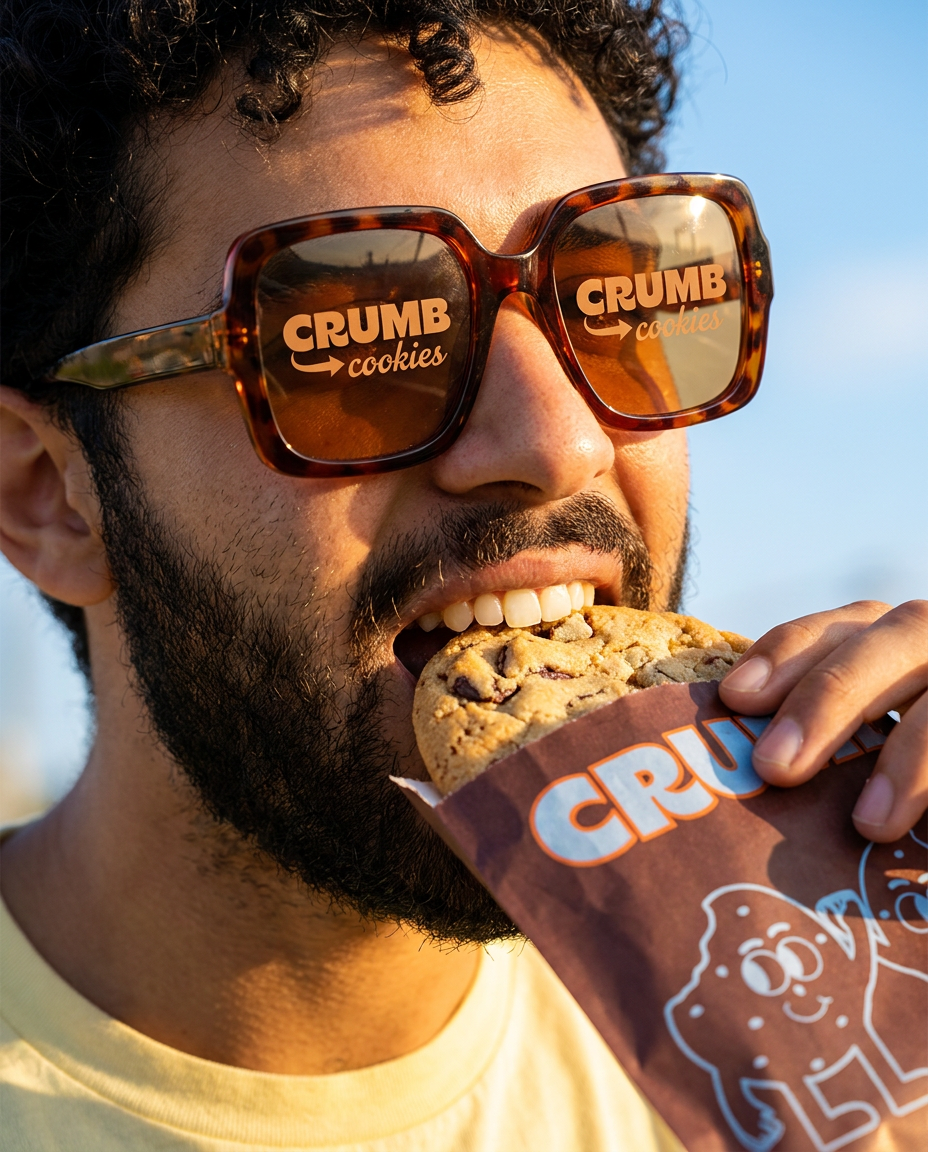
Get those high-impact, tight action shots of people actually enjoying your food brand. It drops your product right into a messy, realistic close-up bite shot that feels like a premium lifestyle campaign instead of a boring studio packshot.
Regenerate using your own assets.
Step 3: Design a reusable layout with on-brand text
Here is where we permanently solve the mangled text problem. MyUP doesn’t draw your text onto the image; it applies it as a separate design layer, just like in Photoshop or Figma. This gives you total control and perfect clarity.
You can build a workflow that defines your preferred thumbnail layout. For example, a common high-CTR layout places a strong subject on one side and a bold, multi-line title on the other. You can create this structure once and save it.
A great way to think about this is like a magazine cover. They are designed for maximum impact and readability on a crowded shelf. A workflow that mimics this structure can be incredibly effective for standing out on the YouTube homepage. This template applies a clean, editorial structure that you can adapt for your channel's thumbnails.
Workflow code: #myup-yk1h-uqy8
High-End Editorial Fashion Magazine Cover
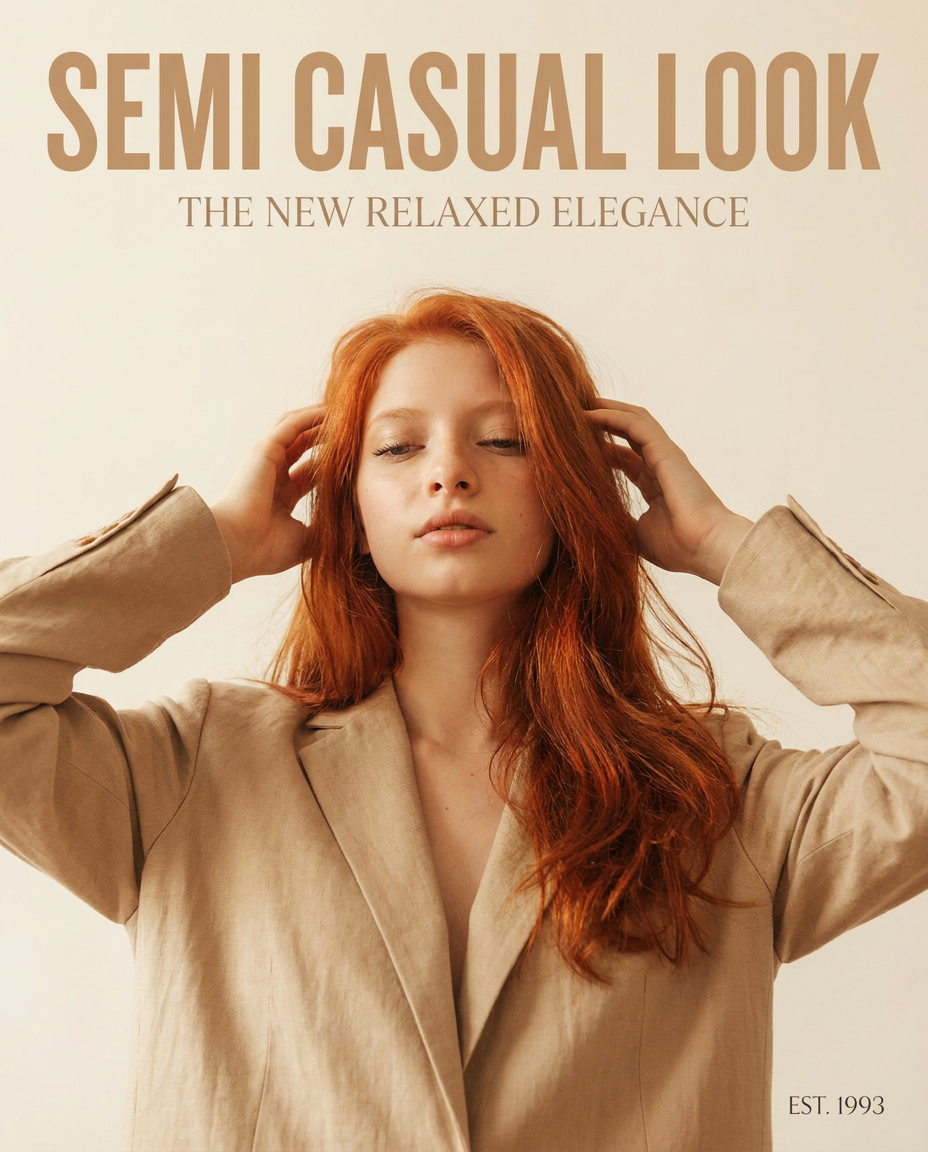
Drop in any portrait and turn it into a high-end editorial magazine cover. It frames your subject beautifully with relaxed, high-fashion posing and soft styling for a polished print aesthetic.
Regenerate using your own assets.
When you run the workflow, MyUP automatically pulls the fonts and colors from your Brandkit. The user—you—simply types in the new video title. The AI executes the design rules you've set, ensuring the text is always sharp, legible, and perfectly on-brand.
Putting it together: Generate endless variations in seconds
Now, the magic. Your Brandkit is set. You have a saved layout workflow. For your next video, the process is this:
- Generate a new core visual for the video's topic.
- Run your saved thumbnail layout workflow.
- Input your new video title.
- Combine the new visual with the on-brand text layout.
The entire process takes less than a minute. Better yet, you can instantly generate variations to A/B test. Want to try a different headline? Just change the text. Want to see a more minimalist layout? Run a different saved workflow. This workflow, for example, creates a clean, elegant layout perfect for product-focused or educational content.
Workflow code: #myup-fy77-jljs
Minimalist Elegant Product Advertising Poster
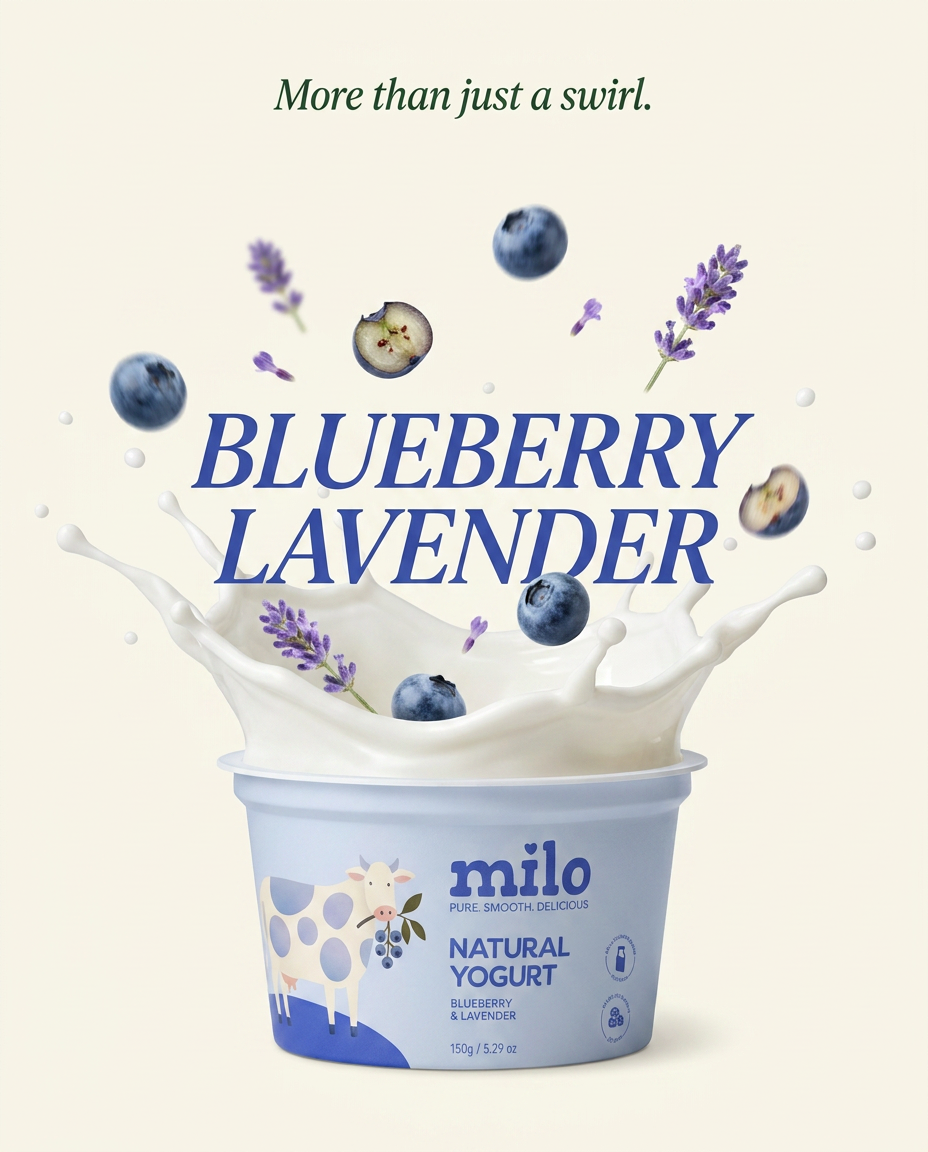
Turn any product shot into a high-end editorial ad. It places your item against a soft cream background with airy spacing and adds elegant, small serif typography at the top. Great for wellness or luxury brands wanting a calm, minimal aesthetic.
Regenerate using your own assets.
You've moved from being an AI prompter to being a creative director. You make the strategic decisions, and your automated system handles the repetitive production work.
Your channel now has a scalable thumbnail machine
Stop fighting with generic AI tools that weren't built for brand content. By shifting from one-off prompting to a workflow-based system in MyUP, you're not just making one thumbnail faster. You're building an automated machine that can produce unlimited, perfectly on-brand thumbnails for your channel's entire future.
This is the difference between an AI image generator and a true content production platform. You get back the time you were wasting on manual fixes and regain creative control, allowing you to focus on what actually grows your channel: making great videos.
