
If you’ve spent any time on X or Reddit in early July 2026, you’ve seen them: charming, jerky animations of clay figures or Lego bricks, all generated with AI. You’ve also seen the comments below them: a flood of creators asking “how?” only to be met with tutorials that are a Frankenstein's monster of different tools.
The standard advice involves a painful process of 'tool-chaining'. You generate a keyframe in Midjourney, try to interpolate motion in Runway or Luma Dream Machine, wrestle with consistency using complex ComfyUI nodes, and finally stitch it all together in After Effects. The result is often a mess of 'frame drift'—where your subject subtly morphs into something else entirely—and a complete loss of style consistency. It’s a frustrating, time-consuming battle against the very tools meant to help you.
The magic of stop motion isn't chaos; it's control. It’s the consistency from one frame to the next that creates the illusion of life. Your AI tool shouldn't fight you on that. It should automate it.
The one-platform workflow for perfect stop motion
Instead of juggling four different platforms, you can create a clean, consistent stop-motion video entirely within MyUP. The process isn't about fighting for consistency; it's about defining it once and letting a workflow handle the repetitive production. MyUP executes the tedious work of generating each frame, and you validate the final output.
Here’s how it works, broken down into four simple steps that happen in a single, repeatable workflow.
Step 1: Generate your starting frame with a clear subject
Every great animation starts with a single, strong image. Your goal here is to create a clean 'frame zero' with a clearly defined subject and background. Avoid overly complex scenes. Simple is better because it gives the AI fewer elements to misinterpret as it generates subsequent frames.
For a product animation, you want a high-quality, editorial-style shot. Instead of spending hours crafting the perfect prompt from scratch, you can use a workflow designed for this exact purpose. This template, for example, is built to generate premium commercial photography for beverages, giving you the perfect starting point.
Workflow code: #myup-i4ju-fq5a
Premium Beverage Commercial Photography
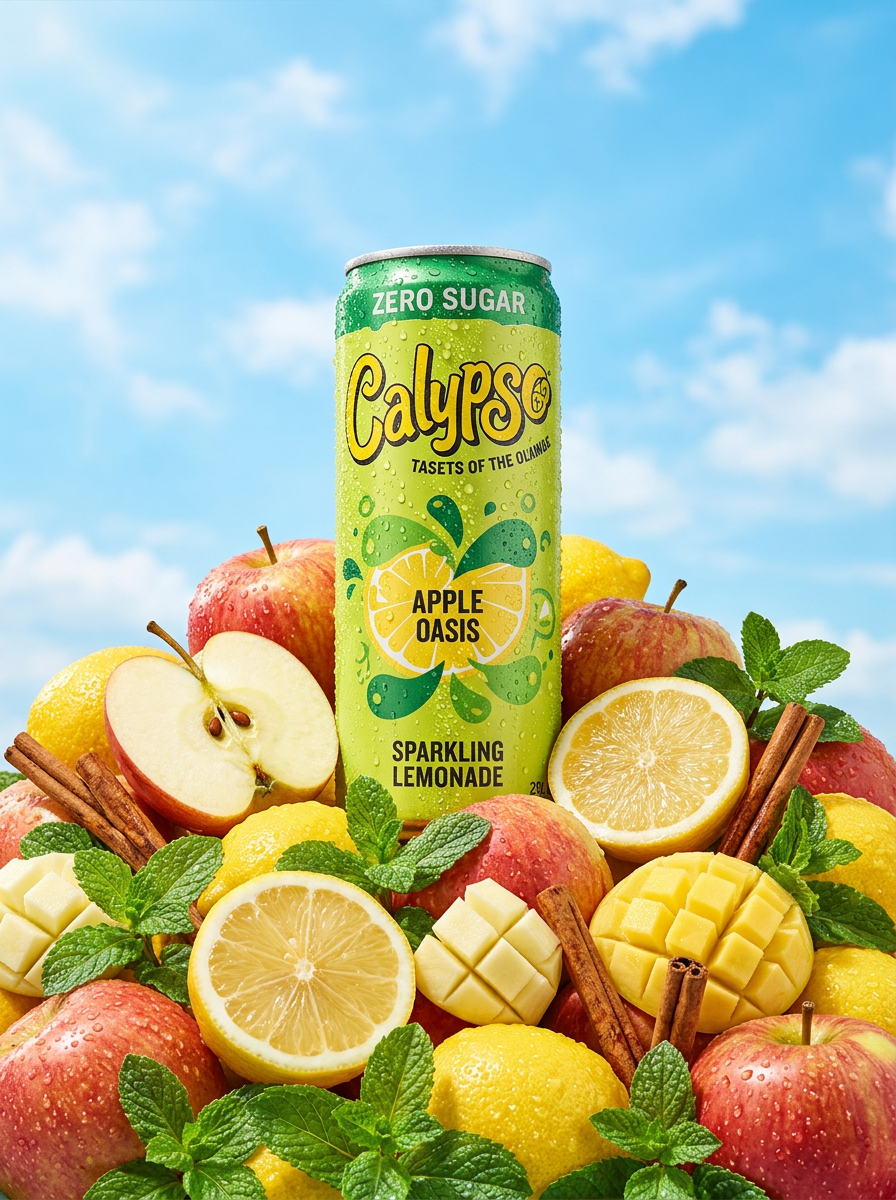
Give your packaged products an ultra-fresh summer look. It places your item in a pile of vibrant fruit, shooting from a dramatic low angle against a bright sky with hyper-realistic condensation droplets and sharp macro details.
Regenerate using your own assets.
Step 2: Lock in consistency with your Brandkit
This is the step that eliminates frame drift. Before generating the animation sequence, you apply your MyUP Brandkit. A Brandkit is your entire visual identity—colors, fonts, logo, and overall aesthetic style—built once from your website URL and applied automatically to every creation. When the stop-motion workflow runs, your Brandkit acts as a creative guardrail. It ensures that the specific shade of your brand's blue, the texture of the background, and the design of your product remain stable across all 24, 48, or 100+ frames. This is how you get controlled, on-brand animation instead of a chaotic, morphing video.
Step 3: Automate the frame sequence with an iterative prompt
With your starting frame and Brandkit locked in, you can now define the motion. In the MyUP workflow, you don't just ask for a video; you instruct the AI to generate a sequence of images based on an iterative prompt. This prompt tells the AI to take the previous frame and apply one small, specific change.
For example:
- "Using the previous frame as a reference, slide the perfume bottle 5% to the right."
- "Make the clay character's arm move upwards by 10 degrees."
- "Slightly increase the size of the central flower bud."
The workflow runs this prompt in a loop, generating one frame after another, each with a minor, controlled modification. This methodical process is what replicates the classic stop-motion technique. You can use a template like this one for a social media story to see how a simple product shot can be prepared for animation.
Workflow code: #myup-sygb-rhnt
Minimalist Vertical Product Advertising Poster
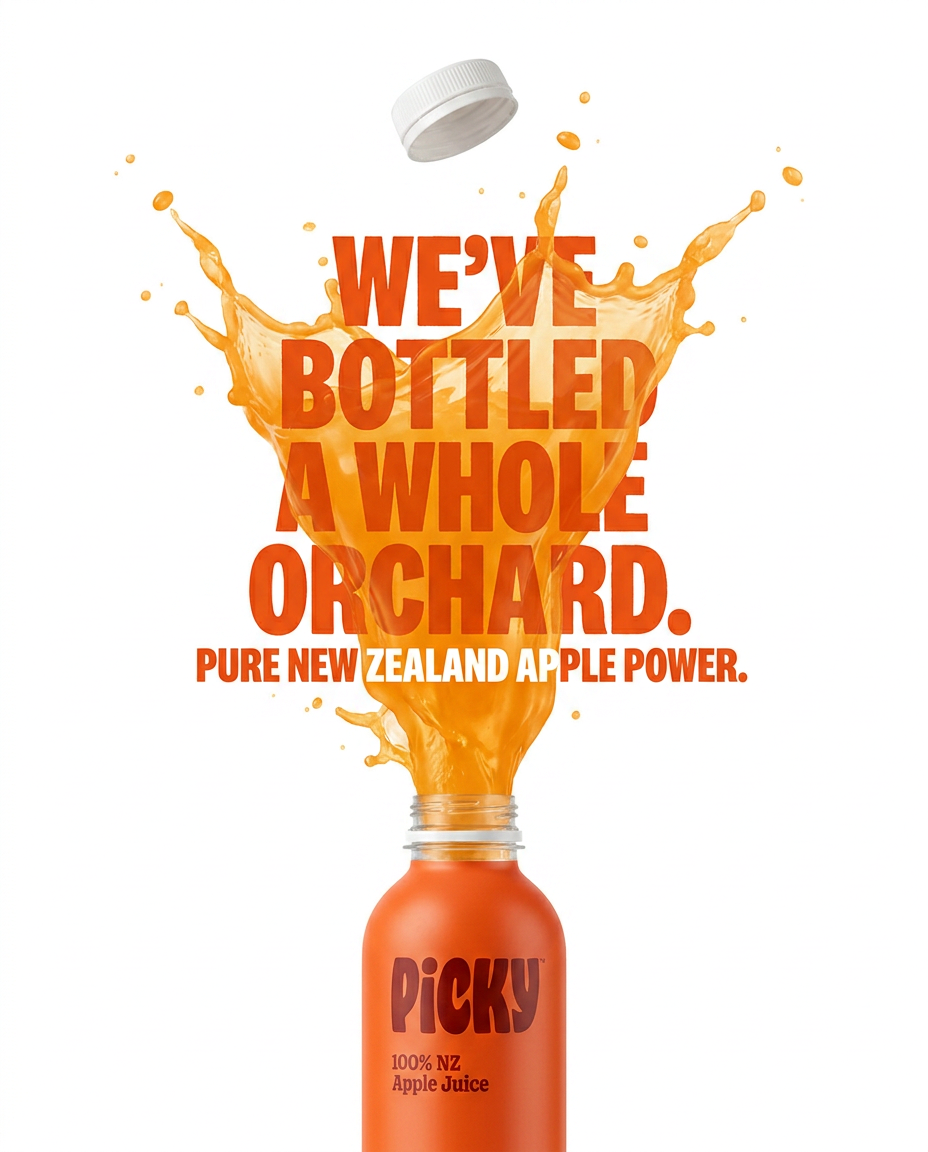
Drop the clutter and put your product in the spotlight. This setup places your item against a pure, seamless white background with a striking vertical flow that draws the eye straight up. It's perfect for creating clean, high-end studio posters.
Regenerate using your own assets.
Step 4: Compile, review, and export your video
Once the frame generation is complete, MyUP automatically compiles the image sequence into a video clip. You can then review the full animation, adjust the frame rate to make the motion faster or slower, and remove any frames that don't look quite right. This is where human control comes back into focus. MyUP handles the laborious production, but you provide the final creative approval. When you're happy with the result, you can export it as a GIF or MP4, ready to be used in your campaigns. This approach combines AI automation with the kind of oversight needed to ensure you are always on-brand, a concept we explore further in our guide to conversational video editing.
Creative ideas for your AI stop-motion videos
This workflow isn't just for sliding products across a table. You can use it to create a wide range of captivating visual effects.
- Claymation Style: Use a prompt like "a small, charming claymation robot" for your starting frame, then use iterative prompts to animate its movements for a classic Aardman-esque feel.
- Growing and Blooming: Animate natural elements. Start with a closed flower bud and use an iterative prompt like "make the petals open slightly" to create a time-lapse of a flower blooming.
- Hand-drawn Animation: Create a simple line drawing and have it sketch itself onto the screen frame-by-frame.
For animating natural or organic elements, a workflow that already understands elegant, textured composition is a huge head start. This template for floral product editorials is a great base for creating blooming animations.
Workflow code: #myup-5q78-bln0
Luxury Floral Product Editorial

Place any product in an ultra-minimalist, warm studio space. It wraps your item in a seamless cream and beige backdrop with a super soft bokeh that melts away, making the details pop. It’s perfect for giving goods a clean, high-end look.
Regenerate using your own assets.
Stop-motion for social media that stops the scroll
The slightly imperfect, tangible feel of stop motion is perfect for cutting through the noise on platforms like Instagram and TikTok. A short, looping video of your product assembling itself or a key ingredient playfully hopping into a bowl is far more engaging than a static image. Because the MyUP workflow is repeatable, you can easily create dozens of variations for A/B testing your social ads.
It's a powerful way to turn static concepts into dynamic videos without needing a video editor or animator. To create a scroll-stopping food animation for your next social campaign, start with a workflow designed for exactly that.
Workflow code: #myup-egd6-d8uv
Modern Minimalist Food Promotional Poster
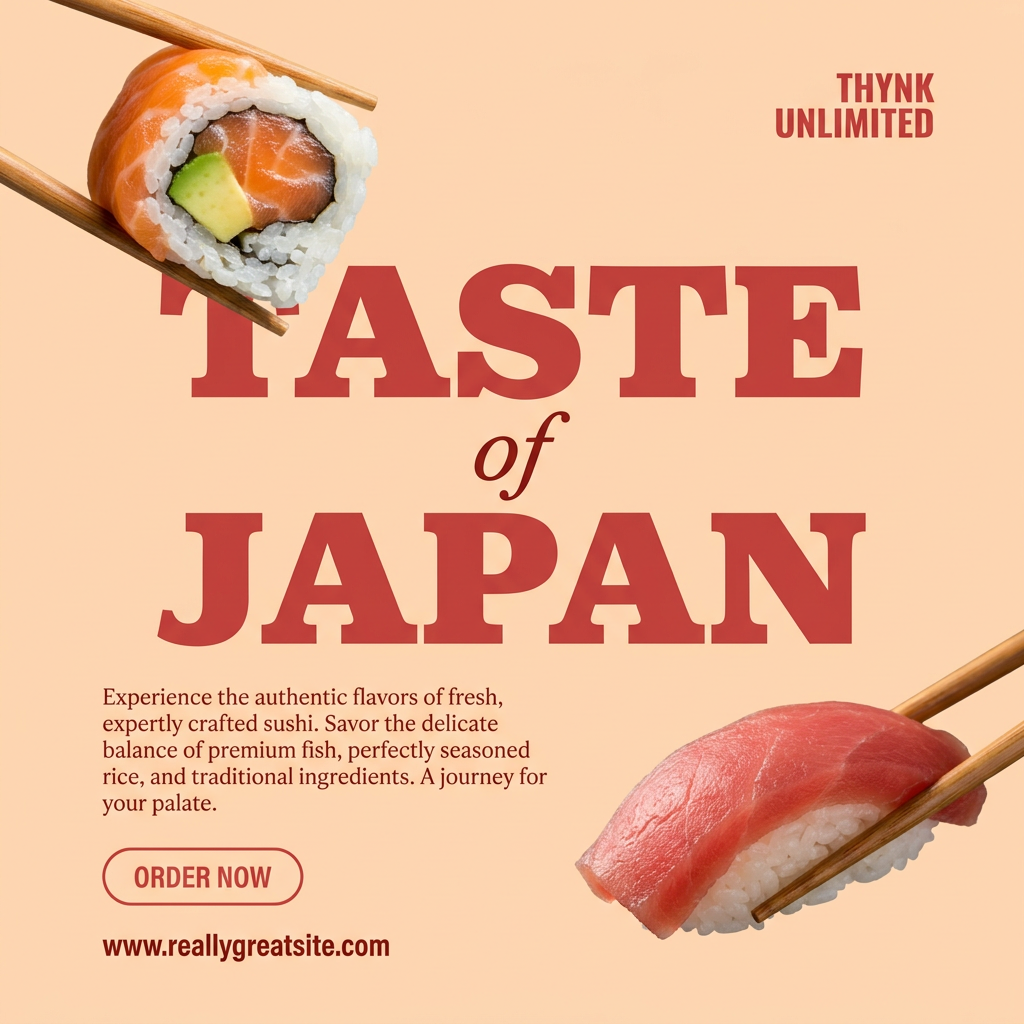
Turn your food photos into clean, modern social posters. It automatically grabs the lightest color tint from your uploaded dish to build a perfectly matched, soft background that keeps your feed looking cohesive and high-end.
Regenerate using your own assets.
