
You tried animating your latest social post with AI. It looked great for a second, drawing the eye with subtle motion... until you noticed your logo was melting in the corner. The text shimmered and warped. The product itself seemed to breathe in a way that was more unsettling than engaging.
This is the new, frustrating reality of AI video for brands. As tools like Runway's Motion Brush and Adobe's animation effects become mainstream in mid-2026, the question is no longer “Can I animate this image?” but “Can I control *how* it animates?”
Painting motion onto a static image is a powerful creative tool, but for business, it’s a liability. When the AI doesn’t understand that your logo must remain stable, it treats it just like any other group of pixels — and warps it into an unusable mess. True creative control isn't about a magic brush; it's about a smart workflow. Here’s the workflow that protects your brand and creates professional, cinematic motion every time.
The brand-safe workflow for selective animation
The professional approach flips the problem on its head. Instead of trying to paint motion onto some parts of an image while hoping the AI spares others, you build a stable, layered composition and direct the camera. This ensures your brand elements—logo, headline, call to action—are never at risk. MyUP is built for this workflow-first approach. It combines a static design canvas with controlled camera instructions, giving you the final say.
Here’s the three-step process to turn any static post into a dynamic, brand-safe video.
Step 1: Start with a strong, static foundation
Great motion starts with a great still. Before you even think about animation, your image needs to be a well-composed, on-brand asset. Whether you're uploading an existing post or creating a new one from scratch, this is your base layer. In MyUP, you can generate an image with a prompt or start from a template designed for your use case, like a product announcement or event promotion. The key is to get all your static elements perfectly in place first.
For example, you can use a template to quickly generate a high-quality, on-brand image for a fashion post. The AI handles the composition, but you validate the result, ensuring it aligns with your campaign before moving to animation.
Workflow code: #myup-3sro-edbt
Brand Clothes Post
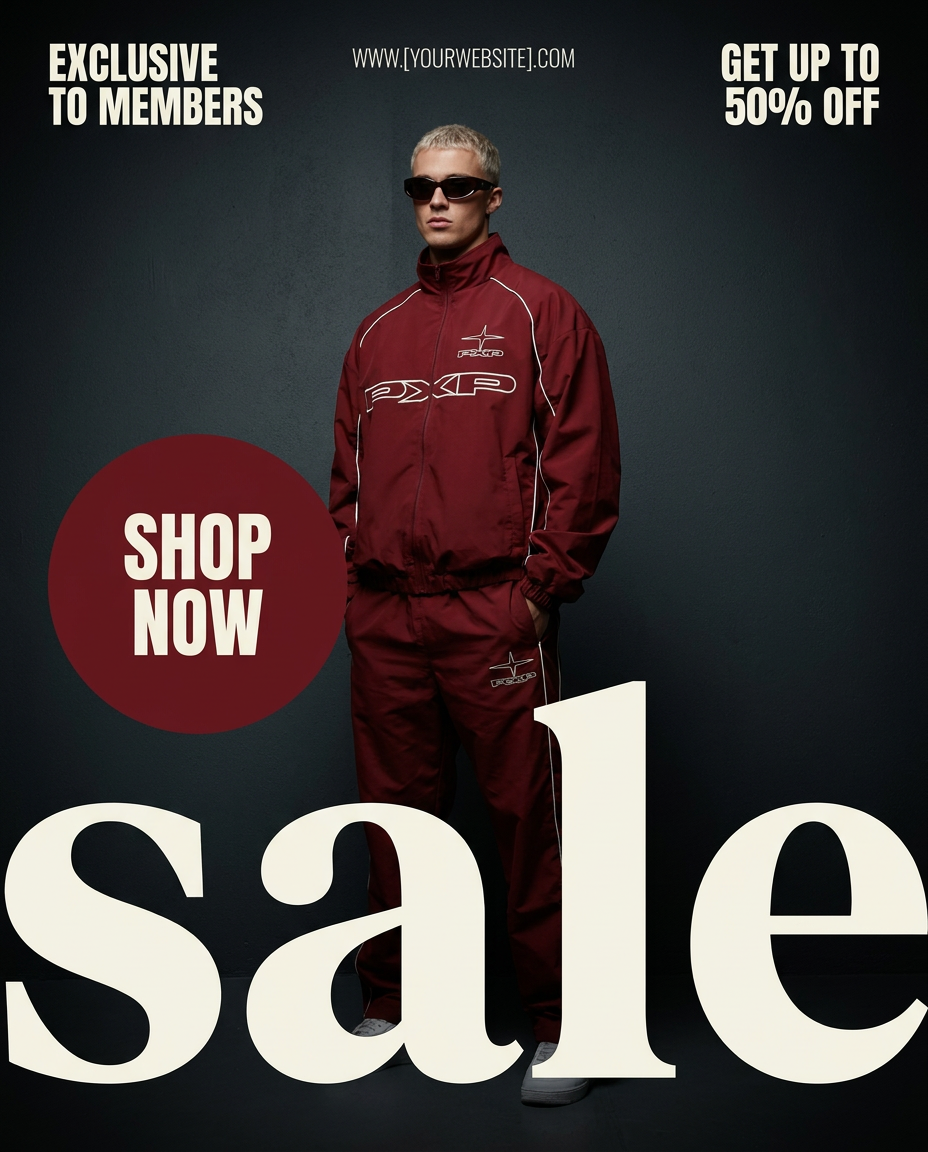
Turn any outfit photo into a high-end fashion promo poster. It centers your subject in a full-body shot against a dark, dramatic studio backdrop, perfectly cropped for social feeds. It gives your apparel a moody, editorial look instantly.
Regenerate using your own assets.
Step 2: Direct the camera, don’t just 'add motion'
This is where you separate professional results from the chaotic swirl. Instead of using a brush to tell pixels to move, you instruct a virtual camera. In the MyUP AI Video generator, you can define simple, intentional movements for your static base image.
- Pan: Slowly move the camera from left to right or top to bottom, revealing different parts of the image.
- Zoom: Gently push in on a key detail or pull out to reveal the full scene.
- Rotate: Add a slow, subtle rotation for a dynamic effect.
This method gives you complete control. The entire image moves as a single, coherent unit. Nothing warps, melts, or distorts. You are the director, not the victim of an unpredictable algorithm. This is how you can animate an image without the chaotic swirl, but with even more precision.
A complex image, like a magazine cover, benefits hugely from a slow pan or zoom that guides the viewer's eye across the content without distorting the layout. You can try this approach with the workflow below.
Workflow code: #myup-aktp-7jq0
Food Magazine Mosaic Cover
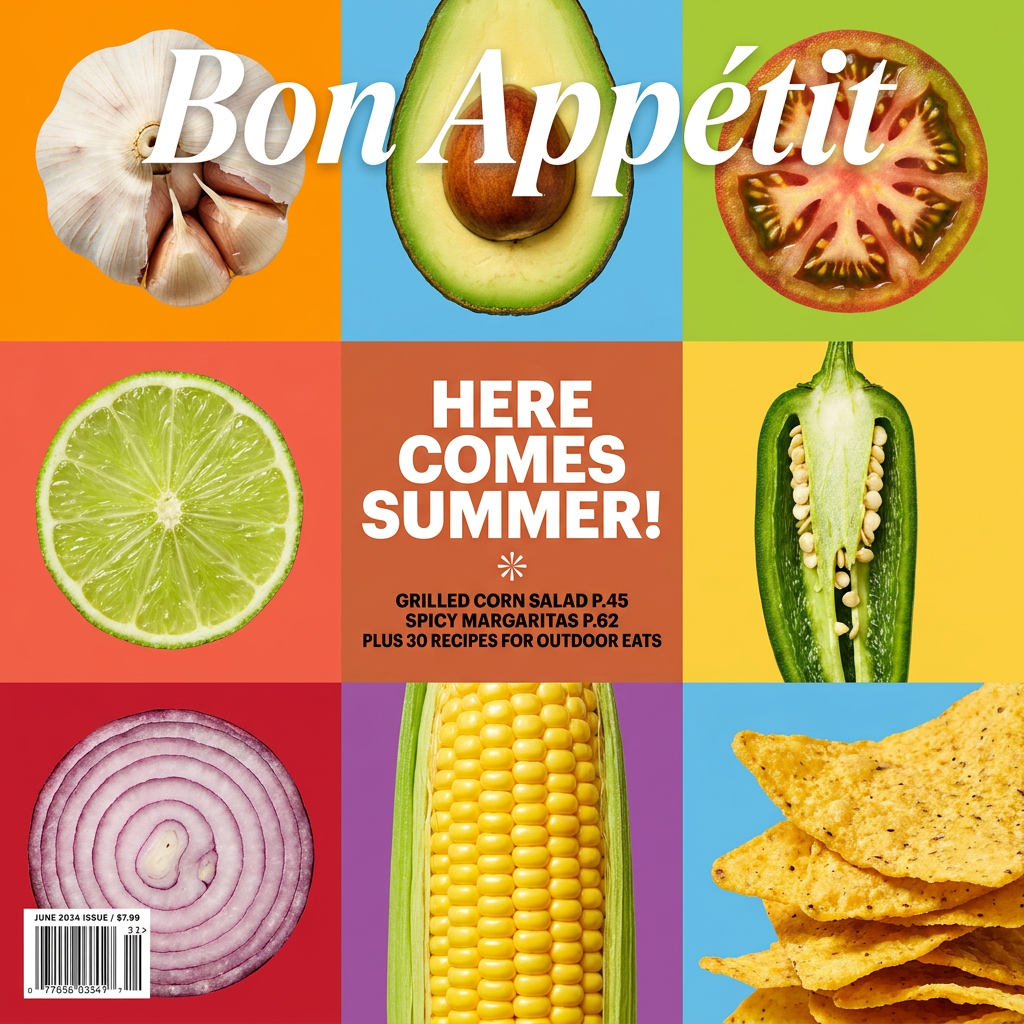
Turn your food shots into a bold, high-end editorial cover. It takes extreme close-ups of your dishes or ingredients and arranges them into a vibrant 3x3 grid that looks straight out of a premium food magazine.
Regenerate using your own assets.
Step 3: Lock your brand with a stable overlay
Here is the most critical step for brand safety. After you’ve defined the camera movement for your background image, you add your brand elements as a separate, static layer on top. In MyUP, you pull these directly from your Brandkit.
Your logo, headline text, and any other graphics are placed over the moving background. Because they exist on a separate, non-animated layer, they remain perfectly crisp, stable, and legible throughout the entire video. The background moves, but your brand doesn't. This layered composition is the secret to achieving a high-end, cinematic look without any risk of brand damage.
The user validates the final composition, ensuring the logo is placed correctly and the text is readable against the moving background. MyUP handles the rendering, merging the layers into a final, polished video file.
Pro technique: create the cinematic 'moving background' effect
One of the most popular and effective animation trends is the 'static subject, moving background' effect. It’s perfect for product ads or highlighting a person. The workflow is a simple variation of the steps above:
- Generate your base image: Create your product shot or character on a dynamic or interesting background.
- Isolate the subject: Use an image editor or an AI tool to cut out your subject (the product, the person) and save it as a PNG with a transparent background.
- Animate the background: In MyUP, upload the original, full image (with the subject still in it) and apply your desired camera motion (a slow zoom works well).
- Layer and lock: Upload the transparent PNG of your isolated subject and place it directly on top of the moving background, perfectly aligned. Then, add your Brandkit logo and text as a final, stable layer.
The result is a video where the background appears to move dynamically while your product or subject remains perfectly still and in focus. It's a high-impact effect that you can create repeatably using a simple, brand-safe workflow.
This template for a food brand poster is a perfect starting point for this technique.
Workflow code: #myup-6hp6-zwh2
Minimalist Hand-Lettered Food Brand Poster
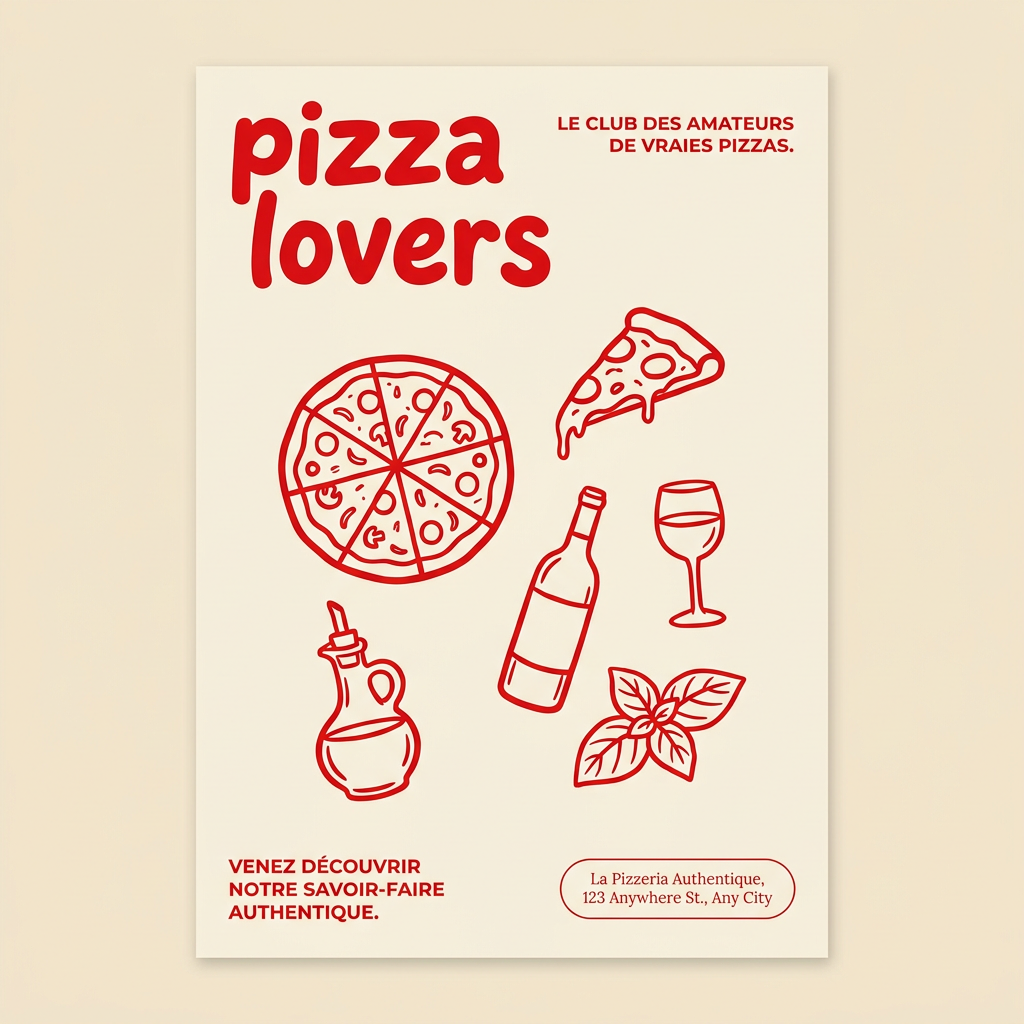
Generate clean, minimal posters for your food brand or cafe. It sets up a soft cream background with tons of breathing room, contrasted by a bold, chunky handwritten title in vivid red. It's a gorgeous editorial layout that makes your brand look instantly high-end.
Regenerate using your own assets.
Workflow code: #myup-tbky-nciq
Food Brand Poster
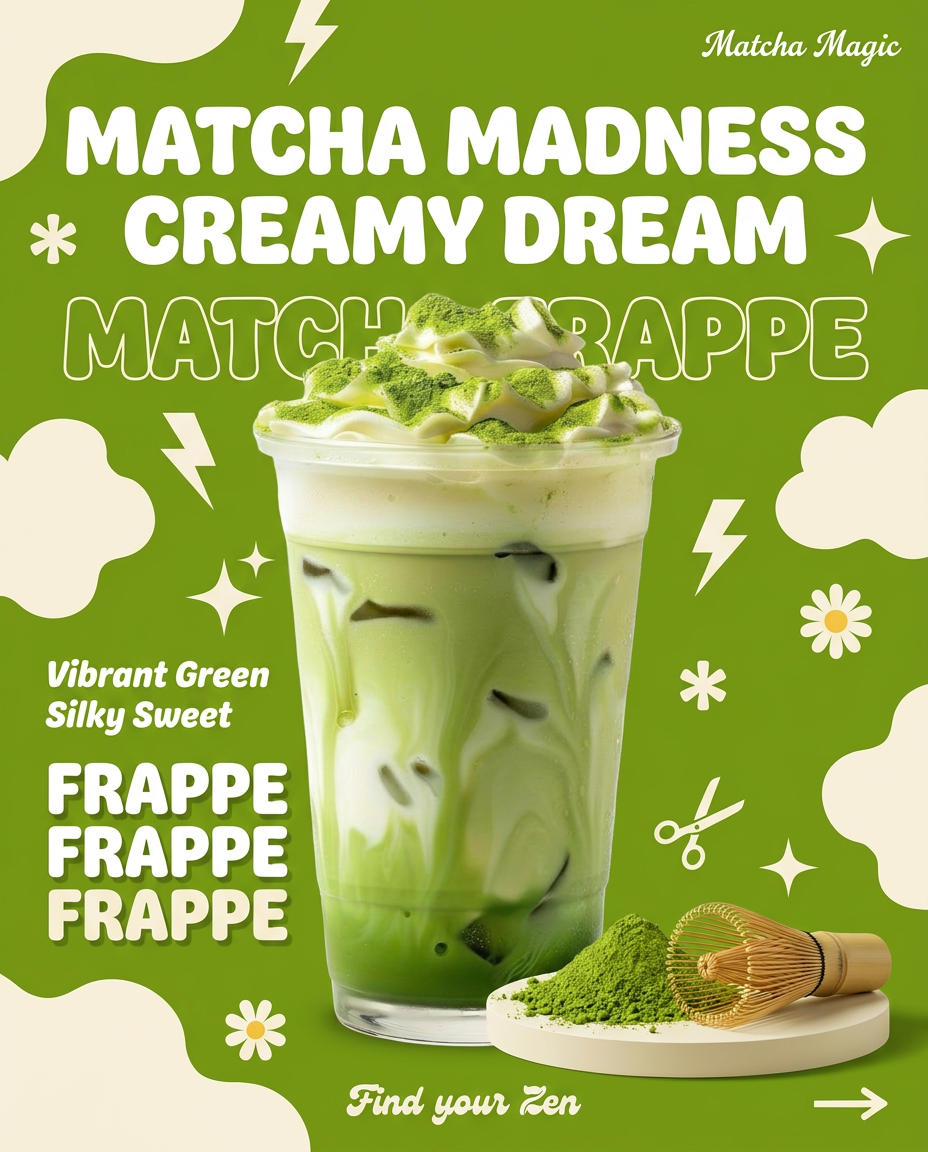
Instantly turn any food or drink product packaging into a bold, vibrant retro poster. The system automatically reads your bottle or box to grab its exact colors and ingredients, then crafts a perfectly coordinated vintage background around it.
Regenerate using your own assets.
Motion is easy. On-brand motion is a workflow.
The ability to animate parts of an image is a powerful new tool in the creator's arsenal. But for brands, random motion is a risk. Warped logos and illegible text can do more harm than a static image ever could. The solution isn't a better brush, but a better process.
By treating animation as a deliberate, layered composition—a moving background, a stable subject, and a locked brand layer—you get the best of both worlds: dynamic, eye-catching content that is always crisp, controlled, and on-brand. Stop painting and start directing. Create an account and try a brand-safe video workflow in MyUP today.
