You did it. After a few tries in Suno or Udio, you generated an AI track that sounds incredible. You drop it into your video editor, ready to finish your 30-second social ad, and then the frustration hits. The intro is too slow. The vocals start right when your on-screen text appears. And when the track ends at 1:47, you can't make it loop without an awkward jump.
This is a universal problem for creators right now. The market has matured past the novelty of AI music; now we need it to be functional. The issue is a fundamental mismatch: you have a 'song,' but what your video actually needs is a 'score.' A song has a rigid structure. A score is a flexible toolkit of intros, audio beds, and stingers you can edit to picture. This guide provides the missing workflow to bridge that gap.
That great AI song you generated? It's probably a terrible soundtrack.
A great song tells a story with verses, choruses, and bridges. A great soundtrack creates a mood and gets out of the way. When you're making a short video ad, a product demo, or a social media clip, the last thing you want is an AI-generated chorus competing with your message. The structure of a typical AI song is actively hostile to video editing.
What you need are the raw materials: a consistent instrumental section that can be looped seamlessly for as long as you need. You need an 'audio bed.' But AI music tools are built to deliver finished songs, not editable stems. So, we have to create them ourselves. The good news is that it's a simple, three-step process: generate the right kind of raw material, refine it into usable parts, and assemble it all in a true video creation platform.
Step 1: Prompting for parts, not for a finished song
Your goal isn't to create a chart-topping hit; it's to generate a high-quality audio texture. To get the most useful material from a tool like Suno, you need to adjust your prompts to ask for loop-friendly content. Forget about complex genres and song structures. Think simple, repetitive, and instrumental.
Here are a few prompting angles that work well:
- Specify 'Instrumental' and 'Loopable': Start your prompt with these keywords. For example: Instrumental, loopable, upbeat corporate tech, simple synth melody, 4/4 time.
- Avoid Vocals: Unless the vocal is a simple, repeatable chant, it will make looping nearly impossible. Explicitly add no vocals or instrumental only to your prompt.
- Request a Simple Beat: A straightforward drum pattern is much easier to cut on the beat than a complex, syncopated rhythm. Ask for a steady house beat, simple hip hop drum machine, or four-on-the-floor kick drum.
- Focus on Mood and Texture: Use prompts like ambient synth pads, background music for a tech demo or chill lo-fi beat for studying. These prompts encourage the AI to create a consistent texture rather than a dynamic song with multiple sections.
Generate a full two-minute track. Somewhere inside that track is the perfect 15- or 30-second loop you need. Now, let's go find it.
Step 2: The missing link — how to cut your own audio loops
This is the step most tutorials skip, but it's the key to making AI music work for video. You're going to take your generated MP3 and cut it into a seamless loop using a free audio editor. We recommend Audacity because it's powerful and available on any platform, but any basic audio editor will do.
Here’s the simple process:
- Import your track: Open Audacity and drag your AI-generated audio file into the window. You'll see the waveform of the track.
- Listen for a loopable section: Play the track and listen for a section—usually 8 or 16 bars of music—that sounds consistent and repetitive. This is often an instrumental section after the intro but before a major change like a chorus.
- Make your first cut: Find the first major downbeat of your chosen section. It will usually look like a clear peak in the waveform. Click and drag to select the section you want to loop. Aim for a clean 15 or 30 seconds.
- Test the loop: In most editors, you can press Shift + Play to loop only the selected audio. Listen carefully to the point where it repeats. Does it jump or click? If so, slightly adjust the start or end point of your selection until it sounds seamless. Zooming in on the waveform helps you align the cut perfectly with a beat.
- Export your loop: Once you have a clean loop, export the selected audio as a new file (e.g., 'MyProject_Loop.mp3'). You can also create shorter variations, like a 5-second intro or a 2-second stinger for transitions.
You now have a custom, perfectly looped soundtrack component. You've moved from being a passive user of an AI tool to an editor with full creative control.
Step 3: Assembling your on-brand video in MyUP
With your custom audio loops ready, it's time to build the video. This is where a dedicated brand content platform like MyUP becomes essential. MyUP is designed to assemble video, audio, and brand elements into a polished final product, giving you the control that standalone generators lack.
In MyUP, you can start a new video project and upload your custom audio files directly to the timeline. Layer your main loop as the audio bed, place your intro clip at the beginning, and use your stinger for scene changes. You now have a soundtrack that perfectly fits the timing of your video.
Next, you need visuals that match the energy of your new soundtrack. Instead of generic stock footage, you can use MyUP to generate visuals that are automatically infused with your brand's identity. MyUP uses your saved Brandkit—your logo, colors, and fonts—to ensure every visual asset is instantly on-brand. The user validates the output; MyUP handles the production.
To get started on the visual side, you can use a workflow as a creative starting point. For a bold, high-energy video, try a style like this poster.
Workflow code: #myup-xbur-hzoi
Bold Retro Yellow Event Poster
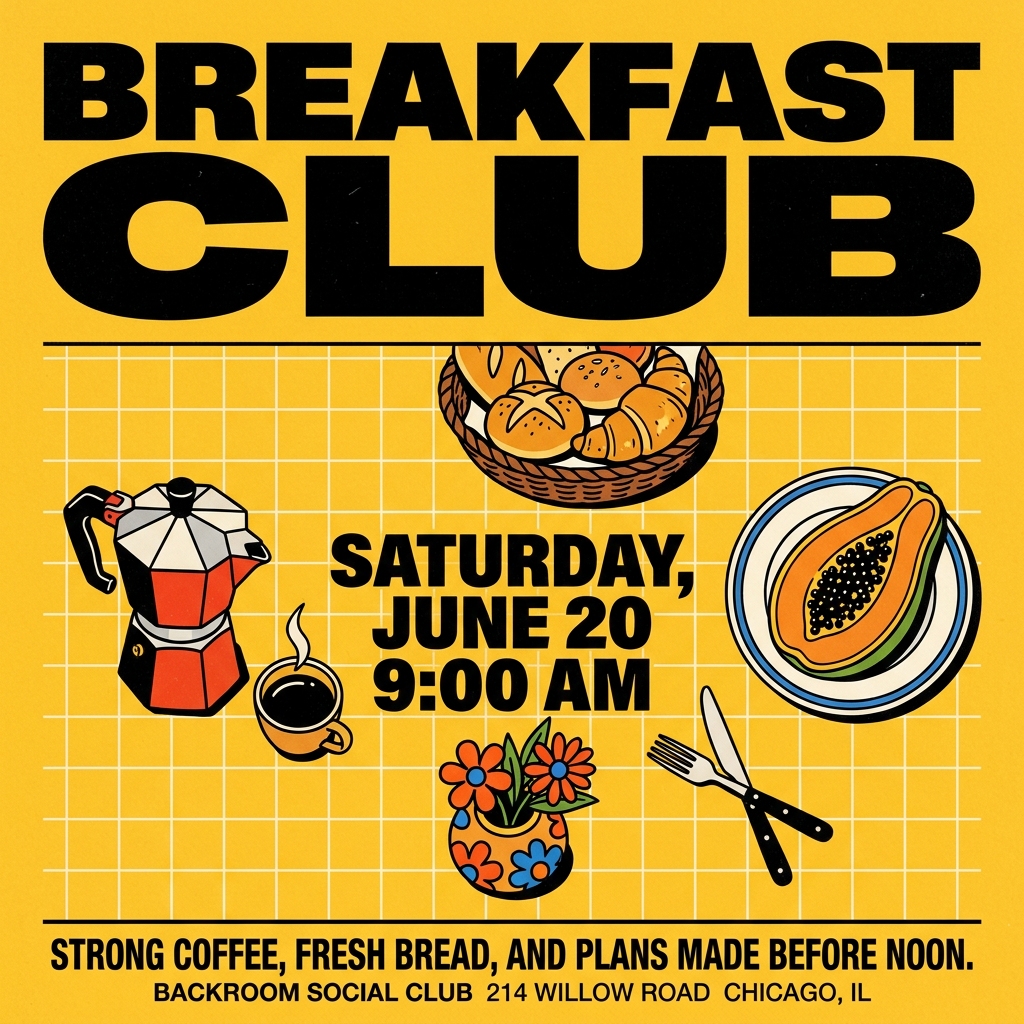
Turn your branding or event details into bold, nostalgic posters. It blends vibrant warm backdrops with a clean, retro square grid pattern to make any announcement look like a classic piece of mid-century graphic design.
Regenerate using your own assets.
If your brand is more focused on product marketing, a clean, vibrant style might be a better fit.
Workflow code: #myup-zpby-tzie
Minimal Vibrant Product Advertising Poster
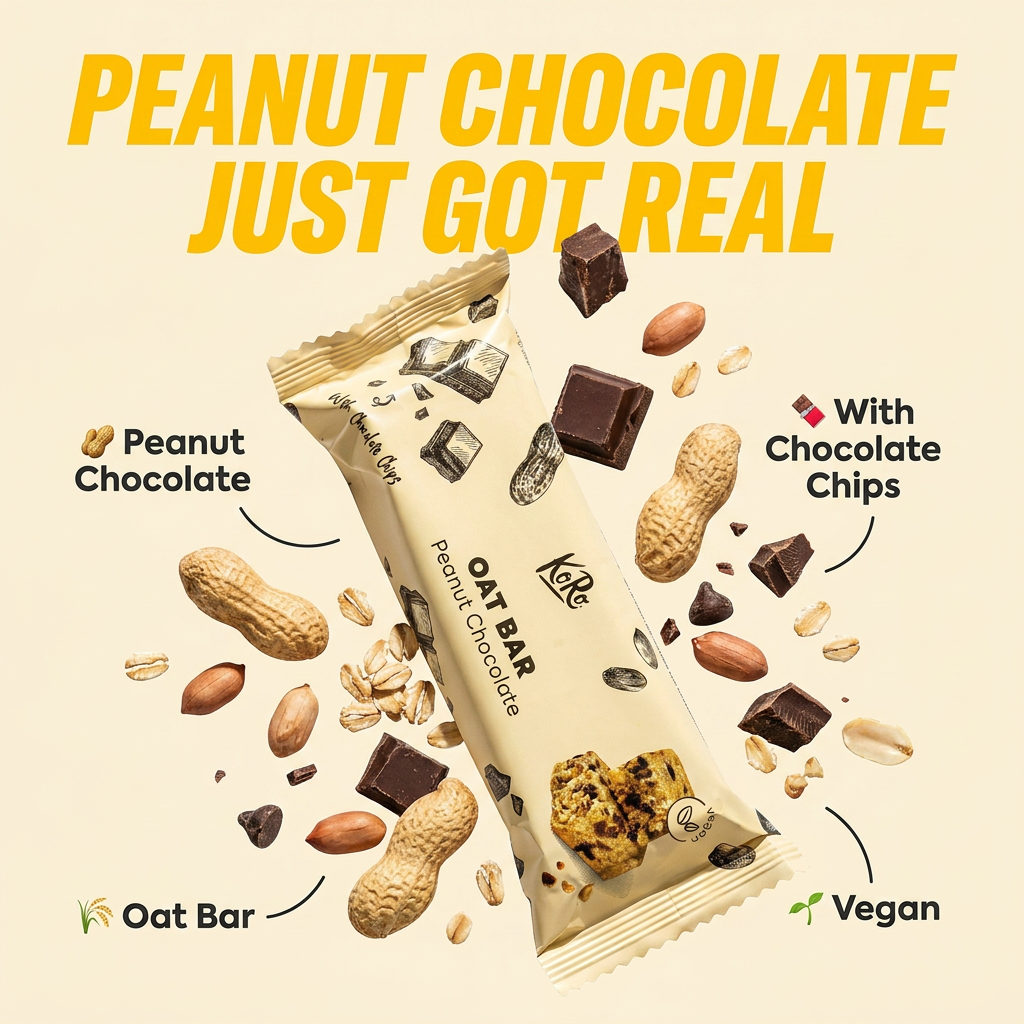
Drop in any product shot and watch it turn into a bold, high-energy square ad. It automatically reads your packaging to pull out the dominant colors and text, then builds a vibrant poster styled perfectly around your brand.
Regenerate using your own assets.
Simply provide the workflow code to MyUP, and it will set up the visual style. You then provide the subject, and MyUP generates the clips, ready for you to arrange over your custom soundtrack.
Going further: Adding on-brand text that moves to the beat
A great video is more than just visuals and music; it's about how they interact. With your custom audio loop providing a steady rhythm on the MyUP timeline, you can now add another layer of polish: kinetic typography.
MyUP allows you to create animated text overlays that automatically use your brand's fonts and colors. You can time the appearance of each word or phrase to sync perfectly with the beat of your music loop, creating a dynamic, scroll-stopping effect that feels professional and intentional. This is how you turn a simple video into a piece of high-quality brand content.
For a clean, text-forward video, you can start with a minimalist visual workflow. This gives you a strong typographical foundation to build on, ensuring your message is clear and your brand looks sharp.
Workflow code: #myup-k4td-9k6z
Minimalist Poster
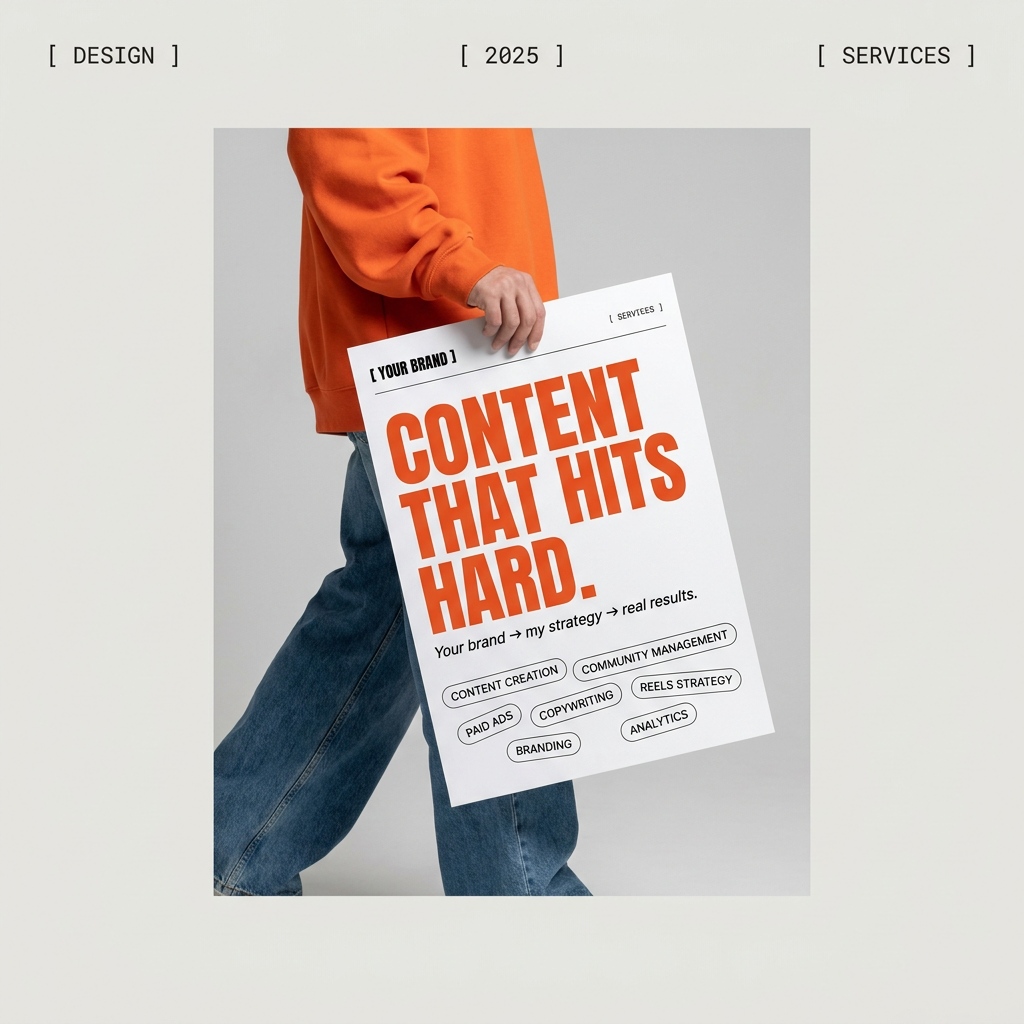
Give your social feed a clean, gallery-like aesthetic. This layout frames your images with structured mono typography and soft, neutral backgrounds for a high-end editorial look. It's perfect for minimal product launches or brand announcements.
Regenerate using your own assets.
By combining your custom-edited AI music with on-brand visuals and precisely timed kinetic text, you're executing a complete, professional video workflow entirely within MyUP. For a deeper dive, see our full guide on the AI workflow for kinetic typography.
The complete workflow: From prompt to polished video
Stop trying to force a two-minute AI song into a 30-second video. The professional workflow is about creating and controlling your own assets. Here is the complete process:
- Generate Material: Use an AI music tool like Suno to generate a long, instrumental track with a simple, repetitive beat.
- Edit Loops: Import the track into a free audio editor like Audacity to find and export a seamless 15- or 30-second loop.
- Assemble in MyUP: Upload your custom audio loop to the MyUP video editor to create the perfect audio bed for your project.
- Brand Your Visuals: Use MyUP's AI generators and your Brandkit to create on-brand video clips and images that match your soundtrack's mood.
- Animate and Finalize: Add on-brand kinetic typography, sync it to the music, and export your polished, professional-quality video.
This workflow turns AI music from a frustrating novelty into a powerful, controllable tool in your creative arsenal, with MyUP as the central platform to bring it all together.
