If you were on X yesterday, you probably saw it: the viral thread from a motion designer showing a painful, multi-app workaround to get decent kinetic typography. They generated a background in one AI tool, exported it, then painstakingly animated the text in After Effects. It’s a perfect example of a problem every creator faces: AI video generators are incredible at visuals but terrible at text. They can't use your brand fonts, they misspell words, and they offer zero control. You're left with a choice: accept generic, off-brand results, or resort to complex hacks.
There is a better way. The solution isn't to find an AI that's magically good at typography. It's to use a workflow that separates the two tasks, giving you full control over the most important part of your message: the words.
Why AI video generators fail at typography
The core issue is that most text-to-video models don't actually handle text as text. When you include words in a prompt, the AI treats them as part of the image it's generating. It tries to 'draw' the letters, which is why you get garbled characters, inconsistent spacing, and an inability to use a specific typeface. The model has no access to your font files (like Helvetica Neue or your custom brand font) and doesn't understand typographic principles. It's just pixels.
This leads to two major problems for any brand:
- Brand Inconsistency: Your typography is a core part of your visual identity. When an AI can't use your specific fonts and colors, the output is immediately off-brand. It looks like it came from a generic template, not from you.
- Lack of Control: You can't direct the animation, timing, or placement of the text with any precision. You're at the mercy of the model, which is a non-starter for professional content where the message needs to be clear, legible, and impactful.
The fix: Separate the background from the brand
The professional workflow, and the one built into MyUP, is based on a simple principle: use AI for what it's good at, and use a brand-aware system for what AI is bad at. Let the AI generate a stunning, abstract, or cinematic video background, but handle the typography as a separate, controllable layer on top.
In MyUP, this is managed by your Brandkit. Your Brandkit stores your brand's specific fonts, colors, and logo. When you create a video, you're not trying to force the AI to draw your text. Instead, you generate the visual 'canvas' and then instruct MyUP to apply your text using the assets from your Brandkit. The AI executes the visual production, but you—the user—validate and direct the brand elements. This division of labor is the key to getting professional, on-brand results without touching complex software.
Step 1: Generate a dynamic background in MyUP
The first step is to create the motion background. The goal here isn't to generate a complex scene, but to create a texture or environment that makes your typography pop. Think of it as setting the stage for your message. In MyUP's video generator, focus on prompts that produce great backplates for text.
Good starting points for your prompt include:
- "Subtle, slow-moving abstract gradient with pastel colors, soft focus, 4K."
- "Macro shot of shimmering silk fabric rippling slowly, dark moody lighting."
- "Anamorphic lens flare moving across a dark, textured surface, cinematic."
- "Clean, minimal architectural space with soft light moving across a concrete wall."
The key is to create motion that adds energy without distracting from the words you're about to layer on top. Generate a few options and select the one with the right mood for your message.
Step 2: Layer and animate your on-brand message
Once you have your video background, the next step is to add your message with full brand control. In MyUP, you add text elements as distinct layers. Because MyUP is connected to your Brandkit, it automatically knows which fonts and colors to use. There's no guesswork and no need to manually select your brand's hex codes or upload font files every time.
You can add a headline, a sub-headline, and a call-to-action as separate elements. For each one, you can select a simple, clean animation. Options like 'Fade In', 'Slide Up', or 'Reveal' are perfect for creating a clean, professional look. The user directs the creative intent, and MyUP handles the production.
This approach gives you the precision of a design tool within an automated AI workflow. To see this in action, you can use a workflow designed to apply a distinct visual identity over a background. This poster workflow can be adapted for video by using the layout and typography as a guide for your animated layers.
Workflow code: #myup-msop-hlxf
Retro Zine Style Event Poster
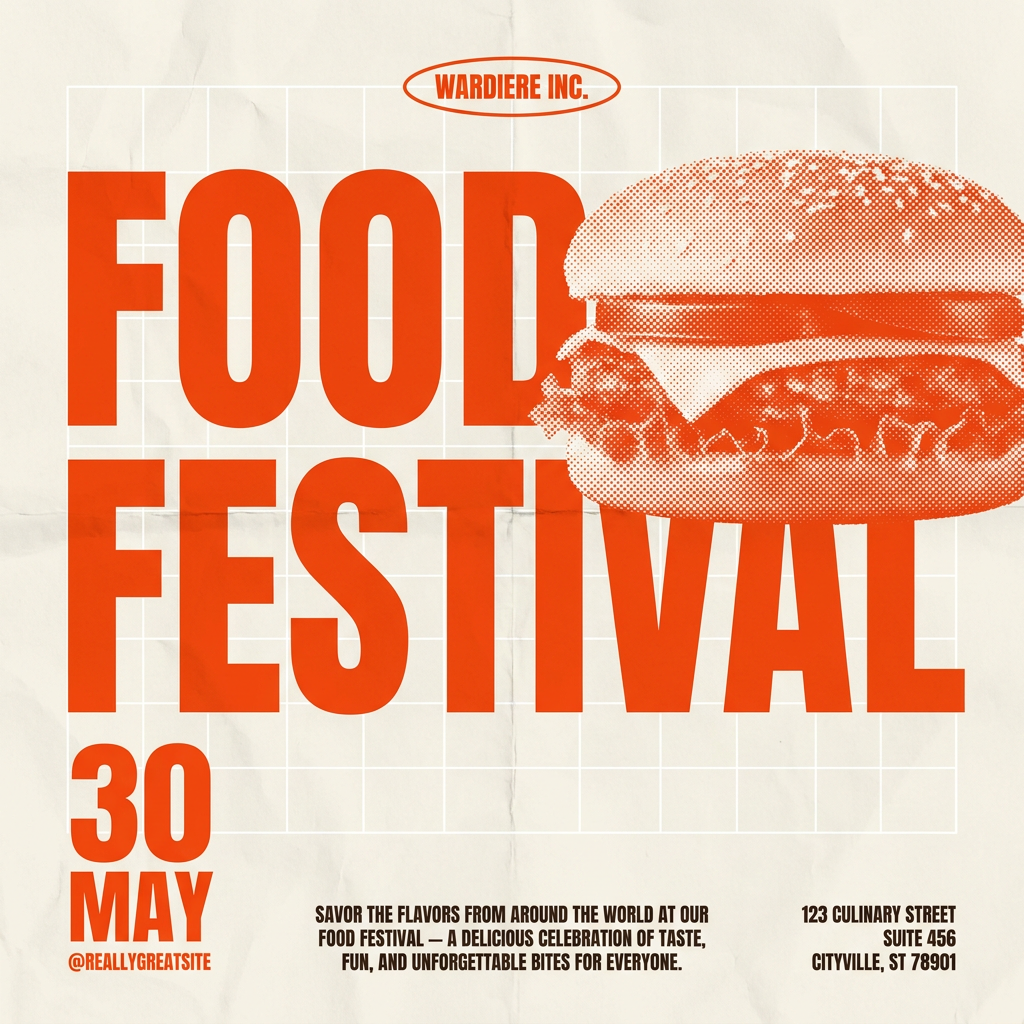
Give your social posts a gritty, analog zine aesthetic. It layers a crumpled paper texture and a subtle grid over a warm cream background to make any event graphic look like a tactile, photocopied flyer. Perfect for DIY gigs and bold promos.
Regenerate using your own assets.
Step 3: Create scroll-stopping motion with sequencing
A single animation is good, but sequenced animations are what truly stop the scroll. Kinetic typography gets its power from rhythm and timing. By having different text elements appear on screen at different times, you guide the viewer's eye and build emphasis.
In a MyUP video workflow, you can sequence your text layers. For example:
- 0-1 seconds: Headline slides in from the left.
- 1-2 seconds: Key benefit fades in below the headline.
- 3 seconds: A 'Pulse' animation is applied to the call-to-action to draw attention.
This level of control allows you to create a visual hierarchy and tell a micro-story within your short video. It moves beyond a simple 'text on video' and into the realm of true motion graphics. Instead of wrestling with keyframes, you're simply telling the system the sequence and style you want, and it renders the final video. A great way to start is with a bold, high-contrast design that already has a strong typographic structure.
Workflow code: #myup-xbur-hzoi
Bold Retro Yellow Event Poster
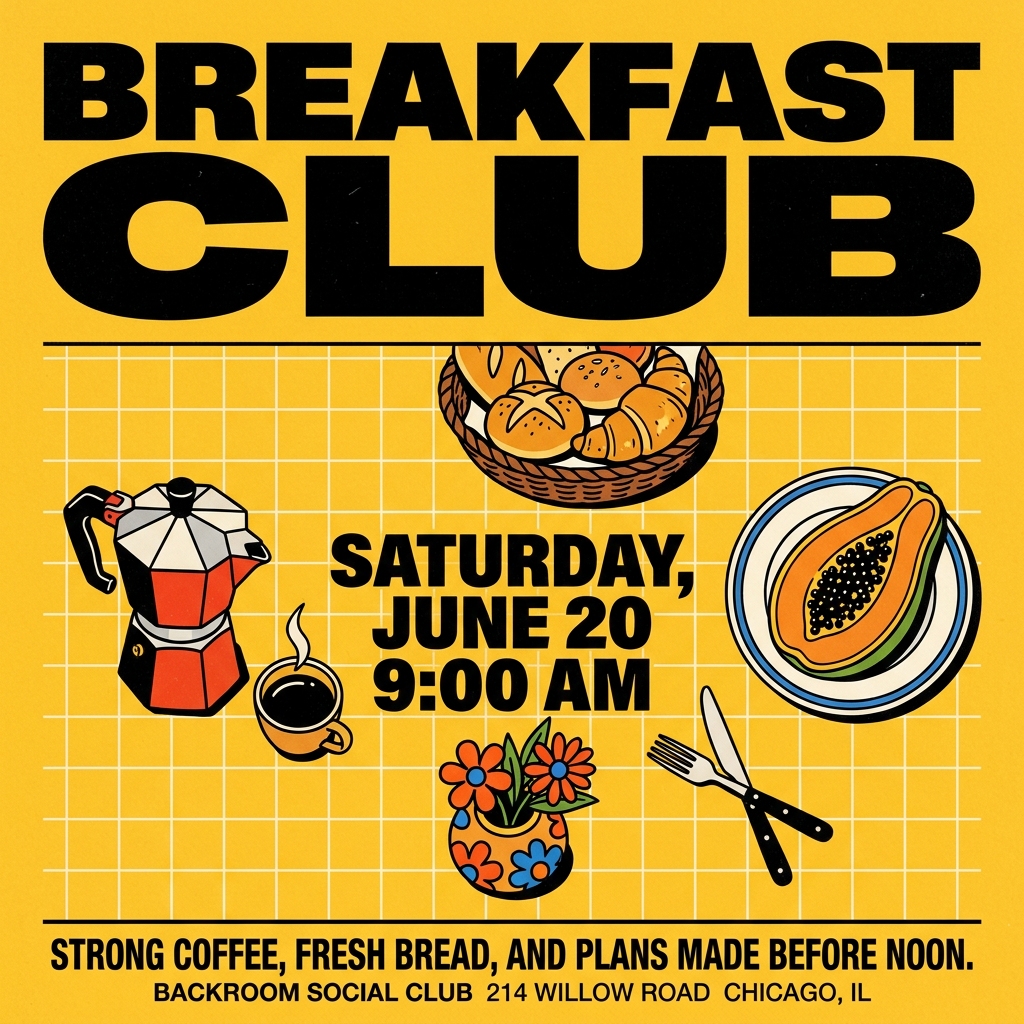
Turn your branding or event details into bold, nostalgic posters. It blends vibrant warm backdrops with a clean, retro square grid pattern to make any announcement look like a classic piece of mid-century graphic design.
Regenerate using your own assets.
In practice: A kinetic typography workflow for a food brand
Let's make this concrete. Imagine you're creating a short social video for a new hot sauce brand. The old workflow would involve prompting an AI for 'a video of a bottle of hot sauce' and hoping the text 'Spicy & Bold' it generates doesn't look like a melted crayon. The MyUP workflow is different.
- Generate Background: Start with a prompt like "Extreme close-up video of bubbling, thick red sauce, slow motion, cinematic lighting." You get a beautiful, abstract, and appetizing video clip.
- Layer Brand Text: Add the headline "TASTE THE HEAT" as a text layer. MyUP automatically applies your brand's bold, sans-serif font and primary color from your Brandkit. You set the animation to 'Fade In'.
- Sequence Details: Add a second text layer, "100% Natural Ingredients," in your brand's secondary font. You sequence it to appear one second after the headline, animating in with a 'Slide Up' effect.
- Add CTA: Finally, add your website URL as a static layer at the bottom for the last three seconds of the video.
The result is a crisp, on-brand, and professional video ad created in minutes, not hours. The AI handled the complex visual generation, while you retained complete directorial control over the brand message. You can use a workflow like the one below to quickly generate the core assets for this kind of campaign.
Workflow code: #myup-tbky-nciq
Food Brand Poster
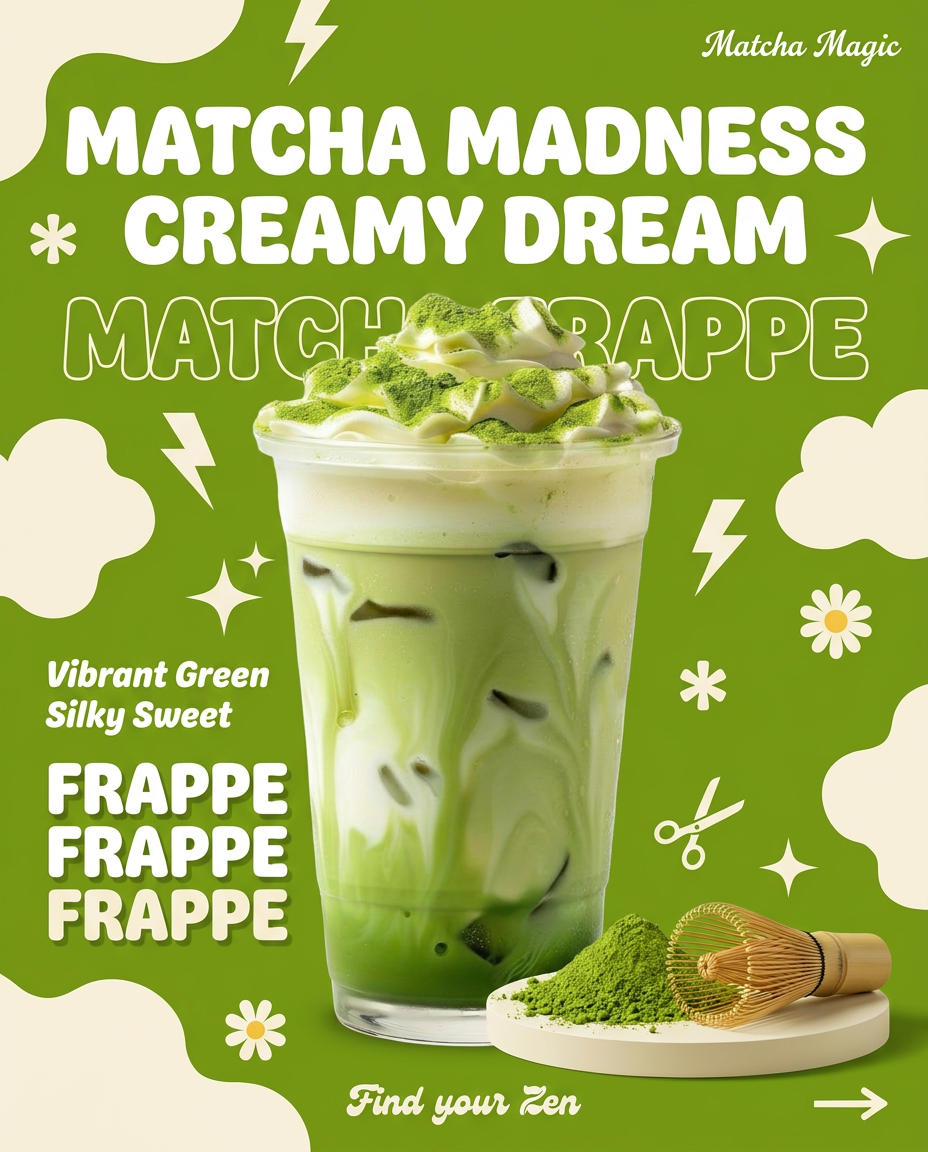
Instantly turn any food or drink product packaging into a bold, vibrant retro poster. The system automatically reads your bottle or box to grab its exact colors and ingredients, then crafts a perfectly coordinated vintage background around it.
Regenerate using your own assets.
Stop hacking tools together. Own your motion.
The viral workarounds and competitor updates all point to the same truth: creators need control, especially over typography. Tools that treat text as an afterthought are fundamentally limited. Chaining together multiple apps is a frustrating, inefficient, and unscalable way to produce content.
A modern AI workflow should empower creative direction, not demand technical troubleshooting. By separating background generation from brand application, MyUP gives you control over your message. Your typography is no longer a roll of the dice; it's a core brand asset, deployed with precision and consistency every time. This is how you move from generating generic AI content to producing a signature brand look at scale.
