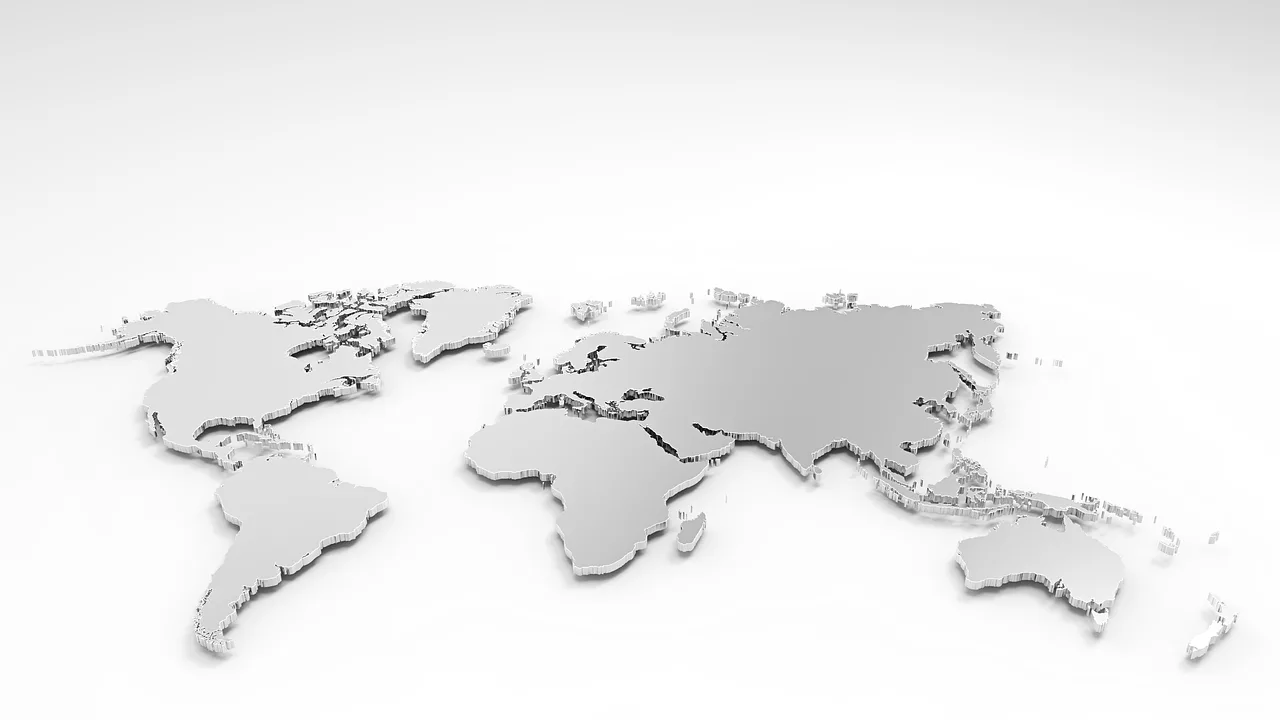
You’ve tried it. You prompt your AI image generator for “a fantasy map of the kingdom of Eldoria, ancient parchment style,” and you get… something. The coastlines shift with every generation. The rivers flow uphill. And the city names look like a keyboard smash. It’s visually interesting, but it’s not usable. As many creators are discovering, a single prompt is a lottery, not a production process.
The problem isn't the AI; it's the one-shot approach. Creating a high-quality, consistent map—whether for a D&D campaign, an indie game, or directions to a conference venue—requires control. You need geography that stays put, a style that matches your world or brand, and labels people can actually read. This guide lays out the repeatable, multi-step workflow in MyUP.ai to go from a frustrating mess to a finished, professional map.
Step 1: Lock in your geography with a structural guide
The biggest frustration with AI maps is geographic chaos. Regenerating for a different style shouldn't mean getting a completely new continent. The solution is to separate the map's structure from its visual style. Instead of asking the AI to invent both at once, you provide the structure yourself.
This technique, sometimes called Structure Reference, gives you absolute control over the layout. In MyUP, you can guide the AI with a simple base image.
Here’s how it works:
- Create a simple sketch: Using any basic drawing tool (even MS Paint), create a black-and-white sketch of your world. White represents land, and black represents water (or vice-versa). Don't worry about details; just block out the major continents, islands, and lakes.
- Upload it as a guide: In your MyUP workflow, upload this sketch as a structural input for the image generation step. The AI will now use your layout as a blueprint, ensuring every map it generates has the exact same landmasses.
Now you can generate a dozen different stylistic variations—topographic, political, ancient parchment—and all of them will be recognizably the same world. The user validates the core structure; MyUP handles the creative execution.
Step 2: Prompting for style, from ancient parchment to sci-fi holo-map
With your geography locked in, you can focus entirely on the visual storytelling. This is where prompting comes in, but now it’s targeted. You're not describing geography, just aesthetics.
A map is a branded asset. Its colors, textures, and typography should feel like they belong to your project. By setting up a Brandkit in MyUP, you can ensure the AI uses your specific color palette for regions, routes, or bodies of water, making the map an integral part of your visual identity.
Here are a few starting-point prompts for different styles. Combine them with your structural guide for consistent results:
- For Fantasy Worlds: "A fantasy world map in the style of an ancient, weathered parchment scroll, hand-drawn with sepia ink, detailed coastlines, subtle compass rose, aged and torn edges."
- For Sci-Fi Games: "A futuristic holographic star chart, glowing neon blue grid lines on a dark background, data readouts, celestial bodies marked with sleek vector icons, glitch effects."
- For Corporate Events: "A clean, minimalist vector map of a conference center, isometric view, clear pathways in brand colors, simple icons for keynote stage, breakout rooms, and restrooms. On-brand typography."
Step 3: The workflow for adding crisp, on-brand labels
Attempting to generate a map with text labels in a single prompt is the source of endless frustration. AI image models are notoriously bad at spelling and typography, resulting in the garbled, unreadable text that makes most AI maps useless. The professional workflow completely avoids this problem.
The solution is a two-step process within MyUP:
- Generate the map image first, with no text. Use your structural guide and style prompt to create the beautiful, detailed background map. Critically, your prompt should explicitly say "no text" or "without labels."
- Overlay text in a separate step. In the next step of your MyUP workflow, you can add text layers on top of the generated image. This gives you total control. You can place city names, region labels, or a title exactly where you want them.
This is where your MyUP Brandkit becomes essential. Instead of getting random, wobbly fonts, you can specify the exact brand fonts you've saved for headings and body text. The result is a map with the creative flair of AI generation and the crisp, legible, on-brand typography of a graphic design tool. You get the best of both worlds, all within a single, repeatable workflow. For a deeper dive into this technique, see our guide on how to generate on-brand text in AI images.
From map to marketing: Putting your creation to work
A map is rarely a standalone asset. For an event, it's a key piece of your promotional material. For a game or book, it's part of your social media content. Once you have your final, on-brand map, the next step is to use it.
Instead of exporting the map and importing it into another design tool, you can continue the production process directly in MyUP. For example, if you've created a map for a local music festival, you can immediately drop it into an event poster.
MyUP workflows can handle this entire sequence. You can generate the map and then feed that output directly into a poster template, which automatically applies your brand fonts, colors, and logo for the event details. This ensures every asset, from the core map to the final promo, is perfectly consistent.
You can get started right away with these proven poster workflows. Just input your event details and your newly created map.
Workflow code: #myup-3xus-3l9x
Vintage Risograph Event Poster
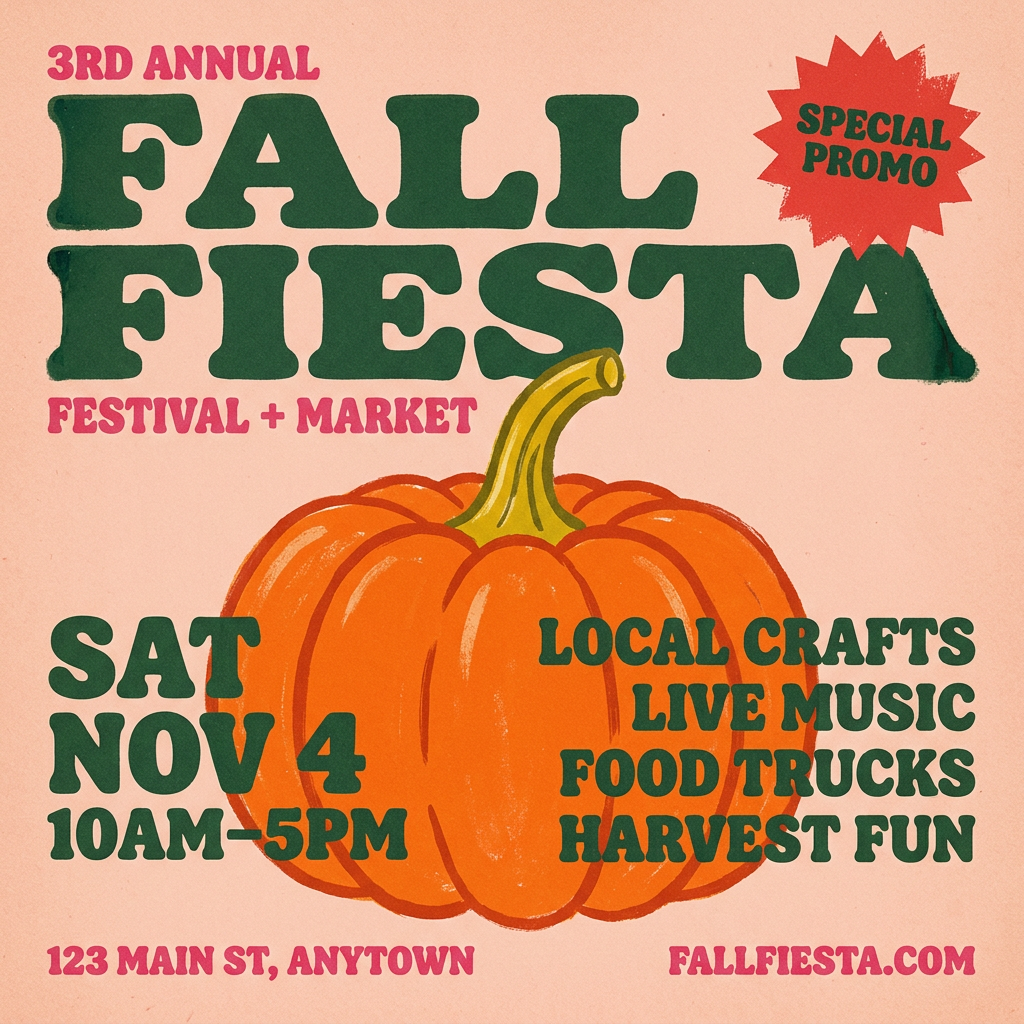
Turn any announcement into a gritty, tactile gig poster. It layers your text with an uneven letterpress ink texture over a dusty, warm pink risograph paper background. It’s perfect for giving social posts a real analog, screenprinted vibe.
Regenerate using your own assets.
Workflow code: #myup-xbur-hzoi
Bold Retro Yellow Event Poster
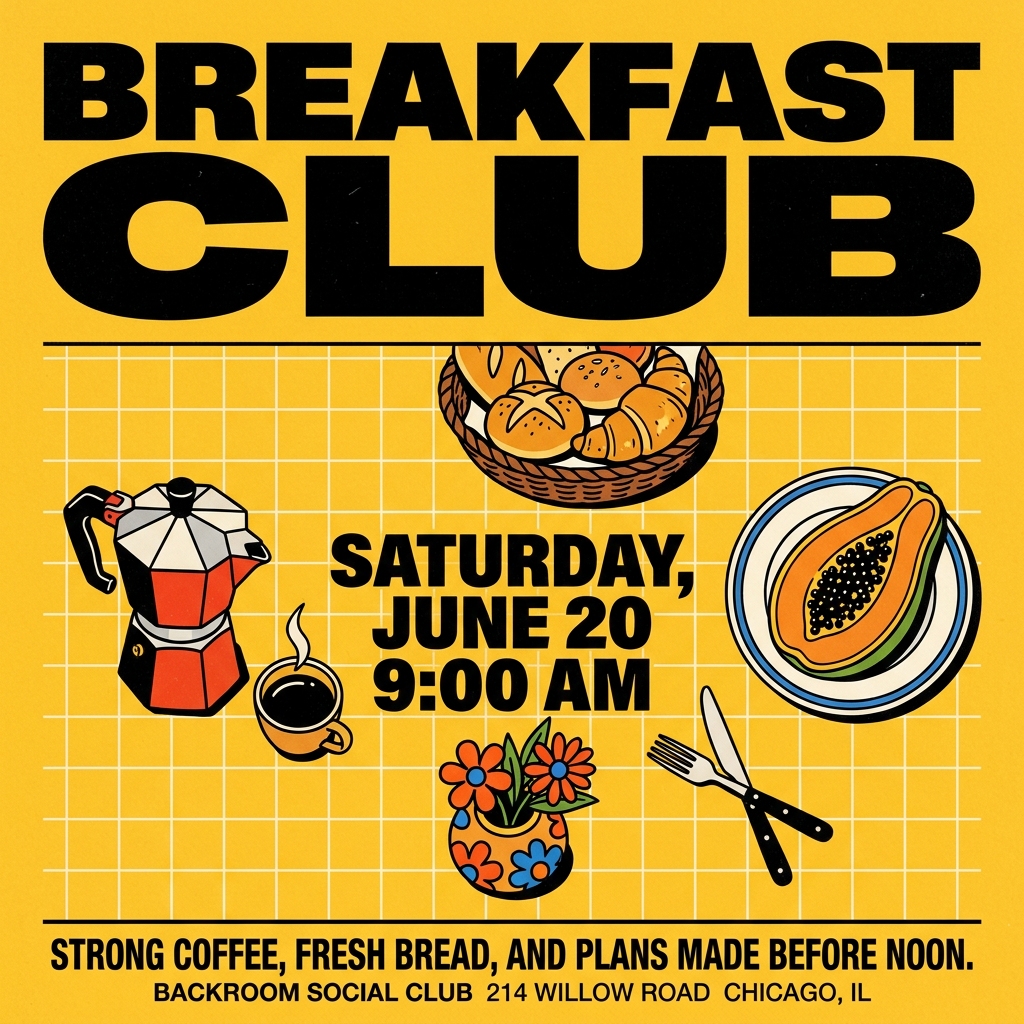
Turn your branding or event details into bold, nostalgic posters. It blends vibrant warm backdrops with a clean, retro square grid pattern to make any announcement look like a classic piece of mid-century graphic design.
Regenerate using your own assets.
Advanced workflow: Bringing your world to life with animation
A static map is great, but a dynamic map is captivating. For social media, lore videos, or event presentations, adding subtle motion can dramatically increase engagement. This doesn't require complex video editing software.
In MyUP, you can create an advanced workflow that takes your final static map and uses AI video tools to add simple animations. Imagine:
- Clouds drifting slowly over your fantasy continent.
- A glowing line tracing the path of a journey or a marathon route.
- Ships subtly sailing across the oceans.
- A futuristic map flickering with digital static.
This turns your map from a reference document into a piece of storytelling. By adding an AI video generation step to your workflow, you can create short, looping videos perfect for Reels, TikTok, or website banners. It's a powerful way to make your world or event feel more alive and immersive. You can learn more about this technique in our guide to animating static images into dynamic social videos.
