The first week of July 2026 put the number one problem for AI artists front and center: style consistency. With Stability AI launching 'Stable Artisan' on July 2nd and Midjourney teasing its '--style-pack' feature the same day, the entire market is now focused on generating cohesive asset sets, not just one-off images. This is especially critical for indie game developers, where a scattered art style can break the entire player experience.
These new features are a step in the right direction, but they risk locking you into a closed platform. The real solution isn't a new button; it's a better workflow. This guide will show you how to build a flexible, reusable 'Game Art Style Guide' in MyUP.ai. You'll gain total control over your aesthetic and learn to automate the production of entire asset libraries, from props and UI to concept art, all with perfect consistency.
Stop prompting, start directing with a game art bible
Every indie developer knows the pain. You generate a perfect-looking health potion. Then you try to generate a mana potion, and it comes out in a completely different style—wrong perspective, different lighting, different line weight. You spend hours tweaking prompts, trying to herd the AI back to your original vision. This is the lottery of prompting.
A professional art pipeline doesn't run on luck. It runs on rules. Your game needs a central source of truth for its visual identity—an art bible. Instead of hoping the AI remembers your style from one prompt to the next, you need to enforce it. This is exactly what a MyUP Brandkit is designed for. You define your art direction once, creating a dynamic style guide that every AI generation must follow. It's the lawbook for your game's world. Once the law is written, MyUP's workflows act as your tireless art factory, producing everything you need, all perfectly on-spec.
Step 1: Build your game's art direction in a Brandkit
Your MyUP Brandkit is where you codify your game's soul. This isn't just about uploading a logo; it's about defining the granular rules of your art style. Go beyond simple text descriptions and build a robust guide the AI can't misinterpret.
- Define the core aesthetic: Start with the high-level description. Is it 'isometric pixel art, 16-bit console palette'? Or 'Ghibli-inspired watercolor, soft lighting, hand-drawn feel'? Be specific. Use phrases like 'chunky outlines,' 'no anti-aliasing,' or 'cel-shaded with heavy black ink lines.'
- Lock in the color palette: Don't just say 'blue and gold.' Input the exact hex codes for your primary, secondary, and accent colors. This ensures every asset, from a UI button to a background texture, uses the correct, consistent palette.
- Describe lighting and texture: How are objects lit in your world? Is it 'harsh, dramatic top-down lighting' or 'soft, ambient global illumination'? What are the surfaces like? 'Matte textures, no specular highlights,' 'glossy and reflective,' or 'gritty, noisy textures like old newsprint.'
- Use reference images: Upload 3-5 images that perfectly capture your target aesthetic. This gives the AI a powerful visual anchor, reinforcing the written rules you've established.
Once you save your Brandkit, you've created a permanent, reusable asset. You've moved from being a prompter to an art director. The user—you—validates the vision; MyUP handles the production.
Step 2: Generate your foundational props and items
With your Game Art Bible established in the Brandkit, it's time to put it to work. Let's start with the basics: the swords, shields, potions, and coins that populate your world. The goal here is to create a set of isolated sprites, often on a neutral or transparent background, ready to be dropped into your game engine.
You don't need to write a complex, multi-line prompt for each one. Your Brandkit handles the style. Your only job is to provide the object name. In MyUP, you can use a simple workflow to feed a list of items and automatically apply your Brandkit to each generation.
For example, you can use a workflow designed for clean, studio-like product shots to generate your initial props. It's perfect for creating isolated assets with consistent lighting and framing. The workflow takes your Brandkit as the style guide and simply asks for the item you want to create.
Workflow code: #myup-u4lt-o0ho
Studio Product Ad
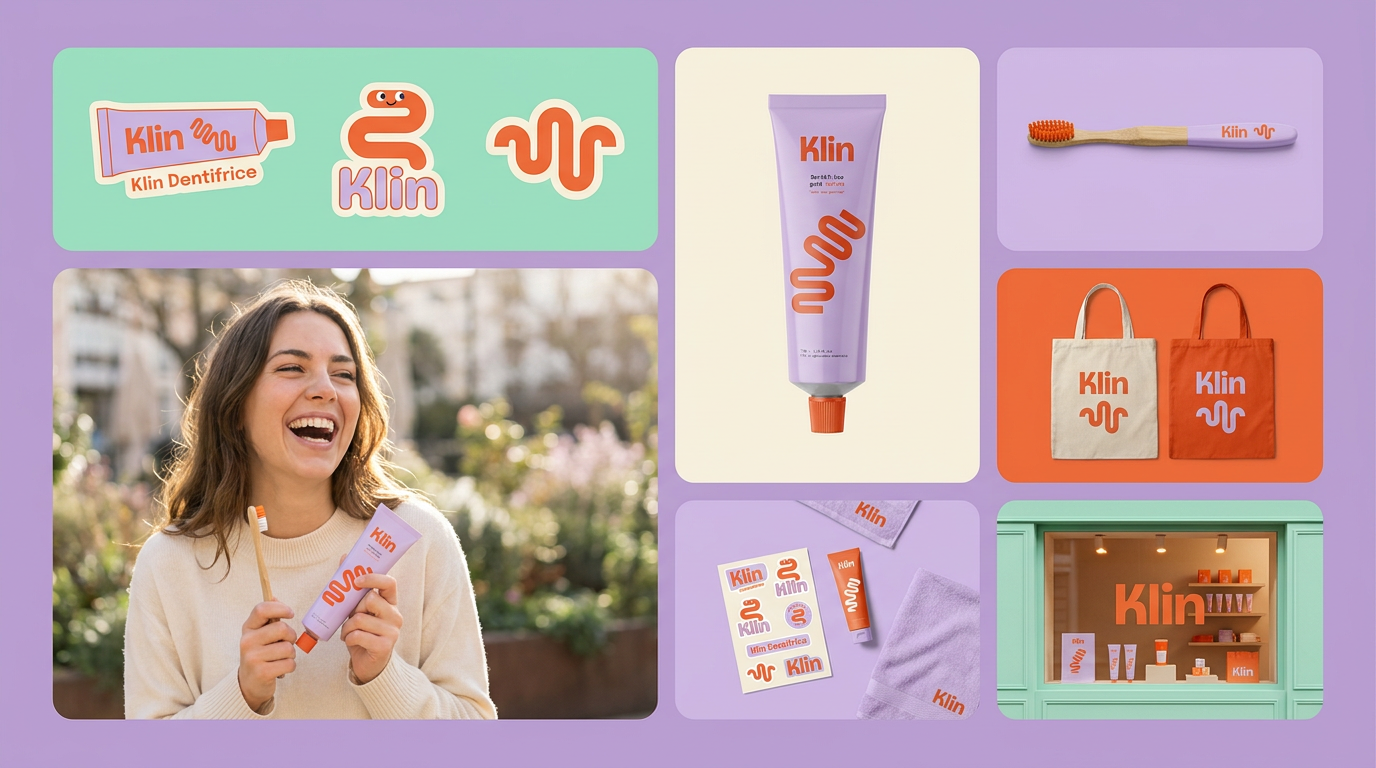
Drop in a single product photo to instantly build a cohesive visual identity. It automatically samples your item's dominant colors to generate a beautifully matched mosaic moodboard, giving your brand an instant, polished aesthetic.
Regenerate using your own assets.
Just provide a list like 'healing potion', 'mana potion', 'iron sword', 'wooden shield', 'gold coin' and run the workflow. The output will be a perfectly consistent set of items, all sharing the exact color palette, line weight, and perspective you defined.
Step 3: Create a complete set of UI elements and icons
A game's user interface is often where inconsistent art styles are most jarring. Your health bar, inventory icons, and menu buttons must feel like they belong to the same world. Using your Brandkit ensures this cohesion automatically.
The process is the same as with props, but your descriptions will be for UI elements. Think about generating a full library of icons for skills, status effects, or achievements. A workflow that creates sticker-like visuals is ideal for this, as it produces clean, bold icons with clear silhouettes that are easy to read at small sizes.
Workflow code: #myup-swqt-4zo3
Product Stickers
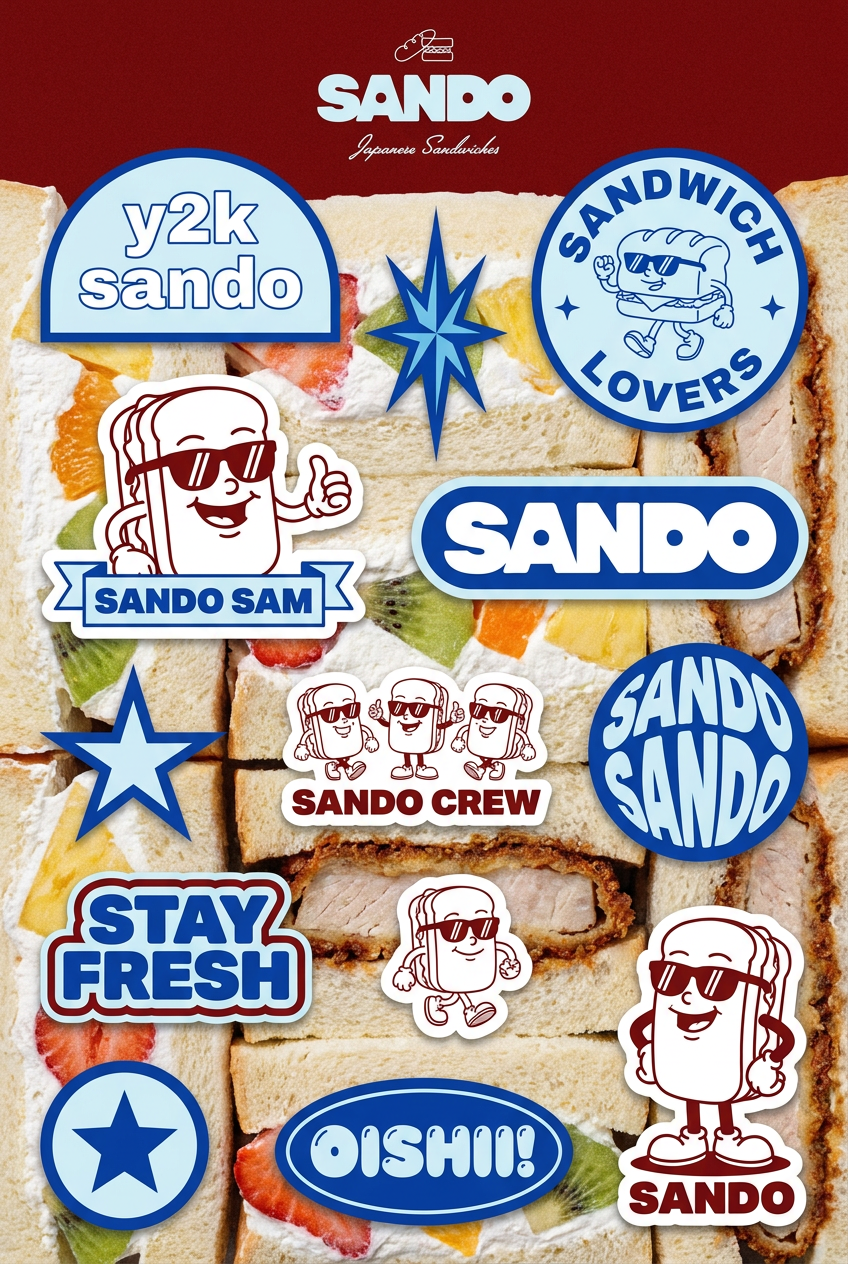
Turn your logo into a nostalgic, vibrant Y2K-style vertical ad. It automatically pulls your brand colors to create matching sweet treats like custom donuts or cupcakes in the background, giving you a super playful retro-pop aesthetic.
Regenerate using your own assets.
Feed this workflow a list of concepts like 'attack up icon', 'defense down icon', 'poison status icon', 'fire resistance icon', or 'quest complete badge'. Because the workflow is pulling from your Brandkit, every icon will be generated with the same border style, color usage, and overall aesthetic, giving your UI a professional, unified look instantly.
Step 4: From style guide to concept art
Your Game Art Bible isn't just for producing final, in-game sprites. It's also a powerful tool for creative exploration and world-building. Use it to generate concept art, mood boards, and marketing materials that are all guaranteed to be on-brand.
Instead of just generating isolated objects, you can now prompt for entire scenes, knowing the style is already locked in. Prompt for 'a bustling town market at dusk', 'an enchanted forest clearing', or 'the throne room of the villain'. The Brandkit will ensure the architecture, lighting, and mood of these pieces all align with the assets you've already created.
A collage or mood board creator workflow can be a great way to explore these ideas quickly, pulling together different elements that all adhere to your style guide.
Workflow code: #myup-sacz-tjdn
Y2K Scrapbook Collage Creator
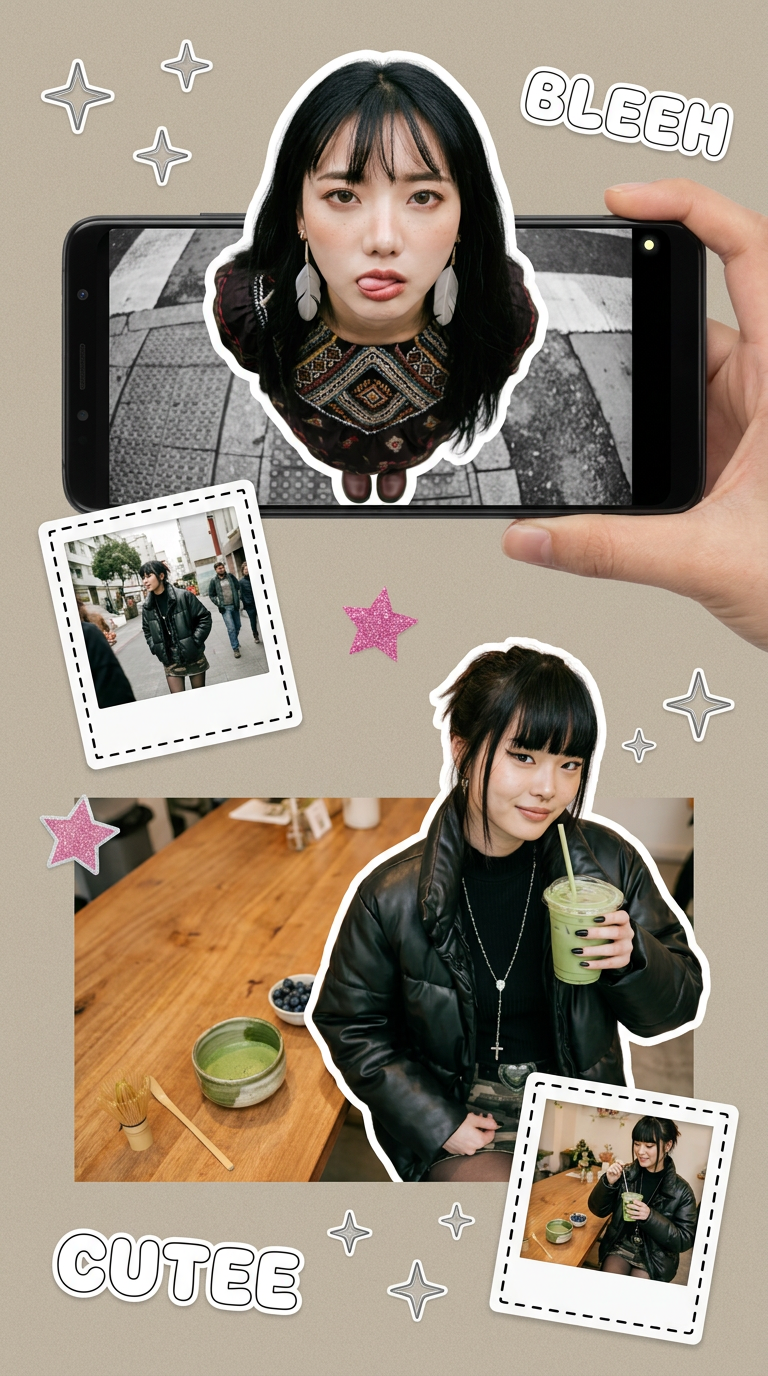
Put two different people into the same scene without losing their real-world features. Just upload two portraits and drop them together into any setting or style you need. It keeps both faces incredibly accurate.
Regenerate using your own assets.
This allows you to test concepts for environments, characters, and key moments, building a rich visual library for your game's world without ever deviating from the core art direction.
Next level: Consistent characters and mass production
Props and icons are one thing, but what about the even bigger challenges? Generating consistent characters across multiple poses and expressions requires a more advanced workflow, but it's built on the same principle: a strong style guide as the foundation.
Once you've tested your Brandkit and are happy with the results, you can scale up production dramatically. Instead of generating a dozen assets, you can create hundreds or even thousands. By connecting your Brandkit to a batch processing system, you can feed it a spreadsheet of every asset your game needs and generate the entire library overnight. This is the workflow for true AI manufacturing, turning your art bible into an unstoppable production line. You can learn more about this scaled-up process in our guide to generating over 1000 game assets.
Your art style isn't a feature, it's a system
New features like Stable Artisan and Midjourney's Style Packs are validating what production artists have always known: consistency is everything. But true creative control and efficiency don't come from a feature within a closed tool; they come from owning your production system. By building your game's art direction into a MyUP Brandkit, you create a flexible, powerful, and reusable system that puts you in the director's chair. You define the laws of your world, and the AI works as your dedicated, tireless art team to bring it to life.
