With the release of Stability AI’s Stable Diffusion 3.2 in August 2026, AI-generated text on still images has become impressively clean. But if you’ve tried to create a video with kinetic typography using a prompt, you know the story is completely different. You ask for a simple title and get a wobbly, distorted mess that looks like it's melting frame by frame.
This isn't a failure of your prompting skills. It's a fundamental limitation of current AI video models. They predict pixels, not render fonts. The good news is that the solution isn't a more complex prompt—it's a smarter, more reliable workflow. This is the hybrid workflow that professionals use to get the best of both worlds: the creative power of AI for visuals and the pixel-perfect precision of an editor for text.
Why AI-generated text in video still looks like a melted mess
The core problem is how AI video models work. They don't understand letters and words the way a graphic design program does. An AI model generating a video is essentially making a frame-by-frame prediction of what pixels should come next to create motion. When it tries to move text, it's not moving a clean, vector-based font; it's trying to repaint a cluster of pixels that resemble letters in each new frame. This lack of temporal consistency is what causes the signature 'wobble' or 'morphing' effect that makes the text unusable for any professional brand content.
For a social media ad, a product explainer, or any marketing video, legible and on-brand typography isn't optional. It’s the message. A distorted headline or call to action undermines the entire asset. That’s why trying to force an AI video generator to handle typography is a dead end. You waste time and credits fighting the model, only to end up with a result that looks unprofessional.
The hybrid workflow: AI for the world, editor for the word
The professional approach is to stop fighting the technology and start using the right tool for each part of the job. This is the logic behind the hybrid workflow:
- Part 1: AI for the background. Use an AI video generator for what it excels at: creating stunning, dynamic, and unique animated backgrounds that would be time-consuming or expensive to shoot or create with traditional CGI.
- Part 2: Editor for the text. Overlay your text using a proper video editor, where you have total control over the font, color, size, placement, and animation. This guarantees your typography is crisp, on-brand, and perfectly legible.
This might sound like it requires jumping between multiple expensive applications. But on MyUP.ai, this entire professional workflow happens in one place. You can generate an AI video and then seamlessly move it into our editor to add your branded text overlays. Your Brandkit—with your specific fonts and color palette—is available at both stages, ensuring total brand consistency from start to finish.
Step 1: Generate your on-brand animated background in MyUP
The first step is to create a short, looping video clip that will serve as the canvas for your message. The goal here isn't to describe the text but to create the visual world your text will live in. Think about mood, color, and texture.
In MyUP, you can start with a simple prompt. Let's say you're creating a social media ad for a fast-food brand. Instead of prompting for 'video of french fries with the text SALE ON FRIES', you would focus only on the visual:
An energetic, slow-motion video of perfectly golden french fries falling against a bold red background, studio lighting, macro shot.
The key is applying your MyUP Brandkit before you generate. Your Brandkit stores your brand's visual identity—colors, fonts, and overall style. By activating it, you guide the AI to produce a background that already feels like it belongs to your brand, using your specific color palette and aesthetic. MyUP handles the production; you just validate the result. This simple step saves you from having to color-correct or tweak a generic-looking video later.
To see this in action, you can use the template below to generate an on-brand video background for a food product ad instantly.
Workflow code: #myup-fts6-4ihp
Vertical Gourmet French Fry Ad
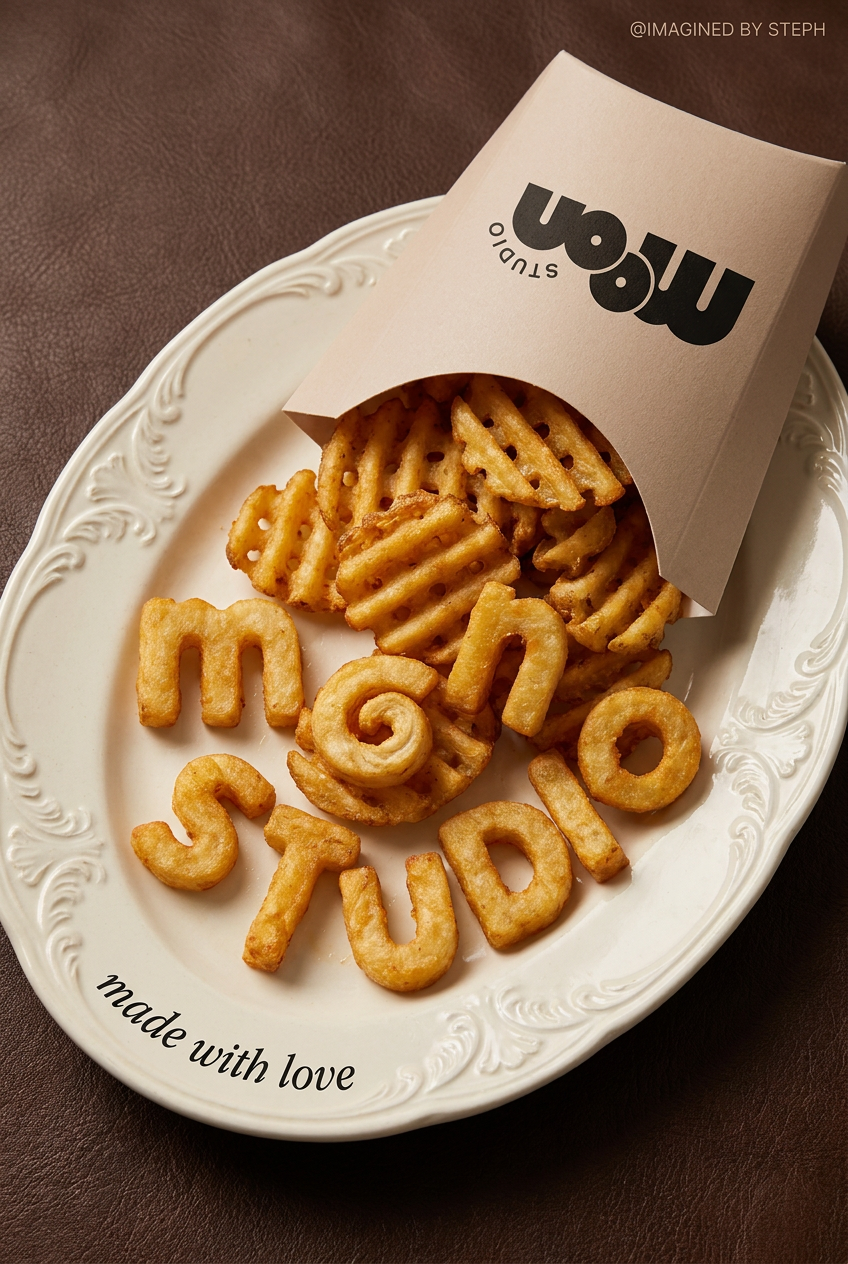
Transform your products into high-fashion editorial ads. This setup uses a dynamic diagonal layout and a slightly tilted overhead angle to give food and packaging incredible depth and texture. It's perfect for giving any brand a chic, premium look.
Regenerate using your own assets.
Step 2: Add crisp, animated text overlays in the MyUP editor
Once you have an animated background you're happy with, the rest is simple. With one click in MyUP, you can open your newly generated video in the integrated editor. This is where you gain absolute control.
Inside the editor, you'll find a standard text tool. Here’s how you complete the process:
- Add your text: Type your headline, offer, or call to action.
- Apply your Brandkit: This is the crucial part. Instead of manually searching for your brand's custom font or hex codes, your MyUP Brandkit is right there. Click your brand font, select your brand color, and your text is instantly on-brand. No guesswork, no mistakes.
- Animate the text: Choose a simple, clean animation like 'Fade In' or 'Slide Up'. The goal is clear communication, not complex motion graphics. These subtle animations add a professional touch without distracting from the message.
- Export: Export your finished asset as a high-quality video file, ready to be uploaded to any social platform.
This second step is what separates a professional result from a typical AI-generated video. You get perfectly rendered text every single time. The template below sets up a minimalist product ad layout, ready for you to add your text using this exact workflow.
Workflow code: #myup-sygb-rhnt
Minimalist Vertical Product Advertising Poster
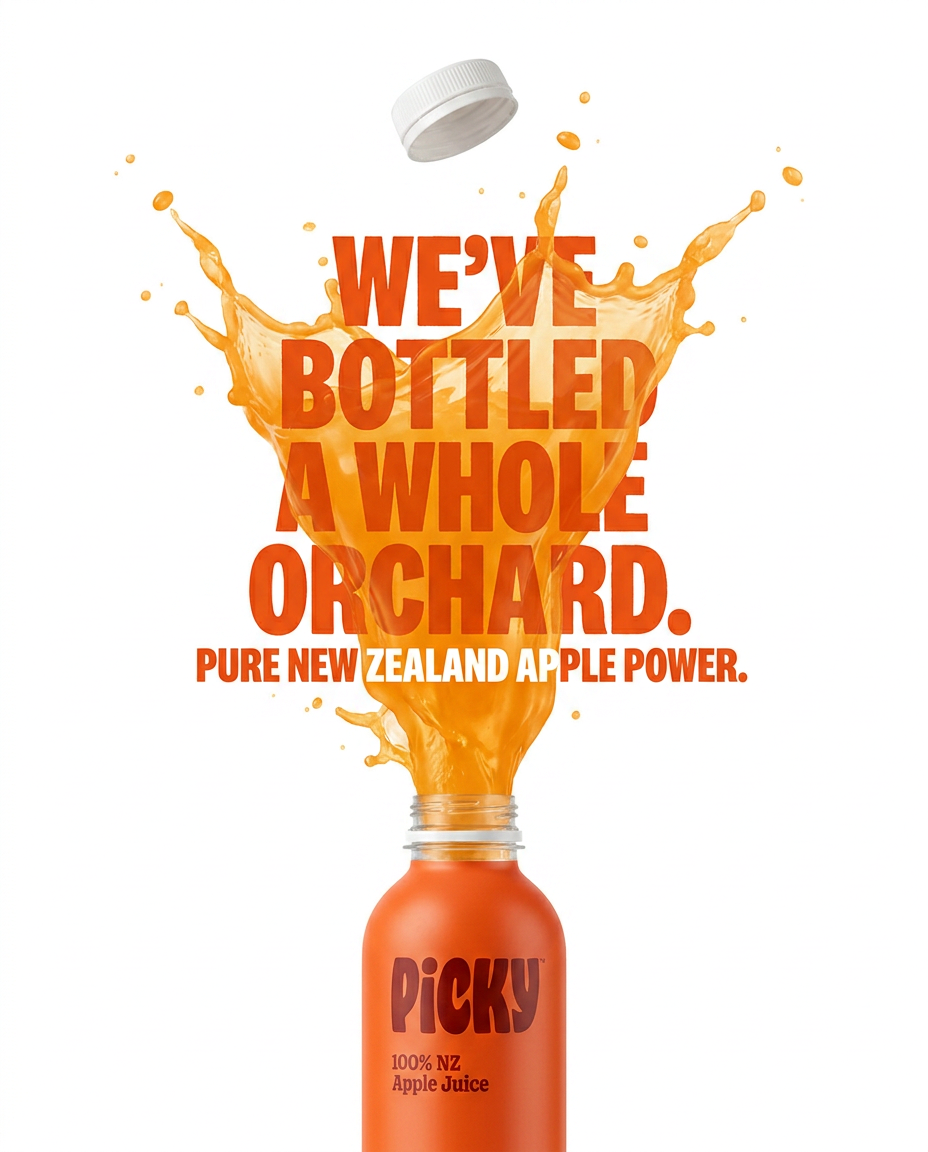
Drop the clutter and put your product in the spotlight. This setup places your item against a pure, seamless white background with a striking vertical flow that draws the eye straight up. It's perfect for creating clean, high-end studio posters.
Regenerate using your own assets.
From a single video to a full campaign
The true power of this workflow is its scalability. Once you've created one perfect animated text video, you can produce endless variations in minutes. Need to A/B test a headline? Duplicate the project in MyUP, change the text, and export. Running a campaign in different languages? Same process. Creating versions for different social platforms? Just adjust the text and format as needed.
This is how you move from creating single assets to building automated content systems. By separating the visual generation from the text application, you create a reusable template that can be updated with new messages instantly. This is something impossible to do with prompt-only video generation, where changing one word could unpredictably alter the entire visual.
This workflow for a full social campaign can be started with a simple, repeatable template like the one below, designed for bold food branding.
Workflow code: #myup-tbky-nciq
Food Brand Poster
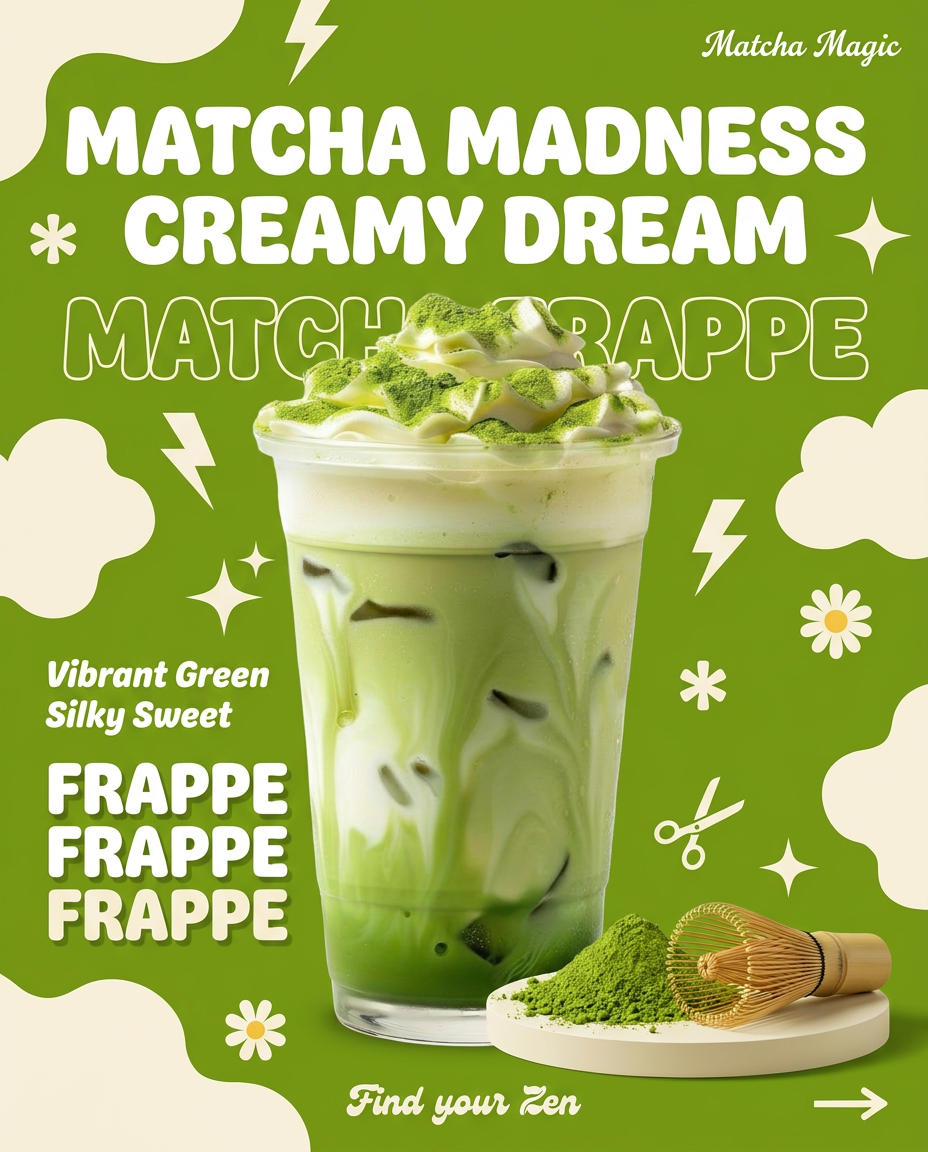
Instantly turn any food or drink product packaging into a bold, vibrant retro poster. The system automatically reads your bottle or box to grab its exact colors and ingredients, then crafts a perfectly coordinated vintage background around it.
Regenerate using your own assets.
The result: AI speed without sacrificing brand control
Stop wasting time trying to find the magic prompt that will fix AI text in video. The solution is a better workflow, not a better prompt. By using the hybrid approach in MyUP, you get the best of both worlds: the incredible speed and creative potential of AI for your visuals, combined with the absolute precision and brand control of a professional editor for your message.
This method is reliable, scalable, and guarantees a professional-quality result every time. It’s the same principle we recommend for getting perfect text on still images, applied to the unique challenges of video. Let the AI build the world, but you, the user, should always have the final say on the word.
