
Even with new updates, AI is still terrible at text. Here's why.
You’ve seen the memes. The inspirational posters that say “Beleaf in Yorself.” The event flyers with six-fingered hands holding signs that melt into gibberish. As of July 2026, even with the latest updates from major players—Midjourney’s new `--style text` parameter, Google’s StyleDrop, and Adobe Firefly’s improvements—the fundamental problem remains: AI image generators are not typesetters.
The reason is simple. These models think in pixels, not characters. They are incredibly sophisticated at arranging pixels to form an image that looks like a photograph or an illustration. When you ask for text, they aren't typing; they are drawing the shape of letters. They lack a core understanding of typography, kerning, spelling, and grammar. The result is often a close-but-wrong mess of warped characters and nonsensical words.
Trying to get perfect text out of a single prompt is like asking a painter to write a legal contract. You're using the wrong tool for the job. The professional solution isn't a better prompt; it's a better workflow.
Stop fighting the AI: The professional hybrid workflow
The most effective and reliable way to create on-brand social media graphics with AI isn't a workaround; it's the standard professional process. It’s a hybrid workflow that divides the task into two distinct steps, playing to the strengths of each tool.
- Generate the Visual: Use the AI image generator for what it does best—creating a stunning, unique, and perfectly composed background image. This is the creative, conceptual part of the work.
- Apply the Text: Use a brand-aware design editor to apply your messaging. This is the precision, brand-critical part of the work where control is non-negotiable.
This isn't just our point of view. Industry leaders like Adobe are validating this exact approach by encouraging users to generate in Firefly and then move to Adobe Express for text and layout. The problem is that this often means juggling multiple apps, subscriptions, and brand asset libraries. In MyUP, this entire professional workflow happens in one place.
Step 1: Generate the perfect visual background in MyUP
The first stage is about creating the perfect canvas for your message. Inside MyUP.ai, you can direct the AI to generate a background that is not only beautiful but also functional. Instead of prompting for a finished graphic with text, focus your prompt on the visual alone.
Think like an art director. Use descriptive terms that leave room for your content:
- “An abstract background with soft gradients using our brand colors, with ample copy space on the left side.”
- “A minimalist, clean product shot on a marble surface, top-down view, with negative space for a headline.”
- “A vibrant, textured photo of a cityscape at dusk, with a blurred background to make text pop.”
In this stage, MyUP executes the visual generation, but you validate the result. You approve the image that best fits your campaign's mood and layout, giving you full creative control before a single word is added.
Step 2: Apply perfect, on-brand text with your Brandkit
Once you have your AI-generated background, the magic happens. Instead of exporting and uploading it to another tool, you simply open it in MyUP’s editor. This is where the MyUP Brandkit solves the typography problem completely.
A Brandkit is your brand's visual identity, built once and reused automatically every time. You upload your actual brand fonts (OTF or TTF files), define your exact brand colors by their hex codes, and add your logo. From that point on, brand consistency is automated.
When you add a text box to your AI-generated image, it doesn't default to a generic font. It uses *your* brand's primary headline font. When you select a color, your brand palette is right there. This isn't an AI trying to guess or imitate your style; it's the system applying your real, pre-approved brand assets with perfect fidelity. You get crisp, editable text layers, allowing you to adjust the message, fix a typo, or create variations without ever re-generating the image.
Example: Create a bold brand announcement poster
Let's make this practical. You need to create a striking graphic for a new product launch. A direct AI prompt for this would be a lottery.
With the hybrid workflow in MyUP, you first generate a background like: “minimalist abstract art, deep navy blue and brushed gold textures, dramatic lighting.” Once you have a visual you love, you use a template to structure your message. The template provides the layout, and your Brandkit provides the identity.
The `Bold Editorial Grid Poster` template is perfect for this. It gives you a clean, modern layout for a strong headline and supporting text. Your Brandkit automatically ensures the text is in your font, not a close-enough substitute, giving you a professional result in minutes.
Workflow code: #myup-n0bi-2wzk
Bold Editorial Grid Poster
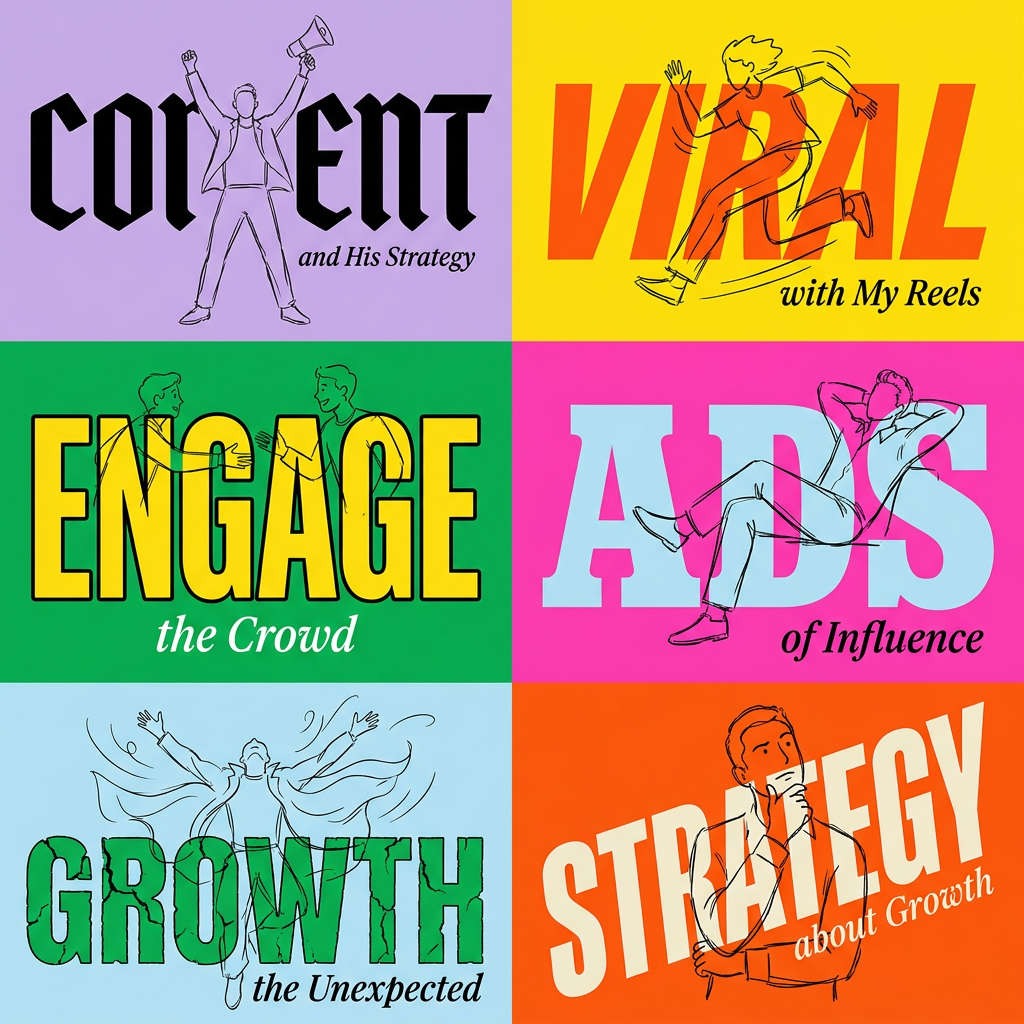
Create striking 2x3 editorial posters with six seamless, flat-color square cards in a perfect 4:5 grid. There are absolutely no gaps between the blocks, giving your content a bold, high-contrast magazine layout. It looks incredibly clean on any social feed.
Regenerate using your own assets.
Example: Design a food promotion graphic for Instagram
Imagine you're promoting a new menu item. You need a mouth-watering visual with clear, compelling text about the offer. This is a classic use case where AI text generation fails, often misspelling the name of the dish or the price.
In MyUP, you'd start by generating an image for “a delicious gourmet pizza on a rustic wooden table, overhead shot, cinematic lighting.” Then, you apply a layout designed for food marketing. The `Food Brand Poster` workflow instantly adds placeholders for the product name, a compelling offer, and your logo, all styled automatically by your Brandkit. For a different feel, you could also try the `Retro Style Food Advertising Poster` workflow. This is how you go from a generic (but beautiful) AI image to a finished piece of marketing collateral. For more on creating stunning AI visuals of your products, see our guide on the repeatable AI workflow for professional product photos.
Workflow code: #myup-tbky-nciq
Food Brand Poster
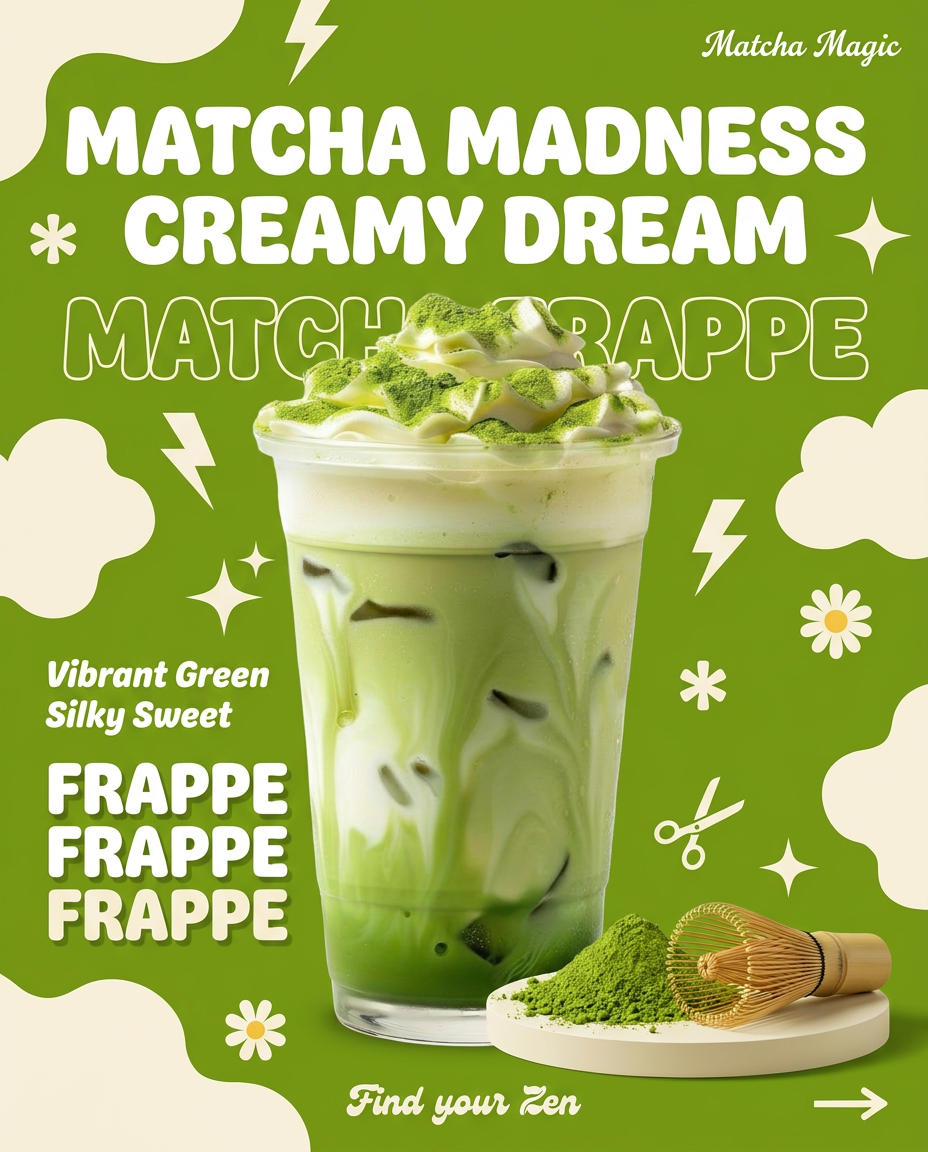
Instantly turn any food or drink product packaging into a bold, vibrant retro poster. The system automatically reads your bottle or box to grab its exact colors and ingredients, then crafts a perfectly coordinated vintage background around it.
Regenerate using your own assets.
Workflow code: #myup-1hgd-9oz5
Retro Style Food Advertising Poster
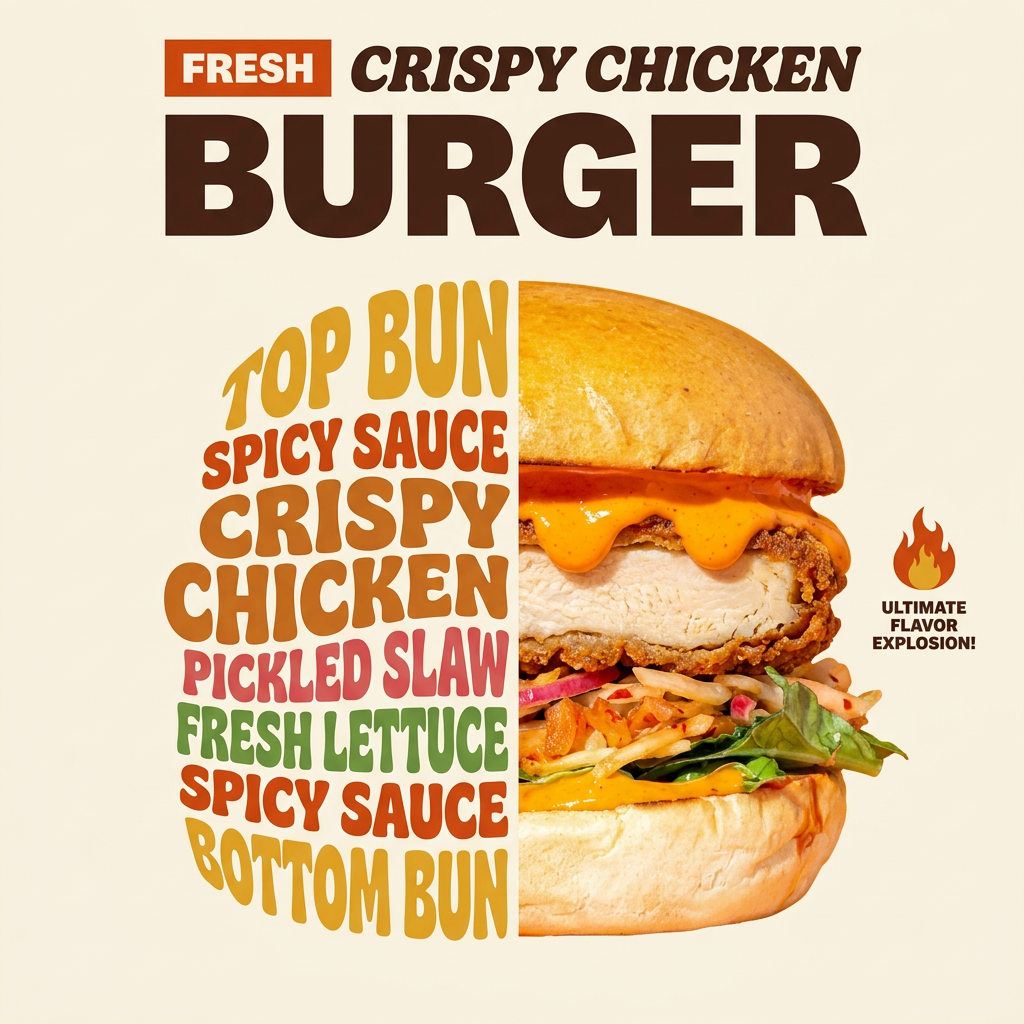
Turn any food product shot into a bold, nostalgic retro advertisement. It drops your item onto a warm cream background and automatically frames it with a color-matched header badge for that classic mid-century print ad look.
Regenerate using your own assets.
Example: Make a professional hiring announcement
A hiring post is text-heavy. It needs to convey a job title, key requirements, and a call to action. Asking an AI to generate this in a single image is a recipe for disaster. The text will be misspelled, misaligned, and impossible to edit.
The hybrid workflow handles this easily. First, generate a professional, on-brand background: “bright, modern office interior with soft focus, clean and minimalist.” Then, use a template like the `Modern Hiring Poster`. This workflow provides a structured layout for all your text elements. Your Brandkit ensures that the job title, body copy, and contact information all use the correct fonts and weights from your brand guidelines. The result is a clean, professional, and easy-to-read graphic that looks like it was made by a designer, not a confused algorithm. This same principle of separating visuals from text is crucial for creating things like on-brand presentation visuals, where clarity is key.
Workflow code: #myup-eiob-7tbc
Modern Hiring Poster
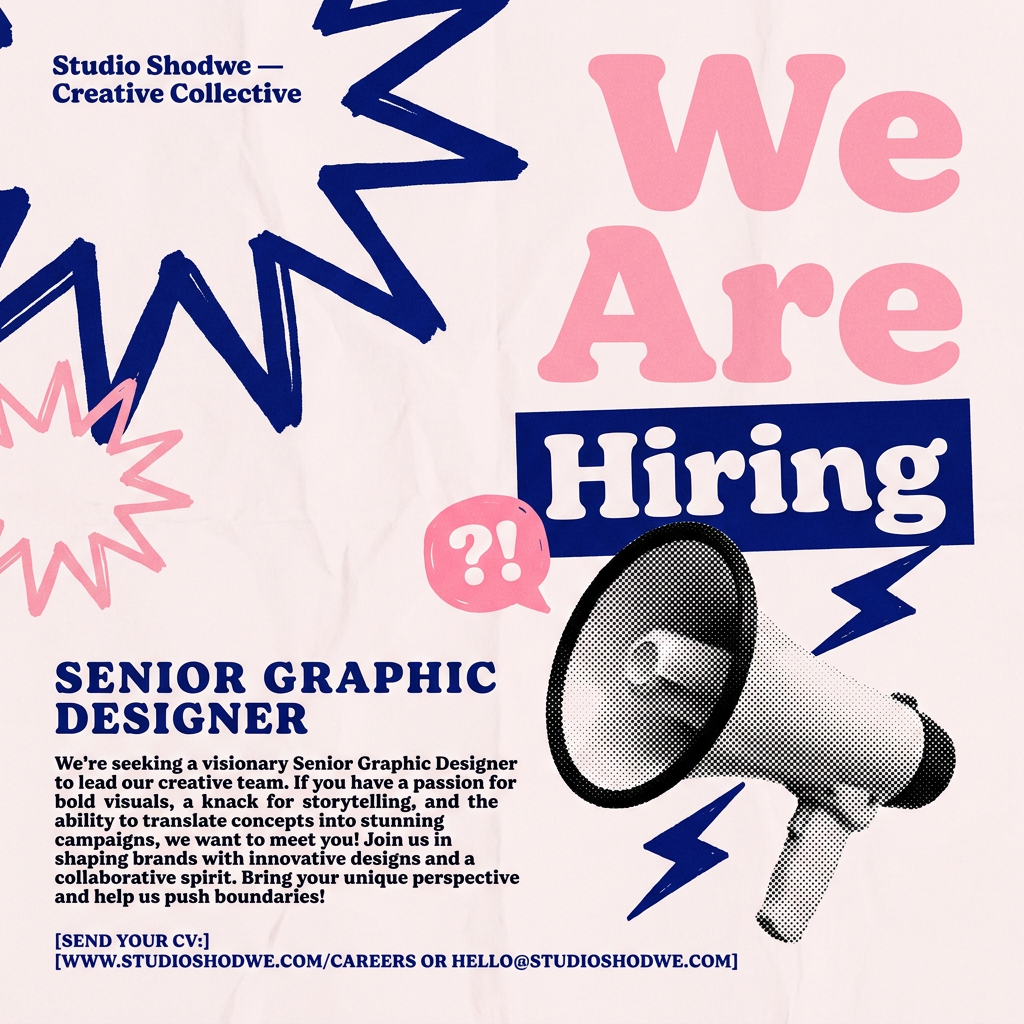
Turn your open roles into stylish social announcements. It sets your hiring details against a soft, textured paper background with clean, editorial typography. Perfect for giving your brand a polished, modern look when you're looking to hire.
Regenerate using your own assets.
The MyUP workflow vs. other methods
You have other options, but each comes with a cost in time, quality, or consistency.
- Forcing text in Midjourney/DALL-E: This is a game of chance. You'll spend dozens of credits re-rolling prompts, hoping for a usable result. The text is baked into the image, so it's not editable, and it will never use your actual brand font.
- AI Generator to Canva: This is the most common workaround. You generate an image, download it, upload it to Canva, and add your text there. It works, but it's a clunky, multi-step process that breaks your creative flow. MyUP integrates these steps into one seamless experience.
- Adobe Firefly + Express: This is a valid hybrid workflow from a major player. However, it still requires you to work across two different applications and manually manage your brand assets in Express. MyUP's Brandkit is designed to automate this, applying your brand identity with a single click, which is a significant advantage for speed and team-wide consistency. This is especially true when dealing with critical assets like logos, where text must be perfect. We cover a similar workflow for that specific challenge in our article on how to fix AI-generated text for logos.
The goal isn't just to get text on an image. The goal is to produce high-quality, on-brand content efficiently and repeatedly. For that, a fully integrated hybrid workflow is the only professional choice.
