
You’ve seen the viral posts and maybe you’ve experienced it yourself. You upload a dozen of your best photos to an AI headshot generator, pay the fee, and wait. What you get back is… unsettling. A digital doll with plastic skin, lifeless eyes, and a face that’s vaguely you, but mostly a resident of the uncanny valley. This widespread frustration is exactly why one-click AI apps are failing professionals who need to build trust, not suspicion.
A professional headshot must be authentic. It needs to look like you on your best day, not like a video game character. The good news is that AI can achieve this, but it requires a better process than a simple filter. This guide outlines the professional workflow for generating a realistic AI headshot—one where you maintain creative control and the final result is genuinely you.
Why your AI headshot looks like a video game character
The core problem with most AI headshot apps is that they prioritize style over identity. They are trained on vast datasets of generic, idealized faces and tend to over-smooth features, alter facial structure, and create a composite that loses your unique likeness. They are designed for speed and simplicity, not authenticity.
These tools often fail because they:
- Don't use your photos correctly: Many apps use your uploaded images more for loose inspiration than as a strict facial reference, allowing the AI model to drift towards a generic mean.
- Over-process the image: Aggressive digital “enhancements” strip away the natural skin textures, subtle asymmetries, and unique features that make you look human.
- Lack user control: You get what the algorithm gives you. There’s no way to direct the lighting, refine the expression, or tweak the composition. You can’t tell it, “That’s great, but make my smile a little more subtle.”
To get a result that builds credibility, you need to move from an automated app to a creative workflow. On MyUP.ai, you guide the AI with specific inputs for both your face and the desired aesthetic, ensuring the output respects your identity.
The professional workflow for a headshot that looks like you
Achieving a realistic AI headshot isn't about finding a magic prompt. It's a three-step process that puts you in the role of a creative director, using AI as your photographer. MyUP is the studio where you bring these elements together.
- Provide High-Fidelity Reference Images: The AI can only replicate what it can see. The quality and variety of your input photos are the single most important factor for success.
- Use Prompts for Style, Not Identity: Your reference photos handle your likeness. Your text prompt should act as the creative brief, defining the lighting, attire, setting, and mood.
- Generate, Review, and Refine: Professional photography involves taking many shots to get the perfect one. The same is true here. You’ll generate a batch of options, identify what works, and make small adjustments to perfect the final image.
Let's break down how to execute each of these steps in MyUP.
Step 1: Select and upload your reference photos
Your reference photos are the ground truth for your face. Garbage in, garbage out. To give the AI the best possible data, gather 5-10 photos of yourself that meet these criteria:
- Variety of Angles: Include clear shots from the front, three-quarter views from both left and right, and if possible, a profile view. This helps the AI understand your facial structure in three dimensions.
- Consistent and Clear Lighting: Use photos where your face is well-lit without harsh shadows or extreme backlighting. Natural daylight is often best.
- Range of Expressions: Provide a mix of expressions—a neutral look, a gentle smile, a full smile. This gives the AI more data on how your face moves.
- Unobstructed Views: Avoid photos with sunglasses, hats, hands covering your face, or heavy, unnatural makeup. The goal is to show your core features clearly.
In MyUP.ai, you can upload these images directly into the image generator to be used as a character reference. This tells the model to prioritize maintaining your facial features with high fidelity while creating the new scene you describe in your prompt.
Step 2: Craft a prompt for style, not just identity
With your reference photos handling the 'who', your prompt can focus entirely on the 'what'. Instead of prompting for your own hair or eye color (the AI knows this from your photos), you will describe the scene like a photographer.
Focus on these key elements:
- Lighting: Describe the quality and direction of light. Examples: soft studio lighting, dramatic Rembrandt lighting from the side, warm golden hour sunlight.
- Attire: Be specific about what you want to be wearing. Examples: wearing a professional navy blue business suit, in a black cashmere turtleneck sweater.
- Background: Define the environment. Examples: against a solid, neutral gray studio background, in a modern, bright office with a softly blurred background.
- Composition: Specify the shot type. Examples: head and shoulders portrait, chest-up shot, close-up portrait.
Putting it all together, a strong prompt looks like this:
Head and shoulders portrait of a person, soft studio lighting, wearing a dark gray business blazer, against a solid off-white background, photorealistic, sharp focus.
To get started with a proven, high-quality aesthetic, you can use a pre-built workflow in MyUP. This template is designed to produce a polished, editorial look that’s perfect for a LinkedIn profile or website bio.
Workflow code: #myup-yk1h-uqy8
High-End Editorial Fashion Magazine Cover
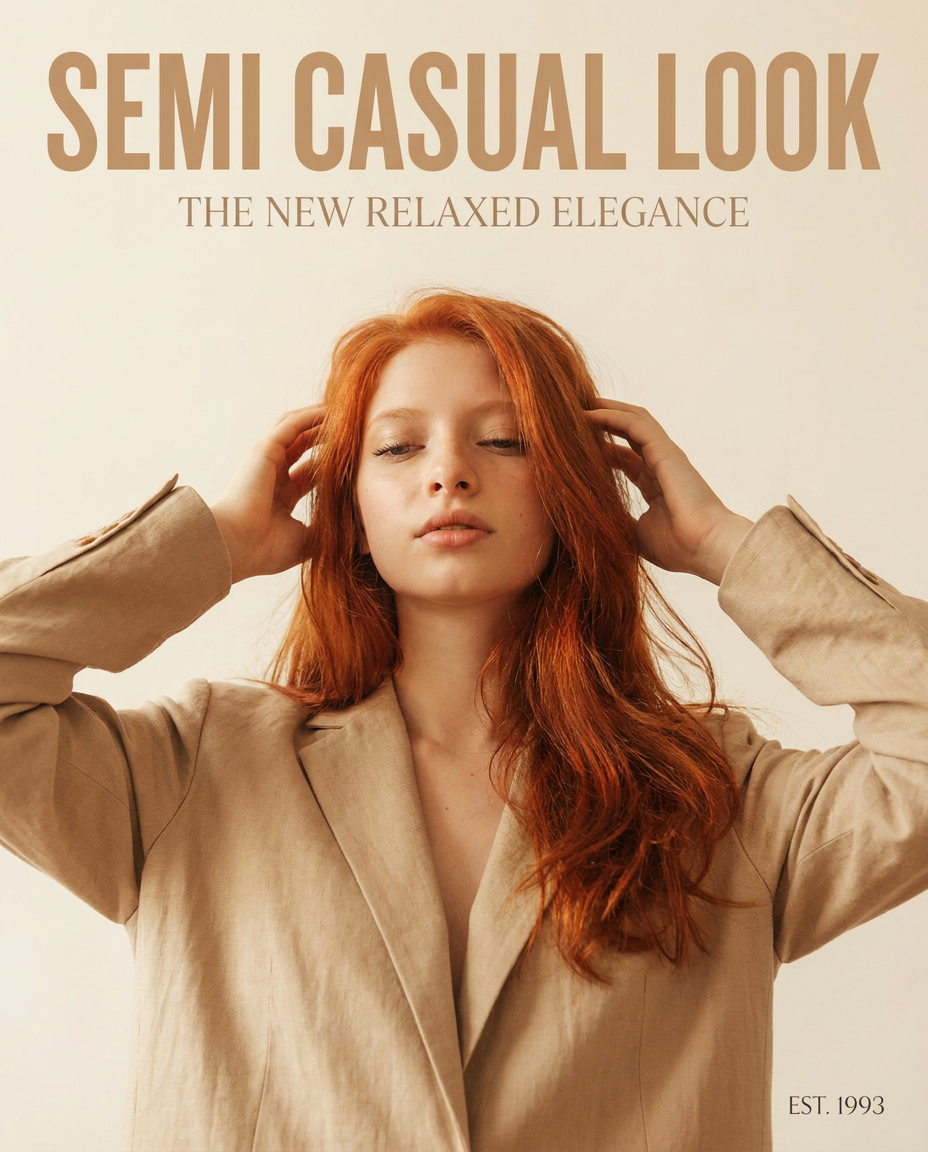
Drop in any portrait and turn it into a high-end editorial magazine cover. It frames your subject beautifully with relaxed, high-fashion posing and soft styling for a polished print aesthetic.
Regenerate using your own assets.
Step 3: Generate and refine your results
Once you run your workflow, MyUP will produce a set of initial options. Not every image will be perfect on the first try, and that’s a normal part of the creative process. Your job is to review the results and decide which ones are closest to your goal.
Look for the image that best captures your likeness. From there, you can refine it. Maybe the lighting is perfect but the jacket color is wrong. Simply adjust that part of your prompt—for example, changing dark gray business blazer to charcoal wool blazer—and generate again. This iterative loop is where you exert control. MyUP handles the complex production; you make the critical creative decisions.
This is the key difference: instead of being stuck with a single, unchangeable output from an app, you are in a dialogue with the AI, guiding it toward the perfect shot.
Beyond one photo: creating a consistent headshot library
The real power of this workflow becomes clear when you need more than just one headshot. Once you have a prompt and reference photo combination that reliably produces your face, you can create a full library of on-brand visuals for different contexts—all while looking like the same person.
Try these variations:
- Change the expression: Modify the prompt to include a slight, confident smile or a friendly, open expression.
- Switch the outfit: Generate a version with a casual button-down shirt for a more relaxed bio photo.
- Adjust the background: Create options with a dark, moody background and a light, airy background to fit different website designs or presentation slides.
You can also experiment with entirely different photographic styles while keeping your facial identity locked in. For a more dramatic and bold portrait, try this workflow.
Workflow code: #myup-xjsb-hirr
Bold Portrait Food Advertising Photo
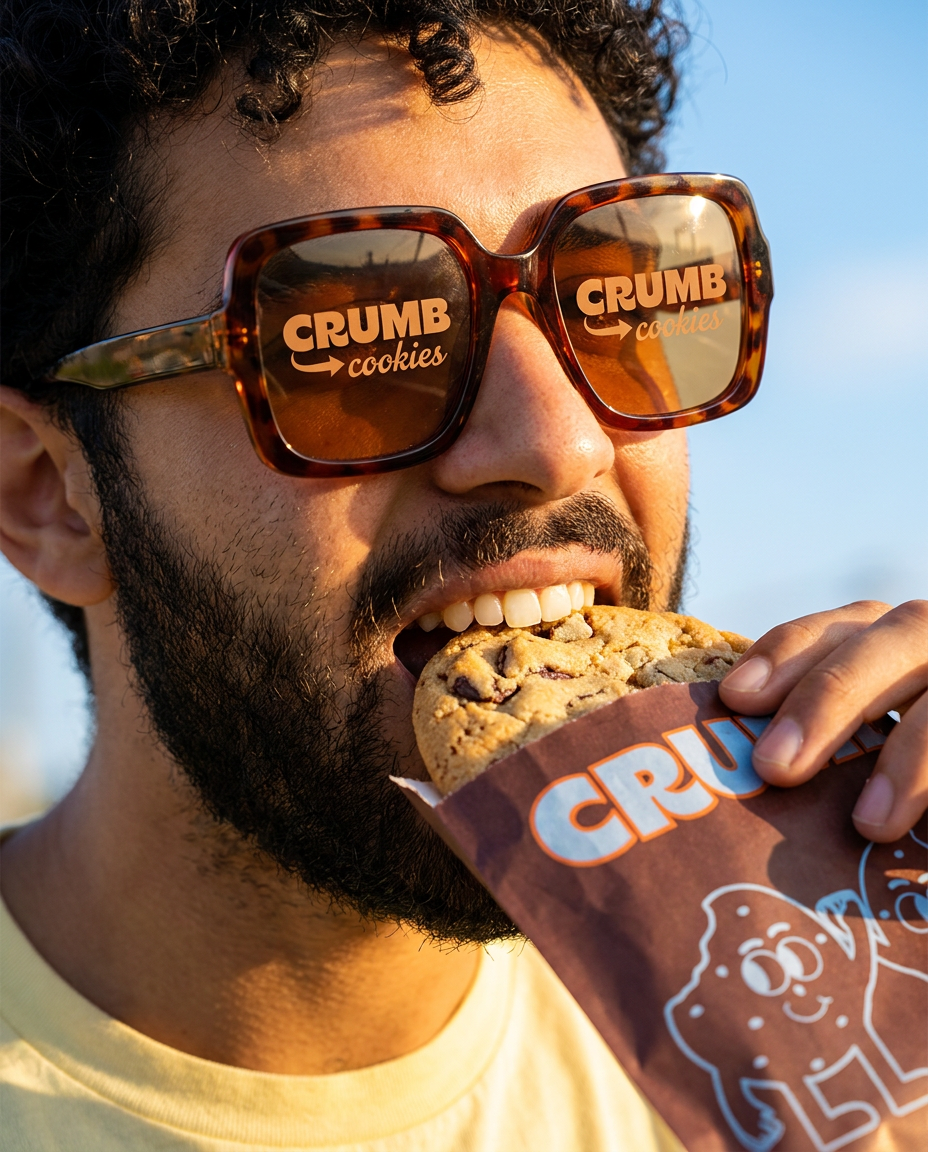
Get those high-impact, tight action shots of people actually enjoying your food brand. It drops your product right into a messy, realistic close-up bite shot that feels like a premium lifestyle campaign instead of a boring studio packshot.
Regenerate using your own assets.
The final touch: making your headshot on-brand with a Brandkit
A truly professional headshot doesn't just look like you; it also fits seamlessly into your brand's visual identity. This is where MyUP's Brandkit provides a unique advantage that simple headshot generators can't match.
After generating a headshot you love with a neutral background, you can use your saved Brandkit to instantly apply your brand's specific color palette. With one click, you can change the background to your company's official blue, green, or any other color from your visual identity. This ensures that your professional profile picture is perfectly aligned with your website, social media banners, and marketing materials.
This level of brand control is critical for founders, marketers, and entire teams. If you need to apply this consistency across your whole organization, the process is just as straightforward. You can learn more in our guide to creating consistent AI headshots for your whole team.
Stop settling for uncanny avatars. Create an account on MyUP.ai and follow this workflow to produce a professional headshot that is authentic, high-quality, and perfectly on-brand.
