The news cycle lit up this week with Luma AI’s preview of 'Animate Anything,' a feature promising precise control over AI animation. It’s a direct response to a problem every content creator has faced: most AI video tools turn your beautiful static images into a chaotic, swirling mess. While the promise of animating just the steam rising from a coffee cup is exciting, you need a workflow that delivers professional, on-brand results today.
Generic AI GIFs with warped logos and off-brand colors don't just look bad; they actively damage brand perception. They scream 'low-effort' and 'unprofessional.' The good news is that you don't need to wait for next-generation tools or hire an animator to create clean, subtle, and perfectly branded GIFs. You just need a better workflow. This guide will walk you through the exact process in MyUP.ai to turn any idea into a high-quality animated GIF that strengthens your brand, not dilutes it.
AI animation is everywhere, but most of it is unusable for brands
The core issue with most AI GIF generators is a lack of control. You upload an image, press a button, and the entire frame begins to warp and 'breathe' in an unpredictable way. The result is often a low-resolution, artifact-ridden animation that feels more like a cheap filter than a piece of marketing collateral. For brands, this is a non-starter.
A branded GIF needs to be more than just moving pixels. It must be:
- Consistent: It must use your exact brand colors, fonts, and logo without distortion.
- Controlled: The motion should be intentional and subtle, enhancing the message rather than distracting from it.
- High-Quality: The final output needs to be crisp and clean, suitable for email, social media, and websites.
The standard image-to-video model simply isn't built for this level of brand integrity. It's designed for novelty, not for professional communication. To create GIFs that work *for* your brand, you need a system where your brand identity is a core part of the generation process from the very beginning. This is where a workflow-based platform like MyUP makes all the difference.
The 3-step workflow for creating on-brand GIFs in MyUP
Instead of wrestling with unpredictable tools, this workflow puts you in the director's chair. MyUP handles the technical production, while you validate the creative choices. It’s a simple process: generate a short, high-quality video clip with controlled motion, apply your brand elements, and export it as a GIF. It all starts with having your brand identity ready to go.
Before you begin, make sure your MyUP Brandkit is set up. By simply providing your website URL, MyUP automatically extracts your logo, color palette, and fonts. This Brandkit is the foundation for everything that follows, ensuring every asset you create is instantly on-brand.
Step 1: Generate a short video clip from a prompt or image
Your first step is to create the base animation. In MyUP, you can generate a short video clip from either a text prompt or an existing image. The key here is that your Brandkit is already active. When you generate the video, MyUP’s AI is already aware of your brand's visual style, which helps guide the output toward a more consistent look and feel.
You can start with a simple text prompt describing a scene, or upload one of your existing brand images or product photos. This gives you a starting point that is already visually aligned with your brand, unlike a generic stock photo. For a quick and fun start, try creating animated stickers of your product.
Workflow code: #myup-swqt-4zo3
Product Stickers
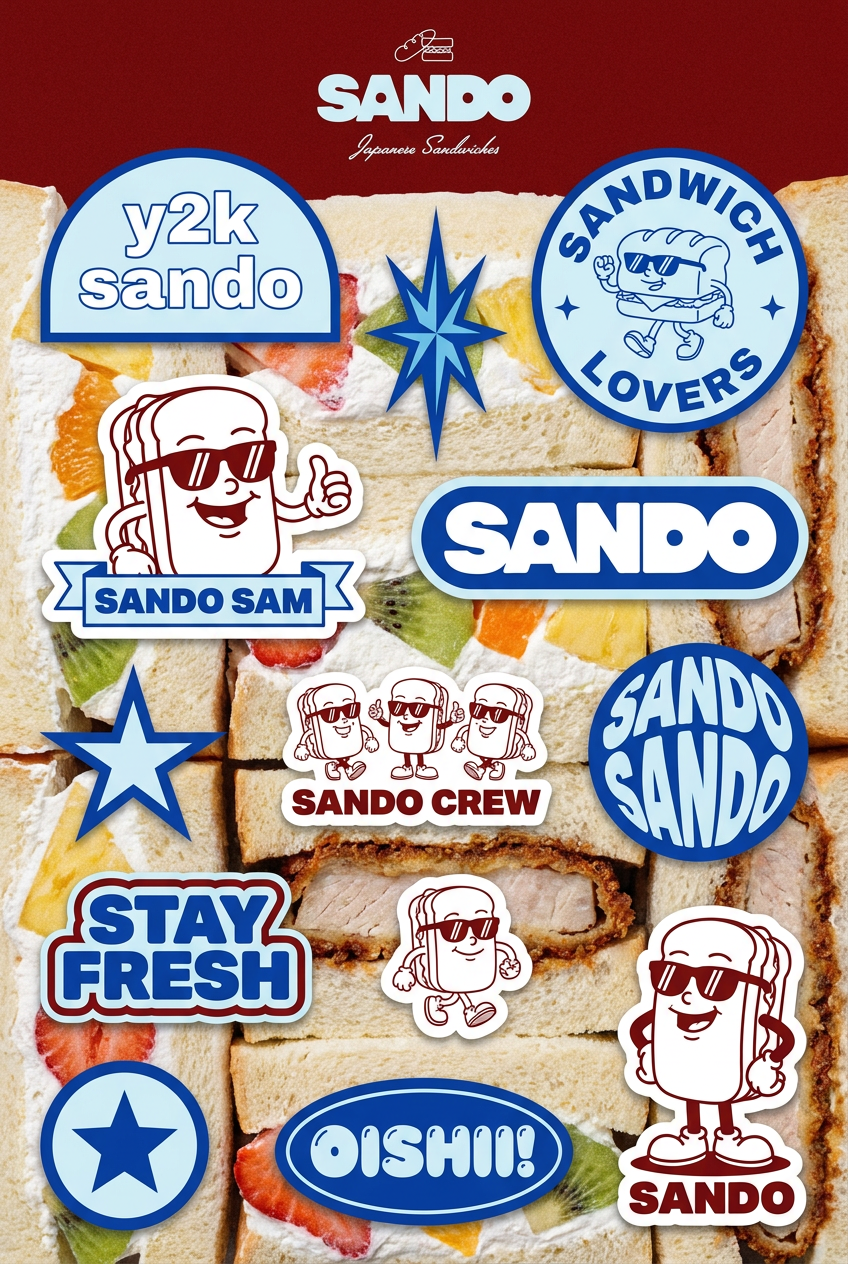
Turn your logo into a nostalgic, vibrant Y2K-style vertical ad. It automatically pulls your brand colors to create matching sweet treats like custom donuts or cupcakes in the background, giving you a super playful retro-pop aesthetic.
Regenerate using your own assets.
Step 2: Prompting for subtle motion, not a swirling mess
This is the most critical step for achieving a professional result. How you describe the motion in your prompt determines whether you get a clean animation or a chaotic one. Avoid vague terms like 'animate this' or 'make it move.' Instead, be specific and focus on subtle, looping actions.
Examples of effective motion prompts:
- 'Subtle looping animation of steam rising from the coffee cup.'
- 'A gentle, slow zoom-in on the product.'
- 'The character's eyes blinking slowly, a 2-second loop.'
- 'Minimal motion, with only the background leaves swaying gently in the wind.'
Prompts to avoid:
- 'Animate the whole picture.'
- 'Make this photo come to life.'
- 'Add a cool video effect.'
By specifying the type, speed, and subject of the motion, you instruct the AI to isolate the animation, leaving the rest of your image stable and professional. This is how you achieve the controlled effect everyone is hoping for from tools like Luma's 'Animate Anything,' but you can do it right now in MyUP. For a deeper dive into this, see our guide on how to animate an image with AI without the chaotic swirl.
Step 3: Add branded overlays and export your GIF
Once you have your short video clip (typically 2-4 seconds), the final step is to add any necessary branding and export it. In the MyUP editor, you can easily overlay your logo directly from your Brandkit. It will be perfectly rendered, with no color distortion or weird artifacts. You can also add a text overlay or a call-to-action using your brand fonts, which are also stored in your Brandkit.
After adding your overlays, simply choose the 'Export as GIF' option. MyUP will optimize the file for web use, ensuring a high-quality, looping animation with a manageable file size. This process allows you to create more than just simple animations; you can build complex, stylized collages and scenes that are perfectly on-brand.
Workflow code: #myup-sacz-tjdn
Y2K Scrapbook Collage Creator
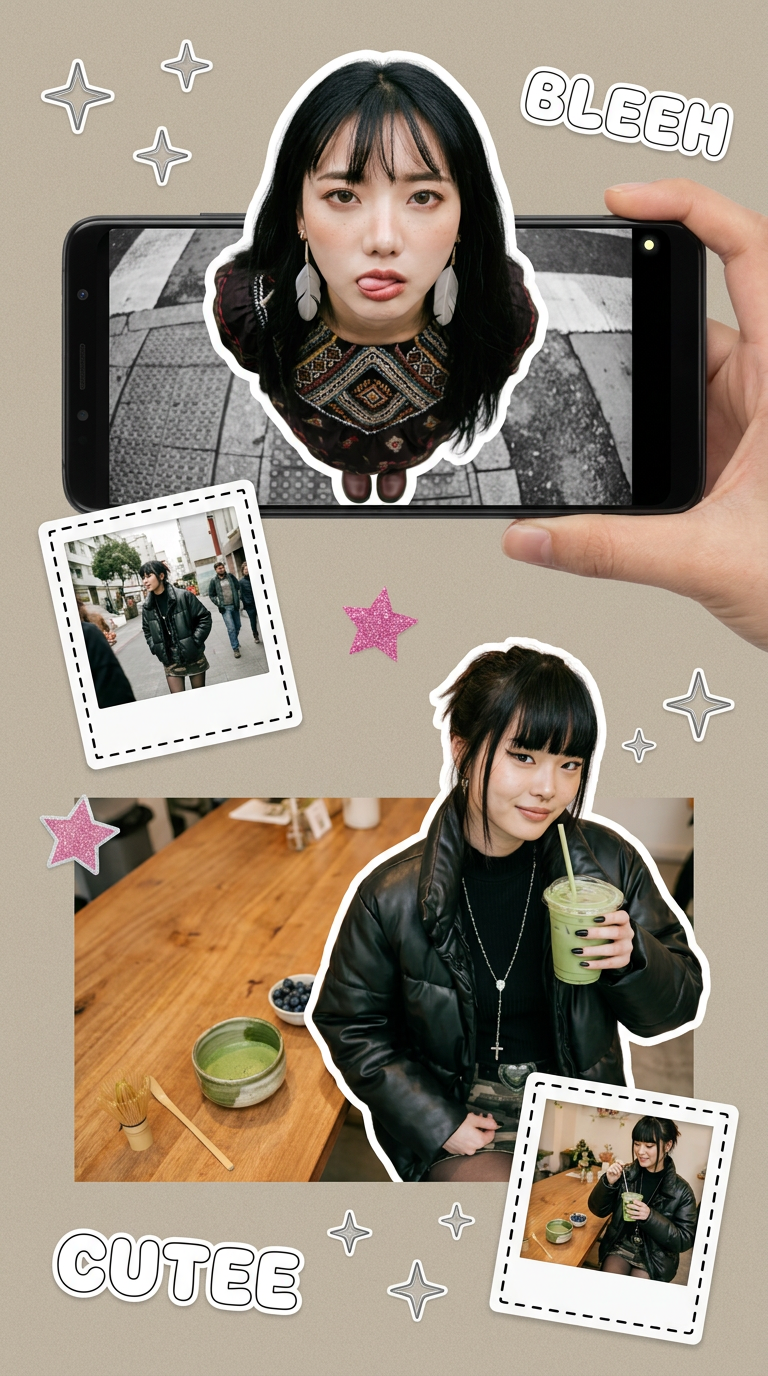
Put two different people into the same scene without losing their real-world features. Just upload two portraits and drop them together into any setting or style you need. It keeps both faces incredibly accurate.
Regenerate using your own assets.
Where to use your new on-brand GIFs
Now that you have a repeatable workflow for creating on-brand GIFs, you can use them to boost engagement across all your channels. These aren't just for social media reactions; they are versatile marketing assets.
- Email Marketing: Embed a subtle GIF of your product in a newsletter to grab attention and increase click-through rates. An animated call-to-action button can also significantly improve conversions.
- Social Media: Go beyond generic reaction GIFs. Create custom, branded GIFs for replies, stories, and posts that reinforce your brand identity with every interaction.
- Website Content: Use a simple, looping GIF to create an engaging website hero image or to illustrate a feature on a product page. Subtle motion can draw the user's eye to important information.
- Digital Ads: Short, looping video ads in a GIF format can be highly effective on platforms that support them, providing a lightweight alternative to full video files. You can even create dynamic text animations, similar to the process for making on-brand kinetic typography videos.
Stop wrestling with AI, start creating
The future of AI animation is undoubtedly one of greater control and precision. But you don't have to wait to create professional, branded animated content. By shifting from generic single-purpose tools to a brand-aware platform like MyUP.ai, you can implement a workflow that delivers clean, controlled, and consistent GIFs every time. The key isn't a magical 'animate' button; it's a process that respects your brand identity from start to finish. Stop wrestling with chaotic outputs and start creating assets that build your brand.
