
Your social media calendar is planned. The copy for the week is written, reviewed, and approved. You should feel relieved, but instead, you're facing a multi-hour production bottleneck: creating the visuals. This is the grind. Opening up a design tool, creating a new canvas, wrestling with layouts, and prompting an AI image generator one by one, hoping for something that looks remotely on-brand.
New features like Adobe Firefly's 'Generative Match', released just yesterday, promise better style consistency by referencing an existing image. It’s a step in the right direction, but it doesn't solve the core operational problem. You're still working post by post, stuck in a manual loop. True efficiency isn't about making one image look like another; it's about eliminating the one-by-one process entirely.
The shift from prompt engineer to system architect
The most effective social media managers aren't just good prompters; they're system architects. They don't think in terms of single assets. They build content factories.
Imagine an assembly line. Your raw materials are the simple lines of text in your content calendar. The machinery is a pre-built workflow. The final products are a week's worth of perfectly on-brand, ready-to-post visuals. Your job is strategy and planning—feeding the machine. The AI's job is production—running the assembly line.
This is the core philosophy behind MyUP.ai. It’s a shift from laborious, manual creation to automated, systematic production. You build the system once, and it pays you back in time and consistency every single week.
The 3-step workflow to automate your weekly social visuals
Making this shift is more straightforward than it sounds. The entire process can be broken down into three logical steps. We're going to walk through exactly how to turn a simple list of posts into a full visual campaign.
- Step 1: Prepare your content 'ingredients'. Structure your weekly copy in a simple, machine-readable format.
- Step 2: Build your visual assembly line in MyUP. Create a workflow that connects your text inputs to specific visual templates.
- Step 3: Run the batch and validate the results. Generate all your visuals in one go and give the final approval.
Step 1: Prepare your content 'ingredients'
Your AI workflow needs clear instructions. The best way to provide this is with a simple list or table. Before you even open MyUP, organize your weekly posts. The key is to add a 'Type' column that will tell the workflow which visual template to use for each post.
Your input can be as simple as a text file or a spreadsheet that looks like this:
Post 1:Type: QuoteText: 'The future of creation is not manual, but automated.'
Post 2:Type: AnnouncementText: 'Our Summer Sale starts this Friday! Up to 40% off.'
Post 3:Type: TipText: 'Pro Tip: Use a MyUP Brandkit to lock in your fonts and colors for perfect consistency.'
Post 4:Type: QuoteText: 'Good systems make great content scalable.'
This simple structure is the fuel for your content factory. It separates the strategic messaging from the visual execution, allowing the system to handle the production heavy lifting.
Step 2: Build your visual assembly line in MyUP
This is where you connect your content plan to MyUP's creative engine. In MyUP, you'll build a workflow that ingests your text list and automatically routes each item to the right visual template based on its 'Type'.
The magic ingredient here is your MyUP Brandkit. Once you've set it up by providing a link to your website, MyUP automatically extracts your logo, color palette, and fonts. This Brandkit is applied to every single image the workflow generates, ensuring absolute visual consistency without you having to check hex codes or upload font files for every post. The workflow handles the variety; the Brandkit handles the consistency.
You can assign different templates to different post types to create a dynamic and engaging feed. For a 'Quote' post, you might want a bold, typography-focused design. For an 'Announcement', you might prefer a more photographic or illustrative style.
Template for a bold statement: Bold Editorial Grid Poster
For any post you've labeled 'Quote' in your content plan, you can instruct your MyUP workflow to use a template designed for high impact. The 'Bold Editorial Grid Poster' is perfect for this. It uses strong typography and a clean layout to make your message the hero. Your Brandkit automatically ensures the text uses your brand's font and color scheme.
To use this exact design in your workflow, you don't need to build it from scratch. Just tell MyUP to use the template.
Workflow code: #myup-n0bi-2wzk
Bold Editorial Grid Poster
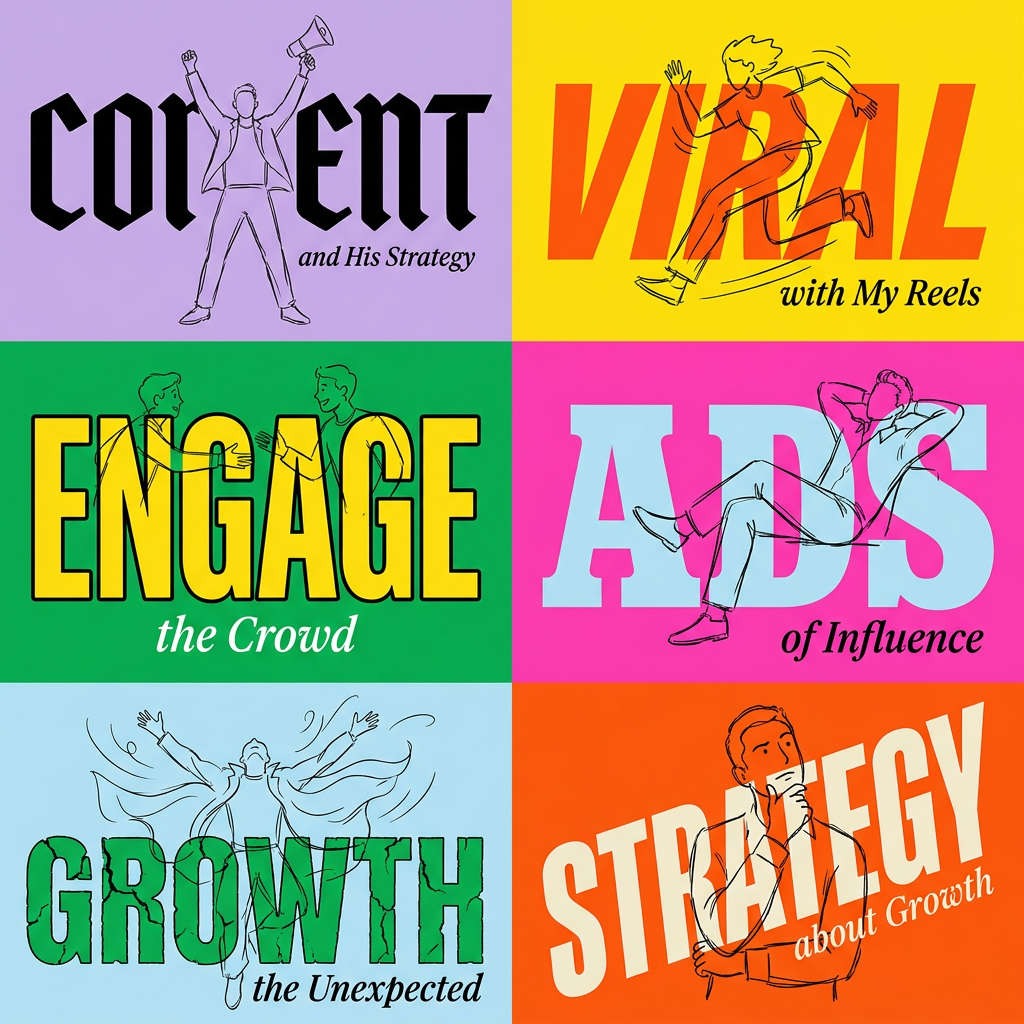
Create striking 2x3 editorial posters with six seamless, flat-color square cards in a perfect 4:5 grid. There are absolutely no gaps between the blocks, giving your content a bold, high-contrast magazine layout. It looks incredibly clean on any social feed.
Regenerate using your own assets.
Template for a weekly theme: Textured Paper Calendar Close-Up
For 'Announcement' or 'Event' posts, a different visual approach is needed. The 'Textured Paper Calendar Close-Up' template gives a tactile, planned feeling to your content, making it perfect for date-specific news. When your workflow sees a post tagged as 'Announcement', it can automatically generate this visual, populating it with your text and styling it with your Brandkit.
This is how you build variety into your automated system. Different messages get different, but equally on-brand, visual treatments.
Workflow code: #myup-hcix-fsva
Textured Paper Calendar Close-Up
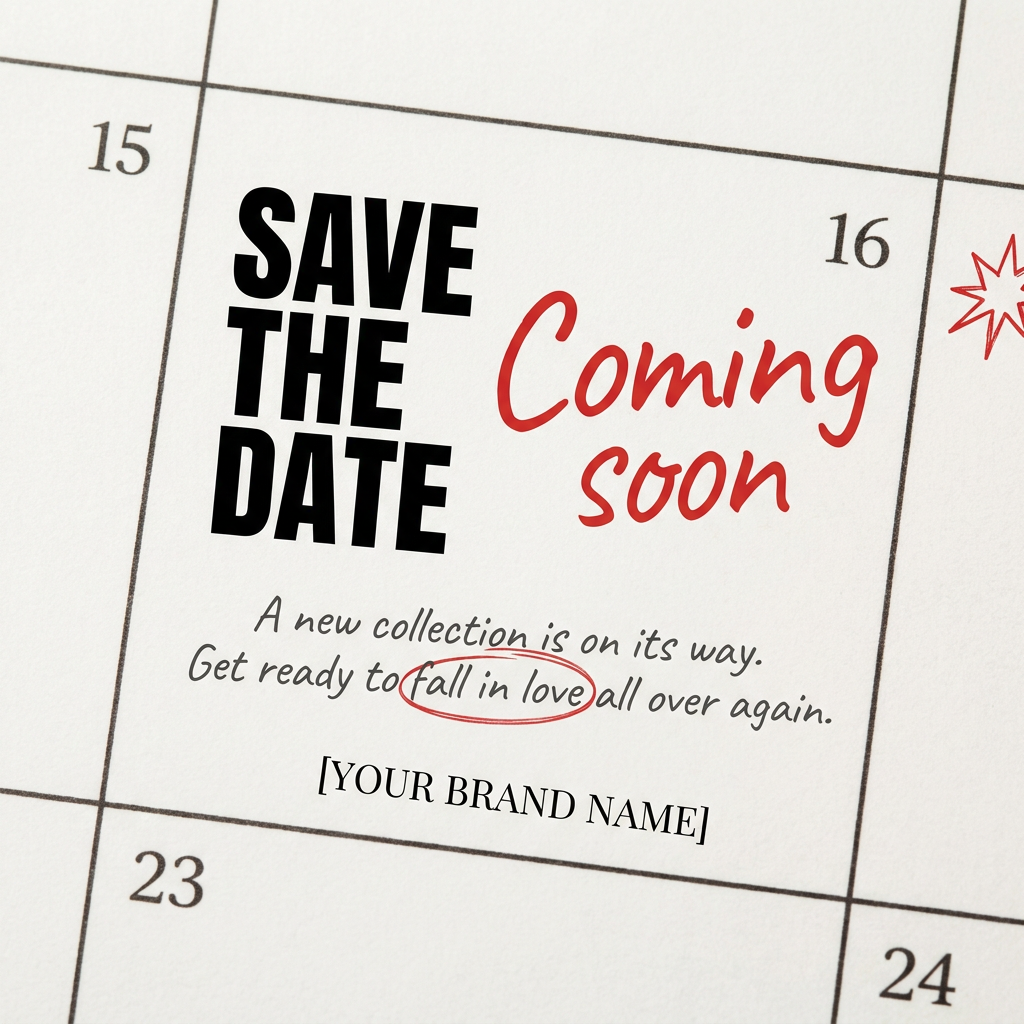
Turn your upcoming dates or launch schedule into a beautiful, tactile physical calendar. It renders crisp minimalist grids on heavy textured paper with realistic macro focus. Perfect for sharing events on social media without looking like a generic graphic.
Regenerate using your own assets.
Template for rich, layered content: Food Magazine Mosaic Cover
What if you need something more complex, like a feature for a new product or a weekly roundup? For a 'Feature' or 'Spotlight' post type, you can use a richer template like the 'Food Magazine Mosaic Cover'. This workflow creates a more editorial, layered visual that can combine multiple images and text blocks, all while adhering to your Brandkit's rules. It demonstrates that automation doesn't mean simplistic; your assembly line can produce sophisticated, multi-element designs.
Workflow code: #myup-aktp-7jq0
Food Magazine Mosaic Cover
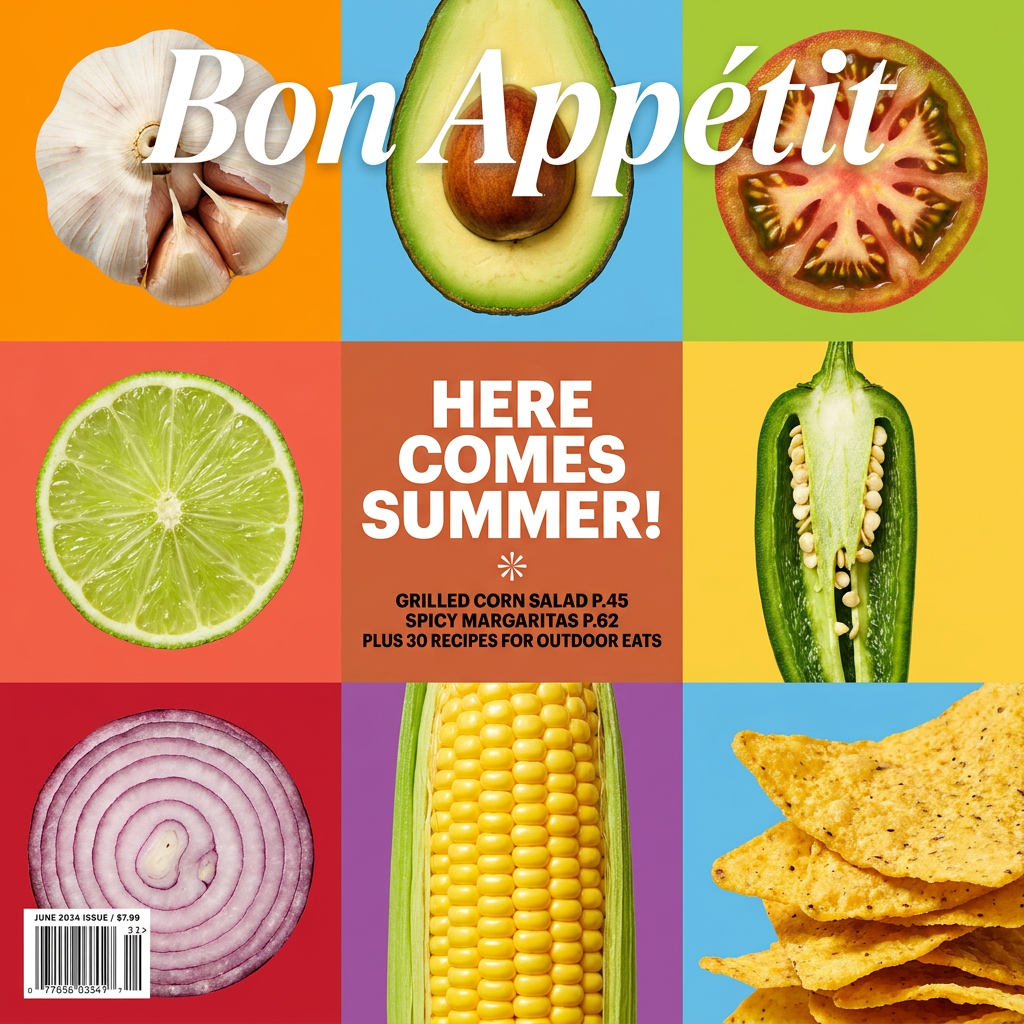
Turn your food shots into a bold, high-end editorial cover. It takes extreme close-ups of your dishes or ingredients and arranges them into a vibrant 3x3 grid that looks straight out of a premium food magazine.
Regenerate using your own assets.
Step 3: Run the batch and validate the results
Once your workflow is configured, the final step is the easiest. You simply provide your list of posts and run the batch. In a few minutes, MyUP will deliver a complete set of visuals for your entire week. All five, ten, or twenty posts are generated in parallel, not one by one.
This is where the 'human control' principle becomes critical. MyUP executes the production, but you validate the output. You get a gallery of results to review. If one image needs a minor tweak, you can adjust it. If everything looks perfect, you can download the full set and schedule your posts. The hours you used to spend on manual production are now reduced to minutes of strategic review.
Why a content factory beats simple style matching
Tools offering reference-based style matching, like Adobe's 'Generative Match', are useful for one-off tasks. They solve the problem of getting a single new image to look like an old one. But they don't solve the operational challenge of producing content at scale.
A true content factory, built on a system like MyUP's Brandkit and workflow engine, is fundamentally more powerful for teams. A Brandkit is a central, scalable source of truth for your visual identity—it's not just one reference image, but a set of rules covering colors, fonts, logos, and overall style. When your brand evolves, you update the Brandkit once, and every workflow automatically inherits the changes. This is how you scale content creation without scaling the chaos.
When you need to create a whole campaign of cohesive visuals, from social posts to on-brand hero images, a workflow-driven system is the only way to ensure every single asset is perfectly aligned. It's the difference between being a short-order cook making one dish at a time and being a production manager running a professional kitchen.
