
This month, AI presentation tools like Pitch and Tome made headlines by rolling out new 'visual identity' features. It’s a welcome change. For too long, professionals have been stuck with AI-generated slides that look clean but feel completely generic and disconnected from their brand. The ability to add a logo, a few brand colors, and a custom font is a clear step in the right direction.
But it doesn't solve the core problem. A great presentation isn't built on a template; it's built on a design system. Applying your brand colors to someone else’s layout still leaves you with someone else's design. A truly professional, memorable presentation requires a cohesive visual language—a system of assets that all share the same creative DNA. This is where most AI tools fall short. Their job is to fill in the blanks, not to create the visual world your story lives in.
This article outlines the workflow for moving beyond templates. We'll show you how to use AI not just to populate slides, but to generate the entire design system from the ground up on MyUP.ai.
From templates to systems: what your presentation actually needs
A design system provides the building blocks for consistency and scale. For a presentation, this isn't just about a title slide template. It's a library of unique, on-brand assets that work together. A complete system includes:
- A family of backgrounds: Not one, but a set of 5-10 complementary backgrounds for different slide types—title, section break, content, and data-heavy slides. They should feel related, but not identical.
- A custom icon set: Sharp, on-brand icons that illustrate key concepts like 'growth,' 'strategy,' or 'data.' Generic icon libraries often clash with a brand's specific aesthetic.
- On-brand spot illustrations: Unique visuals to explain a complex idea, highlight a customer benefit, or add personality to a key slide. These are the elements that make a deck feel custom-built, not downloaded.
- Data visualization styles: Clear rules for how charts and graphs should look, ensuring that even the most data-dense slides feel integrated into the overall design.
Generating these assets one by one is tedious. Generating them with disconnected tools leads to visual chaos. The goal is to produce an entire library from a single source of truth, ensuring every element is born from the same brand identity.
Step 1: Build your foundation with a MyUP Brandkit
The entire design system hinges on a strong foundation. In MyUP.ai, this is your Brandkit. It's more than a place to store your logo and hex codes. A MyUP Brandkit acts as a set of creative instructions for the AI.
When you set up your Brandkit (a one-time process, often by just providing a URL), you define:
- Colors: Your full palette, not just primary and secondary.
- Fonts: Your brand typefaces for headings and body text.
- Logo: All approved variations of your logo.
- Stylistic Rules: This is the most critical part. You describe your visual style in natural language. For example: "Minimalist and clean, with soft gradients using our brand colors. Photography is bright and optimistic. Illustrations use thin, consistent line weights and a flat color palette."
This Brandkit becomes the single source of truth. Every asset you generate in the following steps will automatically reference these rules, ensuring effortless consistency. The user validates the output; MyUP manages the production based on your established identity.
Step 2: Generate a family of on-brand backgrounds
Your slide backgrounds set the entire mood. Instead of a single, repetitive background, you need a versatile set. In MyUP, you can generate a whole family of them in one workflow.
The goal is to create variations on a theme. Start by prompting for your main title slide background, then iterate with slight modifications for other slide types.
For example, using your Brandkit, you could prompt for:
- "A subtle, abstract background for a presentation title slide. Use a soft gradient of our primary brand colors. Minimalist and professional."
- "A variation of the previous background, but much lighter and with more white space for a content-heavy slide."
- "A dark, bold version of the title slide background for a section divider slide."
By running these prompts, you build a library of 5-10 .png or .jpg files that you can then import into your presentation software. Each one is unique but clearly part of the same visual family. This workflow is a powerful alternative to the generic themes offered by tools like Google Slides' AI generator.
To get started creating your own custom visual assets, you can use a workflow designed for minimalist design and adapt the prompt for your needs.
Workflow code: #myup-sygb-rhnt
Minimalist Vertical Product Advertising Poster
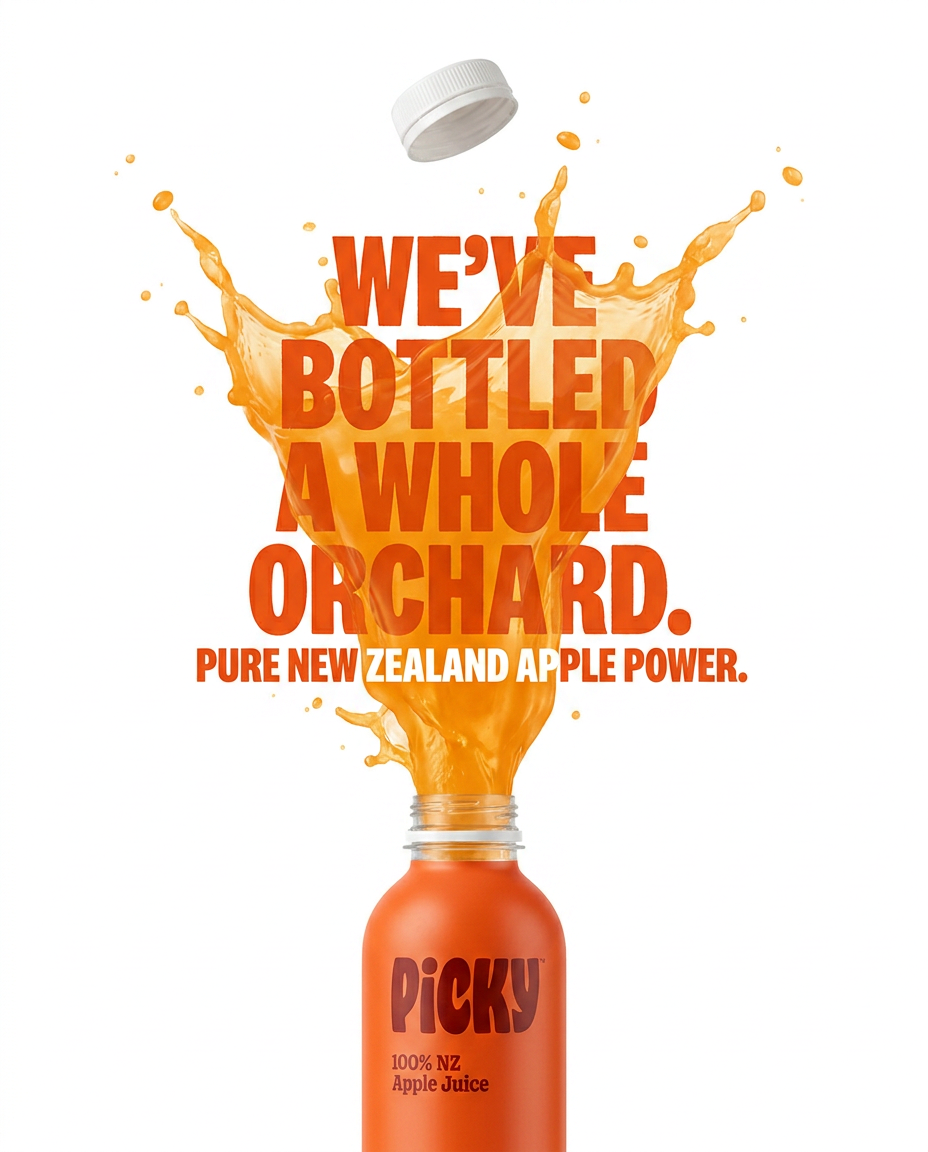
Drop the clutter and put your product in the spotlight. This setup places your item against a pure, seamless white background with a striking vertical flow that draws the eye straight up. It's perfect for creating clean, high-end studio posters.
Regenerate using your own assets.
Step 3: Create a custom icon set for your key concepts
Off-the-shelf icons are a common point of brand inconsistency. Your presentation on Q3 financial results shouldn't use the same bubbly icons as a startup's pitch deck. Using your MyUP Brandkit, you can generate a perfectly matched set.
The key is to define the style once and apply it to every icon. Your prompt should specify the subject and reinforce the style defined in your Brandkit.
For instance:
"Generate a set of 9 minimalist line-art icons on a transparent background. The icons should represent: a rising chart, a team of people, a gear, a lightbulb, a globe, a shield, a calendar, a magnifying glass, and a checkmark. The style must be single-color using our brand's primary blue, with a consistent 2px stroke weight."
MyUP will generate a grid of icons that all share the same visual DNA. You can then save each one individually and build your own library. This gives you complete creative control, ensuring every small detail aligns with your brand's aesthetic.
Start with a simple poster workflow and adjust the prompt to focus on generating a grid of icons in your brand style.
Workflow code: #myup-n0bi-2wzk
Bold Editorial Grid Poster
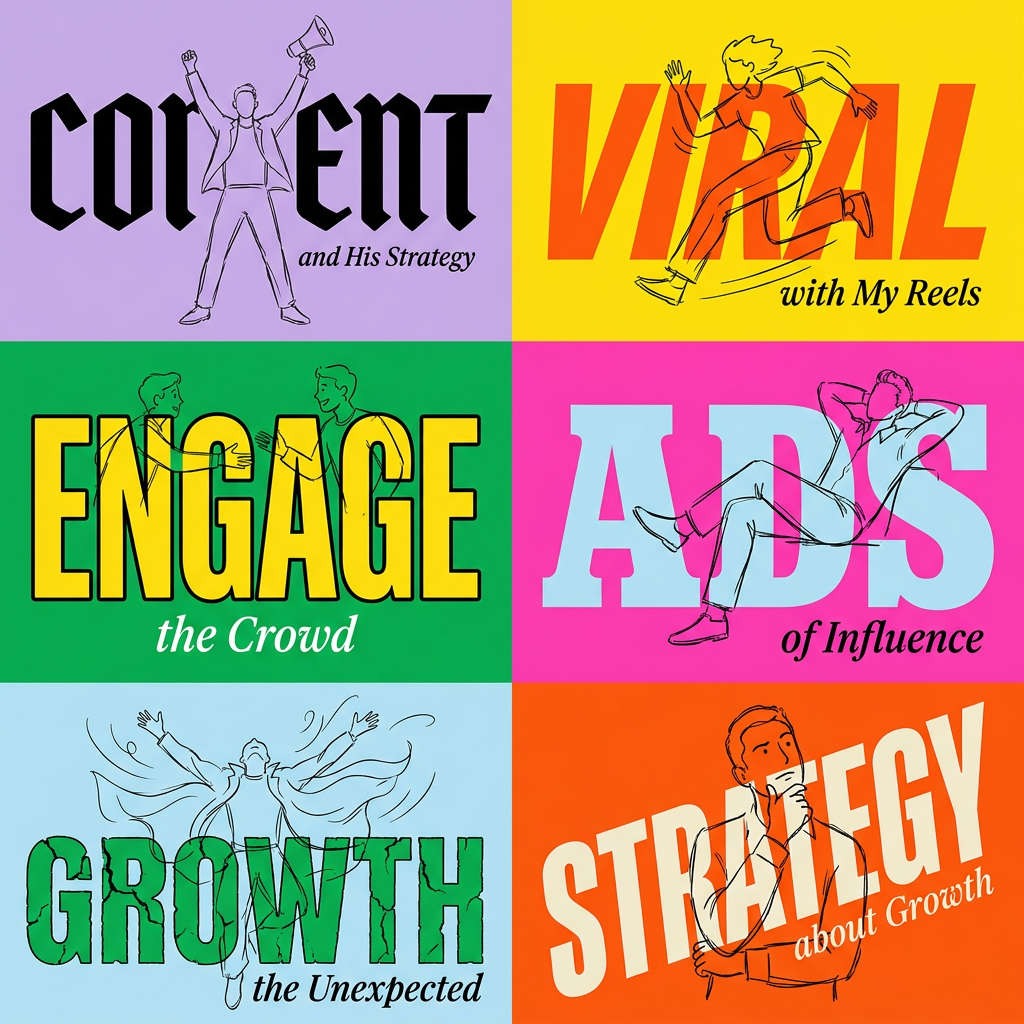
Create striking 2x3 editorial posters with six seamless, flat-color square cards in a perfect 4:5 grid. There are absolutely no gaps between the blocks, giving your content a bold, high-contrast magazine layout. It looks incredibly clean on any social feed.
Regenerate using your own assets.
Step 4: Illustrate complex ideas with unique spot illustrations
Some slides need more than an icon. To explain a user journey, a technical process, or a strategic pillar, a custom spot illustration is far more effective. These are typically the most expensive and time-consuming assets to commission. With an AI workflow, you can generate them on demand.
Again, reference your Brandkit's stylistic rules in the prompt. Be specific about the concept you want to visualize.
Example prompt: "An on-brand spot illustration showing a customer happily using our software on a laptop. The style should be flat, using our brand's color palette. Show simple UI elements in the background. The overall feeling should be positive and efficient."
This is how you move beyond the limitations of even the best PowerPoint AI tools, which can suggest layouts but can't create novel, meaningful illustrations tied directly to your content and brand.
Use a creative advertising workflow as a canvas for generating these unique illustrations.
Workflow code: #myup-fts6-4ihp
Vertical Gourmet French Fry Ad
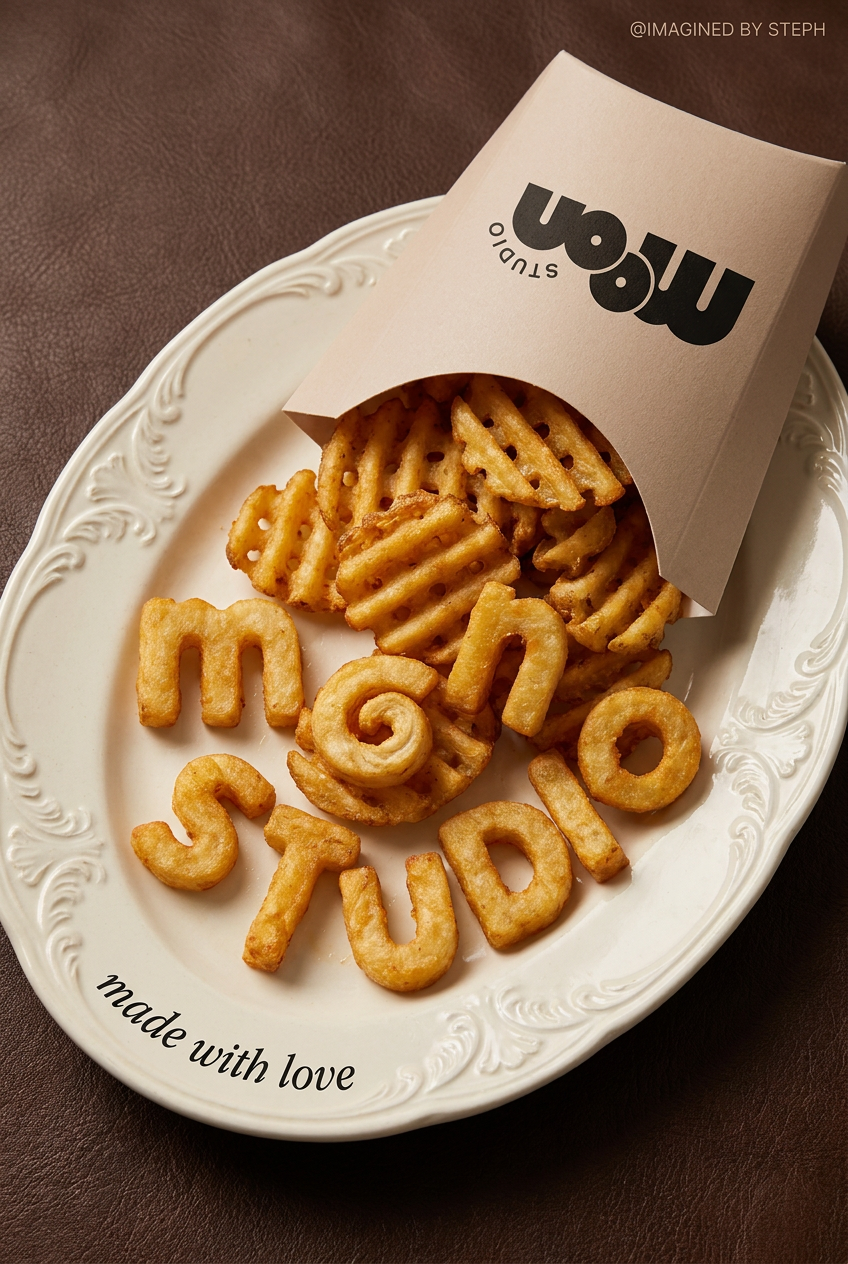
Transform your products into high-fashion editorial ads. This setup uses a dynamic diagonal layout and a slightly tilted overhead angle to give food and packaging incredible depth and texture. It's perfect for giving any brand a chic, premium look.
Regenerate using your own assets.
Step 5: Assemble your assets and build your master slides
Once you have generated your library of assets in MyUP—your backgrounds, icons, and illustrations—the final step is to assemble them in your presentation tool of choice, whether it's PowerPoint, Google Slides, or Keynote.
Import your generated backgrounds and apply them to the master slide layouts (e.g., Title Slide, Section Header, Title and Content). Place your logo and any other recurring elements. Add your generated icons and illustrations to a dedicated slide or a local folder for easy access. By building out your master slides with these custom-generated, system-based assets, you create a truly bespoke template that your entire team can use. It combines the creative control of a design system with the efficiency of a reusable template.
The result: a presentation that is uniquely yours
Adding a logo to a pre-built theme is just decoration. A true brand presentation is built from a system of cohesive parts. The workflow described here changes your role from a template-filler to a creative director. You define the system's rules in your MyUP Brandkit, and then you direct the AI to produce the specific assets you need.
The result is a presentation that doesn't just contain your brand—it embodies it. Every slide, icon, and illustration works together to tell a consistent and compelling story, giving you a level of polish and differentiation that generic AI tools simply cannot match.
