You spent weeks, maybe months, perfecting your logo. The spacing, the weight, the exact shade of blue. You upload it to an AI video tool, excited for a slick intro, and what you get back is a warped, flashy mess. The edges melt, the colors bleed, and your brand's core asset looks like a cheap template. You're not alone. A recent viral trend highlighted this exact frustration: creators are tired of AI treating their logos as loose suggestions.
The problem isn't the AI; it's the approach. Most tools are built to dream up entire scenes, not to handle precise brand assets. It's time to stop letting the AI dream on your logo. It's time to command it.
Why your AI logo animation looks wrong: generative chaos
The reason most AI logo animations fail is simple: they are products of generative chaos. Tools designed for text-to-video or broad image-to-video transformations treat your logo not as a fixed asset, but as a creative prompt. The AI's goal is to create something new *inspired* by your logo, leading to what we call 'generative drift'—the warping, morphing, and melting that destroys brand integrity.
These models are powerful for generating novel scenes but are the wrong tool for animating a specific, non-negotiable graphic. They lack the constraints needed to respect the clean lines and established forms of a logo. While the industry is waking up to this—with major players like Adobe adding consistency features to Firefly and new models like Kling experimenting with style transfer—they are still solving a different problem. They're trying to make generated scenes consistent with each other, not preserve the pixel-perfect identity of a single brand asset. For that, you need a different workflow entirely.
The solution: a controlled workflow for clean animation
A professional logo animation doesn't need imaginative flair; it needs precision and subtlety. The goal is to add motion to your existing brand asset, not to reinvent it. This is where the MyUP.ai philosophy of 'command, not dream' becomes a practical workflow.
Instead of feeding your logo into a generative engine and hoping for the best, MyUP treats your logo as a control image. You provide the asset, and then you provide specific, direct instructions for its motion. This fundamentally changes the process:
- The Logo is Fixed: You upload your logo (ideally as a PNG with a transparent background), and the AI is instructed to preserve its form, color, and details.
- Motion is a Command: You don't ask the AI to 'make a cool animation.' You tell it exactly what to do: 'zoom in slowly over 3 seconds,' 'pan left gently,' or 'fade in from black.'
- The User Validates: MyUP executes the production based on your commands. You remain in control, reviewing the output and adjusting the instructions until the animation is perfect.
This approach puts you in the director's chair, using AI as a highly efficient animator that follows your orders, ensuring the final product is clean, professional, and, most importantly, on-brand.
Step-by-step: creating your logo animation in MyUP
Let's turn theory into a finished asset. Creating a clean logo animation in MyUP is a straightforward process that takes minutes, not hours of fighting with a generative model. Here’s how it works.
1. Prepare and upload your logo
For the best results, start with a high-resolution version of your logo on a transparent background, saved as a PNG file. This allows the animation to be easily overlaid on any video background. Once you have your file, upload it to your MyUP Brandkit. This not only stores the asset but also makes your brand's colors and fonts available for any surrounding elements.
2. Open the AI Video tool and set up your asset
In the MyUP creation workspace, select the AI Video tool. Instead of writing a text prompt to generate a scene, you'll start with your uploaded logo as the primary input. This tells the system that the logo is the subject and must be preserved.
3. Write a clear motion control prompt
This is the critical step. Your prompt should be a direct command describing the desired motion. Avoid vague, creative language. Be specific about the action, direction, and timing. For a simple, clean reveal, a great starting prompt is:
Animate the logo with a slow, 2-second zoom in from 100% to 110% scale against a plain white background.
MyUP will generate a short video clip of your logo performing that exact motion. You can then download the clip or, even better, use it directly within a larger content workflow. For instance, you can immediately place your new animation into a branded social media post.
To get started, this template provides a complete framework for a branded post, ready for you to add your animated logo.
Workflow code: #myup-kbgo-tlle
Product Brand Post
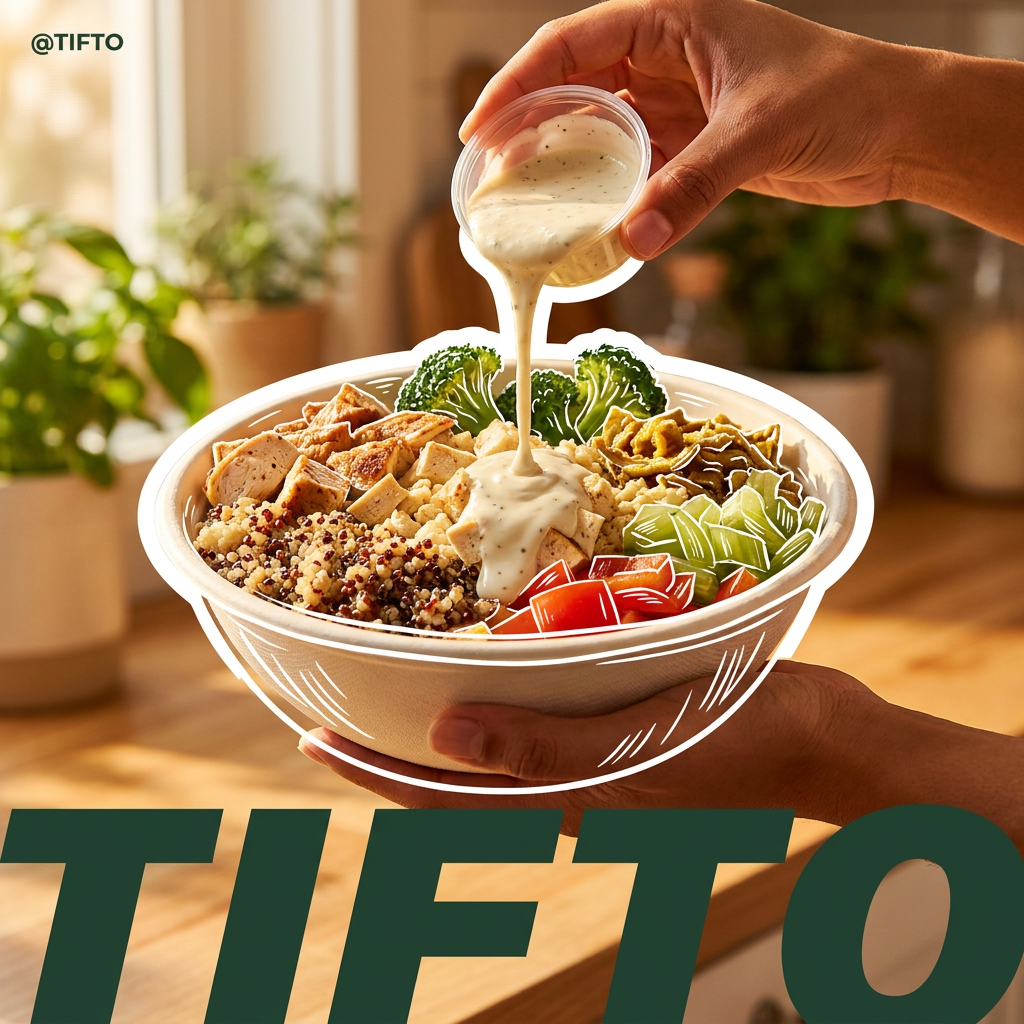
Drop in your product to generate a cohesive nine-post Instagram grid. It blends warm lifestyle photography and flat-lay packaging with bold hand-drawn doodles, collages, and urban billboard mockups. Everything automatically styles itself to your brand's colors.
Regenerate using your own assets.
Three professional animation styles to try today
With motion control, you can create a variety of classic, professional animation styles. Here are three go-to recipes you can use right now in MyUP. Simply use your uploaded logo and paste these prompts into the AI Video tool.
1. The Subtle Zoom
This is a timeless classic for video intros. It's clean, confident, and focuses all attention on your brand mark. It adds a touch of life without being distracting.
Prompt: Animate the logo with a slow, 3-second zoom in from 100% to 108% scale. The background should be my primary brand color.
2. The Gentle Pan
A slow, smooth pan is perfect for revealing a wider logo or logotype. It creates a sense of elegance and space, ideal for luxury, tech, or design-focused brands.
Prompt: Animate the logo with a gentle, 4-second pan from left to right. Maintain 100% scale. The background should be transparent.
3. The Classic Fade
The fade-in is the workhorse of logo animation. It’s clean, fast, and works in almost any context, from a corporate video to a social media story. It's the perfect way to start or end a video sequence.
Prompt: Animate the logo with a 1.5-second fade-in from a black background. Hold the logo static for 2 seconds after the fade is complete.
These simple animations can elevate any ad or announcement. This product ad template is a perfect canvas for testing your newly created logo animation.
Workflow code: #myup-w0vh-abft
Food Product Ad
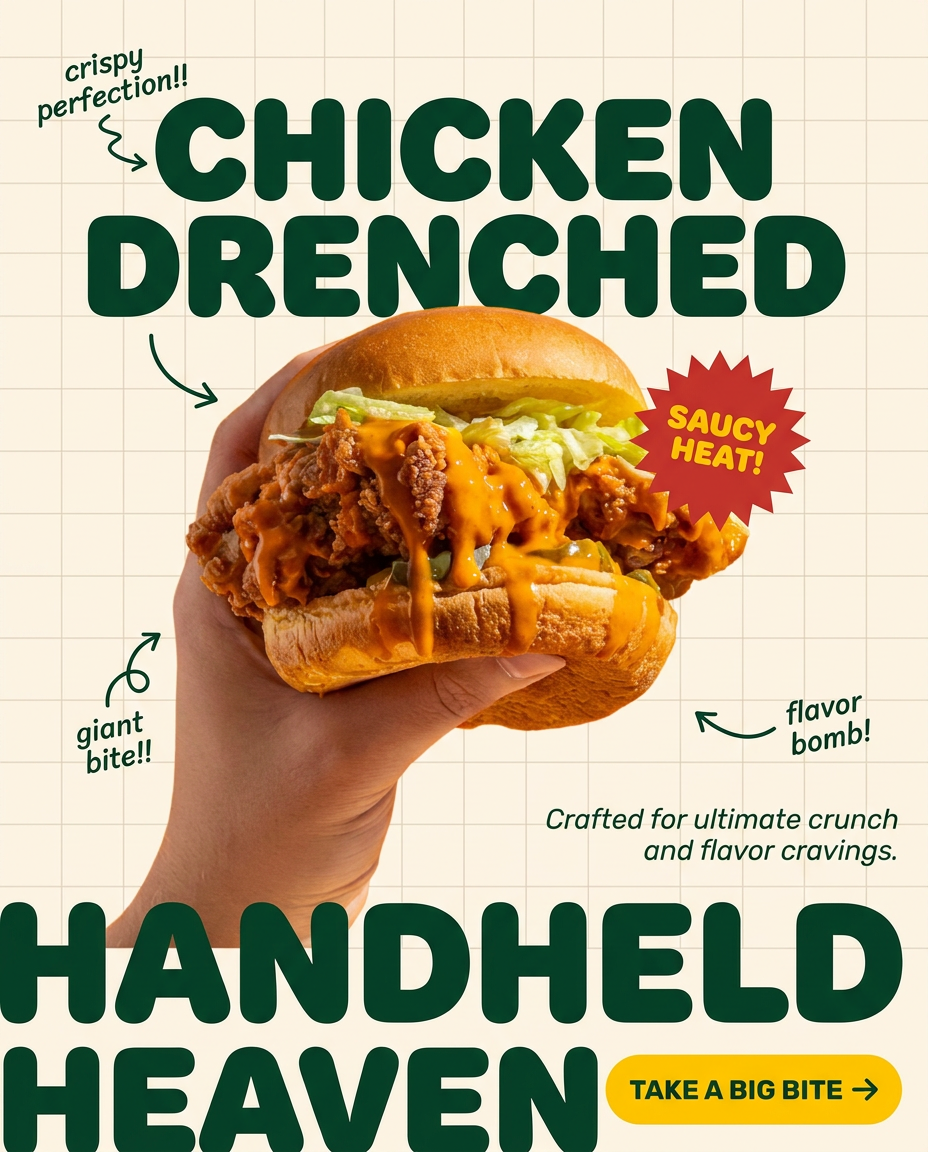
Turn any dish or snack into a bold, playful social ad. It places your food against a soft warm beige background with a subtle grid pattern, topped with chunky rounded headlines. It's clean, friendly, and instantly grabs attention in the feed.
Regenerate using your own assets.
How to use your new animation in your video content
Creating the animation is just the first step. The real value comes from deploying it consistently across your content. Once you've generated your animation in MyUP, you have a reusable brand asset you can use everywhere.
- Video Intros: Place the 3-5 second clip at the beginning of all your YouTube videos, webinars, and course materials for a professional, consistent opening.
- Video Outros: Use it at the end of your videos with a call-to-action, like your website URL or social media handle.
- Lower-Third Graphics: A subtle, looping version of your animation can be used as a lower-third watermark during presentations or interviews.
- Social Media Posts: A quick logo reveal is the perfect way to brand a GIF, a Reel, or a video Story ad, ensuring brand recognition even when the sound is off. For a deeper dive on this, see our guide on the professional workflow for turning static images into on-brand video.
In MyUP, you don't have to manually add this animation every time. You can build it into an automated workflow. For example, a workflow can take a product image, apply your Brandkit, add a headline, and automatically append your logo animation as an outro. This saves countless hours and ensures every piece of content is perfectly branded.
This workflow for a complete product post is a great example of how your logo animation becomes part of a larger, automated system.
Workflow code: #myup-gxue-opd0
Product Post
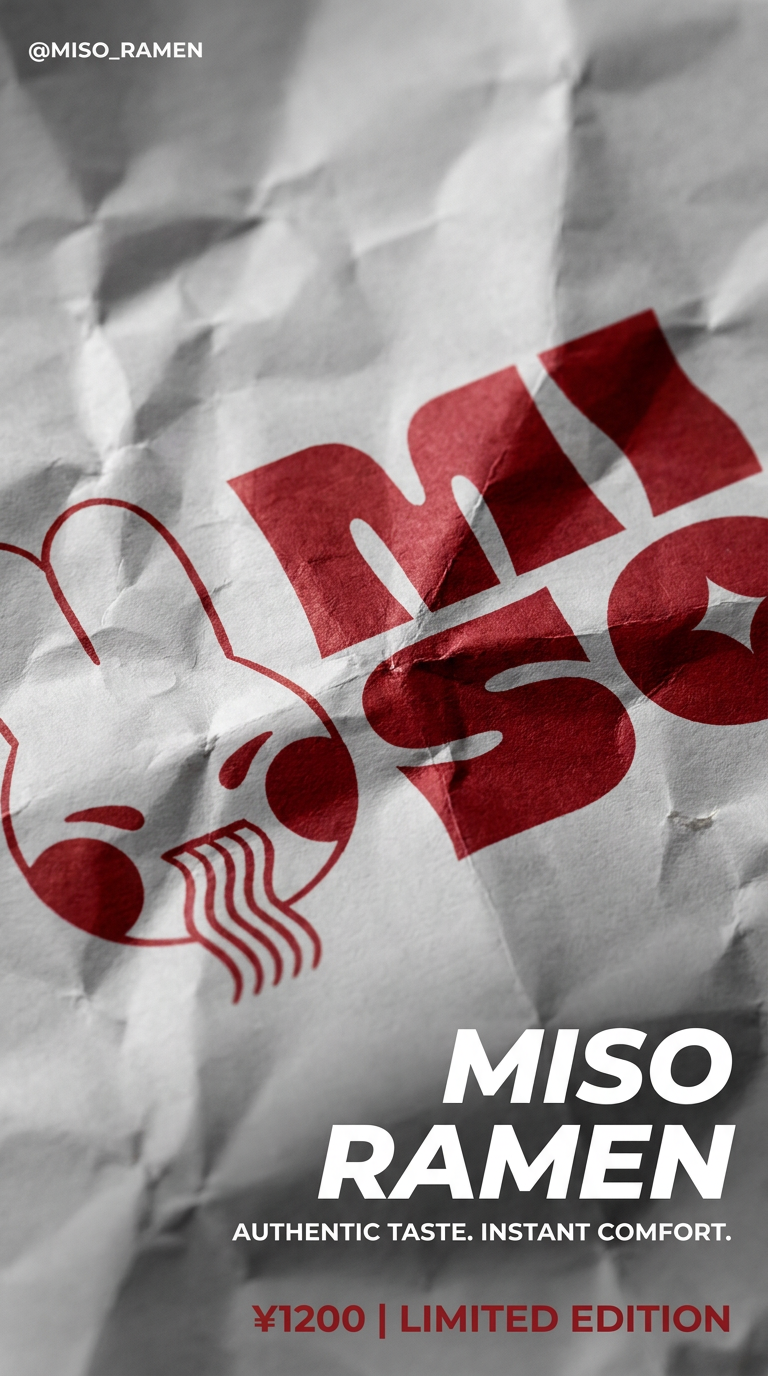
Turn a single product shot into a cohesive six-part Instagram story campaign. It mixes tactile crumpled paper textures with bold, stacked typography and custom mascot spots in your brand's signature colors.
Regenerate using your own assets.
