That garbled text from Claude 3.5 Sonnet isn't your fault
If you've tried to create an image with text using Claude 3.5 Sonnet since its release on September 3, 2026, you've probably felt a unique kind of frustration. You ask for a simple sign that says "GRAND OPENING" and get back something like "GRANP OPEWNING". You're not alone, and it's not your fault. Across Reddit and X, creators are reporting that the model's ability to render clean text seems to have gotten worse, not better.
Trying to fix this with more detailed prompts—"use clear, sans-serif font," "spell the words correctly"—is a dead end. This isn't a prompting issue. It's a fundamental technology problem, and understanding it is the first step to getting the professional results you actually need.
Why even the newest AI models are bad typographers
AI image models like Claude, Midjourney, and DALL-E think in pixels and patterns, not in letters. When you ask for text, the model isn't 'writing'; it's trying to draw shapes that it has learned are associated with those words. It understands the general form of an 'A' or a 'B' but has no concept of spelling, kerning, or the precise vector shapes (known as glyphs) that make up a digital font.
This is why the text often looks melted, misspelled, or like a foreign language trying to imitate English. Asking an image model to be a perfect typographer is like asking a painter to be a structural engineer. The tool isn't built for that specific task.
The problem is so difficult that major labs are now building entirely new, specialized models just for this. Google's recent announcement of 'Glyph,' a model trained specifically on typography, proves that getting clean text requires a dedicated architecture. Expecting a general-purpose image generator to master it is a recipe for failure.
The professional method: separate image generation from text production
No professional designer tries to bake text directly into a raw image generation. The reliable method has always been a two-stage process: first, create the background visual, and second, add the text as a separate, controllable layer.
For years, this meant a clunky, manual process: generate an image in one tool, save it, open it in Photoshop or Canva, add your text layers, and then export the final file. While this works, it's slow and inefficient, defeating the purpose of using AI for speed.
The modern solution is to use a creative production platform that integrates both steps. Instead of juggling multiple tools, you handle the entire creation, from initial idea to finished, publishable asset, in one place.
A practical guide to adding perfect text to any AI image
Instead of fighting the model, you can use a creative production platform like MyUP.ai to get the finished result you want in a few simple steps. This production method gives you total control and guarantees professional quality every time. For example, if your intention is to create a bold event poster, you can start with a creative template that already has the layout and text areas defined. You just provide the details. Template: #myup-xbur-hzoi
Bold Retro Yellow Event Poster
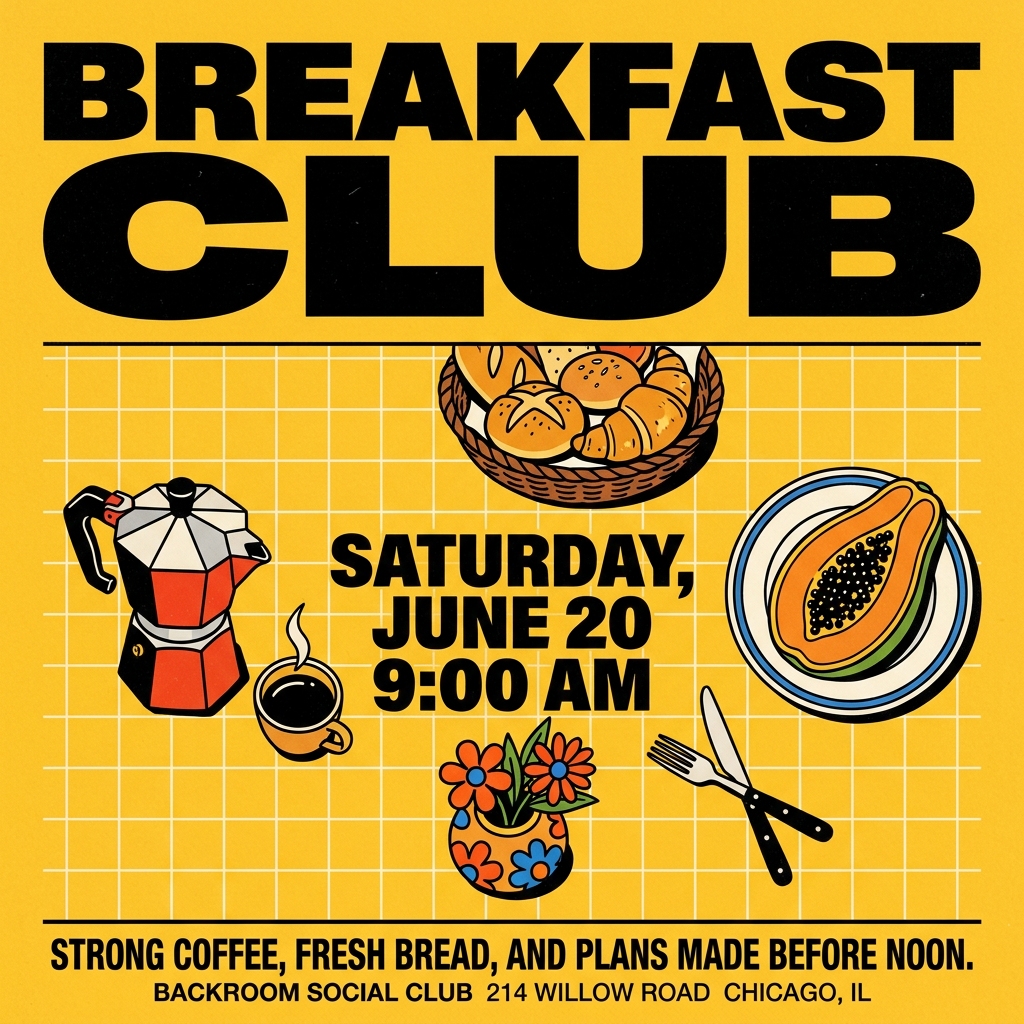
Turn your branding or event details into bold, nostalgic posters. It blends vibrant warm backdrops with a clean, retro square grid pattern to make any announcement look like a classic piece of mid-century graphic design.
Regenerate using your own assets.
Step 1: Generate your background visual
Inside MyUP, your first step is to describe the visual world for your message. Focus only on the scene, style, and mood. For an ad, you might state the intention: "A vibrant, sunny beach scene, tropical plants, photorealistic, no people." Notice we're not asking for text. The goal is a clean, beautiful canvas for your message.
Step 2: Add and format your text with precision
Once you have your visual, you simply add a text layer. This is where you get the control that prompting can never provide. In MyUP's production editor, you can:
- Type your exact text without any misspellings or gibberish.
- Choose from a library of fonts or upload your own.
- Adjust the size, color, and spacing with pixel-perfect precision.
- Add effects like drop shadows or outlines for maximum legibility.
This isn't a guess; it's professional design control.
Step 3: Use your Brandkit for automatic consistency
For businesses, visual consistency is non-negotiable. Manually picking your brand's specific hex codes and fonts for every creation is slow and leads to mistakes. A true production platform solves this. With MyUP, you set up your Brandkit once—often just by entering your website URL. MyUP automatically extracts your logo, color palette, and fonts. From then on, every time you add a text layer to a new creation, your brand fonts and colors are available in one click. This ensures every single visual is perfectly on-brand, a problem that often makes Claude-generated designs look unprofessional. This is how you scale content without sacrificing your brand identity. You can explore how this fits into a full production plan on our pricing page.
Turn your idea into a finished ad poster in seconds
The fastest way to a finished creation is to use a production template built by a top creator. These aren't just prompts; they are complete production setups ready for your specific intention. For example:
- Want to advertise a new food product? Use the Retro Style Food Advertising Poster (Template: #myup-1hgd-9oz5). Just upload your product shot, and it instantly places it in a dynamic, color-matched retro layout.
- For an even more automated option, the Food Brand Poster (Template: #myup-tbky-nciq) analyzes your product's packaging to create a perfectly coordinated background and title. You just type in your slogan.
- Need to announce an event schedule? The Textured Paper Calendar Close-Up (Template: #myup-hcix-fsva) gives you a beautiful, tactile calendar where you just fill in the dates.
In each case, you're not wrestling with the AI; you're simply providing your content, and MyUP handles the production to deliver a finished asset in seconds.
Stop fighting the AI and start producing
The frustration with getting perfect text from AI image generators like Claude isn't a sign that you're using the wrong prompts. It's a sign you're using the wrong tool for the final step. Image models are for generating visuals. Creative production platforms like MyUP.ai are for turning those visuals into finished, publishable creations. Stop trying to force a pixel generator to be a typographer. Generate your world, then add your message with precision. That's how you go from an interesting experiment to a professional result that's ready to launch.
