You’ve tried the AI YouTube thumbnail generators. You feed them a prompt, and they produce a visually interesting image. The problem is, it’s not *your* image. The colors are slightly off, the font is some generic sans-serif, and the layout has no connection to the rest of your channel. It’s a creative dead end that requires you to open another editor just to fix the basics.
Even with the latest mid-2026 updates from models like Midjourney and Adobe Firefly, which have dramatically improved style matching, the core branding problem remains unsolved. They can replicate a photographic style, but they can't replicate a brand system. Typography, color palettes, and layout consistency—the very things that build viewer recognition—are still left to chance. This is the critical gap that turns a promising AI tool into a frustrating time-waster.
Why your AI-generated thumbnails still look off-brand
The issue isn't the quality of the AI image itself; it's the lack of brand intelligence. A standalone image generator doesn't know your brand's specific hex codes, it hasn't installed your custom font, and it doesn't understand your established title layout. It’s designed to create a single, novel image, not a consistent, recognizable asset that builds brand equity with every video you publish.
For a serious creator, this inconsistency is a major liability. Your thumbnails are your channel's first impression. When they're a chaotic mix of different styles, it signals a lack of professionalism and makes it harder for returning viewers to spot your content in a crowded feed. The time you save on image generation is lost to manual corrections in Canva or Photoshop, defeating the purpose of using AI in the first place.
Stop generating, start building a thumbnail system
The solution is to stop thinking about one-off generation and start thinking about building an automated production system. Instead of asking an AI to guess your brand every time, you need a workflow that already knows your brand's rules and applies them automatically. At MyUP, we've built our platform around this system-first approach.
A true on-brand thumbnail system has three core components:
- A central Brandkit: A single source of truth for your visual identity. This is where you define your exact brand colors, upload your specific fonts, and store your logo. It’s a one-time setup that powers every asset you create.
- A consistent layout template: A defined structure for your thumbnails. This ensures your video titles, episode numbers, or other key information always appear in the same place, using the same typographic scale.
- A flexible image engine: An AI that can generate background visuals or character poses that conform to your established style, guided by the rules set in your Brandkit and template.
When these three elements work together in a repeatable workflow, you move from generating random assets to producing a predictable stream of on-brand content.
Step 1: Define your visual identity with a Brandkit
The foundation of your thumbnail machine is your Brandkit. This is where you teach the AI what your brand looks like, once. In MyUP, creating a Brandkit is straightforward. You can often build it automatically just by providing your website URL, or you can set it up manually:
- Upload Your Logo: Add your primary and secondary logos. MyUP will be able to place them correctly in your designs.
- Define Your Color Palette: Input the exact hex codes for your brand's primary, secondary, and accent colors. No more AI-generated shades of 'almost-blue'.
- Upload Your Brand Fonts: This is the most critical step that generic generators miss. Upload your specific .otf or .ttf font files. When your workflow runs, it will use your actual brand typography, not a close substitute.
Once your Brandkit is saved, it's locked in. Every workflow you build will automatically pull from this central source, ensuring absolute consistency without you ever having to think about it again.
Step 2: Choose a layout and turn it into a reusable workflow
With your brand identity defined, the next step is to establish the structure of your thumbnail. A consistent layout is key for viewer recognition. Whether you prefer a bold title on the left and a character on the right, or a clean, centered text-over-image style, you need to codify it.
In MyUP, you can start with a pre-built template and customize it or build your own from scratch. For a channel focused on tutorials or educational content, a clean and minimalist layout works well to keep the focus on the topic. You can start with a design like this and save it as your personal workflow.
Workflow code: #myup-k4td-9k6z
Minimalist Poster
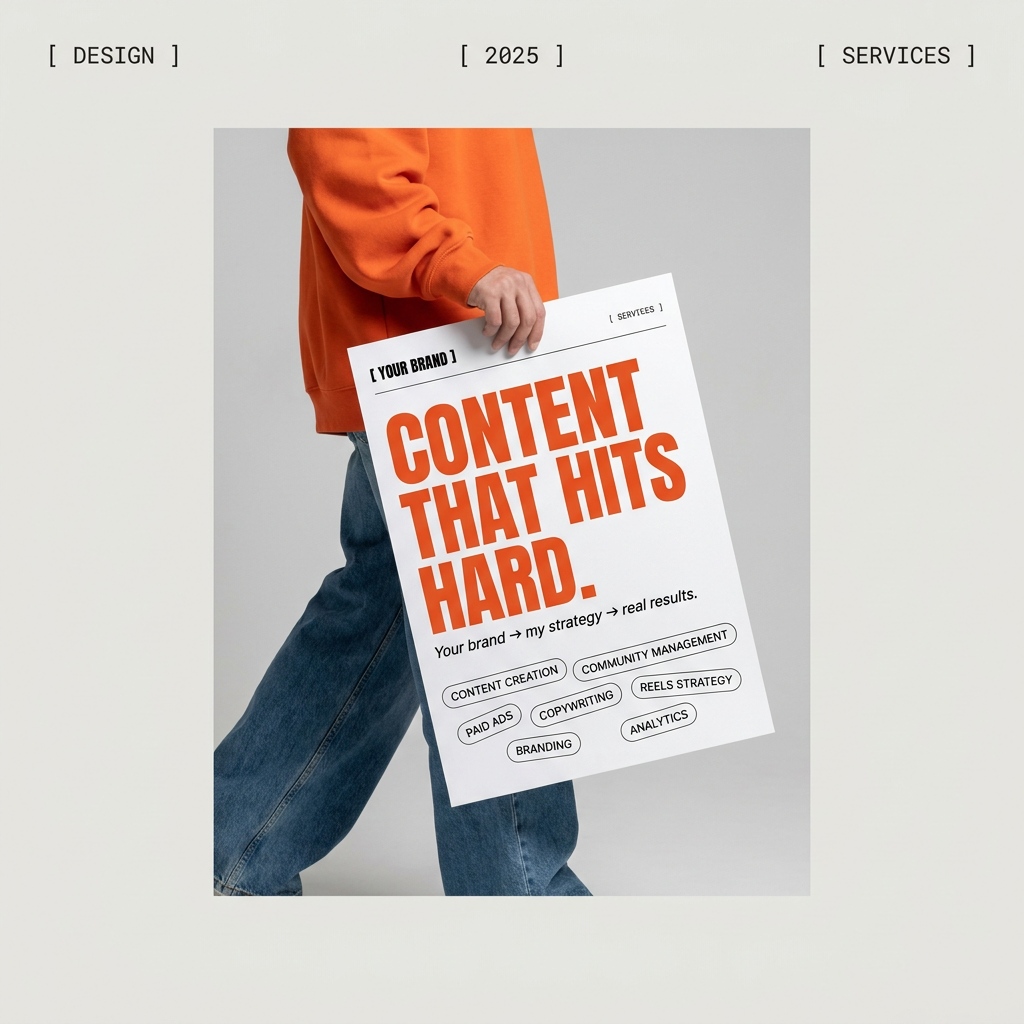
Give your social feed a clean, gallery-like aesthetic. This layout frames your images with structured mono typography and soft, neutral backgrounds for a high-end editorial look. It's perfect for minimal product launches or brand announcements.
Regenerate using your own assets.
Saving the design as a workflow transforms it from a static template into a dynamic 'thumbnail machine'. It preserves the layout, font choices, and color assignments, ready to be populated with new content instantly.
Step 3: Generate a month of thumbnails in minutes
This is where the system pays off. Instead of creating thumbnails one by one, you can generate an entire batch for your upcoming content calendar. Once your workflow is saved, running it is simple. You provide the variable inputs—typically, a list of your video titles for the next month.
MyUP takes your list and runs each title through your saved workflow. For each one, it:
- Generates a unique but stylistically consistent background image.
- Applies your saved layout.
- Inserts the video title using the correct brand font and color from your Brandkit.
- Places your logo in its designated spot.
The result is a complete set of thumbnails, each one unique but all perfectly and recognizably *yours*. If your channel has a more vibrant, high-energy style, you can create a separate workflow for that. For example, a bold, retro-inspired layout can be saved as a second system for a different content series.
Workflow code: #myup-xbur-hzoi
Bold Retro Yellow Event Poster
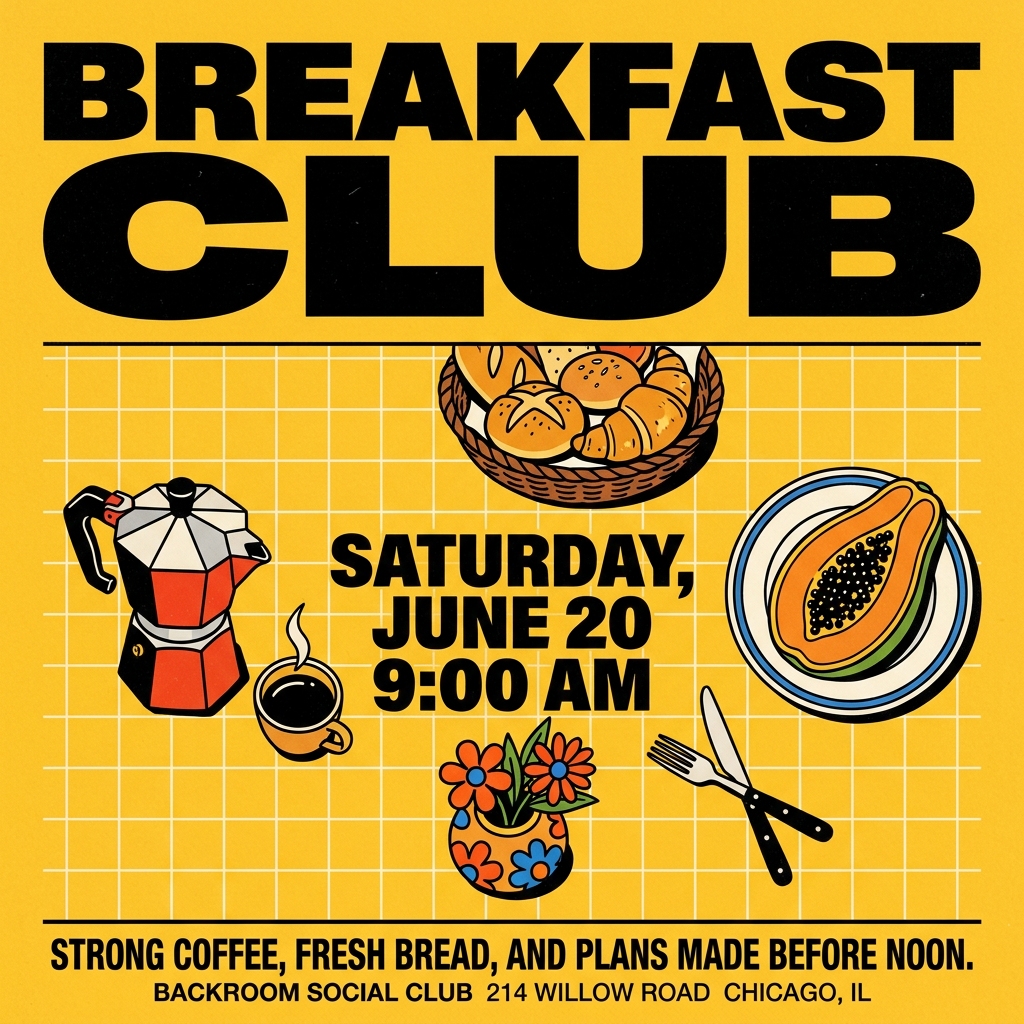
Turn your branding or event details into bold, nostalgic posters. It blends vibrant warm backdrops with a clean, retro square grid pattern to make any announcement look like a classic piece of mid-century graphic design.
Regenerate using your own assets.
This batch production process turns hours of repetitive design work into a few minutes of automated execution.
The human in the loop: Reviewing and refining your results
Automation doesn't mean sacrificing control. The goal of a workflow is to handle the 90% of production that is repetitive and rule-based, freeing you up to focus on the 10% that requires human creative judgment. MyUP executes the production; you validate the results.
After your batch is generated, you can quickly review the outputs. Perhaps for one title, you want to adjust the crop of the background image or slightly tweak the wording for better impact. These small, high-value adjustments are easy to make, because you're not bogged down with setting up the fonts and colors from scratch. The system handles the tedious work, while you provide the final creative sign-off.
Beyond thumbnails: Apply your brand system everywhere
The real power of a Brandkit-powered workflow is that it's not limited to a single format. The same system you built for your YouTube thumbnails can be adapted to create all of your other social media assets. By creating variations of your workflow, you can generate on-brand Instagram posts, Shorts covers, or LinkedIn graphics with the same speed and consistency. We explore this in more detail in our guide to creating a month of on-brand Instagram content.
For example, you could have a workflow specifically for promoting your brand's products or apparel across different channels. Just like with the thumbnails, you simply provide the new text, and the system generates a perfectly on-brand visual.
Workflow code: #myup-3sro-edbt
Brand Clothes Post

Turn any outfit photo into a high-end fashion promo poster. It centers your subject in a full-body shot against a dark, dramatic studio backdrop, perfectly cropped for social feeds. It gives your apparel a moody, editorial look instantly.
Regenerate using your own assets.
This is the ultimate benefit of building a system. You solve the brand consistency problem once, and then deploy that solution across your entire content strategy, saving hundreds of hours and ensuring your brand looks professional and unified everywhere your audience sees it.
