
A viral thread on X from July 7, 2026, laid bare a universal frustration: creating a single, short AI video ad often requires a messy, expensive workflow across five or six different tools. One for the script, another for the storyboard, a third for video generation, a fourth for the voiceover, and maybe a fifth for editing and branding. The result is a patchwork of inconsistent styles, wasted time exporting and importing files, and multiple subscriptions draining your budget.
This fragmented process doesn’t just slow you down; it actively works against brand consistency. When your scriptwriter, video generator, and branding tool don't talk to each other, you lose control over the final asset. This article presents the solution: a unified, script-to-screen workflow on a single platform. We’ll walk through the four essential stages of producing a complete, on-brand video ad using only MyUP.ai.
Step 1: Generate your script and storyboard in one place
A great ad starts with a story, not a prompt for a video clip. Before you generate a single frame, you need a concept, a script, and a shot list. Juggling a separate AI writer for this step immediately breaks your workflow. The context from your script needs to inform your visuals directly.
On MyUP, you can generate the entire narrative foundation in the same environment where you'll create the visuals. Start by defining your product, target audience, and the key message. The AI can then generate several ad concepts, scripts, and a shot-by-shot storyboard. This isn't just about text; it's about building a production plan.
For each shot in your storyboard, you get a description of the action, the camera angle, and the corresponding line from the voiceover script. This structure ensures your video tells a coherent story. The user validates the creative direction, and MyUP handles the structural work of outlining the production. To see a complete ad concept in action, from script to shot list, start with a pre-built workflow.
Workflow code: #myup-ywpr-rqz6
Professional Sportswear Ad
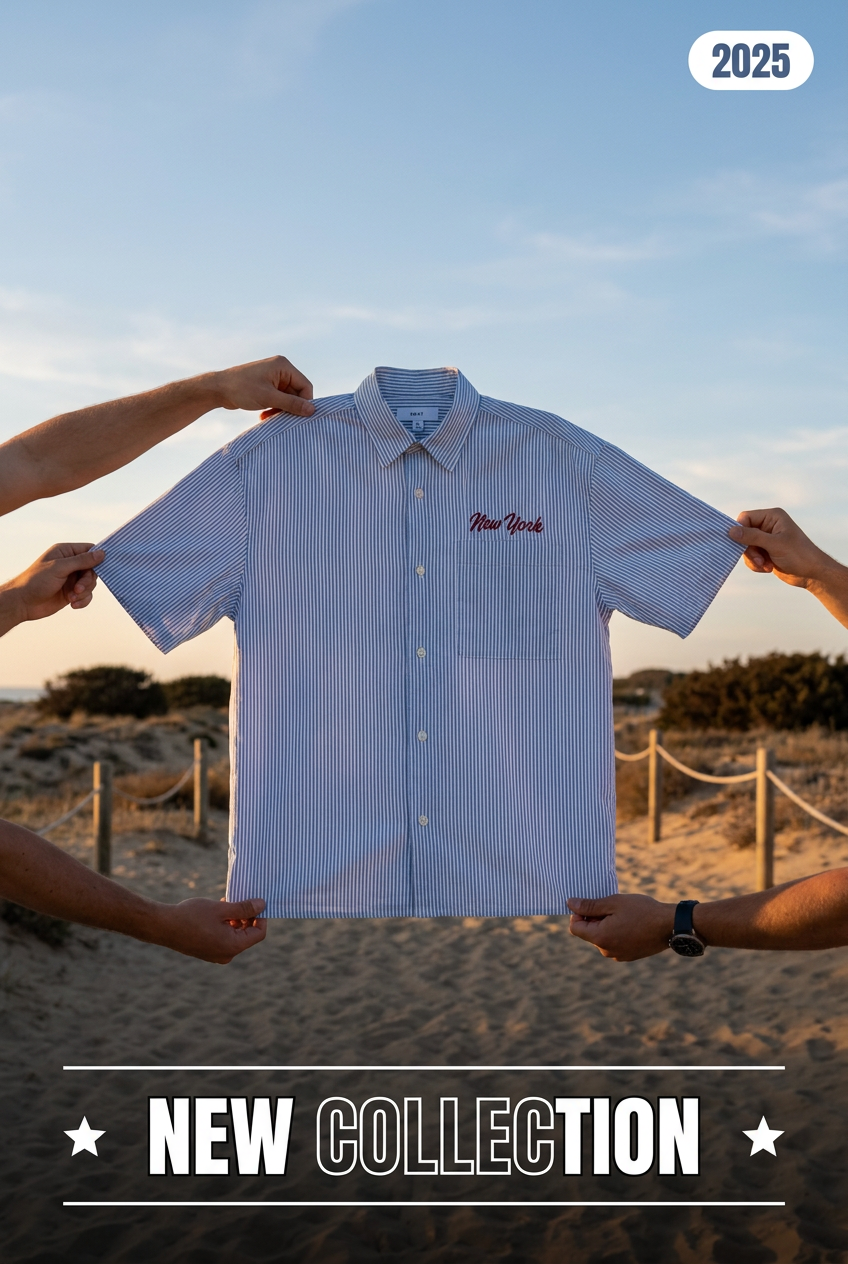
Suspends your apparel right in the center of a high-energy promo shot, held up by hands around the frame. It gives your shirts or jerseys a gritty, collaborative streetwear editorial look that feels alive and physical.
Regenerate using your own assets.
Step 2: Create consistent scenes without leaving your workflow
Once your storyboard is approved, the next step is generating the video scenes. This is where multi-tool workflows fall apart. Generating clips in one tool and then another inevitably leads to clashing styles, colors, and character appearances. Getting visually consistent results is a major challenge, but it's non-negotiable for a branded ad. You can learn more about the specifics in our guide to getting consistent characters and scenes.
On MyUP, you generate each video clip directly from its storyboard card. Because you're working within a single project, you can reference your saved Brandkit to guide the visual style. The Brandkit—your brand’s unique visual identity with its logo, colors, fonts, and overall aesthetic—acts as a consistent reference for the AI. This ensures that Shot 1 has the same look and feel as Shot 4, creating a professional, cohesive ad rather than a random collection of clips.
You simply feed each shot description into the video generator. Need a dynamic, fast-paced clip for a social media ad? A template can set the right tone instantly.
Workflow code: #myup-fts6-4ihp
Vertical Gourmet French Fry Ad
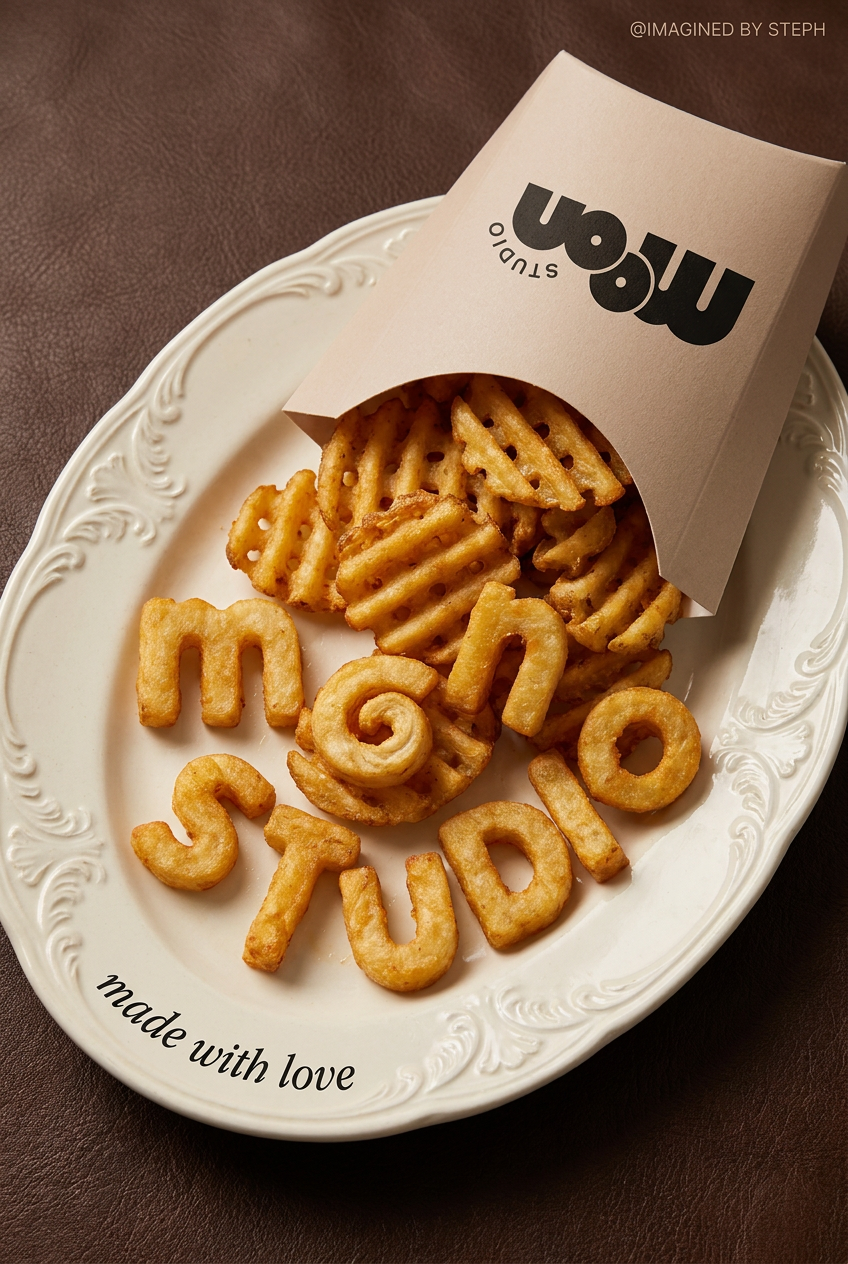
Transform your products into high-fashion editorial ads. This setup uses a dynamic diagonal layout and a slightly tilted overhead angle to give food and packaging incredible depth and texture. It's perfect for giving any brand a chic, premium look.
Regenerate using your own assets.
Step 3: Add AI voiceover and music that match your brand's tone
With your video scenes generated, it's time for audio. The standard, broken workflow requires you to export your video clips, import them into a video editor, and then use a separate AI voice service to generate the voiceover. This is slow and inefficient.
Within MyUP's Cinema Studio, you can generate the voiceover directly from the script you created in Step 1. Select from a library of AI voices to find one that matches your brand's personality—whether it's energetic and upbeat or calm and authoritative. The audio is automatically synced to your video timeline. You can then add royalty-free background music from the integrated library to complete the soundscape of your ad. No exporting, no importing, no extra subscriptions. The entire audio post-production happens in the same place as your visual creation.
Step 4: Assemble your ad and apply branding automatically
The final step is assembling the scenes and applying your brand identity. This is where the power of an integrated platform becomes undeniable. In MyUP's Cinema Studio, you can drag and drop your generated scenes into the correct sequence, trim them, and set the pacing.
Once the edit is locked, the real magic happens. Instead of manually creating text overlays, title cards, and end screens, you apply your Brandkit with a single click. MyUP automatically adds your logo, uses your brand fonts and colors for any text overlays (like a headline or a special offer), and generates a final call-to-action card with your website and social handles. What would take 30 minutes in a separate video editor is done in seconds, and it's perfectly on-brand every time.
This final step transforms your collection of scenes into a finished marketing asset, ready to be deployed. This workflow shows how all the elements—visuals, motion, and branding—come together for a polished, high-end result.
Workflow code: #myup-5q78-bln0
Luxury Floral Product Editorial
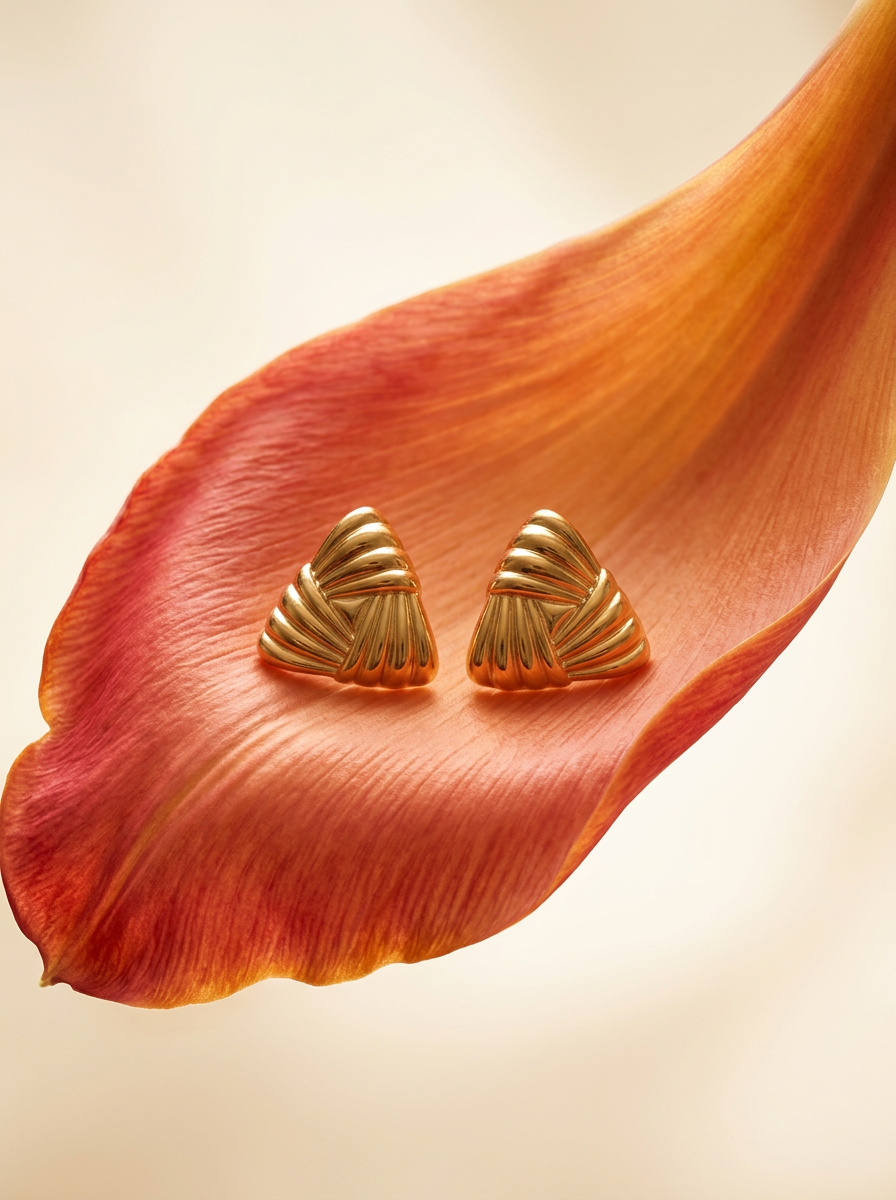
Place any product in an ultra-minimalist, warm studio space. It wraps your item in a seamless cream and beige backdrop with a super soft bokeh that melts away, making the details pop. It’s perfect for giving goods a clean, high-end look.
Regenerate using your own assets.
Your ad is ready: from idea to asset, not just a clip
The search for an "AI video ad generator" is really a search for a faster, smarter production process. The problem isn't a lack of powerful tools; it's the friction between them. By integrating scriptwriting, storyboarding, scene generation, audio, and branding into a single, continuous workflow, MyUP solves the core problem of fragmentation.
You're no longer just generating clips; you're producing complete, on-brand video assets ready for any campaign. This unified approach saves time, reduces costs (check our pricing to see how it compares to multiple subscriptions), and, most importantly, gives you effortless brand consistency across every ad you create. The human creator provides the strategy and approves the output; MyUP executes the production.
