
You've seen them. The user-generated content (UGC) style ads where the person's skin is a little too smooth, their smile a little too vacant. They look less like a happy customer and more like a plastic doll. This uncanny valley effect doesn't just look cheap; it erodes the very trust you're trying to build. Your audience can spot a fake a mile away, and it makes your product feel just as artificial.
The problem isn't the AI model. It's the approach. Trying to generate a perfect human holding a perfect, fake version of your product in a single prompt is a recipe for failure. The industry is catching on; even major players like Adobe are now building 'Scene Grounding' features to blend AI with real-world elements. The secret, which professional studios have known for years, is compositing. It’s about grounding your AI creation in reality. And you can do it right now on MyUP.ai.
The fix: build the world around your real product
Instead of asking an AI to imagine your product, give it the real thing. The most effective workflow for believable AI-generated ads starts with a high-quality photograph of your actual product. This photo becomes the anchor of authenticity. From there, you use AI for what it excels at: creating a believable human context and a compelling environment around your product. You're not faking the product; you're building a world for it to live in. This shift in process is the difference between an ad that gets scrolled past and one that converts. MyUP is built for this exact production method, letting you combine your real assets with AI generation in a single, repeatable system.
Step 1: Generate the human context, not the product
Your first step is to create the person who will feature in your ad. Forget about prompting them to hold your specific product—that's where distortions and inconsistencies creep in. Instead, focus on generating a realistic person in a natural pose that leaves space for your product. Think about the context: are they sitting at a cafe table, lounging on a sofa, or walking down the street? The goal is to create a high-quality, believable human element first.
For this, you need a tool that prioritizes realism in anatomy and texture over stylistic flair. On MyUP, you can use a dedicated template to generate a person with a specific pose and aesthetic, ensuring the foundation of your ad is solid. This is where you, the user, validate the output, choosing the generated image that best fits your brand's feel. To get a believable, full-body shot without distracting facial details, a template like this is the ideal starting point.
Workflow code: #myup-y0dr-cumd
Realistic Full Body Fashion Portrait
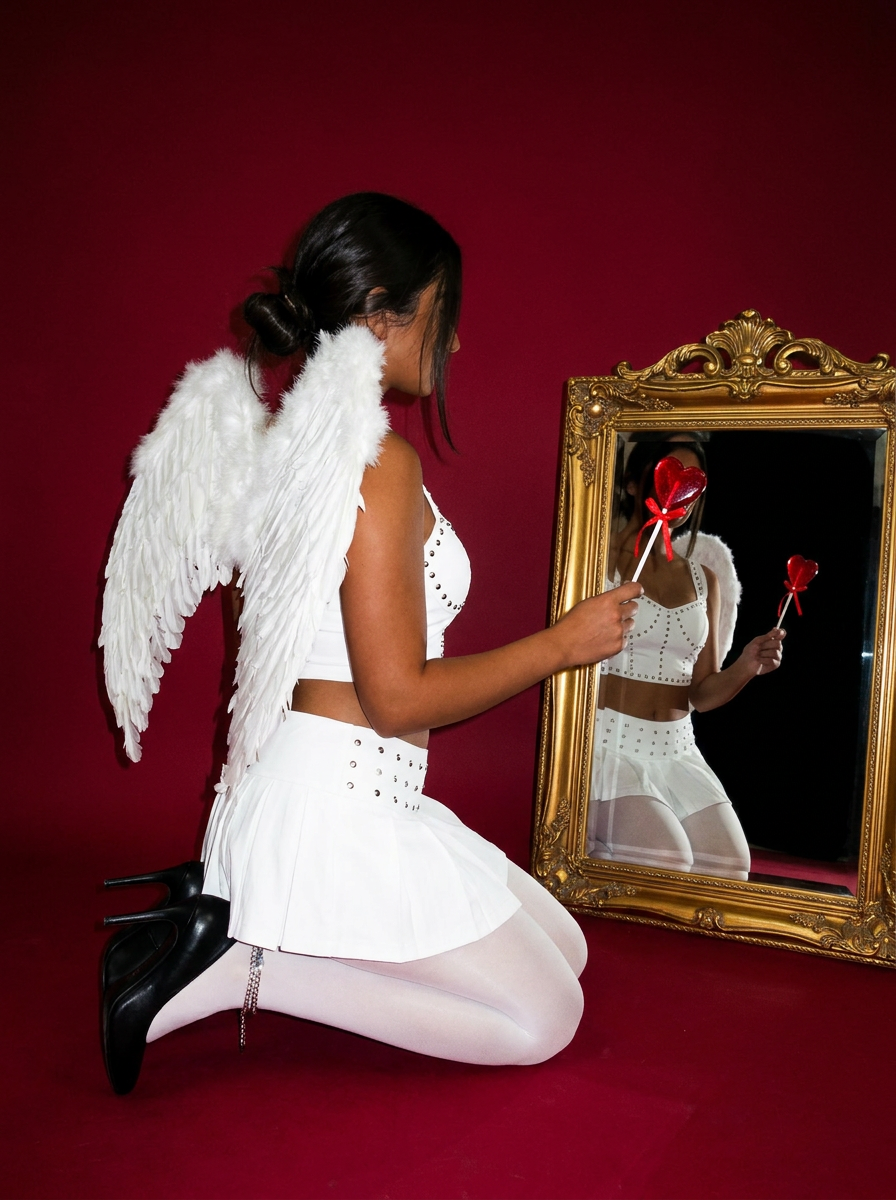
Focus entirely on the anatomy and physical silhouette of your subject. By stripping away facial features and locking into a clean side profile, this system captures hair texture, skin tone, and body morphology with total precision. It is built to turn any figure into a minimalist, high-fidelity study.
Regenerate using your own assets.
Step 2: Composite your real product into the AI scene
Once you have your AI-generated person, it's time to introduce your real product. You'll need a clean product photo with a transparent background, typically a PNG file. This is the kind of shot most e-commerce brands already have from their catalog photoshoots.
Inside the MyUP editor, you can upload your product image as a separate layer and place it into the scene. This is the most critical step. Pay close attention to the lighting and shadows in the AI-generated image. Does the light come from the left? Is it soft or harsh? Position and scale your product to match the perspective and lighting cues of the scene. This manual placement is where your creative control ensures a seamless blend. It's a technique that’s fundamental to all kinds of realistic AI visuals, from product ads to appetizing AI food photography. MyUP handles the technical production; you provide the critical eye to make it believable.
Step 3: Create a lifestyle setting that feels authentic
Sometimes, the scene requires more than just a person. A generic, blurry background screams 'AI'. To make your ad truly feel like authentic UGC, the environment needs to feel real, too. This could be a cozy, lived-in apartment, a bustling city street, or a serene park. The details in the background—the texture of a wooden table, the reflection in a window—are what sell the illusion.
Instead of settling for a basic background, you can use another MyUP template to generate a specific lifestyle setting. A generator designed for high-quality, editorial-style scenes can produce environments with natural lighting and depth, making your composition far more convincing. For a high-fashion, editorial feel that looks like a real photoshoot, use a generator that understands camera angles and composition.
Workflow code: #myup-lkxt-mwbw
Hyperrealistic High Angle Fashion Editorial
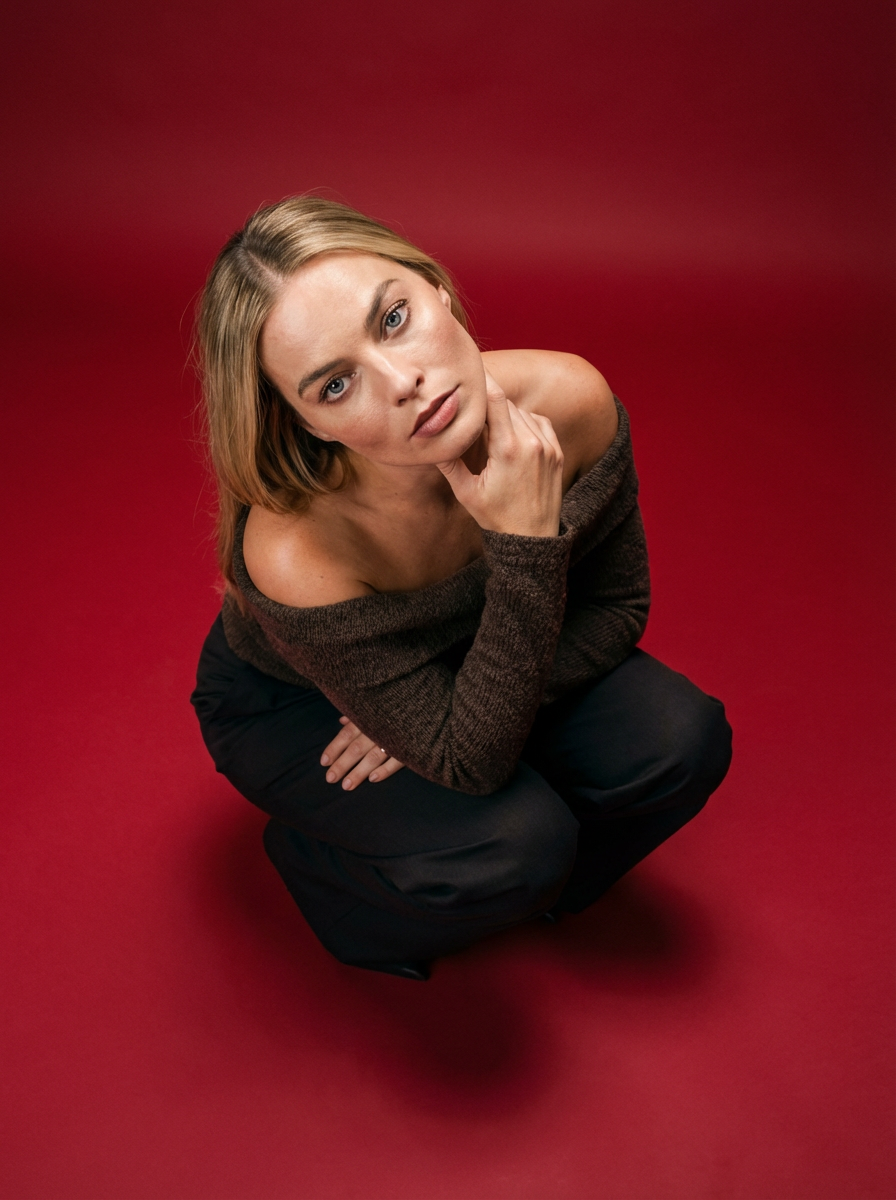
Frame your subject in a grounded, high-angle editorial style. This setup forces a compact, kneeling pose that brings out a raw and hyperrealistic fashion aesthetic, perfect for making any garment or accessory look sharp and intentional.
Regenerate using your own assets.
Step 4: Add the on-brand finish with your Brandkit
An image, no matter how realistic, isn't an ad until it communicates a message. The final step is to add your branding, headline, and call to action. This is where speed and consistency become critical, especially when you're creating multiple ad variations. Instead of manually adding text boxes and logos every time, MyUP's Brandkit automates this process. Once you've saved your brand's fonts, colors, and logo, you can apply them to any creation with one click.
This ensures that every ad, regardless of the visual, is instantly recognizable as yours. It’s the final layer of polish that turns a composite image into a professional marketing asset. This same principle of applying a consistent brand finish applies whether you're making a static image or planning an entire AI-powered video ad campaign. A template designed for advertising can help frame the final shot perfectly.
Workflow code: #myup-xjsb-hirr
Bold Portrait Food Advertising Photo
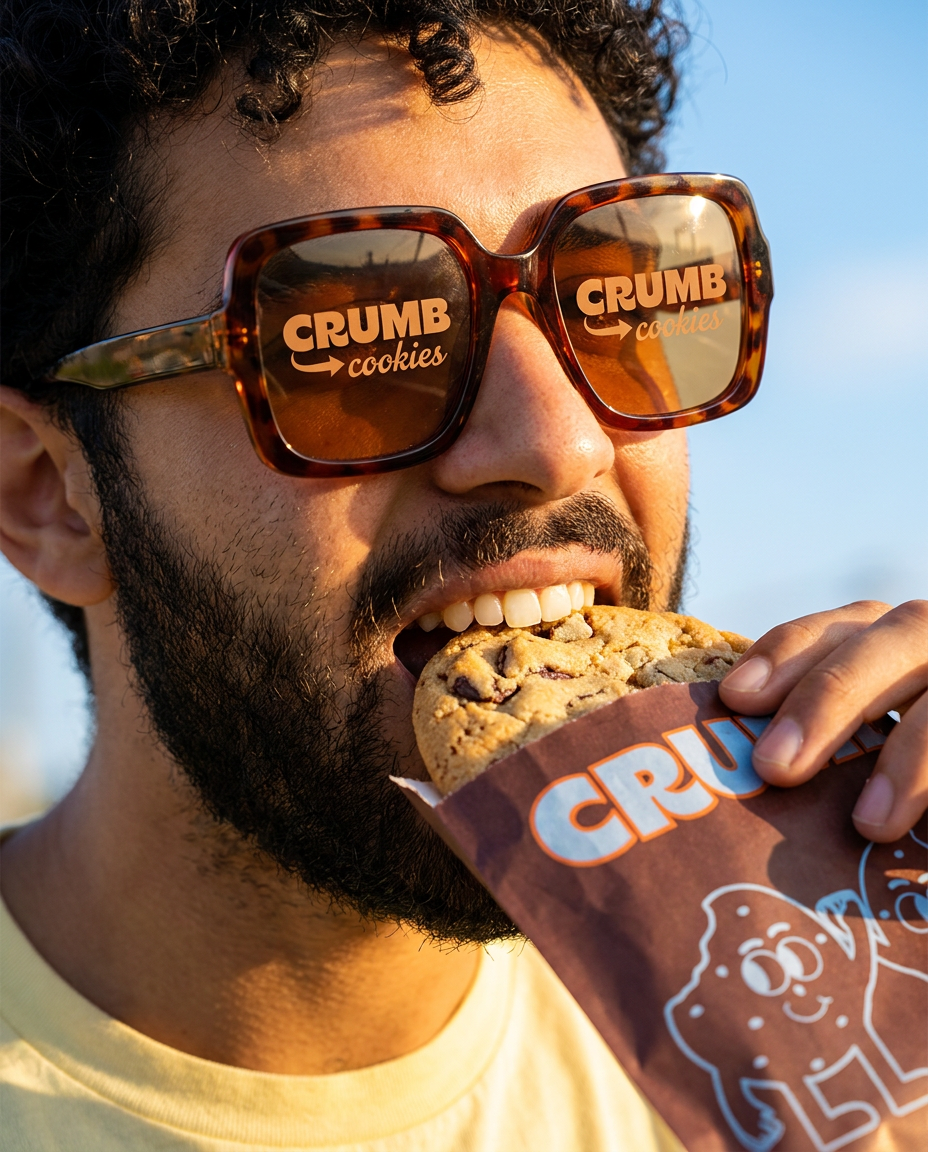
Get those high-impact, tight action shots of people actually enjoying your food brand. It drops your product right into a messy, realistic close-up bite shot that feels like a premium lifestyle campaign instead of a boring studio packshot.
Regenerate using your own assets.
A complete system for ads that actually convert
Stop chasing the perfect prompt. The path to authentic, high-performing UGC-style ads is through a smarter production system. By starting with your real product and using AI to build the world around it, you ground your creative in reality. This compositing workflow—generating the person, placing your product, and finishing with your Brandkit—is a repeatable system you can execute on MyUP.ai in minutes. The result isn't another fake-looking AI ad. It's your brand, in a believable world, ready to connect with your audience and drive real results.
