
On July 22, 2026, Synthesia announced its push into interactive AI roleplaying for corporate training. It’s an interesting development that aims to make learning more dynamic by letting employees practice conversations with an AI. But it sidesteps the most persistent problem with AI-generated corporate video: it looks and feels completely generic.
An interactive avatar is still just an avatar. It floats on a stock background, uses default fonts, and has no connection to your company's actual visual identity. For training and internal communications, that’s not just a missed opportunity—it’s a credibility problem. This article isn't about roleplay; it's about the production workflow for creating training videos that are unmistakably yours.
Why generic AI videos fail for corporate training
When you use a standard AI video generator, you get a talking head. It might be a stock avatar or even a custom one, but it exists in a visual vacuum. The backgrounds are stock, the text overlays use generic fonts, and the overall aesthetic feels like it came from a software template, not your brand.
This creates three critical problems for learning and development:
- It Erodes Trust: Employees are savvy. When training material looks disconnected from the company's official branding, it feels less authoritative and important. It subtly communicates that the training is a low-budget, check-the-box exercise.
- It Hinders Retention: Brand consistency isn’t just for marketing. A consistent visual language—using the same colors, typography, and logo placement—creates cognitive ease. When learners see familiar brand elements, their brains can focus on the content itself, not on processing a new visual style. Generic visuals are distracting noise.
- It Dilutes Culture: Every piece of internal communication is a chance to reinforce company culture. A video that looks and feels like your brand strengthens that connection. A generic video from a tool like Synthesia or HeyGen does the opposite; it makes your internal content feel outsourced and impersonal. While you can create a custom avatar, the environment it lives in matters more.
The solution isn't a better avatar. It's a better production system—one that treats the entire video as a branded asset.
The workflow for creating fully branded training videos in MyUP
Creating a professional training video involves more than rendering a script with a voiceover. It requires a sequence of branded assets: title cards, illustrative scenes, animated text, and consistent typography. MyUP.ai is built for this entire workflow, not just one piece of it. It all starts by defining your visual identity once, so you never have to think about it again.
Step 1: Define your brand once with a Brandkit
Before you create anything, you establish your visual foundation in MyUP with a Brandkit. This is a one-time setup where you provide your website URL or upload your brand assets. MyUP automatically extracts:
- Your Logos: Ready to be applied as watermarks or in title cards.
- Your Color Palette: Ensuring every graphic element uses your exact brand colors.
- Your Fonts: For all text overlays, titles, and lower thirds to be perfectly on-brand.
- Your Visual Style: MyUP learns the aesthetic of your brand to influence the style of AI-generated images and scenes.
This isn't a template where you manually pick colors each time. The Brandkit is a system that automatically enforces your brand identity across every asset you generate in the workflow. The user—you—simply provides the creative direction; MyUP handles the brand-compliant production.
Step 2: Generate on-brand visual scenes, not just backgrounds
Effective training videos show, they don't just tell. Instead of a talking head in front of a blurry office photo, you need B-roll and visuals that illustrate your points. With your Brandkit active, you can use a simple prompt to generate these scenes within MyUP.
For example, you could prompt for "a clean, minimalist diagram showing a 3-step feedback loop" or "a professional flat lay of cybersecurity tools on a desk." Because MyUP knows your brand's aesthetic, the generated images will feel like they belong to your company's visual library, not a stock photo site. This workflow is perfect for creating a series of clean, professional visuals to use as B-roll.
Workflow code: #myup-xjaq-qhgx
Luxury Product Photography Studio
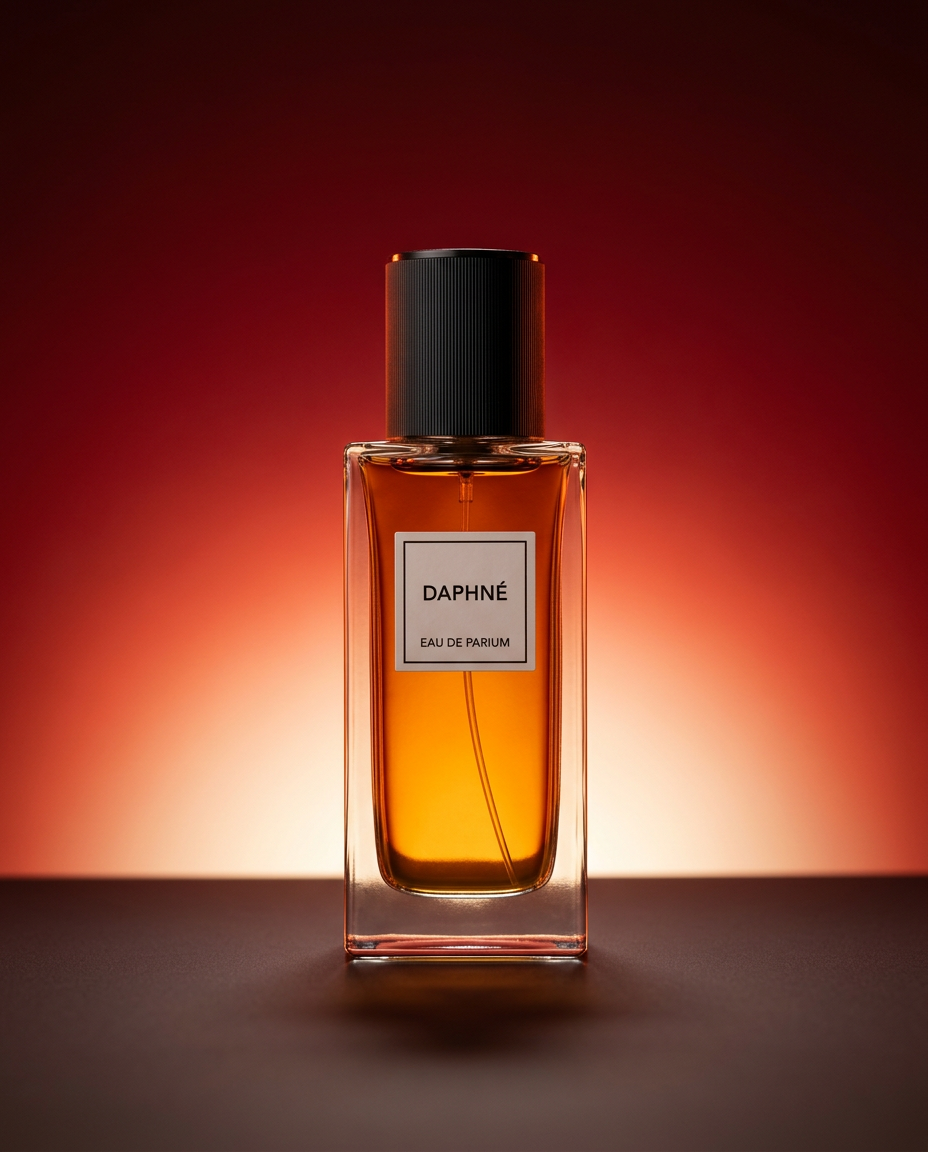
Drop your product into a dramatic, high-end studio setup. It places your item on a sleek flat surface against a rich crimson and orange cinematic gradient background. It's an easy way to get that moody, premium commercial look for any bottle, tech, or cosmetic.
Regenerate using your own assets.
Step 3: Create branded title cards and section dividers
A 10-minute training video needs structure. Title cards for the main topic and simple dividers for different sections make the content easier to follow. In a traditional video editor, creating these is a manual process of drawing boxes and setting font sizes. In MyUP, it's an automated step.
Using a workflow, you can generate a full set of title and chapter cards based on your script's outline. The Brandkit automatically applies your brand fonts, colors, and logo, ensuring perfect consistency from the first frame to the last. The workflow below is designed for creating bold, structured layouts that are perfect for this task.
Workflow code: #myup-n0bi-2wzk
Bold Editorial Grid Poster
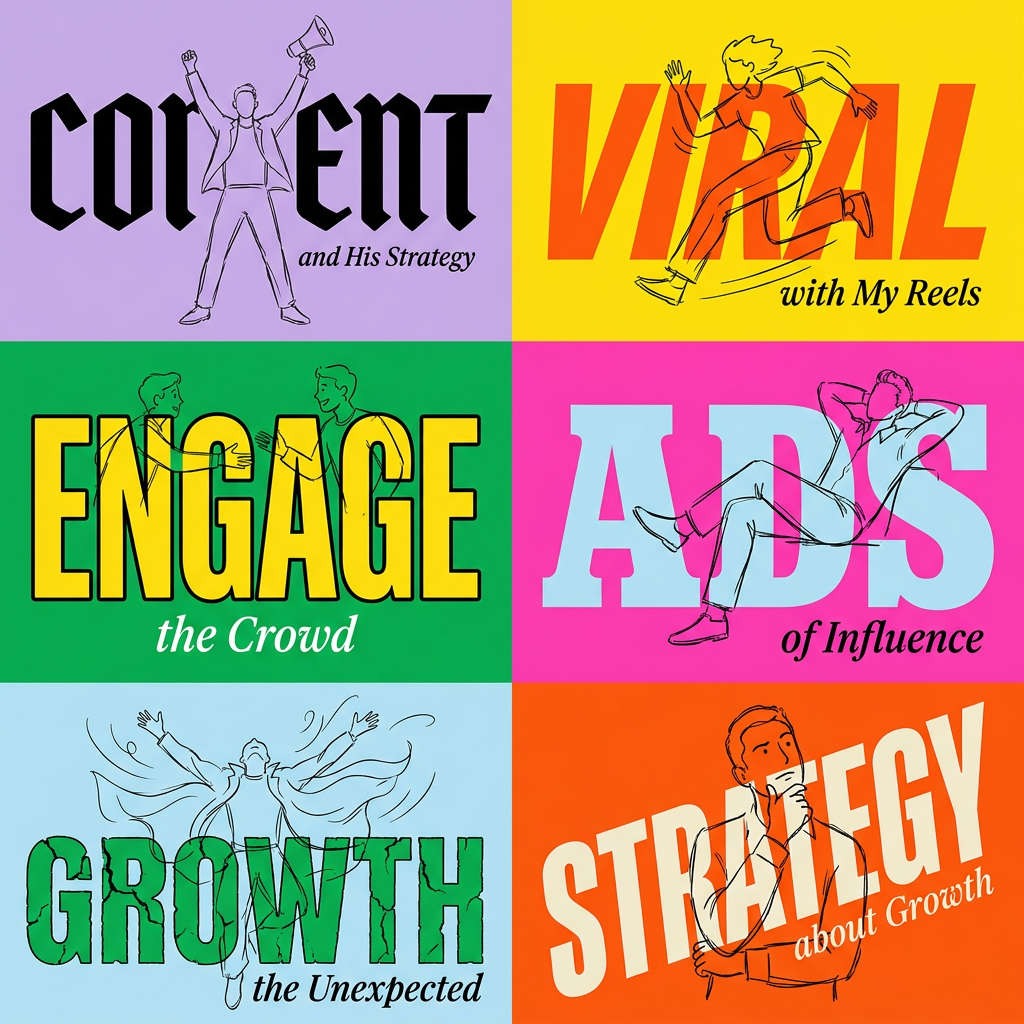
Create striking 2x3 editorial posters with six seamless, flat-color square cards in a perfect 4:5 grid. There are absolutely no gaps between the blocks, giving your content a bold, high-contrast magazine layout. It looks incredibly clean on any social feed.
Regenerate using your own assets.
Step 4: Layer on logos, text overlays, and key takeaways
The final layer of a professional video is the informational overlay. This includes things like a persistent but subtle logo in the corner, lower-third titles for speakers, or bullet points summarizing key takeaways on screen. These elements are often the first to break brand guidelines in hastily made videos.
A MyUP workflow automates this entire process. You can specify the content for your overlays, and the platform generates them as ready-to-use graphics with the correct typography and color scheme pulled from your Brandkit. This ensures that even the smallest details are reinforcing your brand identity. Use the following workflow to create clean, minimalist graphics for key takeaways.
Workflow code: #myup-sygb-rhnt
Minimalist Vertical Product Advertising Poster
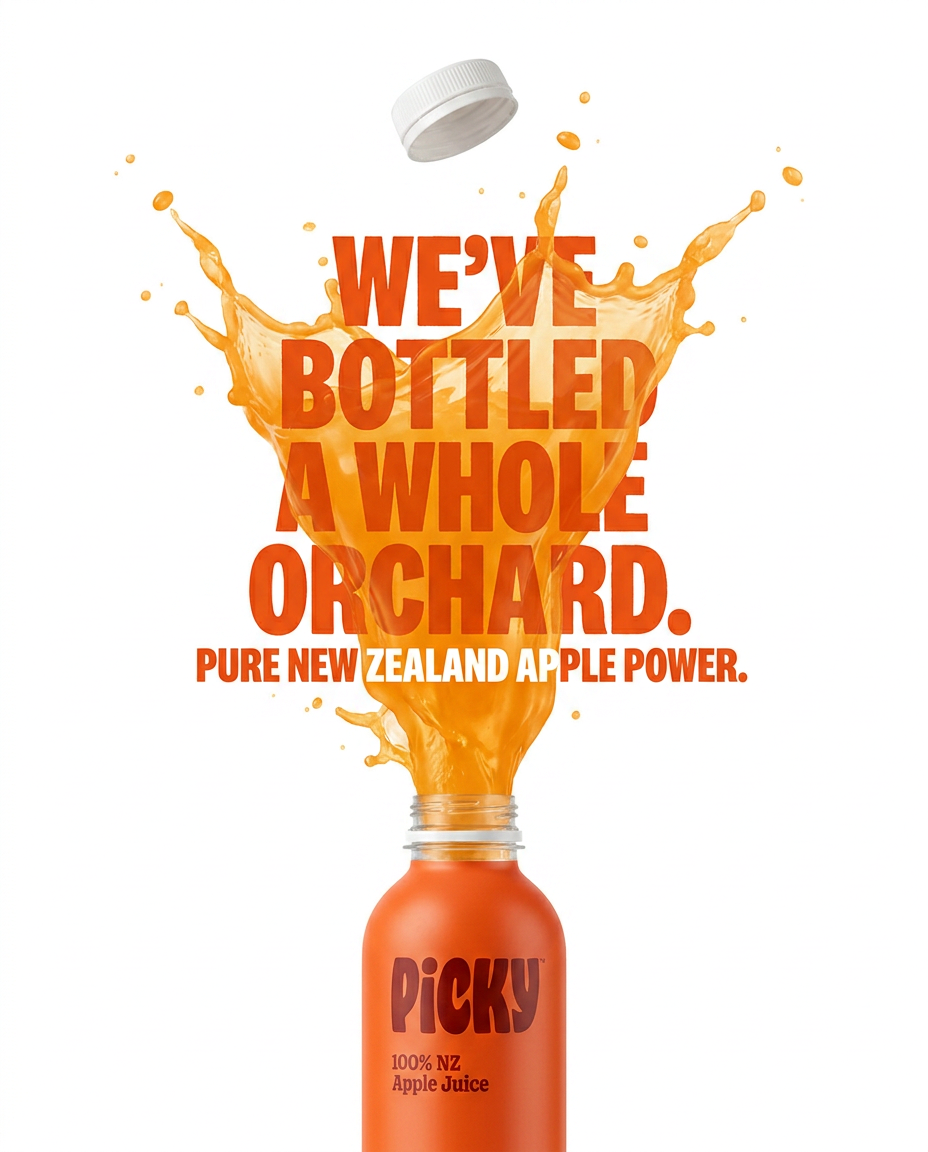
Drop the clutter and put your product in the spotlight. This setup places your item against a pure, seamless white background with a striking vertical flow that draws the eye straight up. It's perfect for creating clean, high-end studio posters.
Regenerate using your own assets.
The result: A training video that builds trust, not confusion
By following this workflow, the asset you produce isn't just a video of an AI avatar reading a script. It's a complete, professionally structured training module that looks and feels like it was produced by your internal creative team. Instead of a generic talking head, you get a cohesive visual experience where the title cards, illustrative scenes, and text overlays all share a single, unified brand identity.
This is the critical difference between using an AI tool and implementing an AI workflow. Tools like Synthesia solve one piece of the puzzle. A platform like MyUP orchestrates the entire production, from initial concept to finished, on-brand asset. The principle of adding your brand identity to every visual is what separates disposable content from a valuable company asset.
