The experience is all too common for professional creators. You have a nearly perfect AI-generated image—a product shot, a character concept, a fashion visual—but it lacks that final 10% of tactile realism. You decide to enhance it using a tool like Magnific AI, adjust the 'Creativity' slider to add detail, and watch as your carefully composed subject warps into an unusable mess. The jacket's seams are suddenly crooked, the product's logo is distorted, or the character's face no longer looks the same.
As creators have been discussing on platforms like Reddit just this week in September 2026, this isn't a failure of your prompt engineering. It's a fundamental limitation of tools that treat 'adding detail' as a blind, unpredictable process. When you need professional, publish-ready results, you can't afford to let an AI tool randomly reinterpret the core structure of your image. You need control.
Why 'creativity' sliders and prompt hacks fall short
Most AI upscaling and enhancement tools operate like a 'black box'. The 'Creativity' or 'Resemblance' sliders don't truly understand your intention. They are trained to add high-frequency information, but they can't distinguish between desirable texture (like wood grain or fabric weave) and essential structural detail (like the edge of a table or the lapel of a coat). As a result, the AI often 'hallucinates' new forms, altering the geometry and lighting of your original image in unpredictable ways.
To get around this, advanced users have developed complex, multi-step technical processes. They might use a combination of LoRA models in ComfyUI—one for structure, one for material, and another for lighting—or resort to tedious 'in-painting' techniques in Midjourney. While powerful, these methods turn a creative task into an engineering challenge, requiring deep technical knowledge and hours of tweaking. For a business owner or marketer who just wants a finished result, this isn't a practical solution.
MyUP's intention-driven method for non-destructive texturing
MyUP, as a Creative Production Platform, is built on a different philosophy. Instead of asking you to battle with sliders and complex tools, we focus on your creative intention. You don't have to figure out the technical steps; you simply describe the finished creation you want, and MyUP handles the production from A to Z.
The unit of creation isn't a prompt or a tool, it's your goal. For example, instead of thinking 'how do I add texture?', you state your intention: 'I want a macro shot of my skincare bottle, showing the texture of the recycled paper box it sits on, while keeping the bottle's shape and label perfectly crisp.'
MyUP interprets this goal, selects the right models and techniques, and produces a studio-quality visual that respects the integrity of your subject. You maintain control over the vision; the platform handles the technical execution. This moves you from unpredictable experimentation to reliable creative production.
Step-by-step: achieving specific textures with object integrity
Let's make this practical. Imagine you need to create a high-end visual for a luxury artisanal product, where the material's texture is the star of the show. Your goal is to highlight the grain of the wood or the weave of the fabric without the product looking like a generic, fake AI image.
On MyUP, you would describe this outcome directly. You can specify the material, the lighting, and the focus, ensuring the final image is both detailed and authentic. This intention-driven production process understands that preserving the product's form is just as important as enhancing its texture.
For an immediate result, you can use a creative template designed for this exact purpose. The 'Visuel Publicitaire Macro Artisanat Luxe' template is engineered to produce rich, narrative compositions that focus on texture and craftsmanship while maintaining structural integrity. Template: #myup-ppxv-lst0
Visuel Publicitaire Macro Artisanat Luxe
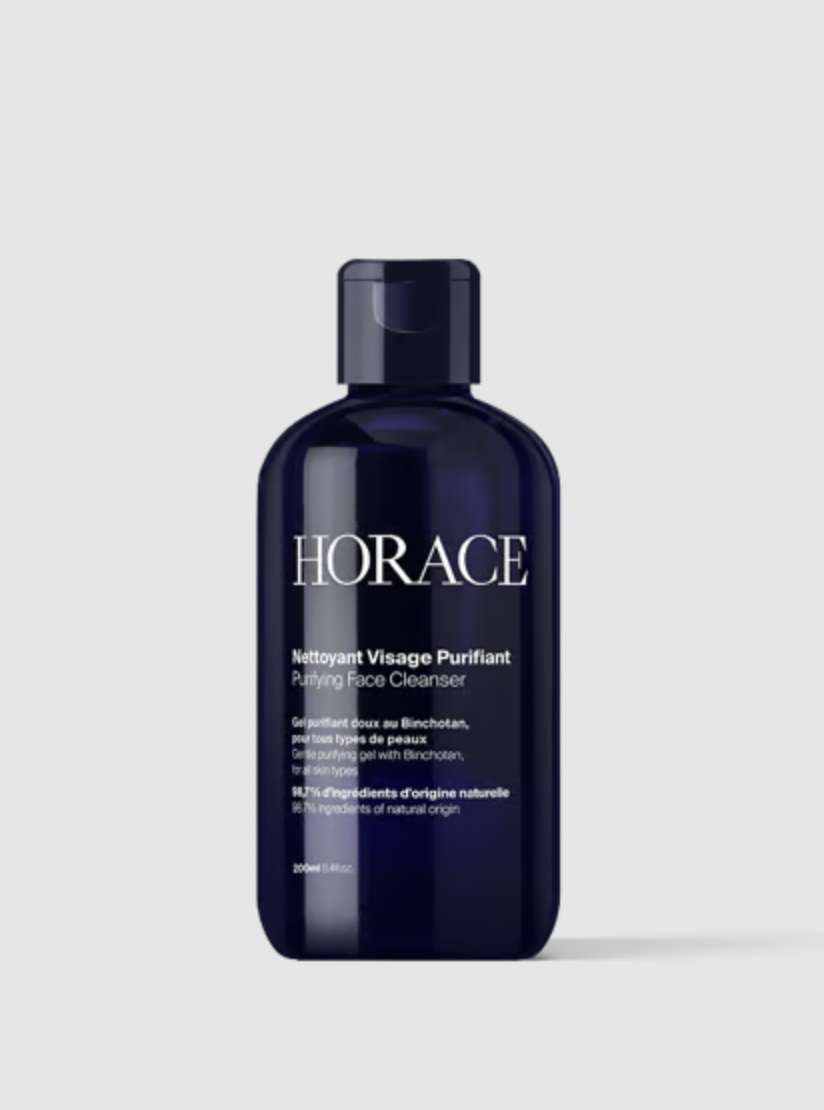
Transformez vos prises de vue en compositions narratives riches axées sur la texture et le savoir-faire. Ce système fusionne vos détails macro avec une mise en scène soignée pour sublimer l'identité visuelle de n'importe quel objet artisanal.
Regenerate using your own assets.
Applying tactile textures to defined objects
Applying a texture to a defined object, like adding a paper grain to a calendar or a specific fabric weave to a piece of clothing, is another common challenge. AI tools often 'bleed' the texture beyond the object's boundaries or apply it unevenly, breaking the illusion of realism.
Because MyUP's process is grounded in your intention, you can clearly define the object and the texture to be applied. By stating 'a close-up of a calendar made of heavy, textured craft paper with minimalist black typography,' you instruct the platform to respect the object's boundaries and apply the texture in a physically plausible way.
To execute this instantly, the 'Textured Paper Calendar Close-Up' template provides a pre-configured setup for rendering crisp text and graphics on tactile paper surfaces, perfect for social media announcements or event promotions. Template: #myup-hcix-fsva
Textured Paper Calendar Close-Up
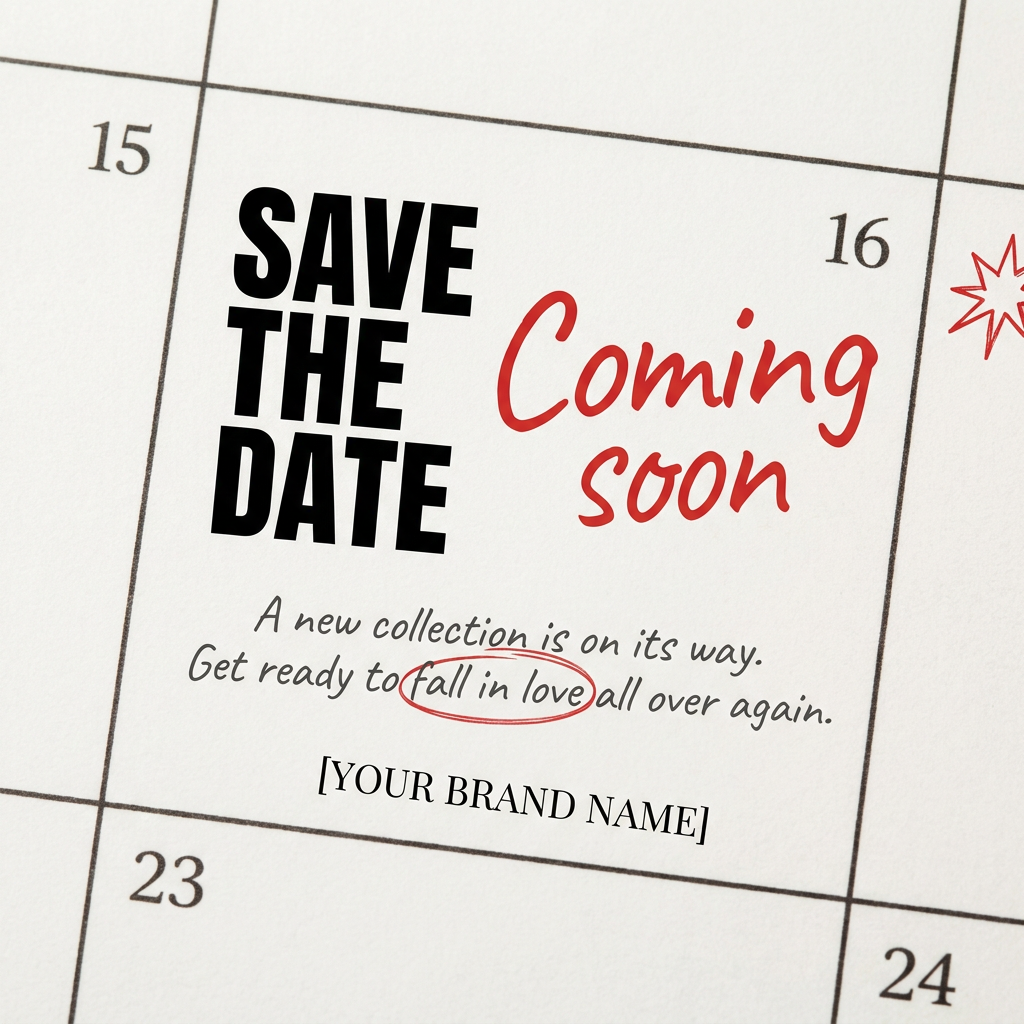
Turn your upcoming dates or launch schedule into a beautiful, tactile physical calendar. It renders crisp minimalist grids on heavy textured paper with realistic macro focus. Perfect for sharing events on social media without looking like a generic graphic.
Regenerate using your own assets.
Enhancing designs with graphic textures and effects
Precise texture control isn't limited to photorealism. It's also crucial for graphic design and illustration. You might want to add a retro halftone pattern, brushed metallic accents, or other graphic effects to a poster without corrupting the underlying composition or typography.
With MyUP, you can layer these graphic intentions. For example: 'Create a vintage-style poster with a bold cobalt blue background, featuring a central subject with a subtle halftone texture and clean, readable text.' MyUP processes this as a set of instructions, ensuring the texture is an integrated layer, not a destructive filter.
The 'Vintage Advertising Poster' template is a perfect example, designed to generate high-impact visuals with this exact combination of bold graphics and subtle, non-destructive texturing. Template: #myup-sauf-5jod
Vintage Advertising Poster

This creates high-impact graphic posters with a striking cobalt blue backdrop and subtle retro halftone textures. Just drop in your subject to get that bold, tactile look complete with realistic metallic accents and clean, modern framing.
Regenerate using your own assets.
Achieving hyperrealistic skin and material textures
For visuals that demand hyperrealism, such as beauty editorials or close-up product photography, control is paramount. Adding realistic skin texture or subtle surface imperfections can make an image compelling, but applying it incorrectly can make it look fake and unsettling. This is a common reason why many AI product photos look fake.
On MyUP, you can specify the exact level and type of detail needed. An intention like 'an elegant editorial shot of a hand holding a cosmetic bottle, showing hyperrealistic skin texture under soft, diffused light' gives the platform clear direction to enhance, not alter, the subject.
The 'Luxury Beauty Product' template is built for this task. It excels at creating clean, editorial-grade shots that capture hyperrealistic skin textures and elegant hand poses, ensuring your product is presented in the most professional light. Template: #myup-mgqi-hmi6
Luxury Beauty Product
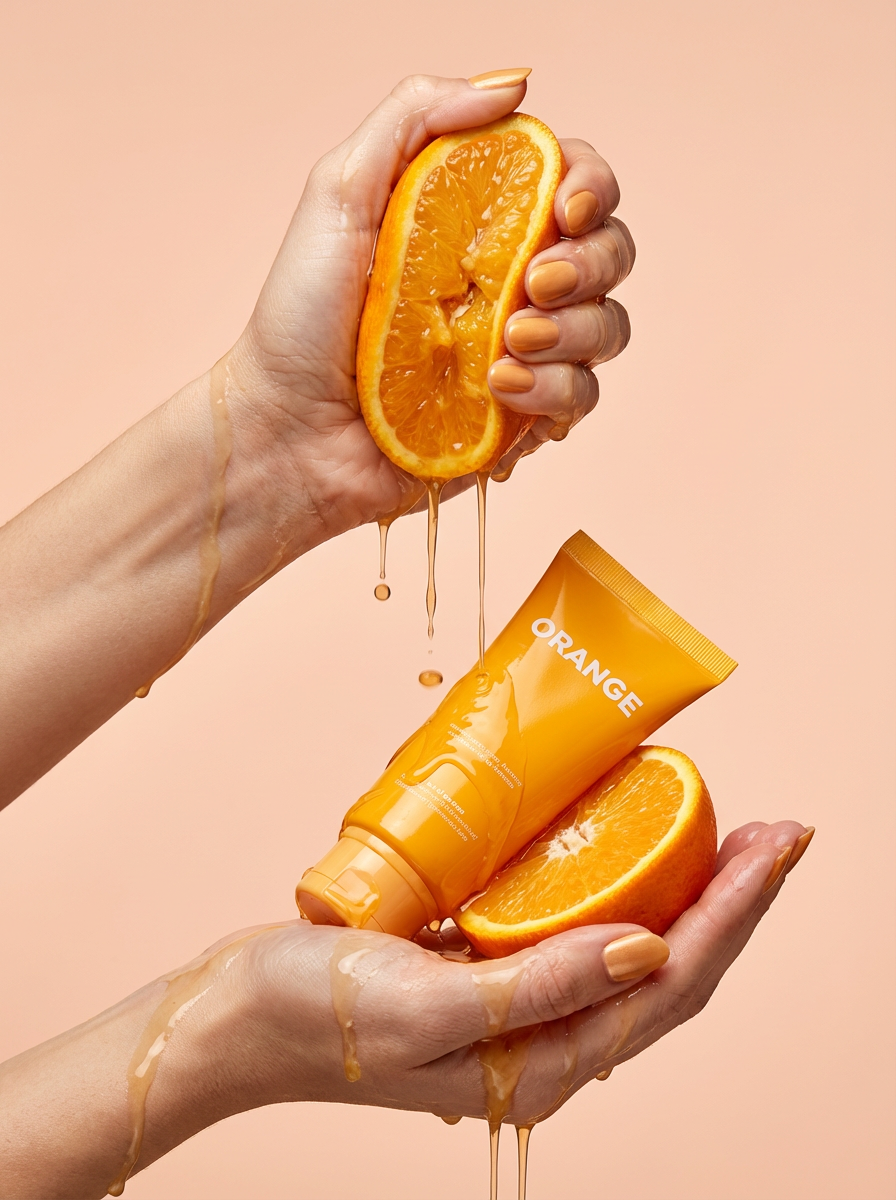
Get clean, hands-only luxury beauty editorials for your cosmetics or jewelry. It captures hyperrealistic skin textures and elegant hand posing, letting you customize the nail polish color to match your brand's exact palette.
Regenerate using your own assets.
MyUP Template : #myup-u5mu-9aek
Luxury Beauty Product
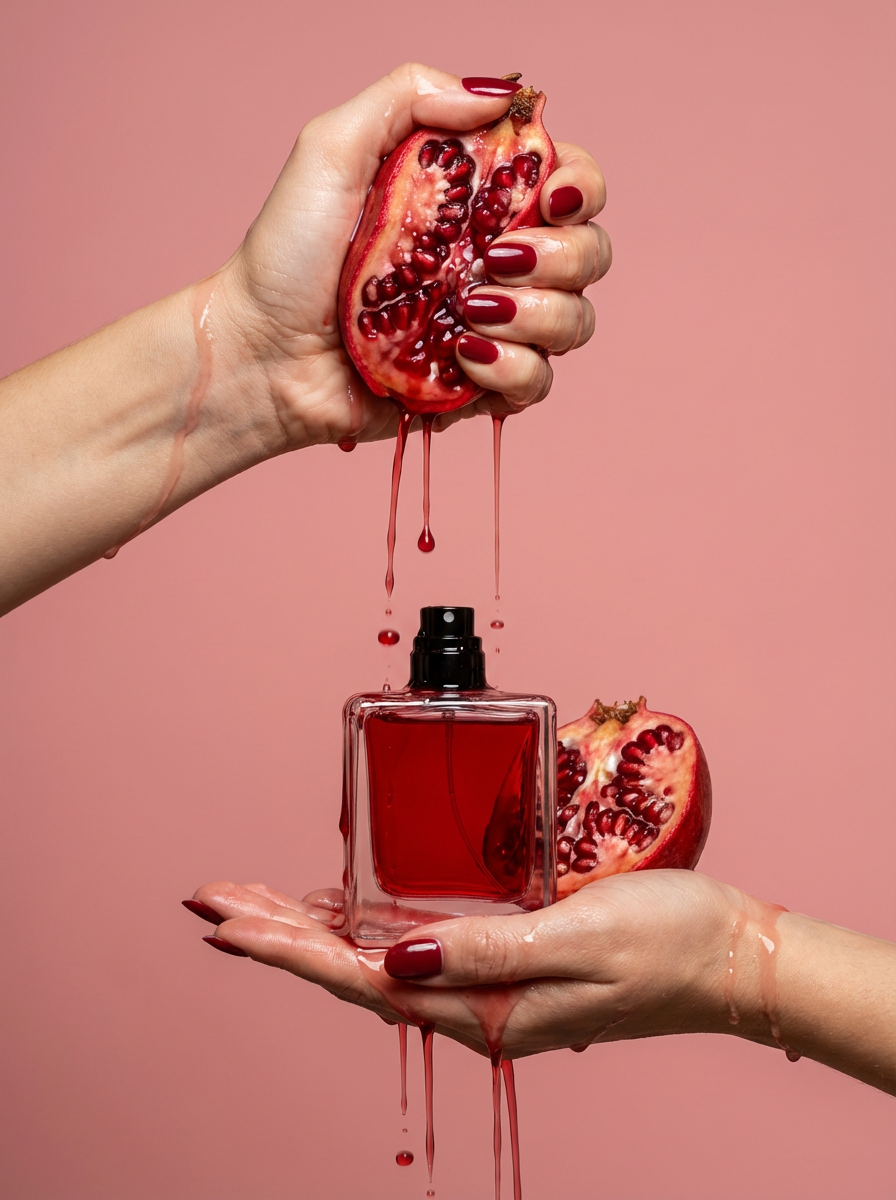
Get clean, editorial-grade beauty shots focusing entirely on your product held by hands with customizable nail polish. It skips the face to keep all the attention on your packaging and textures, giving you that high-end luxury aesthetic instantly.
Regenerate using your own assets.
Beyond experimentation: predictable, publish-ready creations
The ultimate goal of professional creative production is not endless experimentation; it's delivering predictable, high-quality, finished results on demand. While tools that offer a 'creativity' slider can be useful for exploration, they often fall short for commercial projects where preserving an object's shape, form, and brand identity is non-negotiable.
MyUP.ai shifts the focus from tweaking tools to realizing your vision. By empowering you to state your creative intention directly, MyUP provides the control needed to produce studio-quality creations that are ready to publish, without the frustrating distortions of other AI enhancers. Stop fighting the AI and start creating with confidence.
Ready to turn your ideas into finished creations? Get started on MyUP today.
