You’ve seen the viral AI stop-motion videos — the charming, jittery claymation and paper cutout styles filling your social feeds. They look incredible. And when you try to replicate them, you hit a wall. Suddenly you’re juggling three different AI tools, a video editor, and a spreadsheet to track your prompts, only to end up with a flickering mess where your product or logo warps into something unrecognizable from one frame to the next. It’s a frustrating, time-consuming process that feels more like a lottery than a creative workflow.
The problem isn't your prompts. It's the process. Hacking together disparate tools is a fight against the very nature of AI. There is a better way: a single workflow designed for consistency from the ground up.
The real enemy of AI stop motion: frame-to-frame inconsistency
The magic of traditional stop motion isn't just the movement; it's the object permanence. The puppet is the same puppet in every frame. The coffee cup is the same coffee cup. AI image models, by default, don't work this way. Each generation is a new interpretation of the prompt. Even with the same seed, tiny variations in the model’s understanding can cause 'visual drift'.
For creative experiments, this can be interesting. For branded content, it's a disaster. It's the source of the infamous 'flicker,' where colors, shapes, and textures shift randomly between frames. We’ve all seen marketers post their failed attempts at animating a company logo, where the carefully designed mark morphs into a chaotic mess. This isn't just a technical glitch; it's a brand integrity problem. You can't build brand recognition when your own visuals can't recognize themselves from one second to the next.
The one-platform workflow for flicker-free animation
To beat the flicker, you need to stop fighting the AI and start directing it with rules. Instead of hoping for consistency, you enforce it. This is what a workflow-based approach does, and you can build it all on one platform: MyUP.ai.
The entire process can be simplified into three logical steps executed in a single place:
- Lock your visual identity. Before you generate a single frame, you define the entire visual world of your animation—your product's exact design, your brand colors, the lighting style, the background textures—using a MyUP Brandkit. This becomes the non-negotiable foundation for every frame.
- Generate an iterative frame sequence. You create the first frame, then use a workflow to automatically produce the next 20, 50, or 100 frames. You provide the instructions for the change (e.g., 'rotate the object 5 degrees'), and the workflow tells the AI to execute that change while adhering strictly to the Brandkit.
- Compile and export. Once your frame sequence is ready, you compile it into a video, adjust the frame rate for the desired effect, and export your final animation, all within MyUP.
This isn't a hack. It’s a production process. You're no longer a prompter hoping for a lucky roll; you're a director with control over the final cut.
Step 1: Define your subject and style with a Brandkit
Everything starts with the Brandkit. This is MyUP's system for ensuring visual consistency across all your content, and for stop motion, it's the critical first step. Instead of adding style descriptions to every single prompt, you build your visual identity once.
A Brandkit in MyUP can include:
- Logos and Brand Marks: Upload your exact logo files to be referenced.
- Color Palettes: Define your primary and secondary brand colors to lock them in.
- Fonts: Specify your brand typography for any potential text overlays.
- Style Prompts: This is the most powerful part. You can save detailed style descriptors like 'soft, diffused studio lighting,' 'textured paper cutout aesthetic,' or 'glossy product photography on a marble surface.'
By creating a Brandkit for your stop-motion project, you tell the AI, 'This is the world. These are the rules. Do not deviate.' This single step eliminates 90% of the visual drift and flickering that plagues other methods.
Step 2: Generate your image sequence automatically
With your Brandkit active, you're ready to create the frames. The process is iterative. You start with a prompt for your first frame, get a result you're happy with, and then use that as the basis for the entire sequence.
In MyUP, you can set up a workflow that takes your initial image and prompt, then runs a loop to generate the subsequent frames. You only need to define the small change for each iteration.
For example:
- Initial Prompt: 'A bottle of luxury perfume, front view, standing on a wet stone surface.' (Your Brandkit automatically applies the lighting and color style).
- Workflow Instruction: 'Using the previous image as a reference, generate the next image with the bottle rotated 3 degrees to the right.'
The workflow executes this instruction repeatedly, producing a perfectly smooth sequence of images showing the bottle turning. The user's role is to validate the keyframes and give the motion command; MyUP handles the repetitive, frame-by-frame production. This same principle of making small, iterative changes is what allows you to turn a static image into a dynamic video, a core capability for modern marketing.
To start creating a product shot that's perfect for this kind of animation, you can use a workflow like this one for a clean, professional look.
Workflow code: #myup-tc2h-gy9g
Luxury Editorial Product Photography
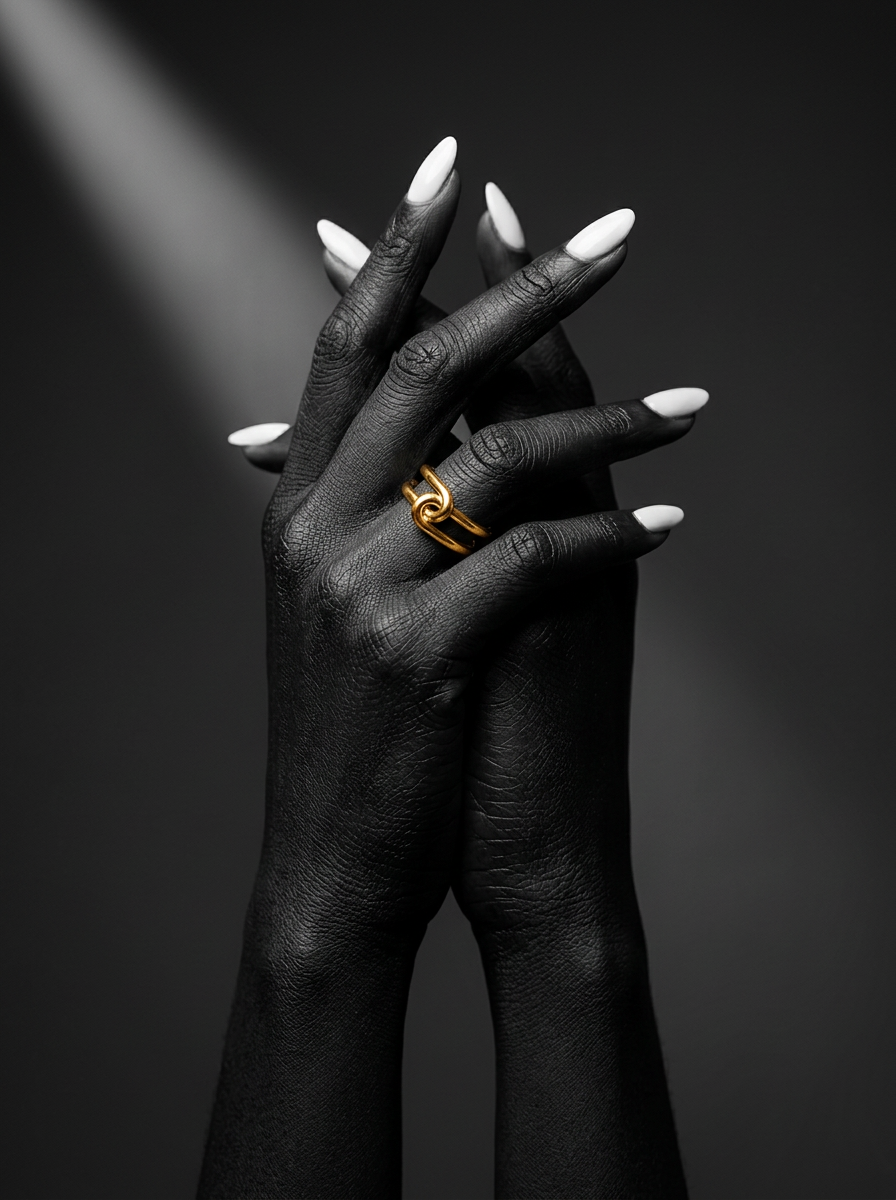
Get striking, high-end editorial shots focusing entirely on hands against minimalist backdrops. It strips away the distraction of faces to deliver a moody, fine-art look that's perfect for showcasing rings, nail art, or dramatic poses.
Regenerate using your own assets.
If you're aiming for a more dramatic and moody aesthetic, a workflow built around a different lighting and texture style is a better starting point.
Workflow code: #myup-xoux-qmmy
Dark Volcanic Jewelry Editorial
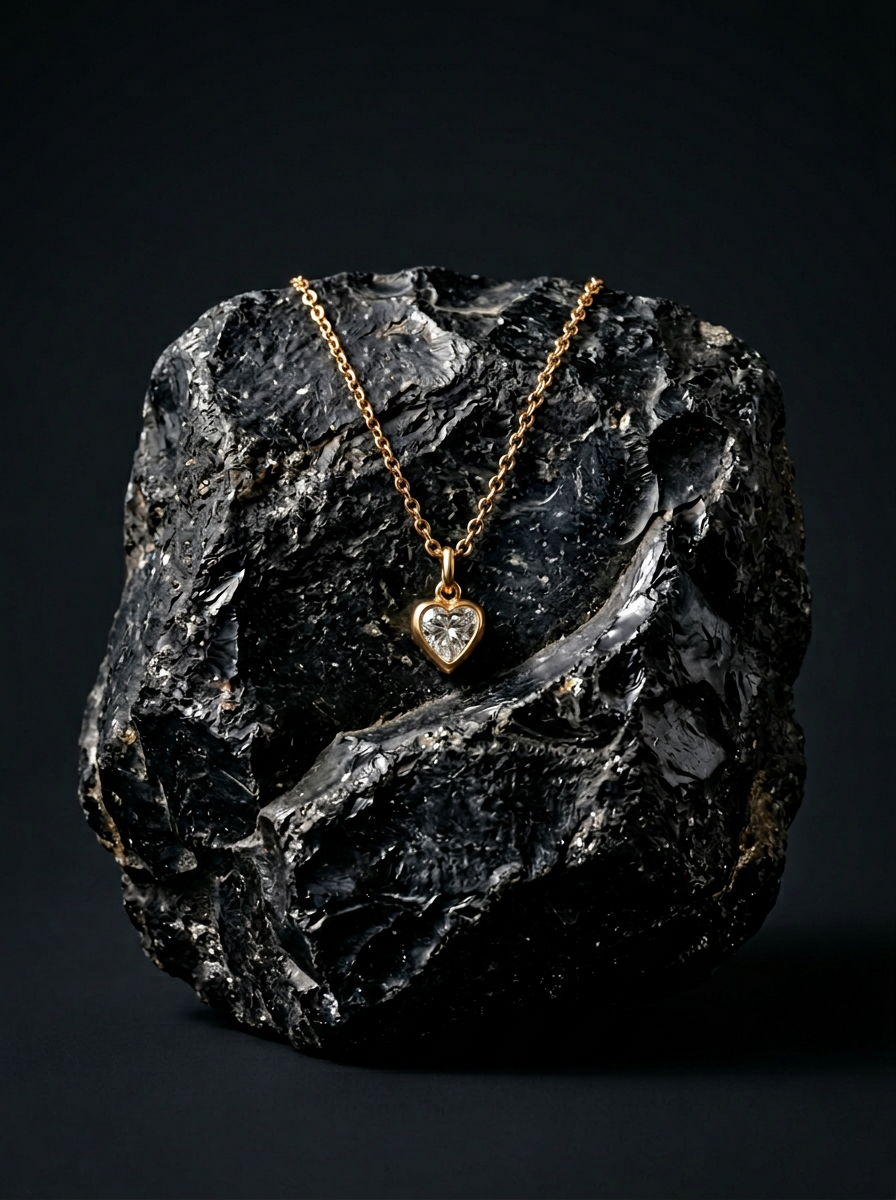
Place your product on a raw volcanic stone pedestal set against a pitch-black, moody studio backdrop. It creates a high-end, dramatic look with deep charcoal tones and sharp contrast. Perfect for making minimalist packaging or sleek tech stand out.
Regenerate using your own assets.
Step 3: From frames to final video
Once your workflow has generated the full sequence of images—whether it's 24 frames for a one-second clip or 240 for a ten-second animation—you're ready to compile. In most tutorials, this is where you'd have to export all your images and import them into a separate video editing application like Adobe Premiere or CapCut.
On MyUP, you can skip that step. The platform includes a video compiler that takes your generated image sequence and stitches it together. You can adjust the frame rate to control the speed and choppiness of the animation—a lower frame rate (like 12 fps) gives you that classic, stuttery stop-motion feel, while a higher one (24 or 30 fps) results in a smoother, more fluid motion. Once you're satisfied, you can export the final video as an MP4, ready to upload.
Putting it to work: creating stop-motion for product marketing
The search for 'AI stop motion for products' is spiking for a reason: this technique is perfect for creating eye-catching, charming product videos for social media ads, websites, and email campaigns. It has a handcrafted feel that stands out from slick, computer-generated animations.
Imagine the possibilities for an e-commerce brand:
- A lipstick tube that assembles itself cap, body, and base.
- A pair of sneakers that walk themselves across the screen.
- A bottle of hot sauce that wiggles and shakes.
- A watch whose hands spin rapidly to show the passage of time.
These aren't just fun animations; they are narrative-driven product showcases. They tell a small story that grabs attention and makes the product memorable. Creating a high-end, editorial look for these product shots is the key to making them feel premium, not gimmicky. A workflow designed for luxury aesthetics is the perfect place to start building your animation's keyframe.
Workflow code: #myup-5q78-bln0
Luxury Floral Product Editorial
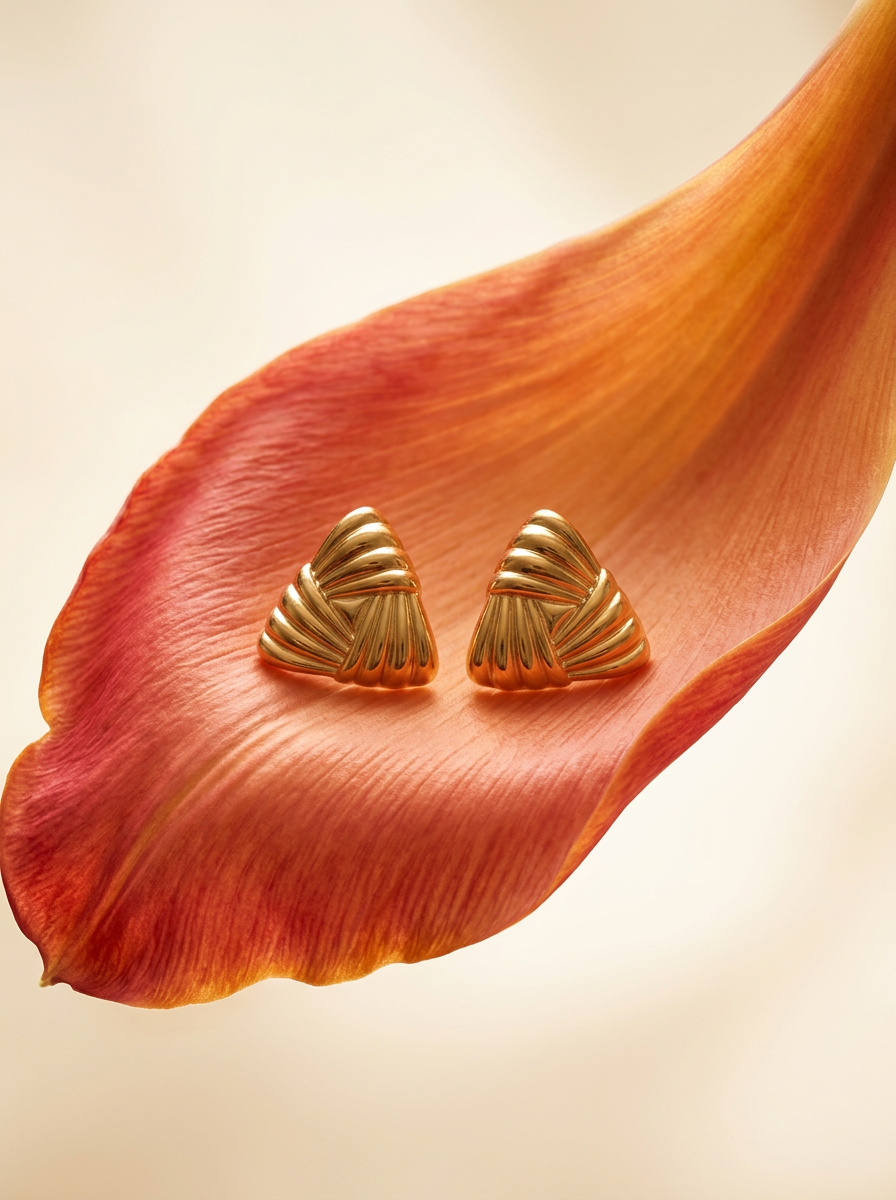
Place any product in an ultra-minimalist, warm studio space. It wraps your item in a seamless cream and beige backdrop with a super soft bokeh that melts away, making the details pop. It’s perfect for giving goods a clean, high-end look.
Regenerate using your own assets.
By using a workflow, you can create these engaging videos for every product in your catalog without starting from scratch each time. You simply swap out the product in the prompt, and the Brandkit ensures the style and quality remain consistent across your entire campaign.
You direct the story, MyUP handles the production
Creating compelling AI stop-motion animation isn't about finding the magic prompt. It's about having a process that gives you control. Hacking together multiple tools forces you to constantly fight against AI's tendency toward randomness. It's a battle for consistency that you will eventually lose, costing you time and brand integrity.
A platform like MyUP flips the script. By establishing your brand rules first with a Brandkit, you turn the AI into a reliable production assistant. You are in the director's chair, making the key creative decisions about the story and motion. MyUP's workflow automates the tedious, repetitive work of generating each frame perfectly, every time. This is the difference between an amateur experiment and a professional production system. Stop chasing flicker-free results and start building them with a workflow designed for control.
