
You’ve spent hours prompting the perfect AI video, only to be defeated by the last frame. That jarring jump-cut where the animation abruptly resets is the number one tell that it was made with AI. It makes an otherwise great visual look cheap and unprofessional.
With the release of Runway’s Gen-3 Alpha in June 2026 and its new dedicated ‘Loop’ feature, the demand for seamless animations has exploded. But a simple button is rarely the answer for professional-quality work. It offers convenience at the cost of control. Meanwhile, creators on X and Reddit are sharing monstrous, multi-app workflows—exporting from Midjourney, animating in Pika, then manually stitching frames in After Effects—just to solve this one problem. There is a better way.
This isn't about finding a magic button or learning a complex hack. It's about using a deliberate workflow that gives you control over the final output. Here’s how to create perfectly seamless, infinitely looping AI animations inside a single platform: MyUP.ai.
The two ways to make an AI loop: the hack vs. the workflow
Right now, creators are trying to solve the looping problem in two ways. The first is the 'Frankenstein workflow'. This involves stitching together multiple, often paid, applications:
- Step 1: Generate a base image in a tool like Midjourney.
- Step 2: Upload that image to an animation tool like Pika or Luma Labs.
- Step 3: Generate a video and hope the end state is close to the beginning.
- Step 4: Import the video into an editor like Adobe After Effects or Premiere to manually cross-fade, trim, or reverse segments to hide the 'seam'.
This process is slow, expensive, and unreliable. You lose quality with each export and import, and you have almost no creative control over how the animation actually loops. You're just fixing a mistake at the end, not preventing it from the start.
The second method is the MyUP workflow. Instead of fixing a bad loop, you instruct the AI to create a perfect one from the beginning, all within one system. It's a process of direction, not correction. It combines your brand's visual identity, a specific prompting method, and an integrated generation engine to produce a finished, on-brand asset without ever leaving the platform.
The 3-step workflow for a seamless loop in MyUP
Creating a perfect loop in MyUP is about setting the right conditions before you generate. It's a three-part process that ensures consistency, communicates your intent clearly to the AI, and puts you in the director's chair.
1. Lock in your style with a Brandkit
A good loop is visually consistent. Before you even think about motion, ensure the style is locked in. A MyUP Brandkit stores your brand’s core visual identity—colors, fonts, logo, and overall aesthetic. By starting your workflow with your Brandkit applied, you guarantee that every frame the AI generates already feels like it belongs to you. This prevents stylistic drift, a common issue where the AI 'forgets' the initial style halfway through an animation.
2. Write a 'loop-aware' prompt
This is the critical step. You need to explicitly tell the AI video model what you want. Don't just describe the scene; describe the motion and its structure. Your prompt must include phrases that define the looping behavior. Good prompts combine scene description with clear, technical instructions.
Here are some phrases to build into your prompts:
- "Seamless loop"
- "Infinitely looping animation"
- "The first frame is identical to the last frame"
- "The scene returns to its original state at the end"
- "Perfectly looping background video"
For example, instead of "A cup of coffee on a table, steam rising," you would write: "A cup of coffee on a table, steam gently rising and dissipating in a seamless loop. The first frame is identical to the last frame, creating an infinitely looping animation."
3. Generate and validate
Once you run the workflow, MyUP handles the technical production, but you are the creative director. Your job is to validate the output. Does the loop feel natural? Is the seam invisible? If not, you can adjust the prompt—perhaps by simplifying the motion or being even more explicit about the looping instruction—and regenerate. This iterative process of directing and validating is where you maintain human control over the final quality.
Example 1: The hypnotic, on-brand background animation
A common need is a subtle, atmospheric background for a website hero section or a social media banner. It needs to create a mood without distracting the user. A jarring loop here is a credibility killer. Using a MyUP workflow, you can generate an abstract animation that incorporates your brand colors and moves in a gentle, infinite cycle. This is far more professional than a static stock image and more polished than a glitchy AI GIF. You can learn more about creating visuals like these in our guide to AI animated posters.
To create a looping visual for a banner or poster, you can start with a workflow designed for that format and adapt the prompt for looping motion.
Workflow code: #myup-msop-hlxf
Retro Zine Style Event Poster
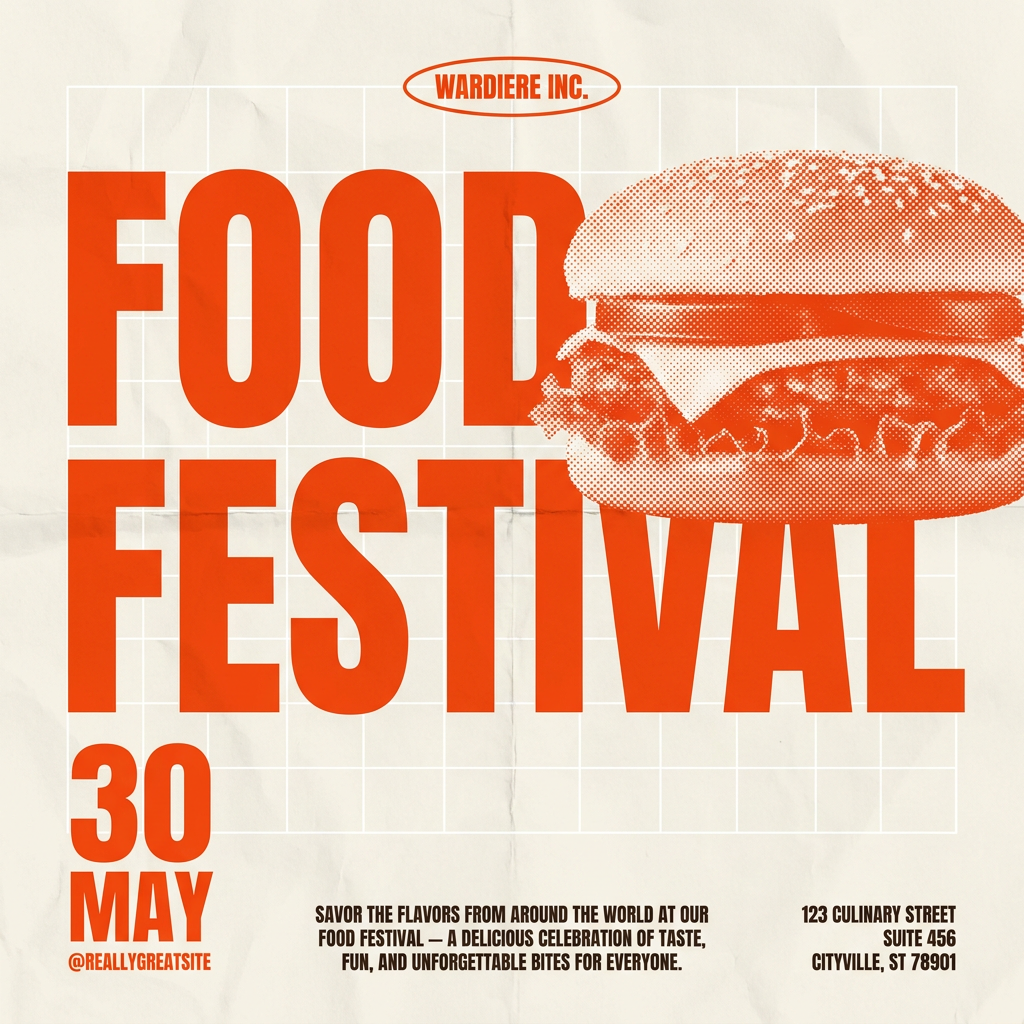
Give your social posts a gritty, analog zine aesthetic. It layers a crumpled paper texture and a subtle grid over a warm cream background to make any event graphic look like a tactile, photocopied flyer. Perfect for DIY gigs and bold promos.
Regenerate using your own assets.
Example 2: The endlessly looping product ad
For e-commerce and social ads, you often need a simple, eye-catching video of your product that can play on a loop. This could be a can of soda with fizz endlessly rising, or a cosmetic product slowly rotating. The key is to focus the viewer's attention on the product with clean, repeatable motion. A multi-app hack is too slow for producing ad variations, but a dedicated workflow lets you create dozens of versions quickly. This is especially effective when combined with a workflow for placing products in realistic AI backgrounds, which you can read about here.
This workflow is built to generate a clean, looping product ad from a simple prompt. Just specify your product and the looping motion you want to see.
Workflow code: #myup-cqnu-i50m
Drink Product Ad
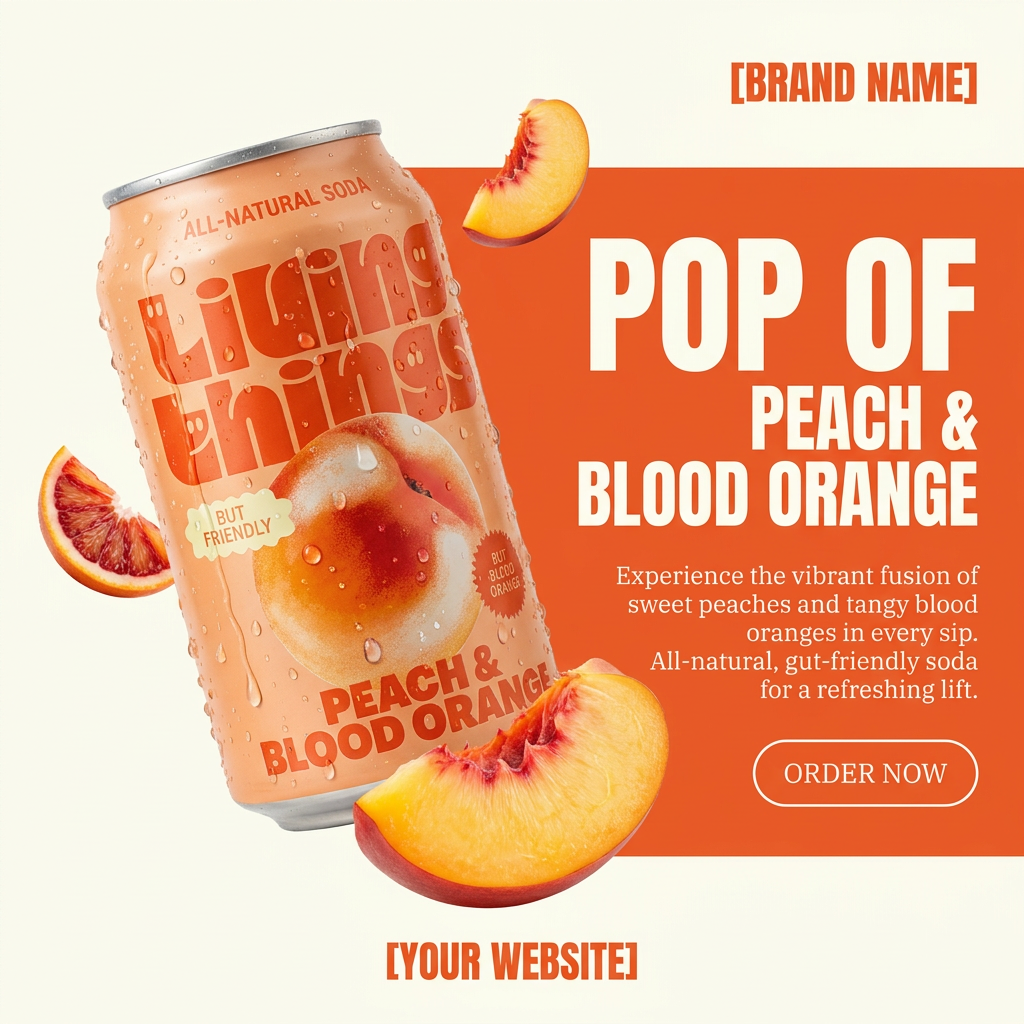
Turn any product photo into a bold, modern ad poster. It automatically frames your item against a split-color background, pairing a clean cream tone with a solid block of your product's dominant color. Super clean, minimal, and ready for social feeds.
Regenerate using your own assets.
Example 3: The 'living portrait' for engaging social posts
Another powerful use for looping animation is to bring a still image to life. Imagine an author photo where the person subtly blinks and breathes, or a brand mascot that gives a gentle wave on a continuous loop. This technique, often called a 'cinemagraph' or 'living portrait', is highly engaging on social media. It stops the scroll by creating an uncanny, captivating effect. Instead of animating a full scene, you're just animating a small, repetitive detail, making it a perfect candidate for a looping workflow. It's a similar principle to animating a brand logo, which you can explore in our logo animation workflow guide.
Use this workflow to start with a portrait or character concept and add subtle, looping motion to make it feel alive.
Workflow code: #myup-xjsb-hirr
Bold Portrait Food Advertising Photo
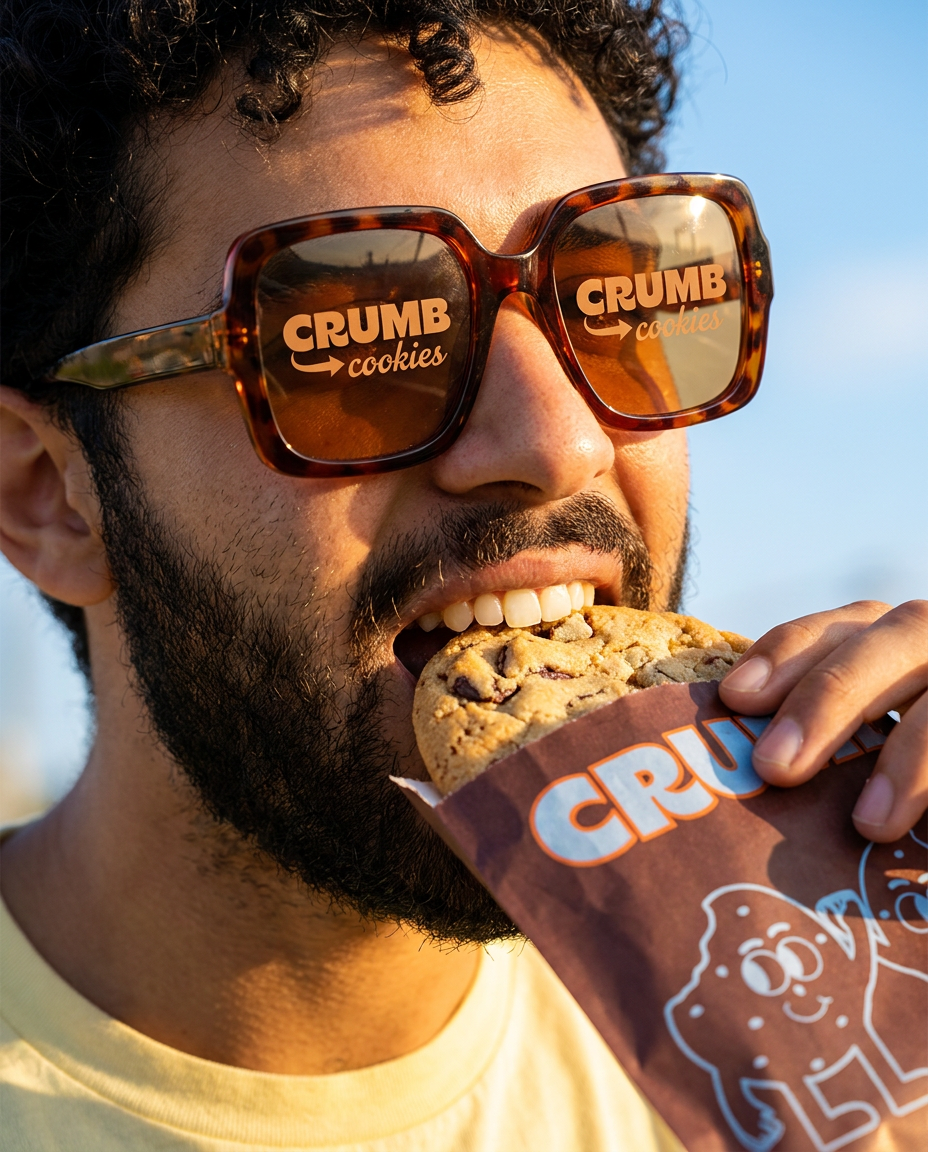
Get those high-impact, tight action shots of people actually enjoying your food brand. It drops your product right into a messy, realistic close-up bite shot that feels like a premium lifestyle campaign instead of a boring studio packshot.
Regenerate using your own assets.
Control, not complexity, is the key to professional results
Creating a seamless AI animation isn't about having the newest model or a 'loop' button. It's about having control. The complex, multi-app hacks that creators are forced to use today are a temporary fix for a deeper problem: a lack of workflow-native tools. Black-box features that promise a perfect loop with one click will always be a gamble, because they hide the creative levers you need to pull.
A platform like MyUP, built around repeatable workflows, gives you those levers back. By combining a Brandkit for consistency with deliberate, instructional prompting, you can direct the AI to create the exact asset you need. The result is a polished, professional, and perfectly looping animation that is ready for any campaign, website, or social feed—no stitching required.
