
For the last two years, creating a coherent explainer video with AI has been nearly impossible for one simple reason: the characters kept changing. You’d generate a perfect opening scene, but the character in the next shot would be a completely different person. The result was a disjointed, unprofessional mess that was unusable for any serious brand.
That era ended in June 2026. With the release of new models like Runway's Gen-3 Alpha, designed specifically for character consistency, the single biggest technical barrier has been removed. But access to the tool isn't the solution. You need a new workflow—one that moves away from fighting with individual clips and instead focuses on building a repeatable visual system.
This is that workflow. We’ll show you, step-by-step, how to produce a professional, on-brand animated explainer video in MyUP.ai by establishing your visual world first, so that every asset is consistent *before* you animate a single frame.
Step 1: Define your visual system before you generate anything
Most people start an AI video project by prompting for a scene. This is a mistake. A professional video isn't a collection of random good-looking shots; it's a cohesive system. Before you even think about characters or story, you must define the visual rules of your world. If you don't, the AI will make them up for you, and it will do so differently every single time.
This is where you stop being a prompter and start being a creative director. The key is to lock down your brand's core visual identity inside a MyUP Brandkit. This isn't just about uploading a logo. It’s about defining the specific aesthetic of your video:
- Color Palette: Define the exact hex codes for your primary, secondary, and accent colors.
- Typography: Specify the fonts for headings and body text.
- Style Descriptors: This is the most important part. Define the illustration style with keywords. Is it 'flat vector illustration with clean lines,' 'isometric 3D claymation style,' or 'minimalist line art with pastel color fills'?
By establishing this system in MyUP first, you create a set of guardrails. Every asset you generate from this point on will automatically inherit these rules. You’re not hoping for consistency; you’re enforcing it from the start. A great way to solidify this is to generate a single “style frame” that acts as a visual north star for the entire project.
You can use a simple workflow to create a poster or promotional image that captures the exact mood, color, and illustration style you're aiming for. This becomes your reference for the entire project.
Workflow code: #myup-egd6-d8uv
Modern Minimalist Food Promotional Poster
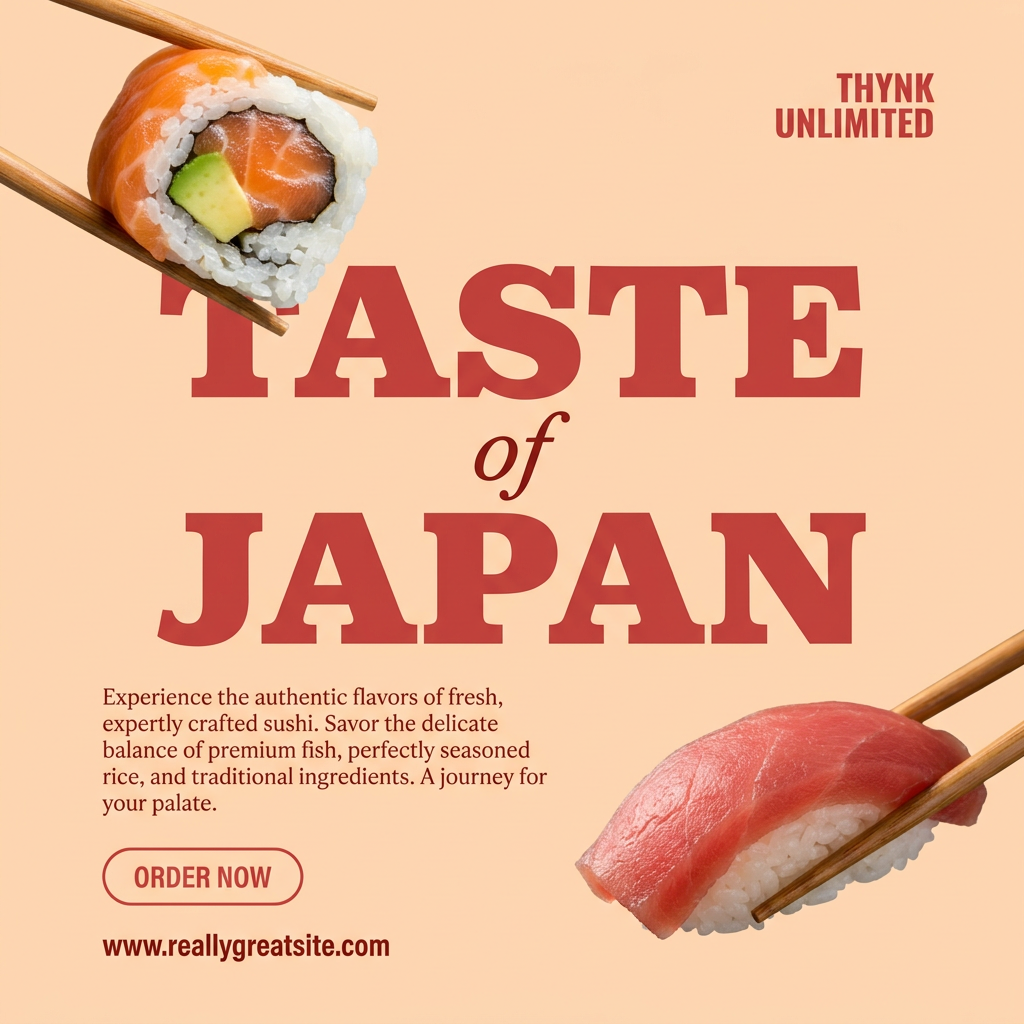
Turn your food photos into clean, modern social posters. It automatically grabs the lightest color tint from your uploaded dish to build a perfectly matched, soft background that keeps your feed looking cohesive and high-end.
Regenerate using your own assets.
Step 2: Create a reusable character sheet
With your visual system in place, you can now address the main challenge: the character. The old, broken method was to describe the character in every new prompt (e.g., “a friendly female project manager with brown hair…”). This guarantees failure. The AI has no memory of the previous generation and will create a new interpretation every time.
The professional workflow is to create a definitive character reference sheet, also known as a model sheet. This is a single image that shows your character from multiple angles. At a minimum, you need a front view, a side view, and a three-quarters view. It’s also helpful to include a few key expressions (happy, concerned, thinking).
In MyUP, you can generate this using a detailed prompt that specifies the layout. For example:
“Character sheet for a female tech startup founder, minimalist flat illustration style. Show three views: full body front view, full body side view, and a close-up of the face smiling. White background, clean lines, consistent character design across all views.”
This character sheet is now your single source of truth. For every subsequent scene you generate, you will use this image as a reference to ensure the character's appearance remains locked. Once you have your character sheet, you can test its consistency by placing it in a key scene, like a promotional poster for your product or service.
Workflow code: #myup-ysc9-ekcs
Professional Product Poster
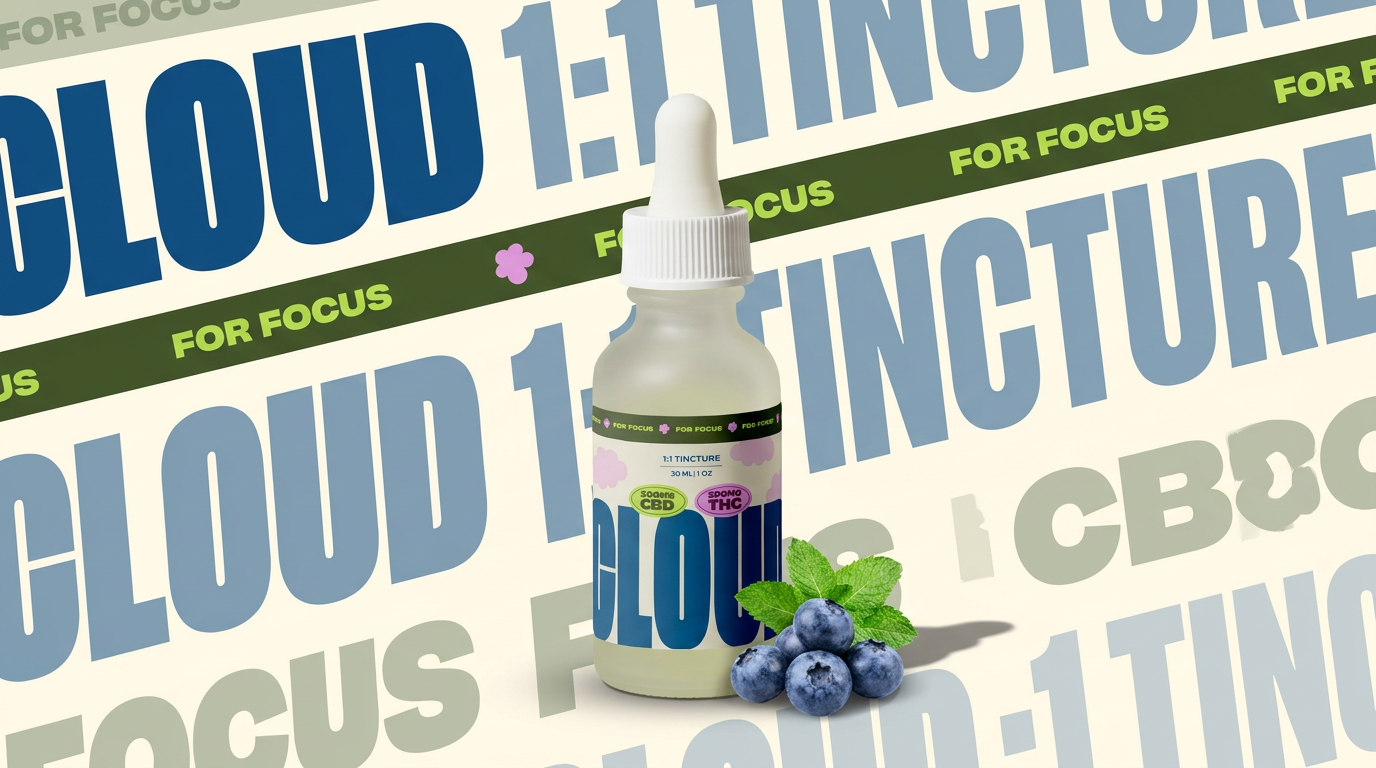
Turn any product shot into a clean, graphic landscape poster. It automatically pulls the text from your packaging to create a massive, semi-transparent repeated background pattern behind your item. Great for modern, typography-heavy brand showcases.
Regenerate using your own assets.
Step 3: Storyboard the narrative with on-brand assets
Now you can finally start building your story. Take your script and break it down into key scenes. For each scene, you'll generate a static image—a storyboard panel—in MyUP. The critical difference is in how you prompt.
Instead of just describing the scene, your prompt will now always include a reference back to your Brandkit and your character sheet. This creates a chain of consistency. MyUP uses the Brandkit to get the colors and overall style right, and it references the character sheet to draw the person correctly.
A prompt for a storyboard panel might look like this:
“Scene from an explainer video. The founder from the character reference image stands next to a whiteboard, pointing at a simple chart. The scene uses the brand colors and minimalist flat illustration style from my Brandkit.”
Repeat this for every shot in your video. You also need to generate supporting assets like icons, UI mockups, or abstract backgrounds. Because you’ve already defined your visual system, creating these is fast and easy. Your Brandkit ensures that every icon and every background shares the same visual DNA as your main scenes.
Workflow code: #myup-k4td-9k6z
Minimalist Poster
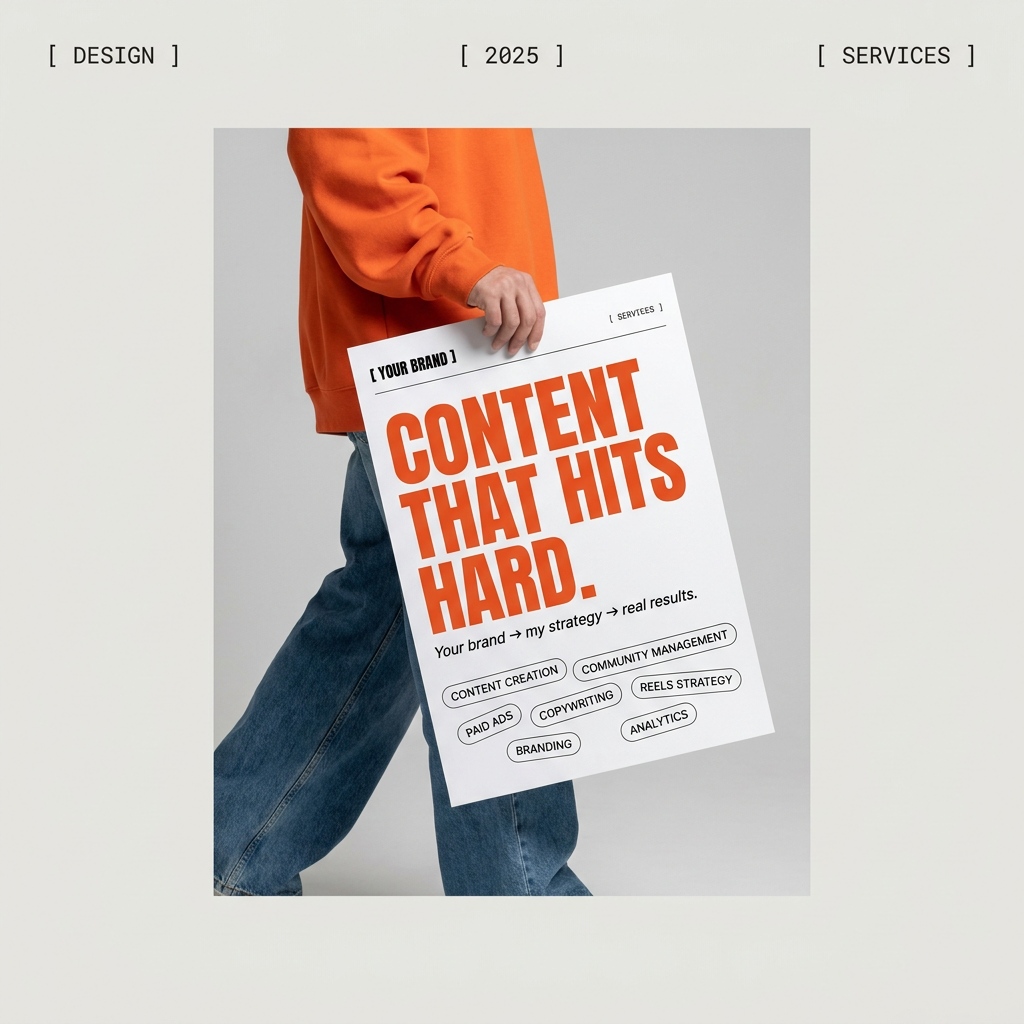
Give your social feed a clean, gallery-like aesthetic. This layout frames your images with structured mono typography and soft, neutral backgrounds for a high-end editorial look. It's perfect for minimal product launches or brand announcements.
Regenerate using your own assets.
Step 4: Animate your scenes with simple motion prompts
With a full set of consistent, on-brand storyboard panels, the hard work is done. The final step is animation, and it’s the easiest part. You no longer need complex animation software like After Effects.
Upload your static storyboard images into MyUP’s AI video generator. For each image, provide a simple, direct prompt describing the desired motion. Don't overcomplicate it. The goal is subtle movement that adds life to the scene, not distracting special effects.
Effective motion prompts include:
- “Slow zoom in on the character's face.”
- “Pan gently from left to right.”
- “The chart on the whiteboard glows subtly.”
- “The character gives a slight nod.”
This is where you exercise creative control. MyUP handles the heavy lifting of rendering the animation, while you validate the output. Does the motion feel right for the story? If not, tweak the prompt and run it again. In minutes, you’ll have a sequence of short, animated clips. All that's left is to arrange them in a simple video editor, add your voiceover and background music, and your professional, consistent explainer video is complete. For similar techniques applied to social media, see our guide to creating engaging animated social posts.
Your explainer video is a system, not a single file
The key to creating a professional AI explainer video isn't about finding a magical text-to-video model that reads your mind. It's about adopting a disciplined, system-first production process. By defining your brand's visual rules and creating a consistent character reference *before* you build your scenes, you eliminate the randomness that plagues most AI-generated content.
This workflow transforms the task from a frustrating gamble into a predictable manufacturing process. MyUP.ai provides the platform to build and execute this system—from the foundational Brandkit to the automated workflows that generate your assets. You provide the creative direction; MyUP handles the production.
