If you’ve scrolled TikTok in the last 24 hours, you’ve seen them. Videos transformed in real-time into Ghibli-style landscapes or cyberpunk cityscapes, all powered by new apps like Artifex that went viral around July 13, 2026. It’s a compelling glimpse into the future of generative video.
But for a brand, this trend is a trap. These real-time filters offer zero creative control, no brand consistency, and produce a generic look that everyone else is also using. Why rent a temporary, off-the-shelf effect when you can own your brand's animated identity? Instead of applying a filter, the professional workflow is to build a library of custom, pre-rendered animated assets. Here’s how you do it in MyUP.
AI video filters are going viral. Here’s why your brand should build assets instead.
The appeal of real-time effects is obvious: instant gratification. But in a professional context, speed without control is a liability. Your brand's visual identity is built on consistency—the same colors, fonts, logos, and overall aesthetic across every touchpoint. Viral filters destroy this instantly.
The alternative is to adopt an asset library mindset. This means shifting your focus from creating one-off videos to producing a system of reusable, on-brand components:
- Animated Logos: A clean, professional intro or outro for every video.
- Lower Thirds: Consistent graphics for introducing people, products, or topics.
- Text Overlays: On-brand callouts, quotes, or key messages.
- Looping Backgrounds: Subtle, branded motion for Stories, ads, and talking-head videos.
By investing a small amount of time to create these assets upfront in MyUP, you build brand equity and dramatically speed up your entire post-production workflow for months to come. You are no longer just making a video; you are building an ownable motion design system.
The asset library mindset: Own your brand's motion identity
An asset library is a collection of pre-made, on-brand graphics and video clips that you can drop into any project. It’s the secret to how high-output creative teams maintain quality and consistency without starting from scratch every time. With AI, you no longer need a dedicated motion graphics artist to build one.
Using MyUP, you can generate these components yourself. The process is simple: design a static visual element, ensure it's on-brand using your saved Brandkit, and then use an AI video workflow to animate it. The result is a high-quality, pre-rendered asset you can use anywhere. This same principle applies whether you're creating a serious corporate video or trying to make on-brand memes that actually connect. The asset is the building block; the final video is the assembly.
MyUP is the production layer; you provide the final creative validation. The platform handles the tedious work of generating and animating, leaving you to approve and direct the final output.
Workflow 1: Create an animated logo reveal that’s always on-brand
The most fundamental video asset is your animated logo. It’s the first and last thing viewers often see. In MyUP, creating one doesn't require keyframes or timelines.
First, ensure your Brandkit is set up with your logo file, primary colors, and fonts. This is the foundation for everything that follows. MyUP will automatically reference these elements to ensure every asset is consistent.
Next, you can use a video workflow to generate different animation styles for your logo. Simple, clean animations like a fade-in, a subtle slide, or a gentle pulse work best for professional use. You're not looking for a Hollywood-style explosion, but a clean presentation of your brand mark. To decide what motion fits your identity, see our complete guide to AI logo animation styles explained: which is right for your brand?
Workflow 2: Generate custom animated text overlays and lower thirds
Lower thirds and text overlays are the workhorses of informational video content. They need to be clear, legible, and instantly recognizable as part of your brand. The process in MyUP involves two stages: design, then animation.
First, create the static graphic. You can start with a design-focused workflow to get the layout and typography right. A template built for bold text and clean lines is a perfect starting point. The user validates the design, ensuring the text is correct and the layout works, while MyUP handles the production based on your Brandkit.
The 'Bold Retro Yellow Event Poster' workflow is an excellent base for creating a striking text graphic. Simply adapt the content for your lower third. Once you have a static design you approve, you can use MyUP’s video tools to apply a simple entrance animation, like a slide-in from the left or a quick fade.
Workflow code: #myup-xbur-hzoi
Bold Retro Yellow Event Poster
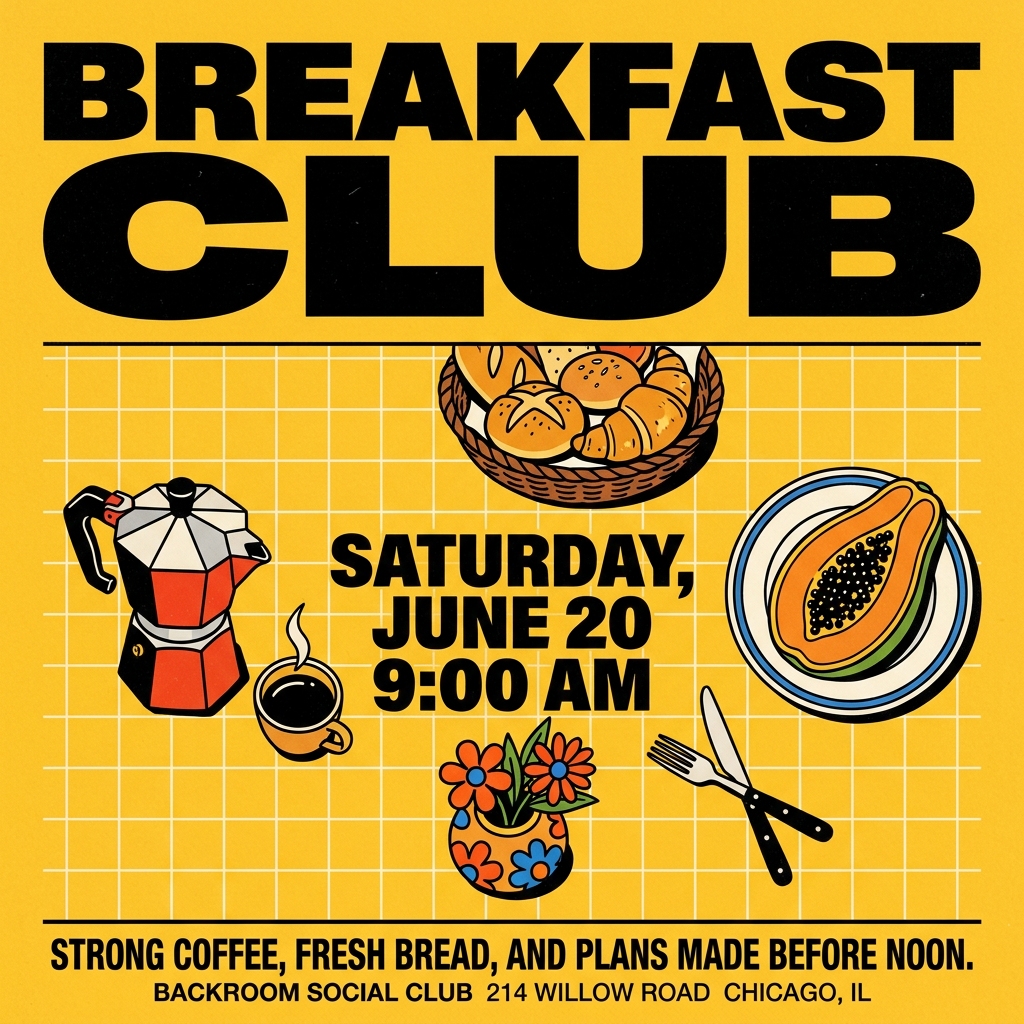
Turn your branding or event details into bold, nostalgic posters. It blends vibrant warm backdrops with a clean, retro square grid pattern to make any announcement look like a classic piece of mid-century graphic design.
Regenerate using your own assets.
Workflow 3: Design infinite looping backgrounds for stories and ads
A blank background in a social media video is a missed opportunity. A custom, subtly animated looping background adds a layer of polish and brand reinforcement that sets your content apart. This is especially effective for Instagram Stories, Reels, or as a backdrop for product shots.
The workflow is straightforward. First, generate a static image. This could be an abstract pattern using your brand colors, a gentle gradient, or a stylized texture. The goal is to create something visually interesting but not distracting. The 'Bold Editorial Grid Poster' workflow can serve as a great starting point for creating a clean, structured graphic that can be turned into a background.
Workflow code: #myup-n0bi-2wzk
Bold Editorial Grid Poster
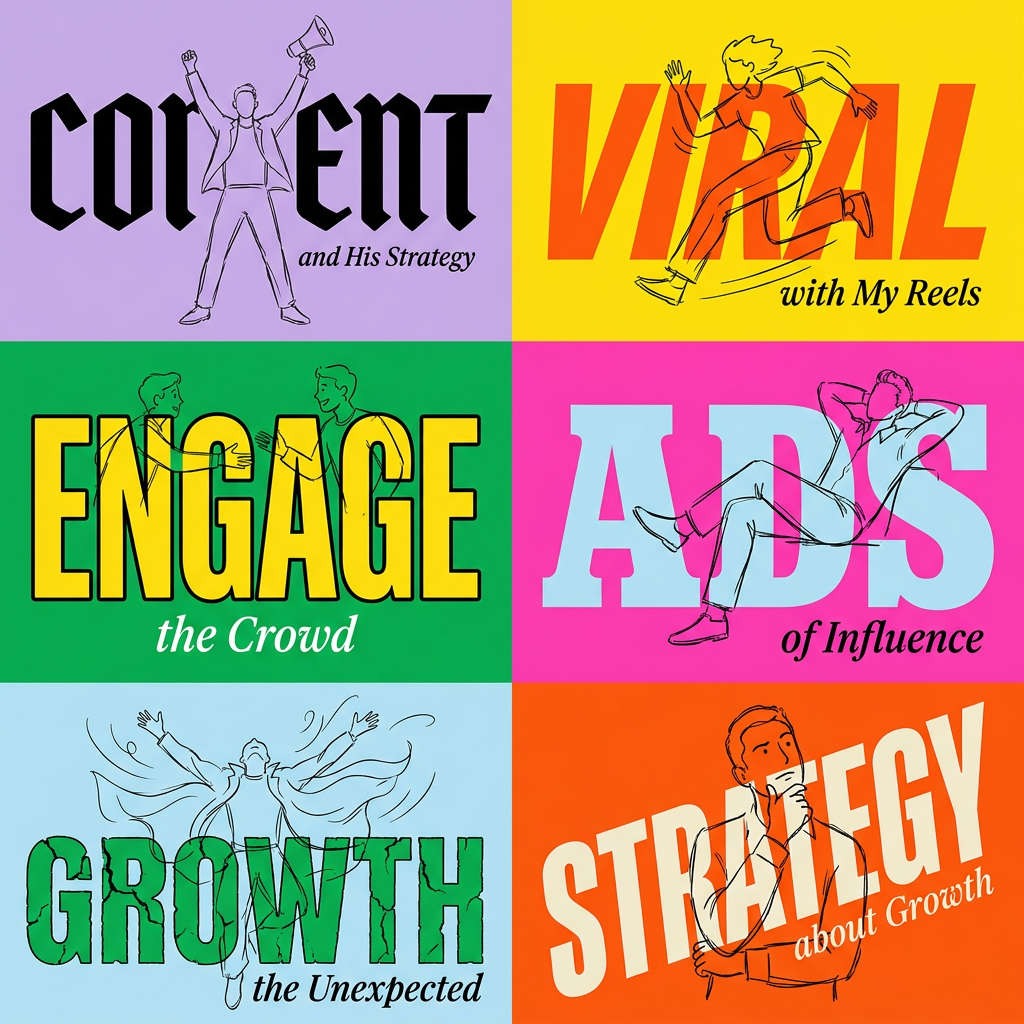
Create striking 2x3 editorial posters with six seamless, flat-color square cards in a perfect 4:5 grid. There are absolutely no gaps between the blocks, giving your content a bold, high-contrast magazine layout. It looks incredibly clean on any social feed.
Regenerate using your own assets.
Once you have the static image, use a video generation workflow in MyUP to add simple, continuous motion—like a slow pan, a gentle zoom, or a subtle rotation. Export a 5-10 second clip, and it can be looped seamlessly in any video editor. This is a far more professional approach than the generic options available in the Instagram AI story generator.
Workflow 4: Produce animated product callouts for social media
When you need to draw attention to a specific product, feature, or offer in a video, a custom animated callout is essential. This could be a sticker-style graphic that pops up with a price, a badge that highlights a key benefit, or a simple animated arrow.
Using MyUP, you can design these small but mighty assets quickly. Start with a workflow designed for promotional graphics to create the visual element. The Brandkit will ensure the colors and fonts match your other assets perfectly. The 'Food Ad' workflow, for instance, is ideal for creating a compact, visually-driven graphic that can be repurposed as a callout.
Workflow code: #myup-wo7y-ebmc
Food Ad
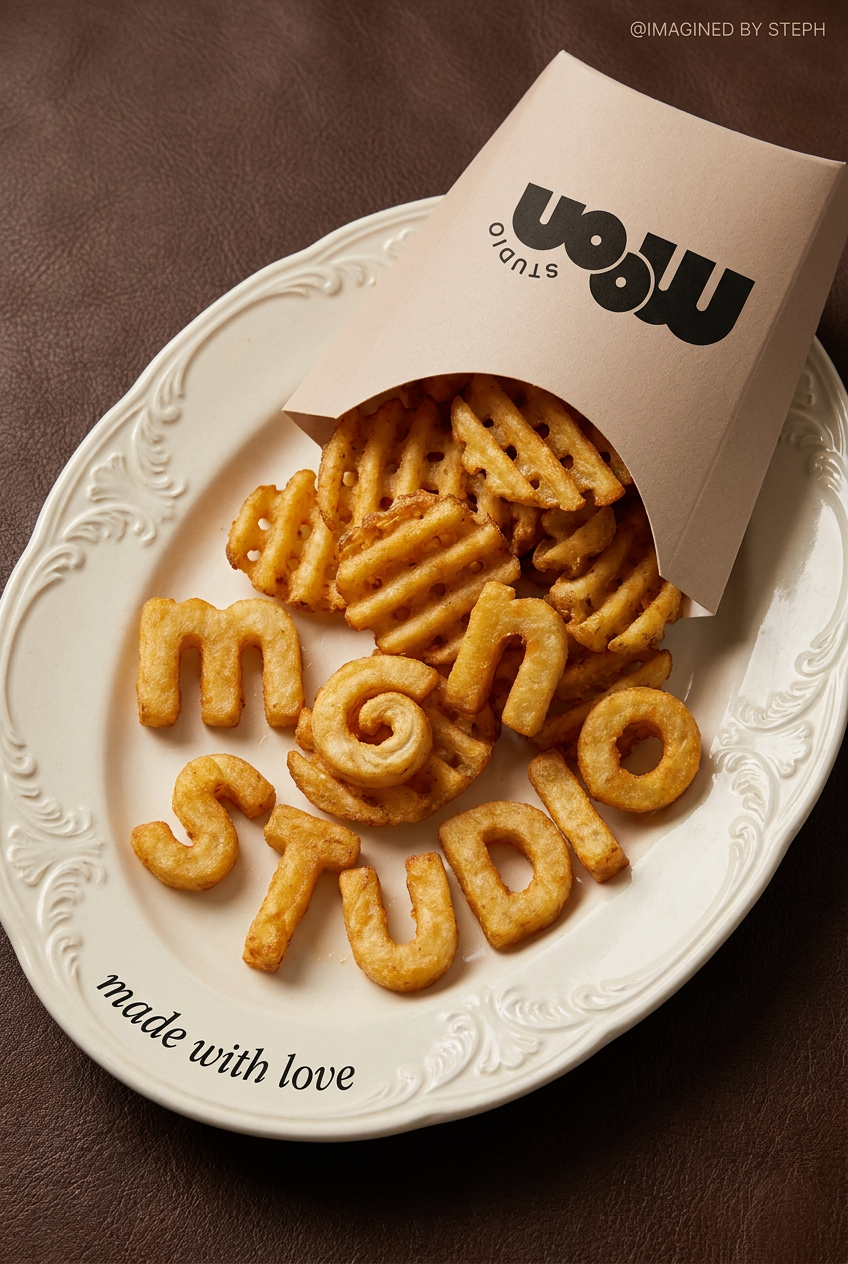
Transform simple food items into high-fashion editorial campaigns. This style uses a dynamic diagonal layout and a slightly tilted overhead angle to give your products incredible depth and texture, making them look like luxury design pieces.
Regenerate using your own assets.
After designing the static callout, apply a short, punchy animation—a little bounce, a quick scale-up, or a sparkle effect—to make it catch the eye when you layer it into your final video edit.
From MyUP to your timeline: Using your new asset library
Creating these assets in MyUP is only half the process. The real power comes from how easily they integrate into your existing post-production workflow.
Once you've generated an animated logo, lower third, or background, simply export it as a high-quality MP4 video file. Many workflows allow you to generate these with a green screen background, which you can easily key out in your video editor to create a transparent overlay.
Then, just import the files into your preferred editing software—CapCut, Adobe Premiere Pro, Final Cut Pro, DaVinci Resolve, it doesn't matter. You can drag and drop your on-brand assets onto your video timeline, layering them over your footage just like any other clip. MyUP isn't here to replace your video editor; it's here to feed it with perfect, on-brand components, saving you from the slow, manual process of creating them from scratch.
