
If you're a YouTube creator, the conversation that blew up this week (late June, 2026) probably sounds familiar. A viral video review slammed the new wave of AI thumbnail generators, and the core complaint was simple: they're fast, but they have zero respect for your brand. They can't use your fonts, your color palette, or your logo placement. Speed is useless if the result looks like it belongs to another channel.
This isn't just an aesthetic problem; it's a performance problem. Your thumbnail is your video's first impression, and brand consistency is what builds recognition and trust with your audience. A generic, off-brand thumbnail can kill your click-through rate (CTR).
The solution isn't a better one-off generator. It's a better system. Instead of creating thumbnails one by one, you can build a repeatable workflow that takes your list of video titles and automatically produces a full set of on-brand, ready-to-upload options. Here’s a template to get you started on that system.
Workflow code: #myup-kbgo-tlle
Product Brand Post
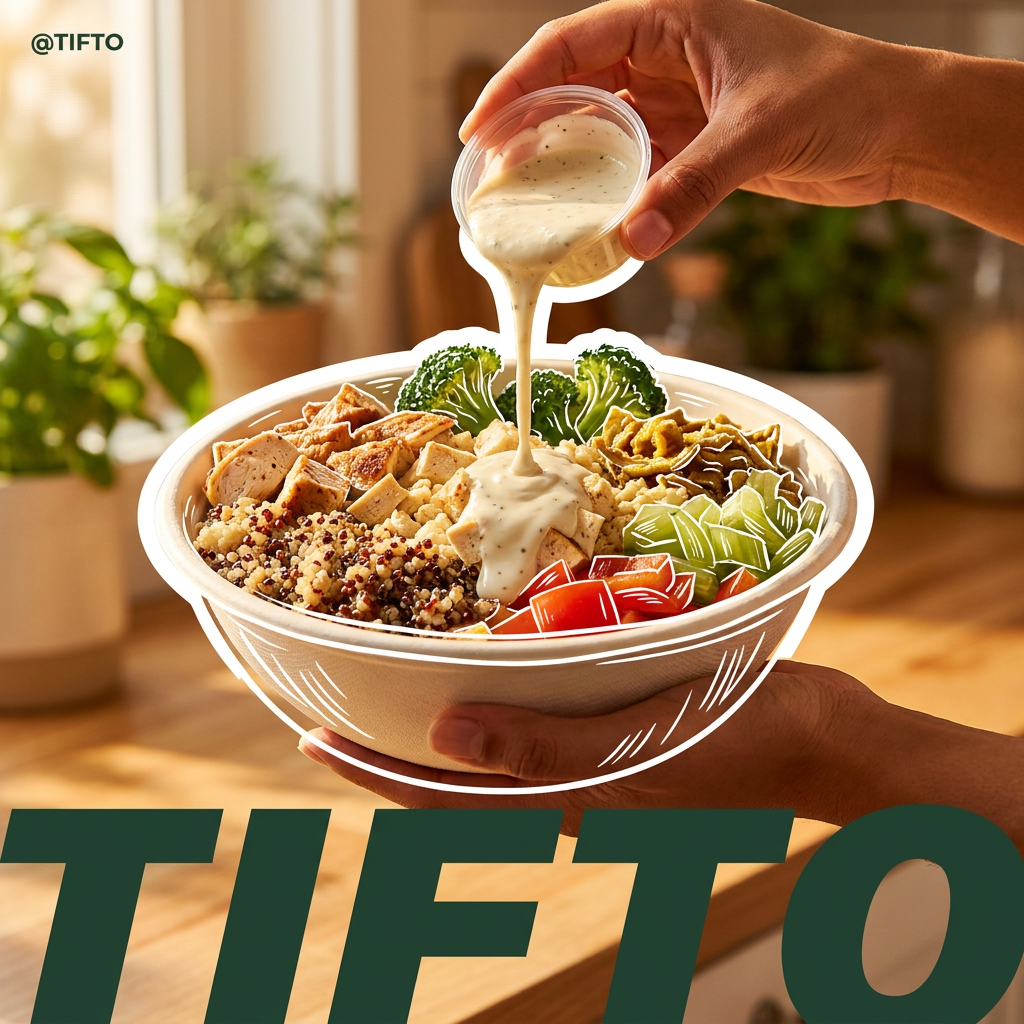
Drop in your product to generate a cohesive nine-post Instagram grid. It blends warm lifestyle photography and flat-lay packaging with bold hand-drawn doodles, collages, and urban billboard mockups. Everything automatically styles itself to your brand's colors.
Regenerate using your own assets.
Why one-off thumbnail generators hurt your channel's growth
The promise of AI thumbnail tools is to eliminate a tedious production bottleneck. But when they ignore your established visual identity, they create a new, more dangerous problem: brand dilution. Every successful YouTube channel has a visual signature. It’s the combination of fonts, colors, layouts, and logos that makes your content instantly recognizable in a crowded subscription feed.
When you use a generic generator, you trade that signature for a few saved minutes. The output might be eye-catching, but it's not *yours*. This inconsistency confuses viewers and weakens the connection they have with your content. Over time, this erodes the brand equity you've worked hard to build, which can lead to a measurable drop in viewer loyalty and CTR.
A systematic approach, on the other hand, treats your brand as a non-negotiable input. It's not about finding a tool that gets lucky; it's about building a machine that gets it right, every single time.
The 15-minute workflow to automate a month of thumbnails
This process isn't about prompting an AI and hoping for the best. It's about designing an automated system that works for you. You set it up once, and then you can run it in minutes every time you plan your content calendar. The entire process breaks down into three core steps.
- Step 1: Define Your Brand (One-Time Setup). You'll create a MyUP Brandkit by adding your channel's logos, custom fonts, and exact color palette. This is the foundation that ensures every thumbnail is automatically on-brand.
- Step 2: Build Your Master Template. You'll design a flexible thumbnail template that locks in your branded elements while leaving placeholders for the variable parts, like the video title and background image.
- Step 3: Run the Batch Workflow. You'll feed the system your content calendar—a simple list of video titles—and let it generate a complete gallery of thumbnail options for the entire month.
Step 1: Define your visual identity with a Brandkit
Before you generate anything, you teach MyUP your brand. This is the crucial step that generic tools skip. A Brandkit is a central, reusable profile of your channel's visual identity. You don't have to specify your brand details in a prompt every time; you build it once, and MyUP applies it automatically.
In your Brandkit, you'll upload:
- Logos: Your primary and secondary channel logos or icons.
- Fonts: The specific .TTF or .OTF font files you use for your titles and on-screen text.
- Colors: Your exact brand color palette, defined by hex codes.
Once saved, this Brandkit becomes the source of truth for all your content. It ensures that every asset, from a thumbnail to a social post, uses the correct font, the right shade of blue, and the approved logo—no exceptions.
Step 2: Build your master thumbnail template
With your Brandkit in place, you can now build a reusable thumbnail template within the MyUP Workflow Builder. Think of this as creating the blueprint for all your future thumbnails.
You can drag and drop elements to create your ideal layout. For a typical YouTube thumbnail, this might include:
- A placeholder for the AI-generated background image.
- A text box for the video title, which will automatically use a font from your Brandkit.
- A locked position for your channel logo, pulled directly from your Brandkit.
- A color overlay that uses one of your brand colors, with adjustable transparency.
The key here is control. You decide which elements are fixed (logo, font style) and which are dynamic (the text of the title, the background image). This combination of consistency and flexibility is what makes a workflow so much more powerful than a simple generator.
Step 3: Run the workflow with your content calendar
This is where your one-time setup pays off. Instead of prompting for a single thumbnail, you can now generate them in bulk. All you need is a list of your upcoming video titles. You can prepare this as a simple CSV file, with one column for the title and another for a short prompt describing the desired background image.
For example:
"Video Title","Background Prompt""My Top 5 Productivity Hacks","a clean, minimalist desk with a laptop and coffee""Reviewing the New Tech Gadget","a futuristic gadget glowing on a dark background""How to Plan a Trip to Japan","beautiful shot of Mount Fuji at sunrise"
You connect this CSV file as the input for your workflow. MyUP will then iterate through each row, feeding the title and background prompt into your master template. In minutes, you'll have a gallery filled with dozens of on-brand thumbnail options for your entire content calendar.
Your job is to approve, not to produce
This is the fundamental shift. An automated workflow doesn't replace your creative judgment; it liberates it. The AI handles the repetitive, time-consuming production work. Your role evolves from being a pixel-pusher in a design tool to being a creative director.
You review the gallery of generated options. You select the strongest composition for each video. You might make a minor text adjustment or regenerate one option with a slightly different background prompt. The final decision is always yours. MyUP executes the production, but you validate the results. This frees up hours every month—time you can reinvest into what actually grows your channel: strategy, research, and creating better videos.
