If you’re creating stories with AI video, you’ve felt the frustration. You generate a perfect opening shot of your hero, but in the next scene, their face subtly shifts, their jacket changes color, and they look like a distant cousin of the character you started with. This problem has been so universal that the entire industry is buzzing about new one-click “character lock” features, like the one Runway launched around April 20, 2026.
These tools are a welcome development, but they often trade fine-grained control for simplicity. For narrative projects, brand campaigns, or any series where consistency is non-negotiable, you need more than a lock. You need a director’s control. This guide outlines a powerful, two-stage workflow inside MyUP AI that gives you exactly that, proving that the secret to consistent video output is mastering the image input first.
Why your AI video characters keep changing
The infamous “melting face” syndrome in AI video is a symptom of a deeper technical challenge. Video generation models work by predicting subsequent frames based on a text prompt and, sometimes, an initial image. Each new frame is a fresh act of interpretation. Without a strong, persistent anchor, the model’s interpretation can drift. Details like eye color, the specific cut of a jacket, or the texture of a character’s hair are statistical probabilities, not fixed attributes. Over a few seconds of video, these probabilities compound, causing your character’s identity to dilute and morph.
One-click lock features attempt to solve this by repeatedly referencing the original character throughout the generation process. This is a huge step forward, but it can sometimes feel like an automated process you can’t fully art-direct. When the lock misinterprets a detail, you’re often stuck. A professional workflow gives you the power to define the source of truth yourself.
The workflow: Start with a perfect character sheet
Our point of view at MyUP AI is simple: character consistency in video begins with a perfect reference image. Instead of battling with long, descriptive video prompts to define your character, you should lock in their entire look with a powerful image generation workflow first. This is standard practice in traditional animation and filmmaking, known as creating a model sheet or character sheet, and it’s even more crucial in AI.
A great character sheet isn’t just a headshot. It’s a definitive visual document. It establishes the character’s facial structure, hairstyle, clothing, and overall mood from a clear, well-lit angle. By feeding this high-quality image into a video generator, you provide the AI with a rich, unambiguous source of visual data. You’re no longer asking it to invent a character from words; you’re giving it a blueprint and asking it to bring that specific character to life.
Step 1: Generate your character reference in MyUP
The first step is to create your master reference image. This image will serve as the visual anchor for every video clip you generate. For this, you need an image workflow that prioritizes detail, realism, and creative control. A simple text-to-image prompt is not enough; you need to define multiple attributes to build a robust character.
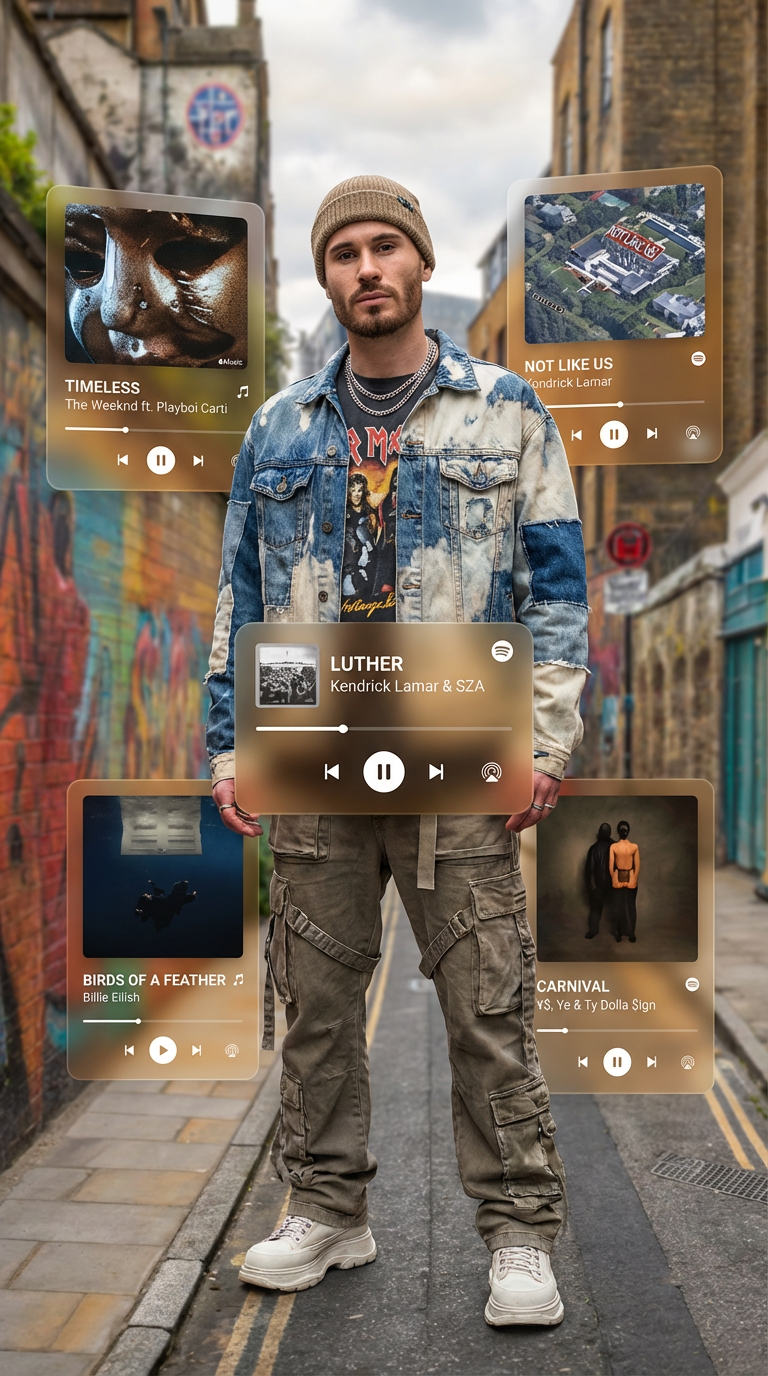
We recommend using a guided workflow template designed for character creation. For example, the Hyperrealistic Music Artist template in MyUP is perfect for this task. Workflow code: #myup-dqbs-wy6u. It prompts you for specific details like genre, style, and mood, which helps the AI build a coherent and detailed portrait. Your goal is to generate a clean, forward-facing or three-quarter view of your character where their face and core costume elements are clearly visible. Avoid dramatic shadows or extreme angles, as these can confuse the video model later.
Regenerate using your own assets.
Step 2: Turn your character sheet into a video scene
Once you have your character sheet, the next step is to use it as the primary input for MyUP’s AI Video generator. This is where the workflow fundamentally differs from a purely text-to-video approach. Instead of starting with a blank canvas, you are starting with your character’s visual DNA locked in.
In the MyUP video tool, you’ll upload the character image you just created. This image now acts as a powerful reference. Most image-to-video models have a setting, often called “image influence” or “structural adherence,” that controls how closely the output video sticks to the source image. For maximum character consistency, you’ll want to set this value high. This tells the model to prioritize the visual information from your character sheet—the face, the clothes, the style—above all else when generating the motion.
Step 3: Directing new scenes with prompt discipline
With your character’s appearance anchored by the reference image, your text prompt now has a different job. Instead of describing the character, you will focus exclusively on describing the action and the environment. This separation of concerns is the key to creating multiple, consistent scenes.
Adopt a simple but effective prompt structure:
- Bad prompt: “A man with brown hair and a leather jacket walking down a city street at night.” (This forces the AI to re-interpret the character, inviting inconsistency).
- Good prompt: “Walking down a rainy, neon-lit city street at night.” (This describes the action and setting, assuming the uploaded image will define the character).
By keeping your action prompts concise, you allow the reference image to do the heavy lifting of character definition. You can generate dozens of clips—your character walking, talking, sitting in a cafe, or looking out a window—all while maintaining a consistent appearance that is faithful to your original character sheet. Ready to build your own character-driven stories? You can create an account and start with our image and video tools today.
When to use this workflow (and when a simple 'lock' is enough)
This character sheet workflow offers precision and control, but it requires a more deliberate, two-step process. So, when is it the right choice?
Use the MyUP character sheet workflow when:
- You are creating a narrative series for YouTube, TikTok, or another platform and need the same character to appear in multiple episodes.
- You are developing a brand mascot or spokesperson for a marketing campaign and require absolute visual consistency across all video assets.
- You are a filmmaker or animator using AI for pre-visualization and need precise control over character designs in different scenes.
A one-click 'character lock' feature might be sufficient when:
- You need to create a single, short video clip quickly and aren't concerned with reusing the character later.
- You are experimenting with ideas and speed is more important than perfect visual fidelity.
- Your character design is very simple and less likely to drift during generation.
Ultimately, the choice depends on your project's needs. For creators who see themselves as directors, not just operators, building a workflow around a strong character sheet provides the control necessary to tell compelling and coherent stories. Explore our pricing plans to find the right fit for your creative production needs.