You’ve tried it. You wrote a prompt, hit ‘animate’, and got back a video that pulses and morphs. The background shifts, the lighting flickers, and the subject jitters as if the AI can’t quite remember what it looked like a frame ago. That chaotic, unstable look is the tell-tale sign of generic AI animation, and it makes a clean, seamless loop almost impossible.
The problem isn't your motion settings or your prompt. The secret to a professional-grade, looping animation is to stop thinking about video first. It all starts with the source image.
Why most AI animations fail to loop cleanly
The core issue is 'style drift'. When you ask a text-to-video AI to create an animation from scratch, it interprets your prompt for every single frame. This gives it too much creative freedom. Tiny variations in shape, color, and texture accumulate, creating the flicker and jitter that ruins the loop. The AI isn't animating one consistent scene; it's generating a series of slightly different scenes that look vaguely related.
This is why an image-to-video workflow is superior for this task. By providing a static, visually consistent source image, you give the AI a strong anchor. Its job is no longer to invent the scene from scratch, but to apply controlled motion to a scene that already exists. This dramatically reduces style drift. But for a truly seamless loop, any old image won't do. You need a stable source image.
Step 1: Create a stable, on-brand source image
A stable source image is one with a clear subject, consistent lighting, and a defined visual style. This is where MyUP.ai provides a critical advantage. Instead of starting with a random generation, you start with your Brandkit.
A MyUP Brandkit is your visual identity—colors, fonts, logo, and overall aesthetic—built once and applied automatically. When you generate an image using your Brandkit, you're not just getting a picture; you're getting a visually disciplined asset that's already aligned with your brand. The style is locked in, which is exactly what the animation AI needs to avoid drift.
Your role is to direct and validate. You provide the concept, and MyUP handles the production, ensuring the output is on-brand. You approve the final static image, confident it’s the perfect, stable foundation for your animation. A clean product shot on a simple background is an ideal starting point.
Workflow code: #myup-u4lt-o0ho
Studio Product Ad
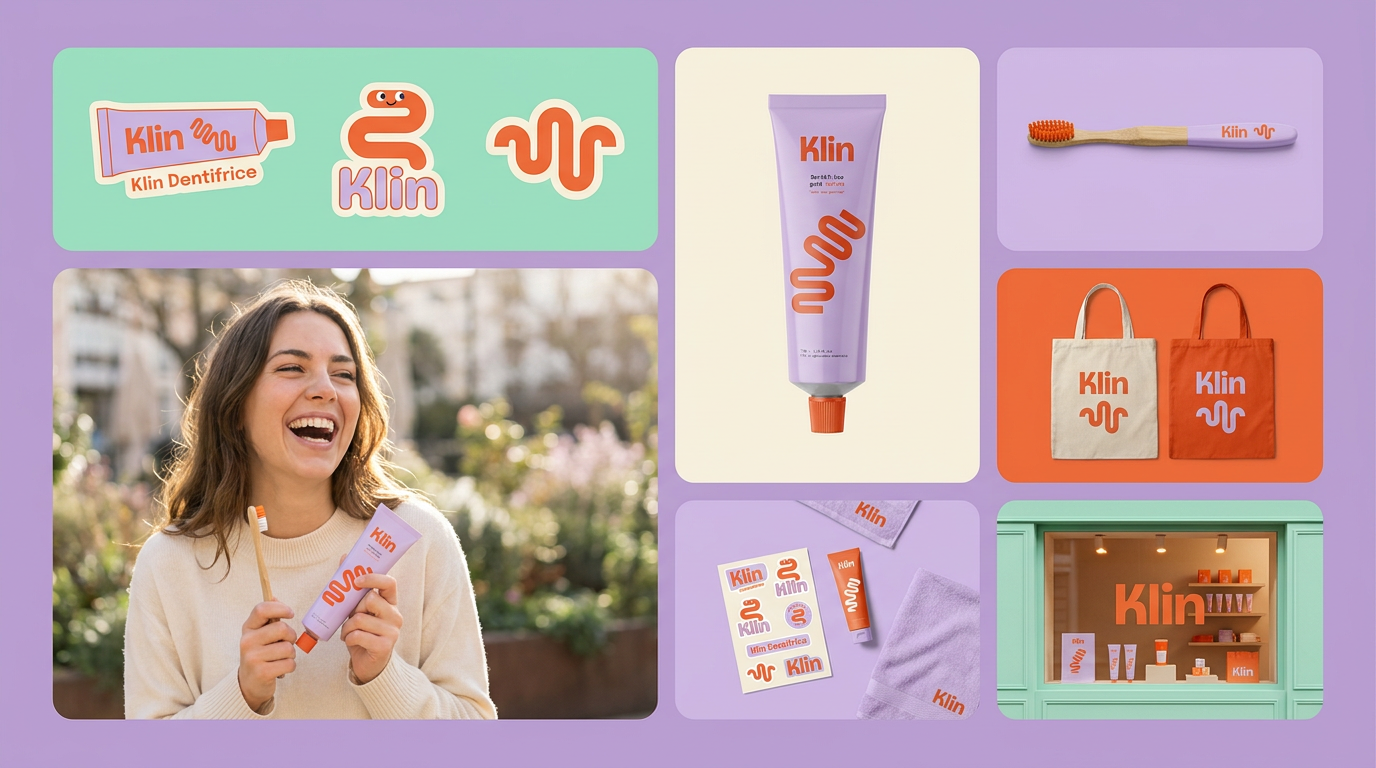
Drop in a single product photo to instantly build a cohesive visual identity. It automatically samples your item's dominant colors to generate a beautifully matched mosaic moodboard, giving your brand an instant, polished aesthetic.
Regenerate using your own assets.
Step 2: Animate your image with controlled motion
Once you have your stable, Brandkit-generated image, take it into the MyUP image-to-video generator. The key here is controlled motion. You're not looking for explosive, complex camera work. For a clean loop, simpler is better. Choose subtle, predictable movements:
- Slow Zoom: A gentle push-in or pull-out.
- Subtle Pan: A slow drift left, right, up, or down.
- Gentle Rotation: A slight clockwise or counter-clockwise turn.
Because your source image is so consistent, the AI can apply this motion without inventing new, unstable elements. It's simply moving the pixels that are already there, resulting in a much smoother, more predictable animation. This is how you create on-brand animated GIFs that feel polished, not chaotic.
This technique works especially well for animating graphic elements like logos or product stickers, where maintaining shape and color is critical.
Workflow code: #myup-swqt-4zo3
Product Stickers
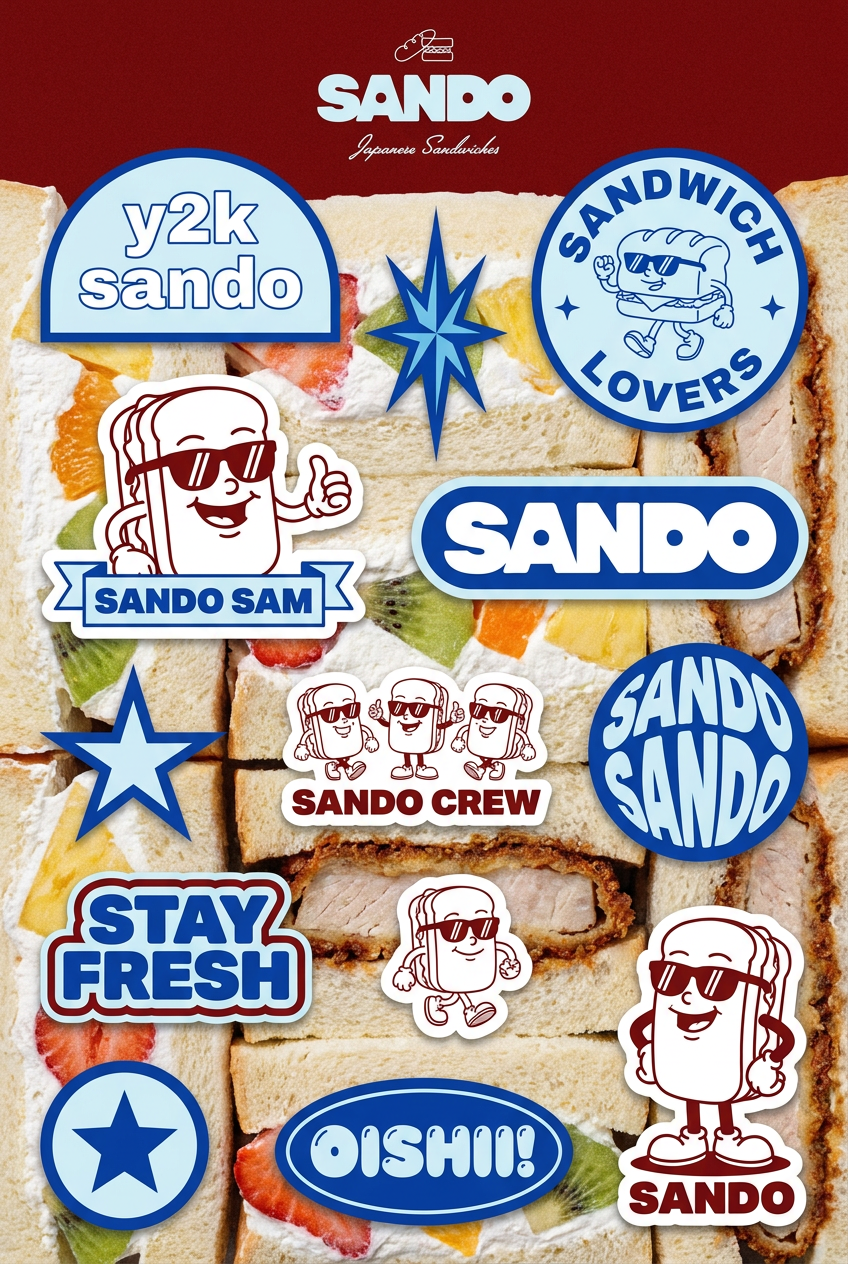
Turn your logo into a nostalgic, vibrant Y2K-style vertical ad. It automatically pulls your brand colors to create matching sweet treats like custom donuts or cupcakes in the background, giving you a super playful retro-pop aesthetic.
Regenerate using your own assets.
Step 3: Perfecting the seamless loop
You have a smooth animation. Now, to make it loop perfectly, you need to ensure the last frame transitions invisibly back to the first. This often requires a quick trim.
Most AI video tools add a few frames of 'ease-in' and 'ease-out' at the beginning and end of a clip. For a seamless loop, you need to remove them. In any simple video editor, trim one or two frames from the very start and the very end of your generated clip. This cuts away the subtle acceleration and deceleration, leaving you with only the constant, steady motion.
When you play the trimmed clip, the end should flow directly into the beginning. The subtle motion you chose in Step 2 makes this possible. A slow, continuous pan or zoom is easy to loop because the visual change from the last frame to the first is minimal.
Workflow code: #myup-zpby-tzie
Minimal Vibrant Product Advertising Poster
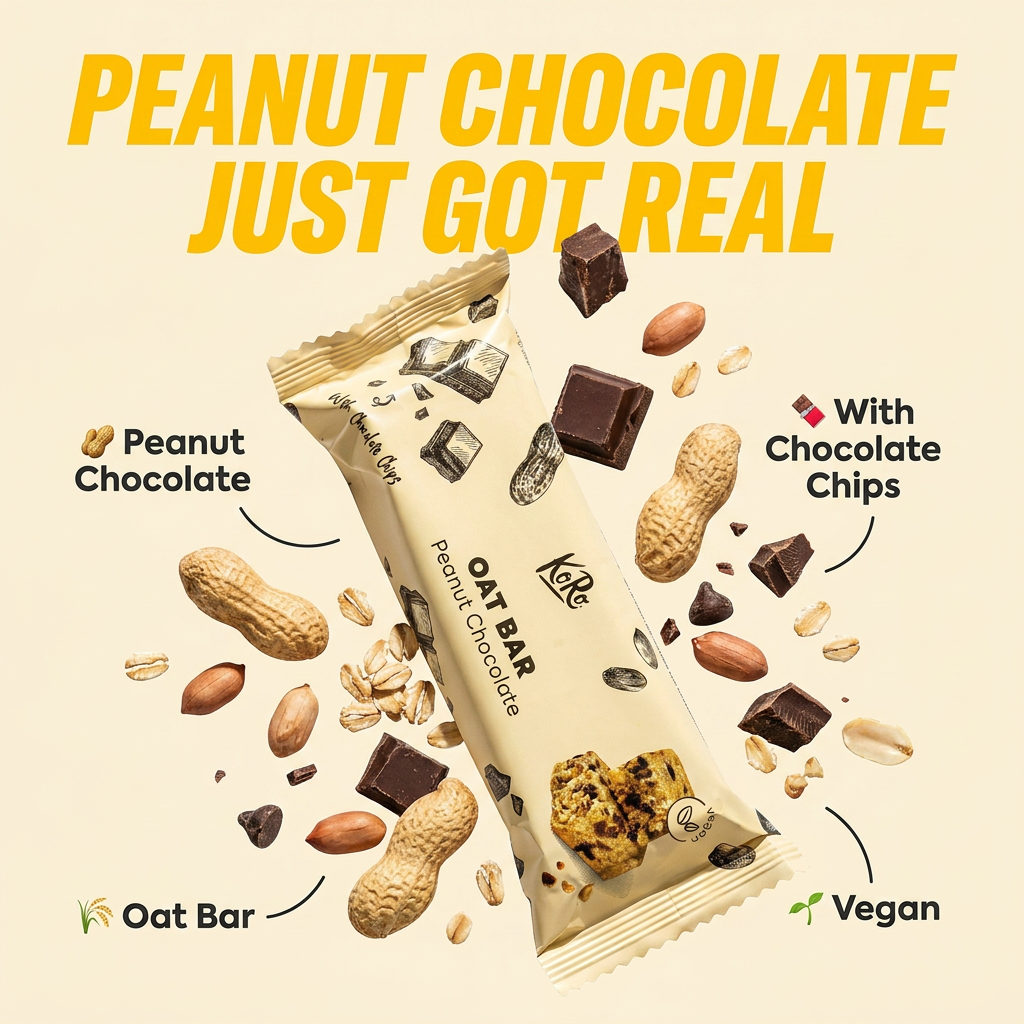
Drop in any product shot and watch it turn into a bold, high-energy square ad. It automatically reads your packaging to pull out the dominant colors and text, then builds a vibrant poster styled perfectly around your brand.
Regenerate using your own assets.
Putting it to work: where to use your looping animations
Once you've mastered this workflow, you can create high-quality micro-animations for any channel, without ever opening complex software like After Effects. Here are a few common uses:
- Website Hero Backgrounds: A subtle, looping animation of a product or abstract texture adds a layer of polish and sophistication to a homepage.
- Animated Icons: A gently rotating logo or pulsing UI element can draw attention to a call-to-action or menu item.
- Social Media Posts: A short, looping video is far more effective at stopping the scroll than a static image. Use it to showcase a product, announce an event, or add visual flair to a quote. This is a core part of the image-to-video workflow for creating engaging content.
The workflow is your control panel
A perfect AI loop isn't the result of a lucky generation or a magic setting. It's the result of a deliberate workflow: a stable source image plus controlled motion. By starting with a Brandkit-generated image in MyUP, you eliminate the style drift and randomness that plagues other tools. You're not asking the AI to be creative; you're directing it to perform a specific task on a pre-approved, on-brand asset.
This is the core philosophy of MyUP: the human validates, and the AI executes. The workflow is your control panel, giving you the power to produce professional, consistent results every time. Stop fighting with flickering animations and start creating clean loops today.
