This week, the game changed for AI video. With the release of features like Runway's 'Director Mode' on July 4, 2026, we have, for the first time, director-level control over the virtual camera. But having the controls and knowing how to use them are two different things. For years, creators have been adding 'cinematic' to their prompts and hoping for the best. That era is over.
This guide closes the gap. It's a practical, technical manual for video creators who want to move from being passengers to being directors. We'll cover the specific terminology, prompt structures, and workflows you need to create intentional, recognizable cinematic shots with AI. This isn't about theory; it's about execution.
The cinematographer's vocabulary: prompts for camera movement
Until now, camera movement in AI video has been a lottery. You might get a slow drift, an unwanted zoom, or a static shot. The latest generation of video models finally understands the language of cinematography. Knowing these terms is the key to unlocking control.
Here are the core camera movements and how to prompt for them:
- Tracking Shot (or Trucking): The camera moves horizontally, parallel to the subject. This is perfect for following a character walking or showcasing the length of a product. Prompt structure: `tracking shot, following a person walking down a city street` or `left to right tracking shot of a new electric car`.
- Dolly Shot: The camera moves forward (dolly in) or backward (dolly out) from the subject. A dolly-in builds intensity or focuses on a detail, while a dolly-out reveals a wider scene. Prompt structure: `dolly in shot, moving towards a mysterious artifact on a pedestal`.
- Crane or Jib Shot: The camera moves vertically, up or down. A crane-up can create a sense of scale and grandeur, revealing a landscape or a crowd. Prompt structure: `crane shot, starting low on a hero and rising up to reveal an army behind them`.
- Pan: The camera rotates horizontally from a fixed point, like turning your head left or right. It's used to follow action or scan an environment. Prompt structure: `slow pan right, revealing a panoramic mountain landscape at sunrise`.
- Tilt: The camera rotates vertically from a fixed point, like nodding your head up or down. A tilt-up can reveal the height of a skyscraper. Prompt structure: `tilt up shot, from the base of a giant redwood tree to its canopy`.
Simply knowing these terms transforms your prompts from a vague wish into a direct command. But a single command is just one shot. To build a brand, you need a system.
Creating a smooth AI tracking shot for products
Let's make this practical. A smooth tracking shot is one of the most effective ways to make a product look dynamic and premium. Imagine launching a new sneaker. A static image is fine, but a video where the camera glides alongside it, showing off every detail, is far more compelling.
The common failure point here is jitter or the AI losing focus. The key is a clear, structured prompt that defines the subject, the action, and the camera's relationship to it.
Bad Prompt: `video of a running shoe, cinematic`
Director-Level Prompt: `side-on tracking shot, medium close-up, following a futuristic running shoe as it floats against a minimalist concrete background, studio lighting`
This level of detail gives the AI a clear set of instructions, dramatically increasing your chances of getting a usable shot. But typing this out every time you need a new product video is inefficient. You need to turn this successful command into a reusable workflow.
In MyUP.ai, you can build this exact prompt structure into a template. You define the camera movement, the lighting, and the style once. Then, for every new product, you simply input the product description, and MyUP generates the shot with the same professional cinematography. This is how you scale production without sacrificing quality.
To create this shot immediately, use our pre-built workflow for dynamic product ads.
Workflow code: #myup-ywpr-rqz6
Professional Sportswear Ad
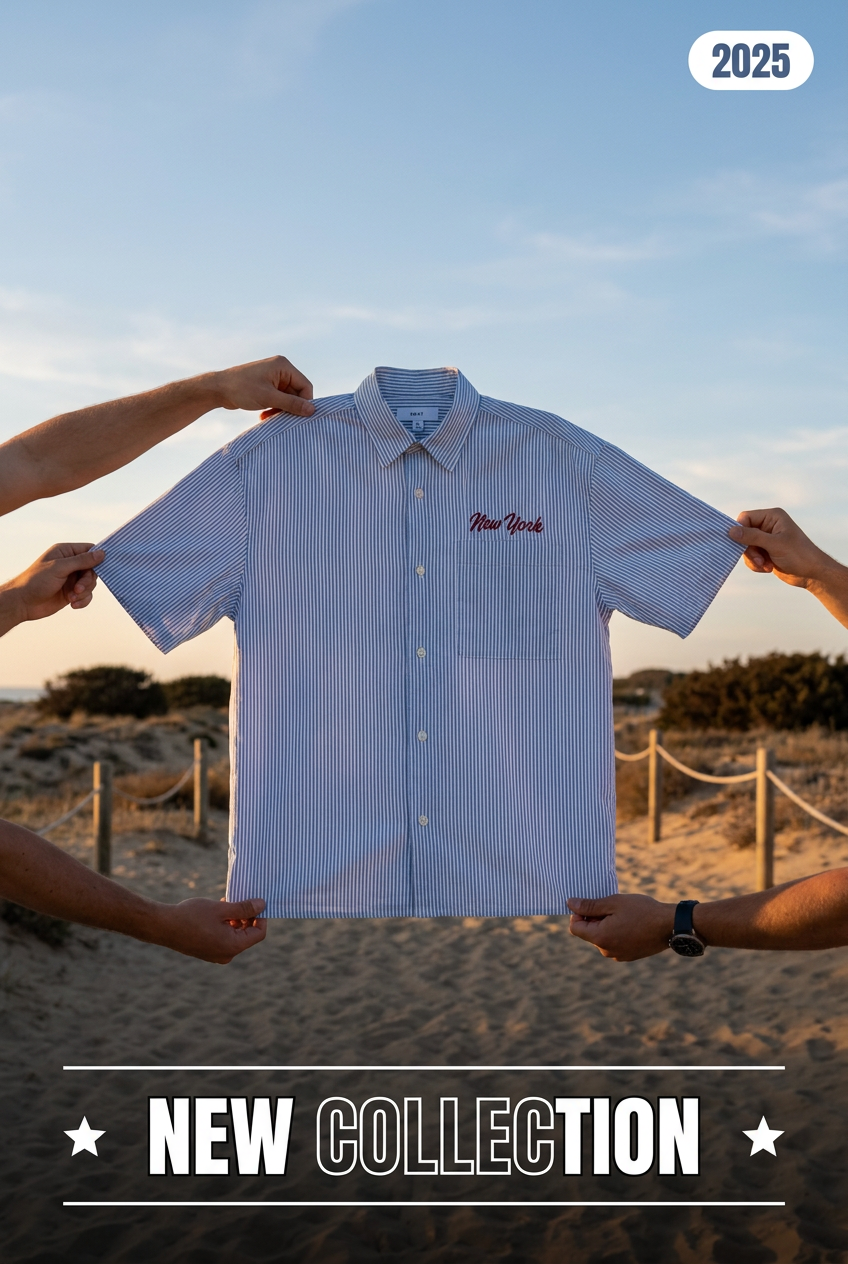
Suspends your apparel right in the center of a high-energy promo shot, held up by hands around the frame. It gives your shirts or jerseys a gritty, collaborative streetwear editorial look that feels alive and physical.
Regenerate using your own assets.
Mastering the dolly zoom (the 'vertigo effect')
Within hours of the new camera controls being announced, Google Trends showed a breakout search spike for 'AI dolly zoom'. This iconic shot, famously used in films like Vertigo and Jaws, creates a disorienting effect by dollying the camera in one direction while zooming the lens in the other. The subject stays the same size, but the background appears to compress or expand.
It's a complex technique that requires two simultaneous actions. Replicating it with AI is the new benchmark for creative control. Here’s the prompt recipe:
The trick is to combine the camera movement (dolly) with a lens action (zoom). You must be explicit about both.
Prompt Recipe: `dolly zoom shot, camera dollies out while the lens zooms in on a character's shocked face, the background cityscape becomes compressed and distorted`
This is a high-impact, emotional shot. It’s not something you’d use for a simple product post, but for a campaign hero video or a dramatic brand story, it’s incredibly powerful. Executing this on demand is a true test of your AI video tool. On MyUP, you can build this complex, multi-action prompt into a workflow, giving your brand a signature cinematic move you can deploy with a single click. The platform handles the production; you validate the powerful result.
For a workflow that creates a similarly dramatic, moving shot perfect for a high-end campaign, try the Cinematic Space Product Campaign.
Workflow code: #myup-4mva-7iki
Cinematic Space Product Campaign
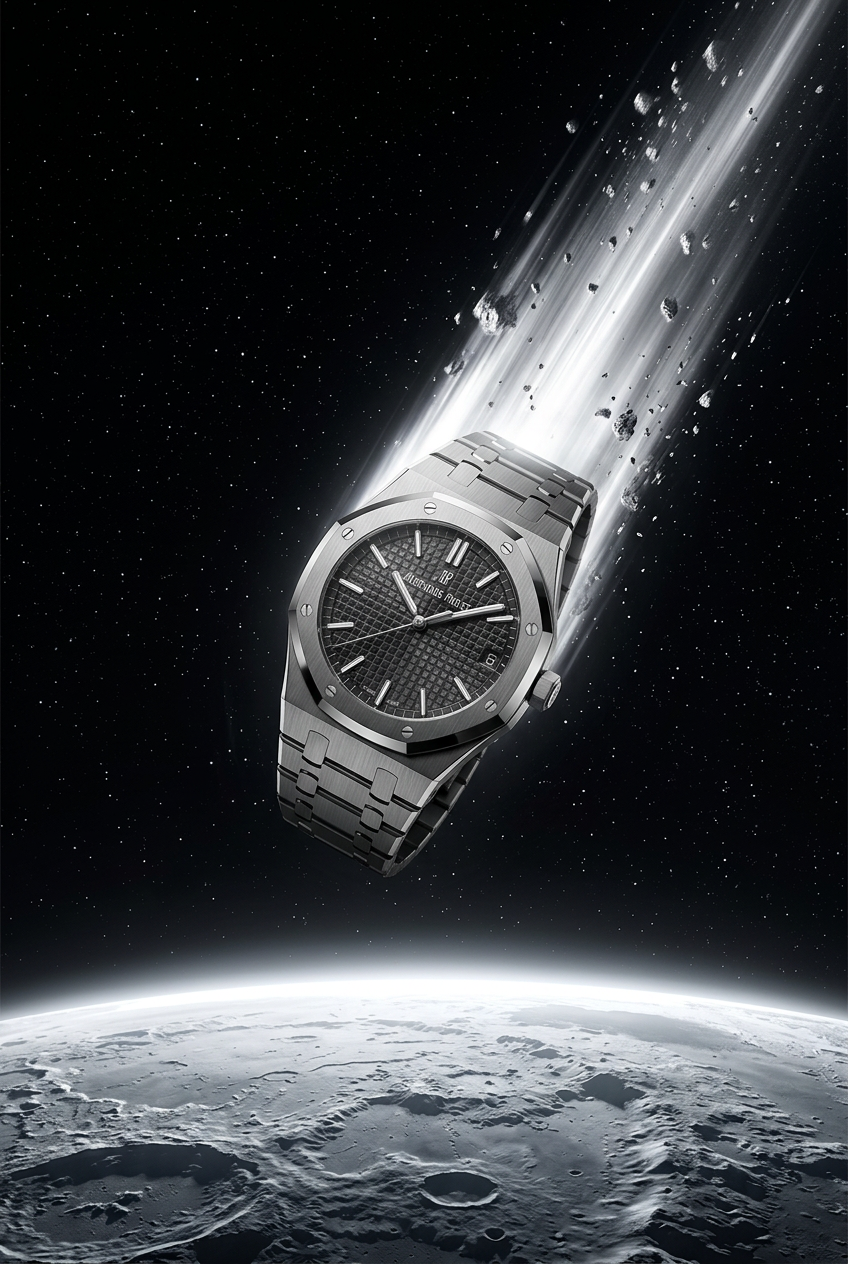
Drop your product into a dramatic, cosmic scene. It creates an epic set of images starting with a dynamic space launch framed by a blazing meteor, followed by a low-angle hero shot and an extreme macro of the surface textures catching the high-contrast light.
Regenerate using your own assets.
Workflow code: #myup-gxue-opd0
Product Post
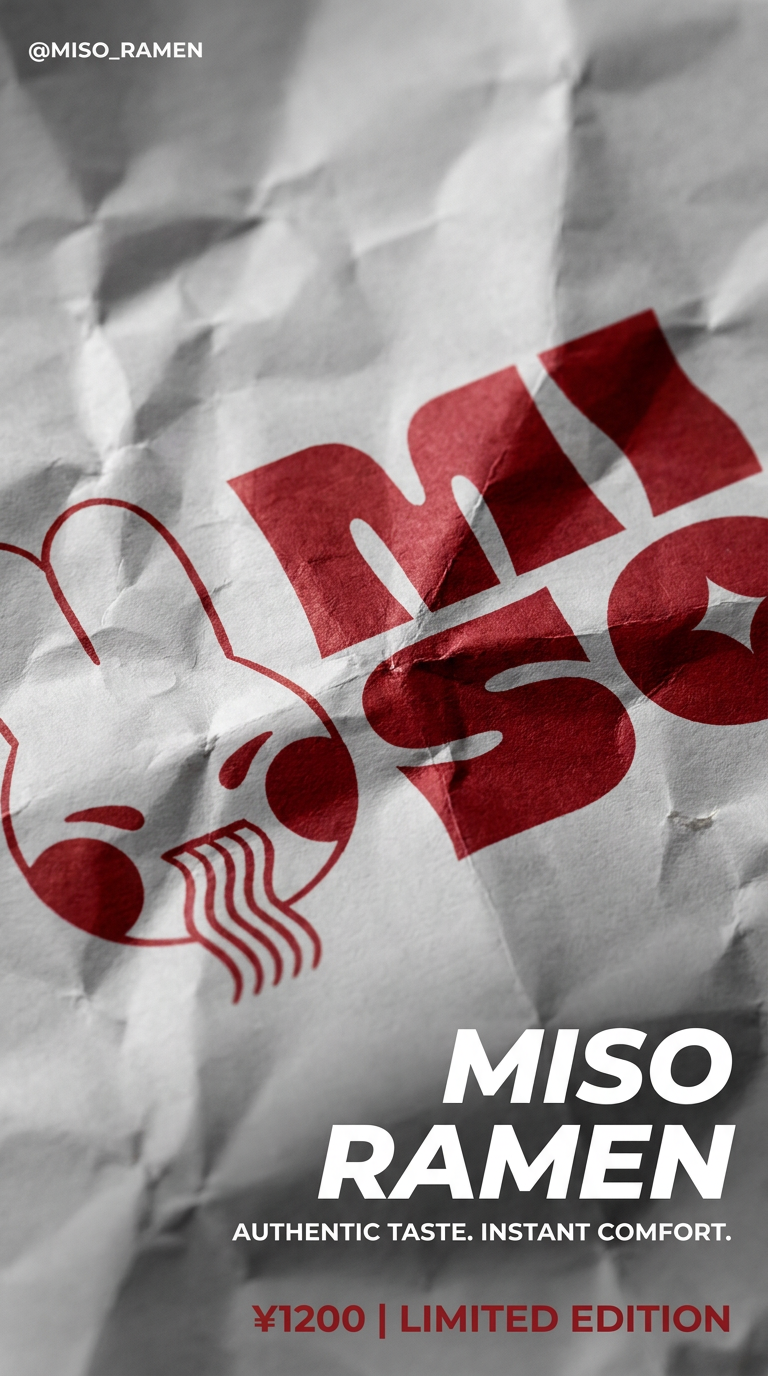
Turn a single product shot into a cohesive six-part Instagram story campaign. It mixes tactile crumpled paper textures with bold, stacked typography and custom mascot spots in your brand's signature colors.
Regenerate using your own assets.
Beyond movement: controlling the lens and light
True cinematography isn't just about where the camera moves; it's about what the camera *sees*. This means controlling the lens and the light. Thanks to new models and community-driven techniques, we now have granular control over these elements too.
Specifying Your Virtual Lens
Different lenses create different moods. A wide-angle lens can feel expansive or distorted, while a telephoto lens compresses the background for a classic portrait look. You can now specify these in your prompts.
- Anamorphic Lens: Creates a widescreen look with characteristic horizontal lens flares and oval bokeh. It's the signature of big-budget films. Prompt: `anamorphic lens, cinematic shot of a car driving at night, neon reflections`.
- 85mm Portrait Lens: Produces a beautiful, shallow depth of field, making the subject pop from a soft, blurry background. Prompt: `85mm portrait lens, close up of a woman's face, soft natural light`.
Directing the Light
Lighting is everything. As a recent viral thread on Reddit showed, creators are mastering specific lighting styles like 'golden hour' to defeat the flat, unnatural look of early AI video. You don't need a complex LoRA; you just need the right words.
- Golden Hour Lighting: The soft, warm, directional light just after sunrise or before sunset. Prompt: `golden hour lighting, a couple walking on a beach`.
- High-Key Lighting: Bright, low-contrast lighting that minimizes shadows, often used in beauty and comedy. Prompt: `high-key studio lighting, a vibrant cosmetic product arrangement`.
- Rim Lighting: A backlight that creates a bright outline around the subject, separating them from the background. Prompt: `dramatic rim lighting, silhouette of a mysterious figure in a doorway`.
In MyUP, these specific lens and lighting instructions can be saved as part of your Brandkit's visual style, ensuring every video asset automatically uses the lighting that fits your brand's mood. For an example of a workflow that nails dramatic, high-fashion lighting, see the High-End Editorial Fashion Magazine Cover.
Workflow code: #myup-yk1h-uqy8
High-End Editorial Fashion Magazine Cover
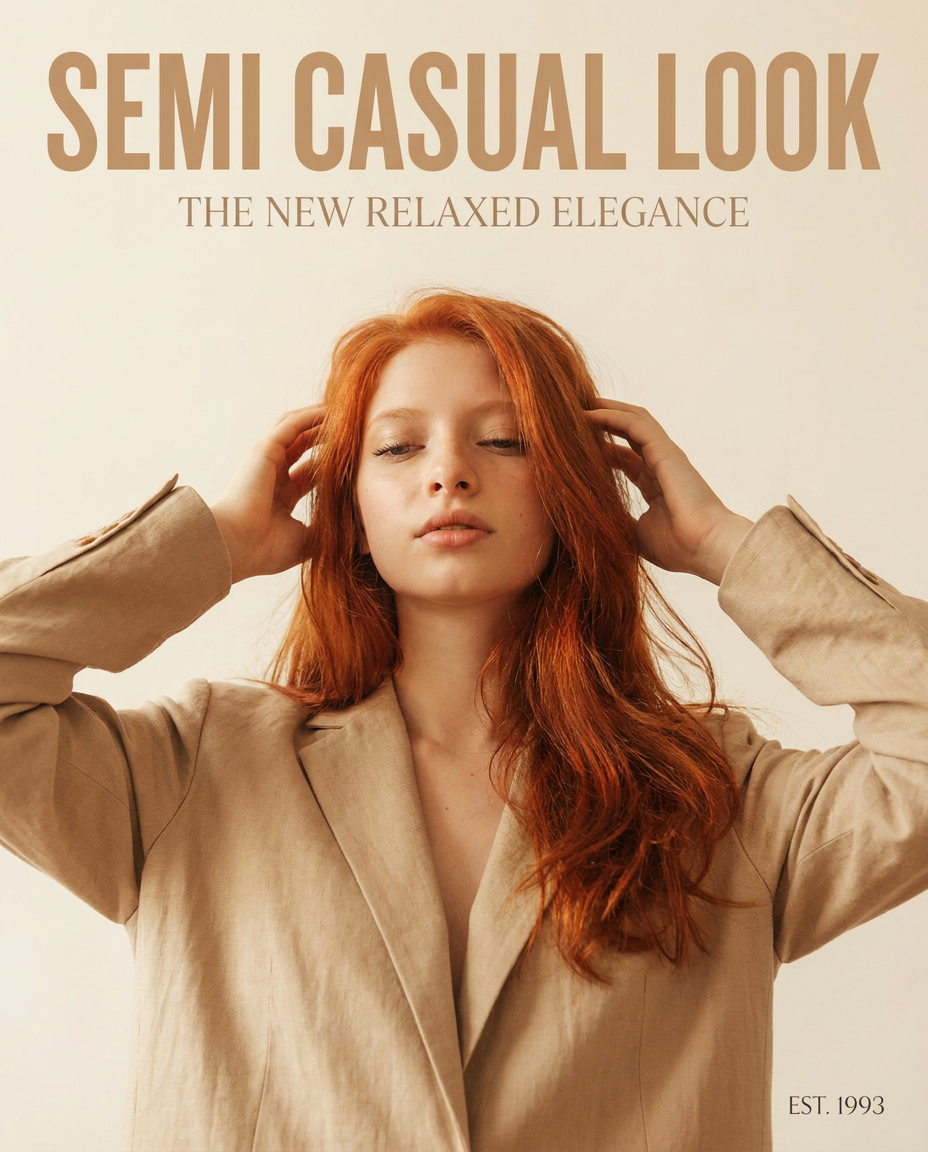
Drop in any portrait and turn it into a high-end editorial magazine cover. It frames your subject beautifully with relaxed, high-fashion posing and soft styling for a polished print aesthetic.
Regenerate using your own assets.
From a single shot to a consistent scene
Mastering individual shots is a breakthrough. But a video is a sequence of shots. The real challenge, and where most AI-only workflows fail, is consistency. Generating a perfect tracking shot is useless if the next shot of the same product has different lighting, colors, or a completely different aesthetic. This is why a simple generator is not enough for professional work.
Control without a system leads to chaos. A workflow turns that control into a repeatable brand asset.
This is the core purpose of MyUP.ai. You don't just generate a single shot. You build a workflow that defines your brand's cinematic DNA.
- Create your Brandkit: MyUP saves your brand's colors, fonts, and overall mood. This automatically informs the color grading of every video clip, ensuring a consistent feel.
- Build a Shot Workflow: Save your perfect prompt for a `dolly in, 85mm lens, golden hour` shot as a reusable workflow.
- Automate Production: Now, for every scene, you can run that workflow. You provide the new subject, and MyUP produces the shot with the exact same camera direction, lens properties, and lighting style. The user approves the output, but the production is handled systematically.
This moves you from being a prompt engineer, endlessly tweaking one-off generations, to a creative director building a library of on-brand cinematic assets. It's the difference between a cool experiment and a sustainable content production system. To see how a consistent aesthetic can be applied across brand assets, explore the Minimalist Elegant Product Advertising Poster workflow.
Workflow code: #myup-fy77-jljs
Minimalist Elegant Product Advertising Poster
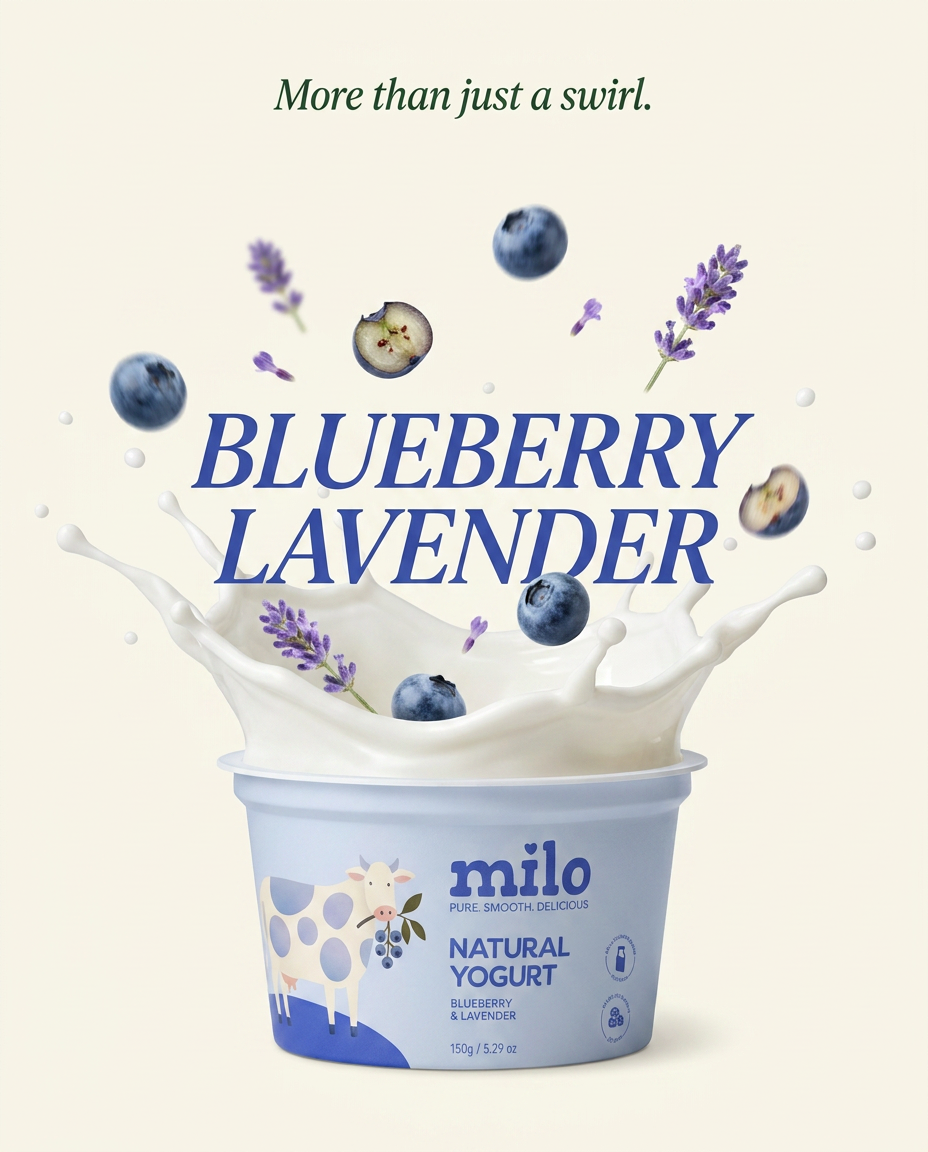
Turn any product shot into a high-end editorial ad. It places your item against a soft cream background with airy spacing and adds elegant, small serif typography at the top. Great for wellness or luxury brands wanting a calm, minimal aesthetic.
Regenerate using your own assets.
You are the director now
The tools for intentional, professional AI cinematography are finally here. The vague requests of the past are being replaced by the specific language of filmmaking. By understanding camera movements, lens choices, and lighting control, you can direct AI to create the exact shots you envision. But the ultimate step is to build a system in MyUP.ai where those creative decisions become repeatable, on-brand, and scalable. The director's chair is open—it's time to start creating.
