The 'endless loop' video is everywhere. Sparked by a wave of viral cinemagraphs and new features like Runway's 'Perfect Loop' released in August 2026, everyone wants to turn static images into mesmerizing motion. But there's a problem these tools don't solve. You generate a great image in Midjourney, take it to another app to animate it, and the final asset feels disconnected from your brand. Worse, it has that awkward jump cut at the end.
Creating a looping video isn't a final step; it's an extension of the initial image creation. Chaining separate tools breaks brand consistency and slows down production. Here’s how to do it right—from on-brand image to final, seamless MP4—in a single, repeatable workflow.
Why your animated images have that awkward 'jump'
You know the feeling. You spend time creating the perfect static image, feed it into an image-to-video tool, and the result is almost great. But when the video loops, there’s a noticeable 'seam'—a jarring jump where the last frame doesn't perfectly match the first. This happens because most tools treat animation as a simple effect applied after the fact. The AI generates motion from frame 1 to frame 100, but it has no instruction to make frame 100 a perfect transition back to frame 1.
This is the classic symptom of a disconnected workflow. When you generate an image in one place and animate it in another, you lose control. You’re left trying to fix the output with editing tricks, or you just accept a low-quality loop that looks unprofessional on social media feeds.
The one-platform workflow for a perfect loop
The only way to create high-quality motion graphics at scale is with an integrated workflow. Instead of chaining tools, you need a single platform that handles both the on-brand image generation and the video animation as two steps of the same process. This is exactly how MyUP.ai is designed.
On MyUP, you start by generating a static image that is already governed by your Brandkit—your colors, fonts, and visual style. Then, in the very next step, you send that image to the video model with specific motion instructions. Because the entire process happens in one place, you maintain creative control from start to finish. The result is not only an on-brand visual but a video where the motion is intentional, cinematic, and designed to loop from the very beginning.
Step 1: Start with a strong, on-brand visual foundation
A great looping video starts with a great static image. The composition, subject, and style of your initial visual will determine the quality of the final animation. An image with a clear focal point and some depth (e.g., a foreground and background) will produce far better results than a flat, busy image.
Instead of starting from a blank prompt, use a MyUP template. Templates provide a well-composed foundation that is already structured for a strong visual hierarchy. This gives the AI a better canvas to work with when it's time to add motion. For a clean, high-end editorial look, this template is an ideal starting point.
Workflow code: #myup-k4td-9k6z
Minimalist Poster
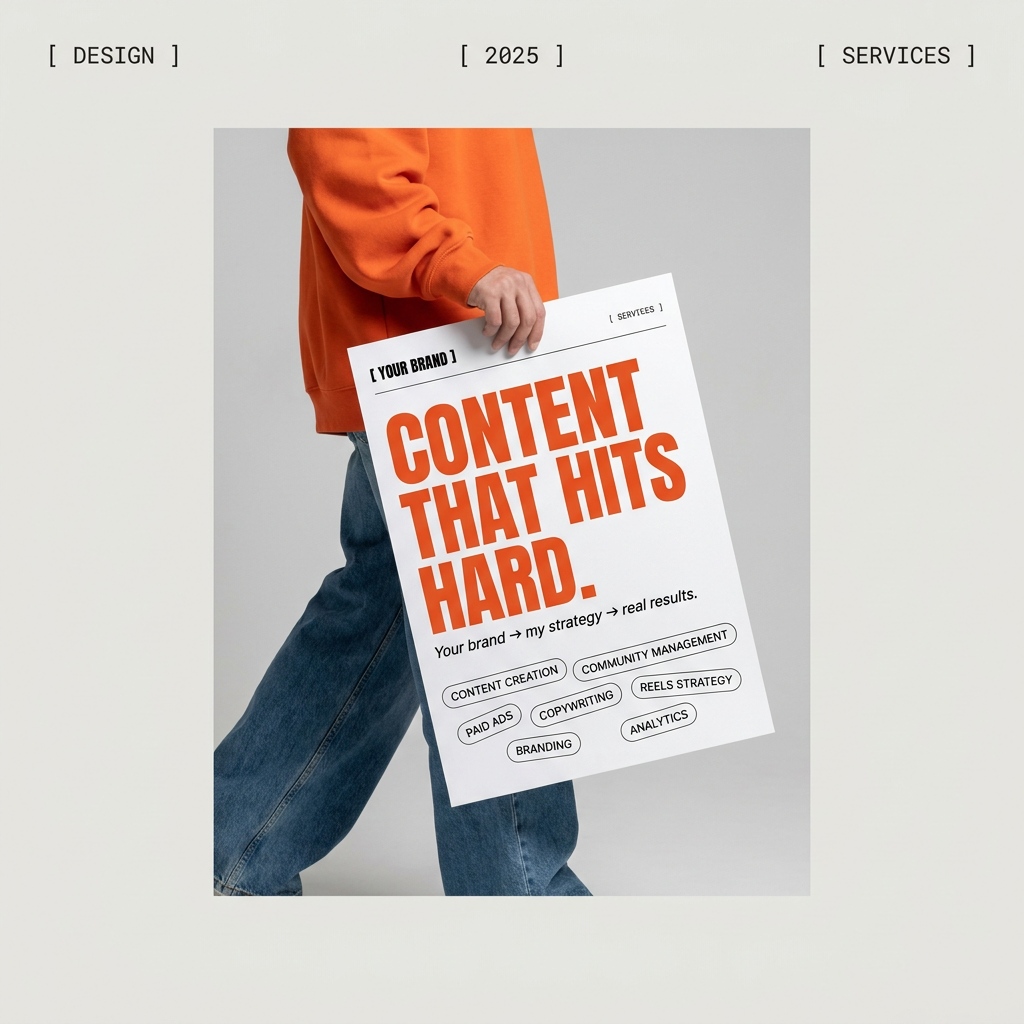
Give your social feed a clean, gallery-like aesthetic. This layout frames your images with structured mono typography and soft, neutral backgrounds for a high-end editorial look. It's perfect for minimal product launches or brand announcements.
Regenerate using your own assets.
Step 2: Write motion prompts for cinematic control
This is where you become the director. Instead of a generic 'animate this' command, you need to provide the AI with a precise motion prompt. The key to a seamless loop is subtle, consistent movement. Avoid prompts that suggest chaotic or unpredictable action. Think like a cinematographer.
Here are some effective motion prompts you can use in MyUP:
- For zooms: "slow dolly zoom in", "gentle zoom out". This creates a smooth, continuous camera push or pull.
- For pans: "slow pan left", "gentle camera tilt up". This simulates a steady camera movement across a scene.
- For parallax: "gentle parallax effect, background moves right". This creates a sense of depth by moving background and foreground elements at different speeds.
- For rotation: "subtle clockwise rotation". This works well for product shots or abstract visuals.
The goal is to describe a single, repeatable camera motion. This gives the Stable Diffusion video model clear instructions for creating a sequence where the end state can logically flow back to the beginning.
Step 3: Generate and refine your looping video in MyUP
Once you have your on-brand static image and your cinematic motion prompt, executing it in MyUP is straightforward. In the workflow, you simply add a video generation step after your image generation step. You input your starting image and your motion prompt, and MyUP handles the production.
This is where human validation comes in. MyUP executes, but you approve the final cut. Watch the generated MP4. Does it loop perfectly? Is the motion as smooth as you intended? If not, you don't have to start over in a new tool. You simply adjust the motion prompt—perhaps changing 'pan left' to 'slow pan left'—and regenerate. This tight feedback loop lets you fine-tune the output until you have a polished, professional asset ready for any social platform.
Two ways to use looping videos for your brand
A seamless loop isn't just a technical trick; it's a powerful tool for holding attention in a crowded feed. Here are two practical ways to apply this workflow to your brand content.
Use case 1: Create appetizing motion for food and product brands
Static food and product photography can feel flat. A subtle loop brings it to life. Imagine steam gently rising from a cup of coffee, a slow shimmer moving across a glass bottle, or cheese melting on a pizza in an endless, mouth-watering loop. These micro-animations make your products feel more tangible and desirable.
You can start with a bold, editorial layout designed for food and then apply a motion prompt like "subtle steam rising" or "slow light glint moving across the surface" to create an irresistible visual. This is a perfect technique for creating more engaging AI Instagram Reels that don't look generic.
Workflow code: #myup-aktp-7jq0
Food Magazine Mosaic Cover
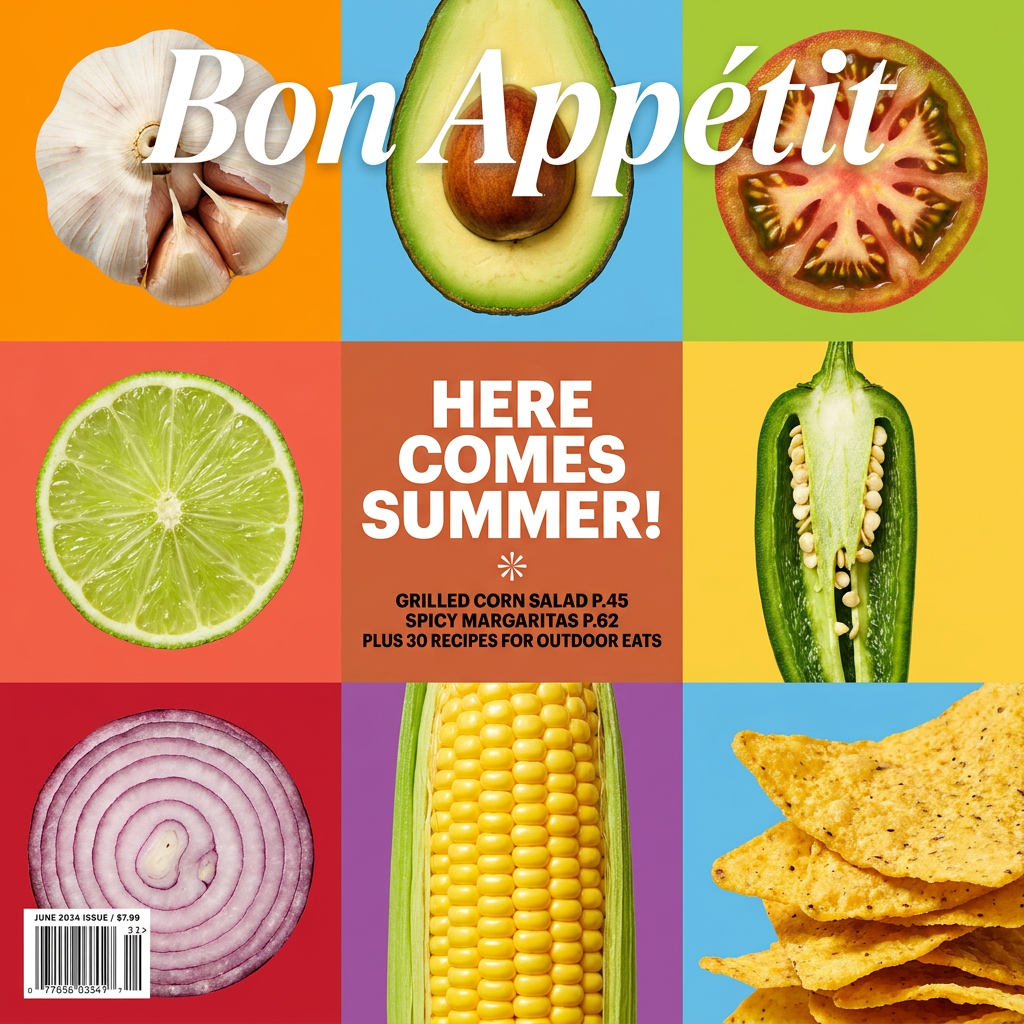
Turn your food shots into a bold, high-end editorial cover. It takes extreme close-ups of your dishes or ingredients and arranges them into a vibrant 3x3 grid that looks straight out of a premium food magazine.
Regenerate using your own assets.
Use case 2: Add subtle energy to editorial posts and event announcements
For content marketing, event promotions, or announcements, you often work with typography-heavy designs. While a static poster can be effective, adding a gentle motion makes it significantly more eye-catching in a social feed. A slow zoom into an event poster or a subtle pan across a quote graphic can stop the scroll without being distracting.
This is especially useful when you need to get text on your image right, a process that often requires a hybrid workflow. Start with a structured grid poster, and once your text and visuals are set, apply a 'gentle dolly zoom in' to give the entire composition a sense of importance and focus.
Workflow code: #myup-n0bi-2wzk
Bold Editorial Grid Poster
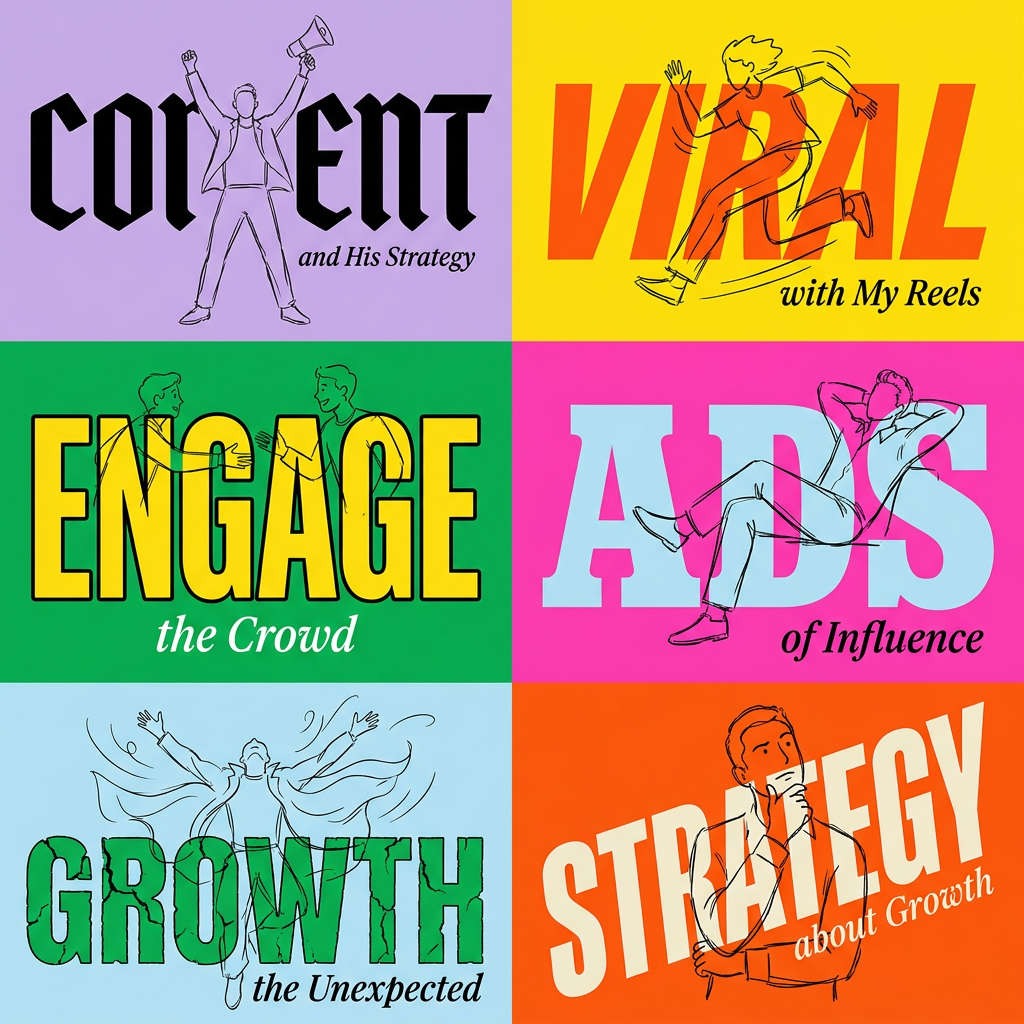
Create striking 2x3 editorial posters with six seamless, flat-color square cards in a perfect 4:5 grid. There are absolutely no gaps between the blocks, giving your content a bold, high-contrast magazine layout. It looks incredibly clean on any social feed.
Regenerate using your own assets.
